How do I process checks or money orders?

If your event is accepting checks or money orders for payment, you can manually enter the amounts in MeetMax.
| We’ll show this process from the Attendee List, but you can also enter manual payments from the Company List. | |
| In this example, we're posting a payment to a pending registration. You can also use this process on completed registrations. |
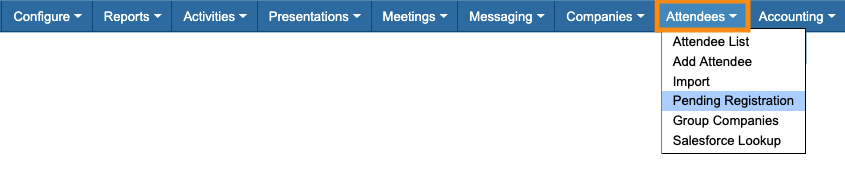
- Step 1. Head to the Attendees tab. Choose Pending Registration:
- Step 2. Filter the list to locate the person you need to update. Use the Action menu to choose Balance:

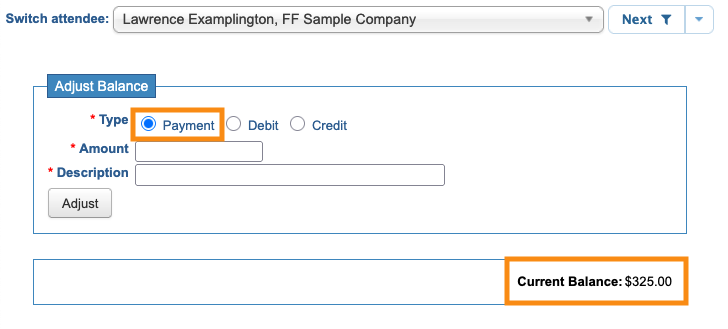
- Step 3. On the Adjust Balance page, you’ll see the participant’s current invoice balance.
- Choose the Payment option:
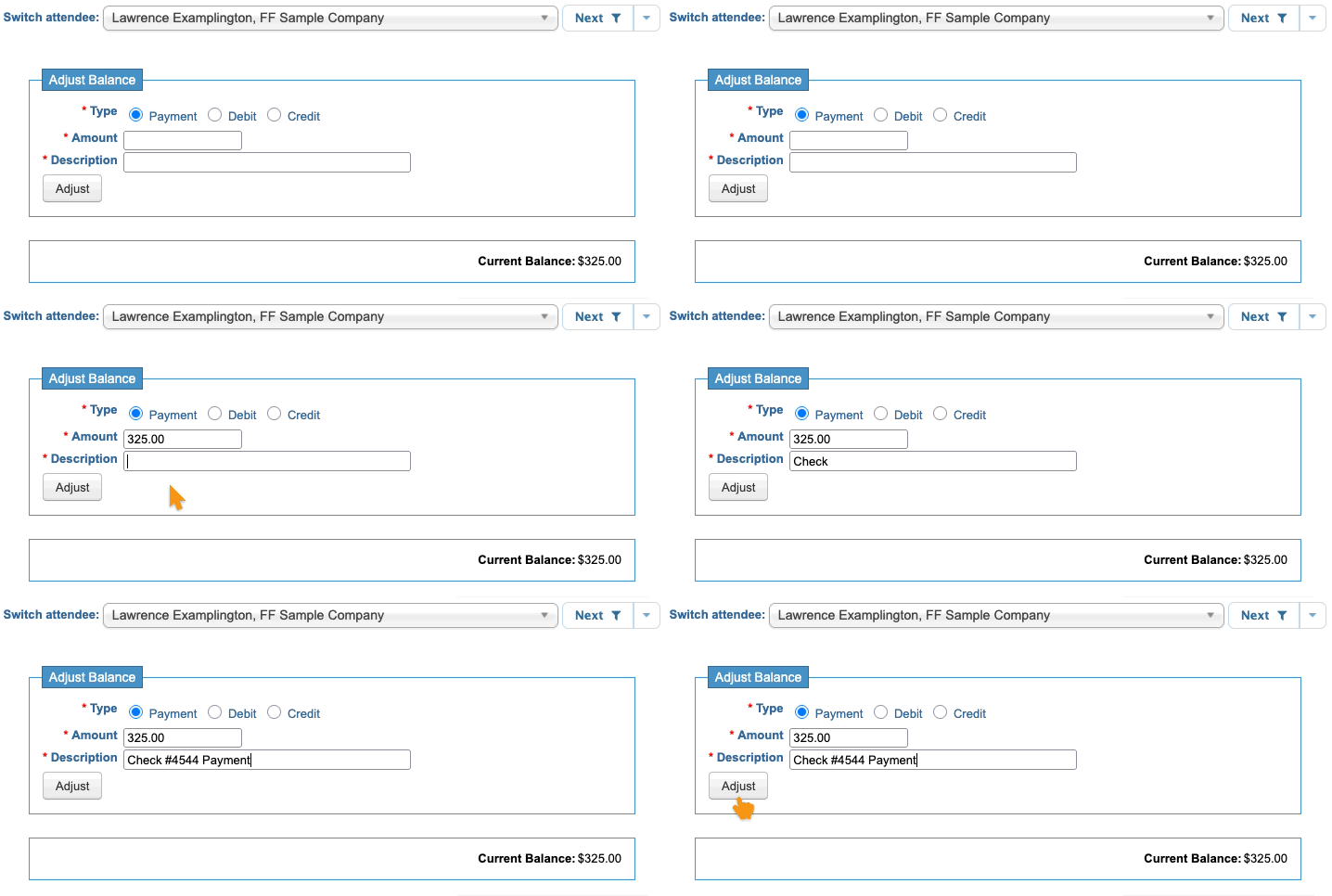
- Step 4. Enter the amount of the check/money order. Do not add any currency symbol.
- Next, add a Description of the payment.
- Click Adjust to save:
-
Note: If you need to post a refund against this payment later, repeat these steps and choose the Credit option instead. - Step 5. If the payment you’re entering is for the whole invoice amount, this participant moves from the Pending list into the Attendee List:

- MeetMax will send them an automated registration confirmation email.
-
If you’re entering only a partial payment, the participant stays in the Pending Registration list until their invoice is paid in full.
Viewing the transaction
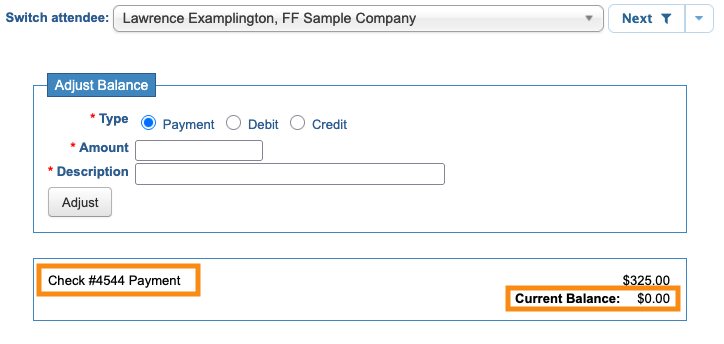
You’ll see the entered payment and updated balance on the participant’s Adjust Balance page:
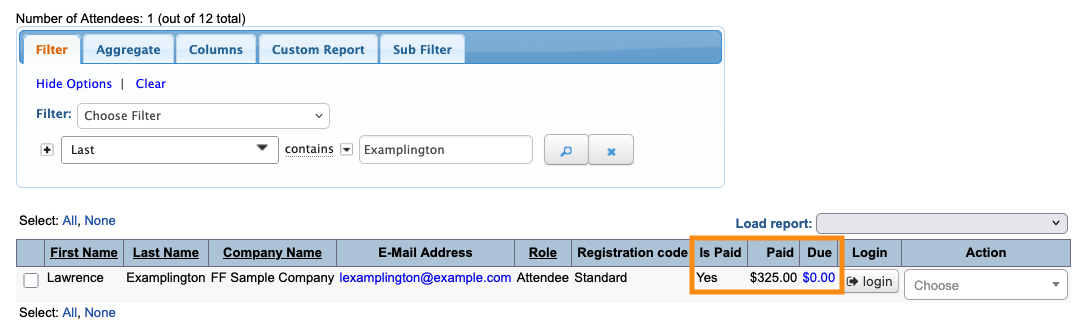
On the Attendee List, you can add the Is Paid, Paid, and Due columns to easily see processed payments:
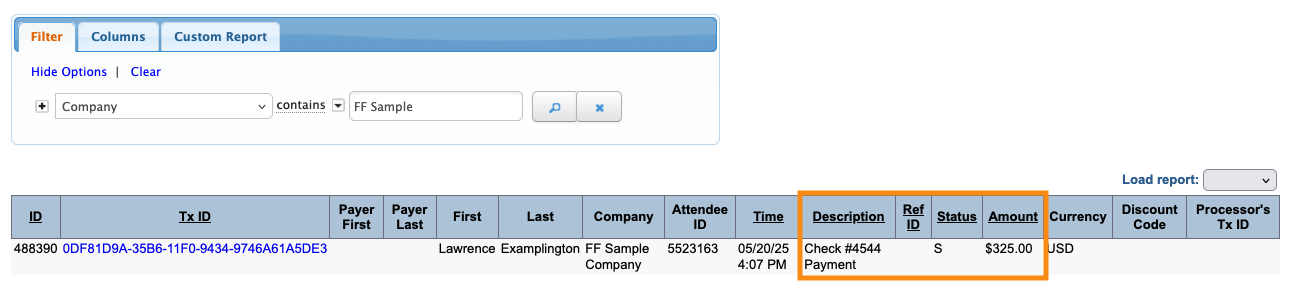
You can also find the payment on your Transactions List: