


Duplicating a registration from a past event

If an Attendee or Company has attended one of your past events, they can save time by pulling their registration from an old event to a new one.
In this article:
- Where is it?
- Looking up a prior registration
- Moving the data to a new registration
- How registration form customizations affect this process
Where is it?
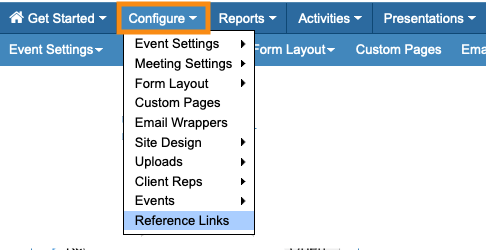
This process happens in the Configure tab:
Looking up a prior registration
In this example, we have an Attendee, Barry Exemplar. Barry has attended other events we’ve hosted.
He wants to register for our upcoming event, so we can save him some time by reusing his past registration details.
- Step 1. Open the event where you want to add the new registration.
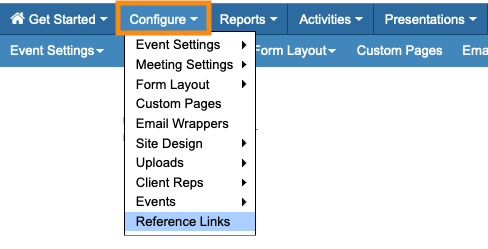
- Step 2. Head to the Configure tab. Then choose Reference Links:
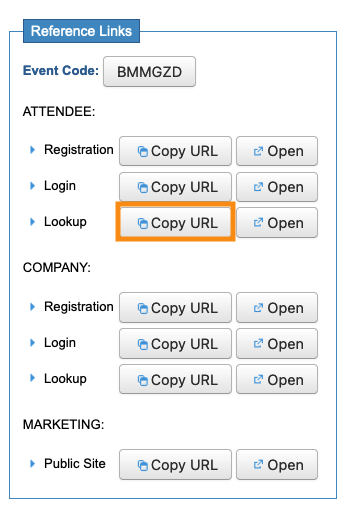
- Step 3. On the Reference Links page, you’ll see Lookup options for Attendees and Companies. Click the Copy URL button for the type of participant you need:
- Step 3. Share this link with the Attendee. When they click on it, they'll see the lookup form. By default, it asks for their email address and last name:

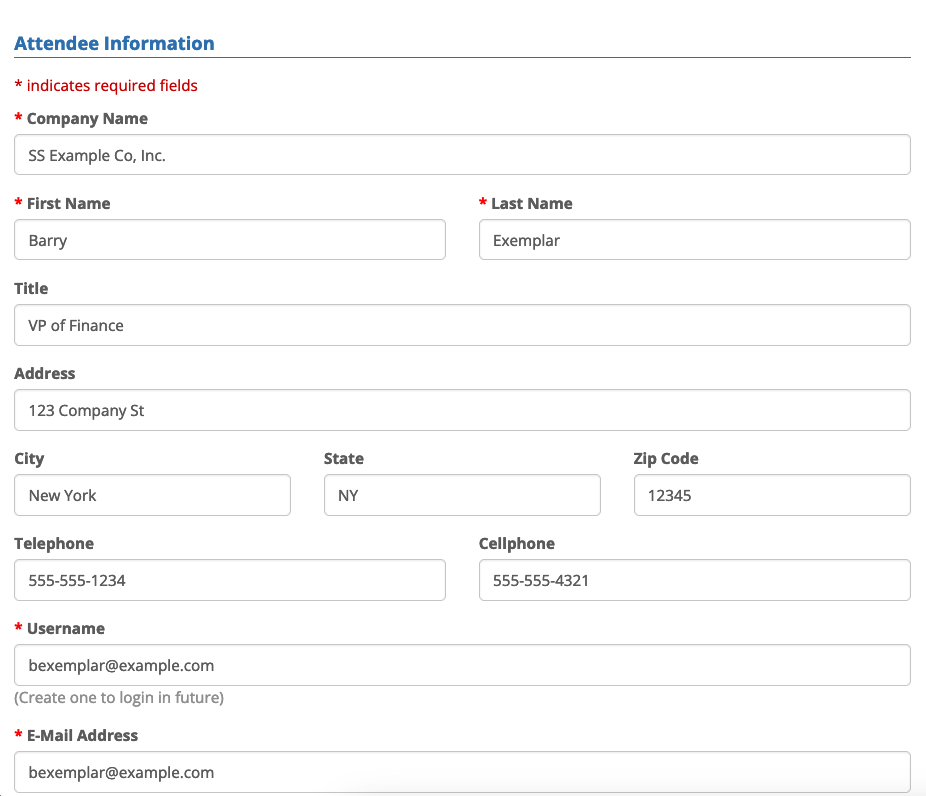
- Step 4. The Attendee then clicks the Login button. MeetMax will find the most recent registration matching the criteria, and transfer all its information into a new registration form:
Moving the data to a new registration
Now that the Attendee has this head start on their registration form, they can make any edits they need. When they're ready to create the new registration, they'll scroll to the bottom and click Submit:
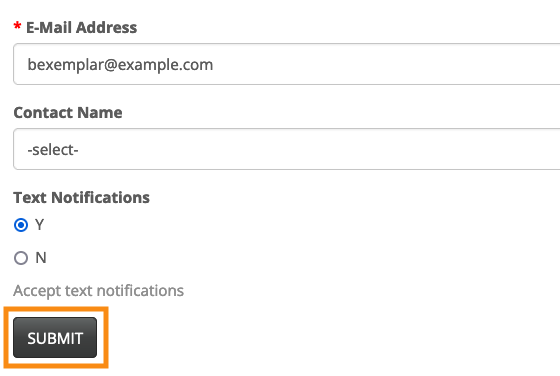
That's it! MeetMax will create the new registration in your current event.
How registration form customizations affect this process
- If both of your events are using the same registration form, all of the data will transfer from one event to the other.
- If the two events have different registration forms, MeetMax will transfer all data where there are matching fields. If you’ve added some custom fields to one event but not the other, for example, MeetMax can’t move the data for those custom fields.
- If you’ve added any internal Admin fields to the registration form, MeetMax will transfer that data as long as there’s a matching Admin field in both events.

