

In this article:
- Where is it?
- General or personalized emails
- Starting a batch email
- CC settings for batch emails
- Using Attachments
- Additional customizations
- Composing the message
- Sending the batch email
- Verifying receipt
Where is it?
If you need to batch email Attendees or Company Reps, start in the Attendee List:

To batch email Companies, start in the Company List:

| You can also send batch emails from the Messaging tab, but you’ll likely use the Attendee and Company Lists most of the time. | |
| If you need to email a single Attendee, use this faster method. |
General or personalized emails
MeetMax can produce two types of batch of emails:
- A batch where each person gets a personalized message.
- A batch where everyone gets the same message.
Here are some examples:
| Batches with personalized messages: | Batches with a single message: |
| Registration confirmations | Reminder to set up meeting availability |
| Meeting, presentation, and activity schedules | Reminder to complete profiles |
| Hotel or transportation details | Notice about a last-minute event change |
Starting a batch email
- Step 1. Start from either the Attendee List or Company List, depending on who you need to reach:


- Step 2. If you want to email everyone on the list, proceed to Step 3.
- If you want to email only some of the list, filter it so it’s displaying only the participants you need to reach.
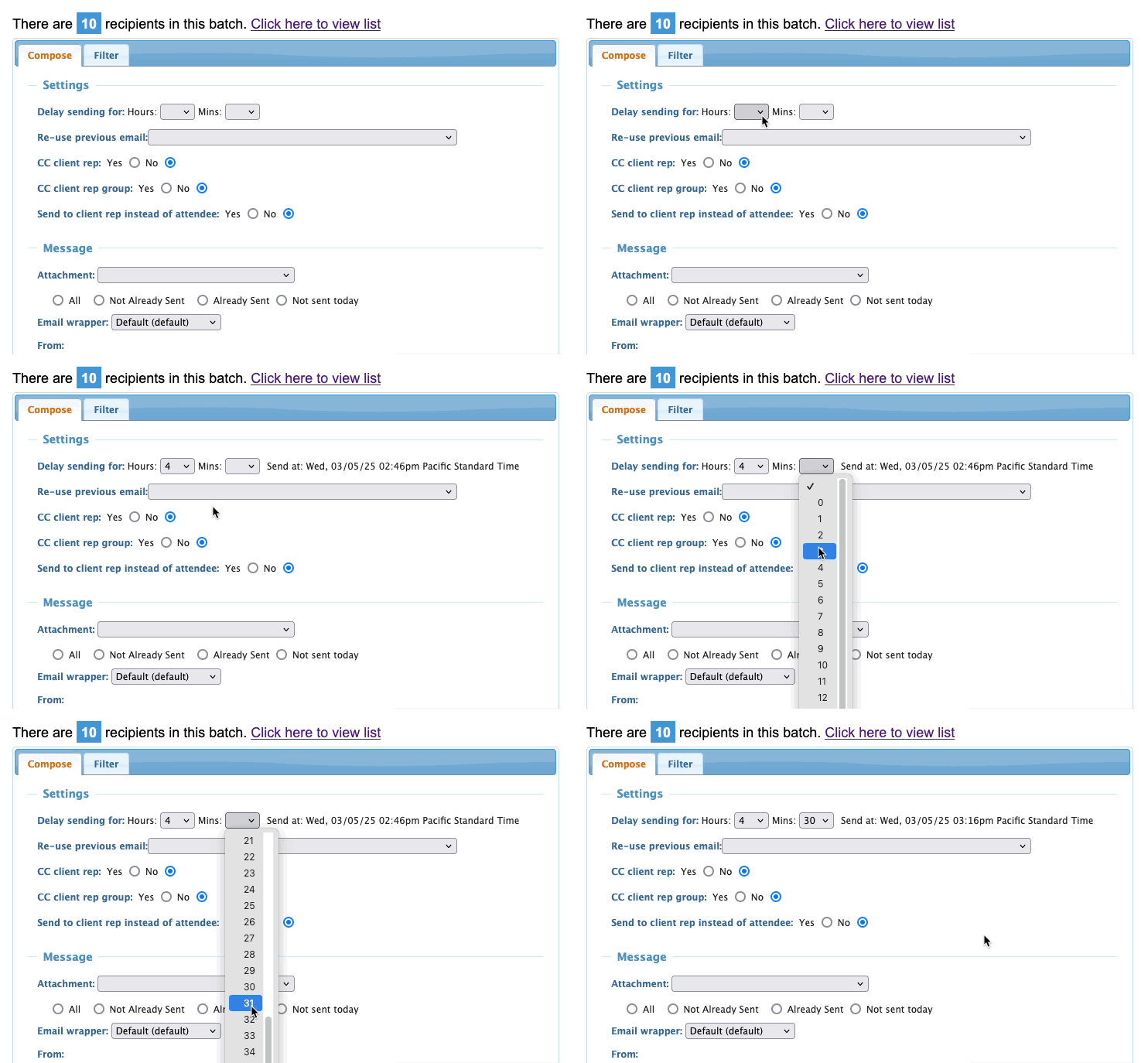
- Step 3. By default, your batch email starts sending immediately.
- If you’d rather schedule it for a future date and time, use the Delay sending menus. You can schedule an email up to 72 hours in the future:
-
When you set the delay, MeetMax displays a Send at time, as shown above. It’s expressed in your event’s time zone. You can also cancel a scheduled batch, as long as it’s more than one hour in the future. - Step 4. If you’ve previously sent a batch email, you can then replicate its settings for this email.
- The Re-use previous email menu shows your past batch email sends. Choose any of these, and we’ll copy all its settings:
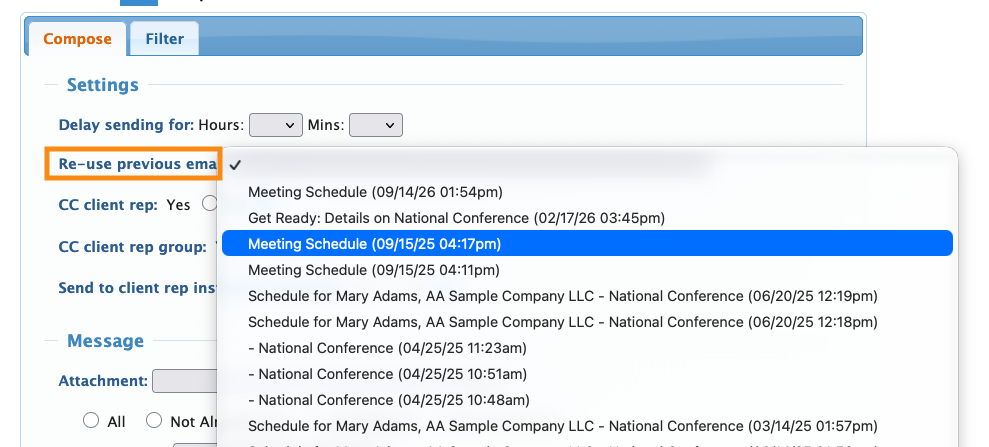
- If you’d rather build this batch email from scratch, don’t select anything here.
CC settings for batch emails
You’ll have access to different CC options, depending on who you’re emailing.
CC for Attendee emails
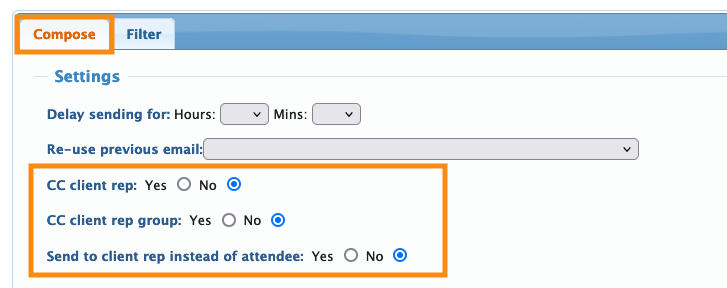
When you’re batch emailing Attendees, these settings are useful for copying your internal team on emails.
- CC Client Rep: Use this setting when each Attendee is assigned to one Client Rep.
- CC Client Rep Group: Use this if your Client Reps are organized into groups, such as sales territories. Emails are cc-ed to the whole group.
- Send to Client Rep instead of Attendee: MeetMax creates an email for each Attendee in the batch, but sends them to the assigned Client Reps instead.
CC for Company emails
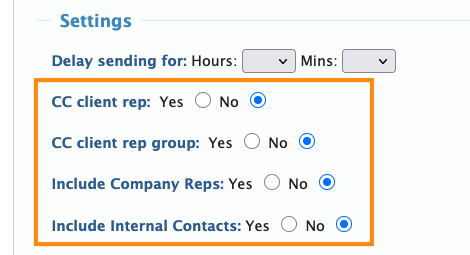
When you’re batch emailing Companies, you’ll have these options:
- CC Client Rep: This is useful if each Company is assigned to one Client Rep.
- CC Client Rep Group: Use this setting if your Client Reps are organized into groups, such as sales territories. Emails are cc-ed to the whole group.
- Include Company Reps: Any batch email to a Company is copied to all of its registered Company Reps.
- Include Internal Contacts: This is useful if you’re using the Internal Contacts field on your Company registration form. Any batch email to a Company is copied to those extra contact emails.
Using Attachments
The Attachment menu is a list of optional content inserts. Each Attachment adds a different kind of personalized content to the batch email. You can choose one Attachment for each batch email.
Despite the name, this content isn’t sent as an email attachment. It’s inserted in the body of the email.
- See a sample of each Attachment here.
- You can also customize each Attachment!
- If you’ve created a Custom Page to use as an email, you’ll see it in this menu too:
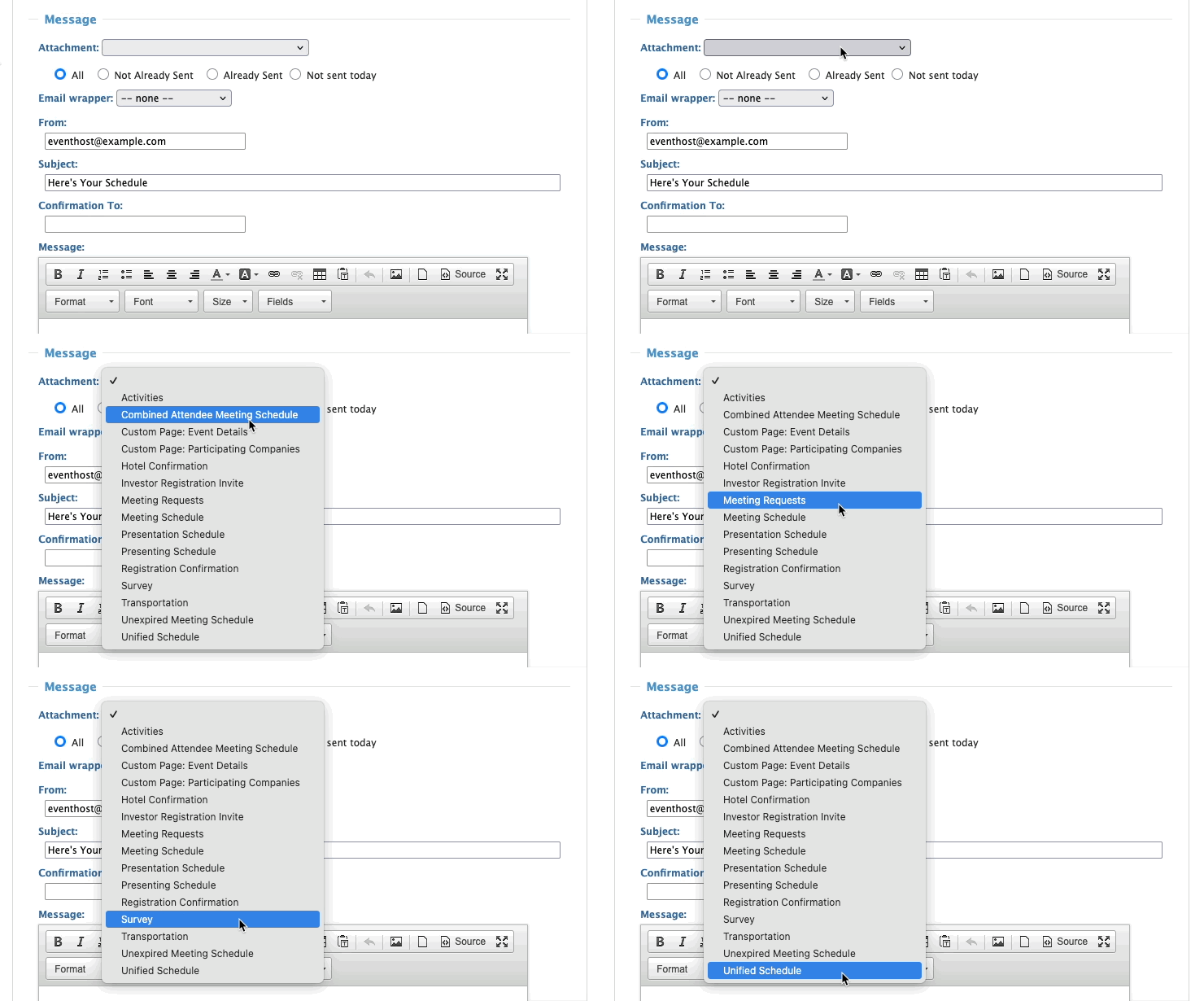
| When you choose an Attachment, you won’t see anything in the Message field below it. Instead, you’ll see the Attachment content when you preview the email (more details below). | |
| If you’re sending the same message to all recipients with no personalization, use the Message field instead (more details below). |
Additional customizations
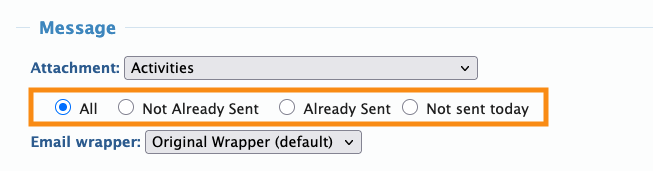
The buttons below the Attachment menu are useful if you’re sending a supplemental batch email, and want to customize who receives it.
- All: (Default option) Send to everyone in this batch.
- Not Already Sent: Use this when you’ve batch emailed this Attachment previously, but now have some new participants in your list. This setting will skip anyone who’s already received this Attachment.
- Already Sent: Use this if you need to send this Attachment only to those who’ve received it in a previous batch email.
- Not Sent Today: This setting is useful for reminder batch emails. It will skip anyone who’s already been emailed this Attachment today.
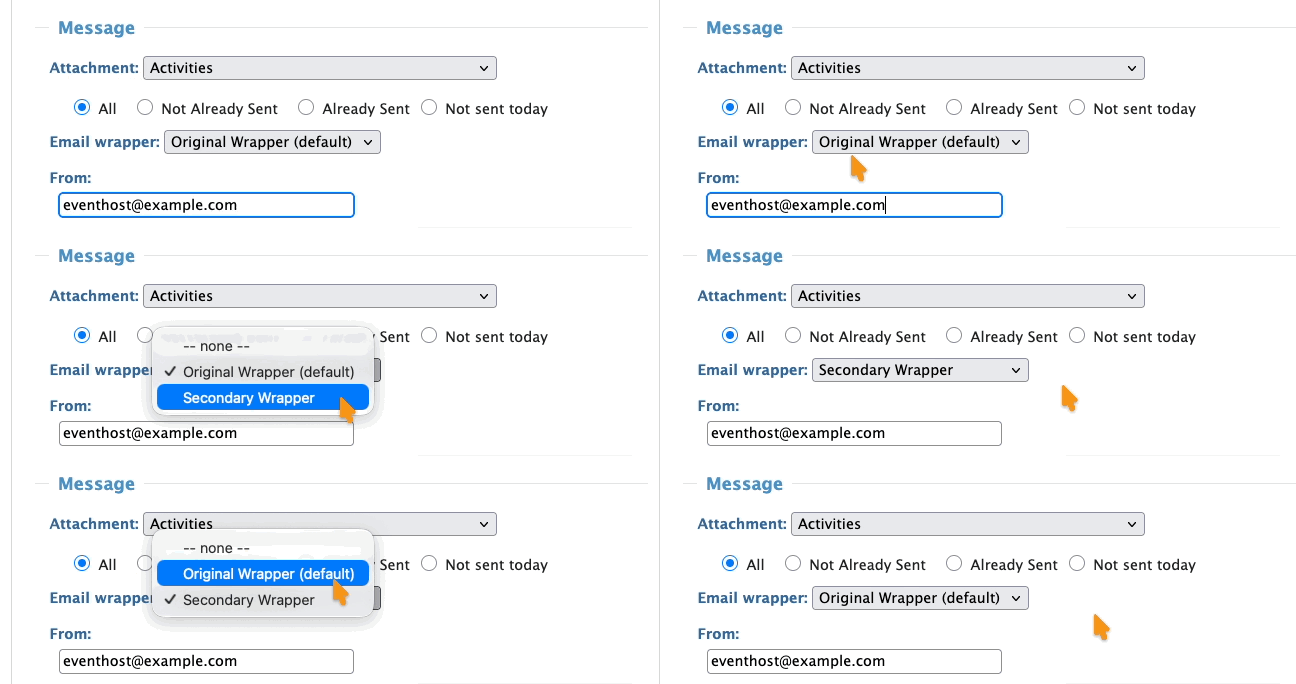
The Email Wrapper menu is for choosing which graphical email header/footer to attach to this email.
Some events use a single email wrapper, some have multiple wrappers:
Composing the message
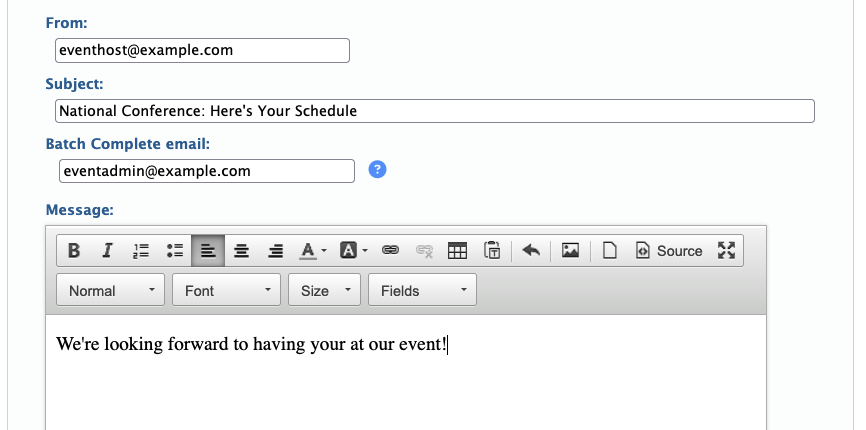
Lastly, complete these fields:
- From: This is the From address recipients will see. By default, it’s your MeetMax account email address, but you can type in any other email address here.
- Subject: Type in a custom subject line. Recipients will see this in their inboxes.
- Batch Complete email: If you like, MeetMax can send an email notification when the batch has finished sending. Enter the email address to receive it.
- Message: If you’re sending an Attachment, this field is optional. Each Attachment is a complete email. You can add a short note in the Message field to appear alongside the Attachment. Or, if you’re sending a single message to the whole list, type it into this field.
Sending the batch email
When you’re done setting up the email, head to the bottom right corner. Click Continue to preview:
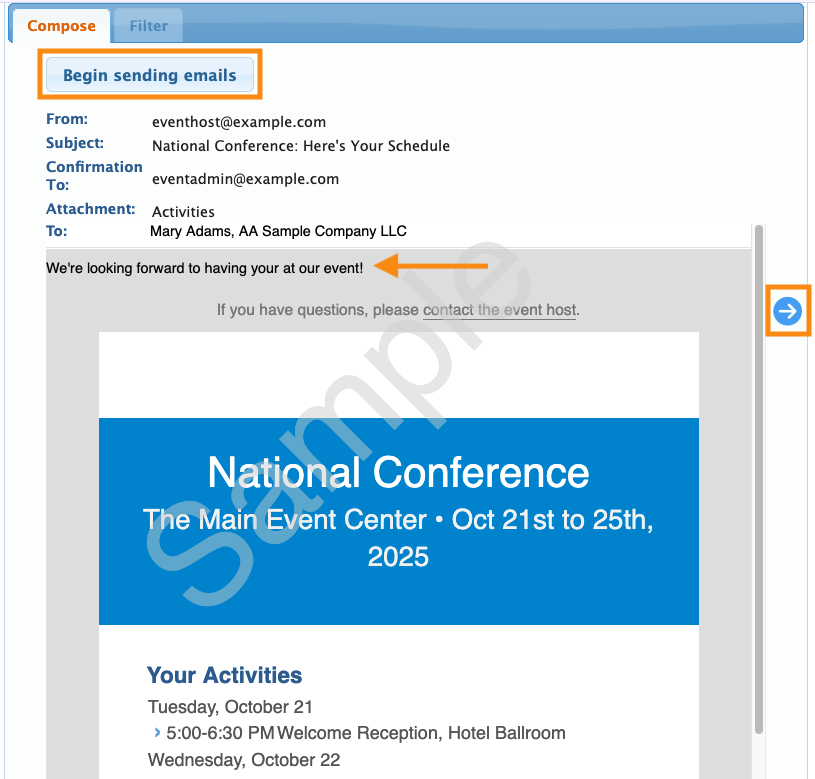
In the preview, you can:
- Verify the Attachment you’ve chosen.
- See how content you've added to the Message field displays.
- Use the arrows at the sides to page between emails in this batch.
- Click Begin sending emails to start the send:
By default, MeetMax sends emails in batches of 50. At the end of each batch, you’ll be prompted to send the next one:
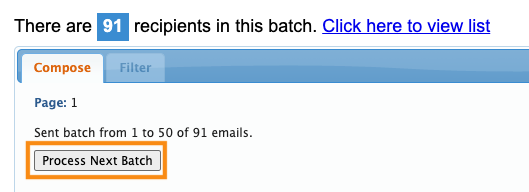
If you’ve added an address to receive the Batch Complete email, MeetMax will email a separate notification for each batch of 50.
| Our Premium email service skips this process, and sends email batches of any size in one operation. Learn more about Premium email here. |
Verifying receipt
Once you’ve sent emails from MeetMax, you can check on them using the Email Logs:

- Emails shows you stats on individual emails you’ve sent, including emails that were part of a batch.
- Batches shows you overall stats on batches you’ve sent.

