


Giving a Salesforce Contact access to register in MeetMax (Validation Link)

You can give your Contacts a special link to register themselves in MeetMax. This link references your Salesforce data and populates the registration form automatically.
In this article:
Where is it?
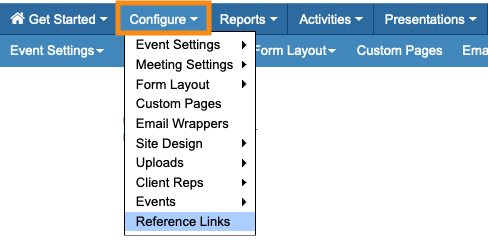
You'll find the Salesforce registration link in the Configure tab:
| We're assuming here that you've already connected the Salesforce integration. | |
| You might have also associated one of your Salesforce Campaigns to this event, though this isn't required. |
Getting the registration link
- Step 1. In MeetMax, head to the Configure tab. Choose Reference Links:

- Step 2. On the Reference Links page, copy the Salesforce Validation link:

- Step 3. Paste this link into any communications you’re sending to your Salesforce Contacts.
How the Contact registers in MeetMax
When the Contact clicks this link, they’re taken to a MeetMax validation page.
The Contact enters their last name and email address, and clicks the Login button. Then MeetMax matches that data to an existing Salesforce record:

| The last name and email entered here must match the Salesforce Contact record. Otherwise MeetMax can’t recognize the Contact. The Email field is case-sensitive. |
The Contact is then taken to the MeetMax registration form, which already contains details from their Salesforce record.
The Contact can enter any other information needed, and click Submit to register:

What's Next?
Now that you're familiar with this process, you can:
- Use the Attendee List to work with your registered user data
- Import Companies, Company Contacts, and Company Reps from Salesforce

