


In this article:
- Where is it?
- Setting up the custom form field
- Enabling custom field filters
- What Attendees see
- Other available filters
Where is it?
When Attendees log into MeetMax, they’ll see these filters on the Request Meeting page:
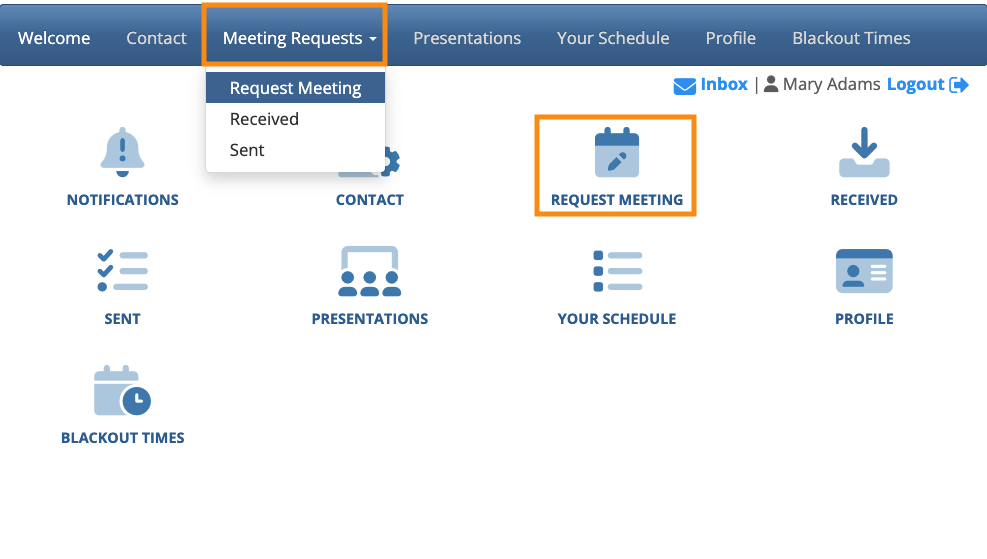
In an Unmoderated meeting program, your Attendees will log into MeetMax and use the Meeting Requests page to find the people they want to meet with.
If your event is large, sorting through that list of meeting candidates can be time-consuming.
You can make this process simpler by adding a set of sorting criteria - as shown in the left sidebar below:

Setting up the custom form field
The first thing to think about is how the Attendees of your event could be categorized.
In the example above, Attendees from several different industries are attending this event, so we added sorting options for each industry.
For your event, you might have sorting options for things like:
- The reasons people want to meet
- Business roles, like Investor, Advisor, or Analyst
- Product or service types
- Step 1. Once you’ve decided on a set of sorting criteria, head to the Configure tab. Choose Form Layout, then Attendee, then Edit Form:

- Step 2. Add a custom form field:
- • Use the Drop Down field type.
- • Add each of your sorting criteria - as many as you need.
- • Set this field to Public.
- • We recommend not enabling the multiple selection or Other options:

- Step 3. Click Submit to save the new field.
- Then, back in the Form Editor, save the change to both the Attendee view and the Admin view of this form:

- As people register for your event, they’ll see the new field, where they’ll choose the category that fits them:

-
Alternatively, you can make this form field visible only to Admins, and your team can choose the group for each Attendee.
Enabling custom field filters
Now that you’ve created the form field to capture everyone’s category, you can reference it on the Attendee Meeting Requests page.
- Step 1. Head to the Attendee List:

- Step 2. Choose any Attendee record. Changes you make here will apply to everyone.
- Use the Action menu to choose Request Meeting:

- Step 3. On the Request Meeting page, head to the right edge of the page and open the Customize tab.
- Next, open the Search/Custom Fields section.
- In the Custom Fields list, you’ll see the titles of all custom fields you’ve created. Choose the one you want to display, then click Submit:

What Attendees see
When Attendees log into MeetMax and head to the Meeting Requests tab, they'll see the new sorting options.
They can click any checkboxes to narrow the list to people who meet those criteria.

Other available filters
You might want to make other kinds of filters available to your Attendees:

