In this article:
Viewing meeting requests
Once you’ve logged in, head to the Meeting Requests page:
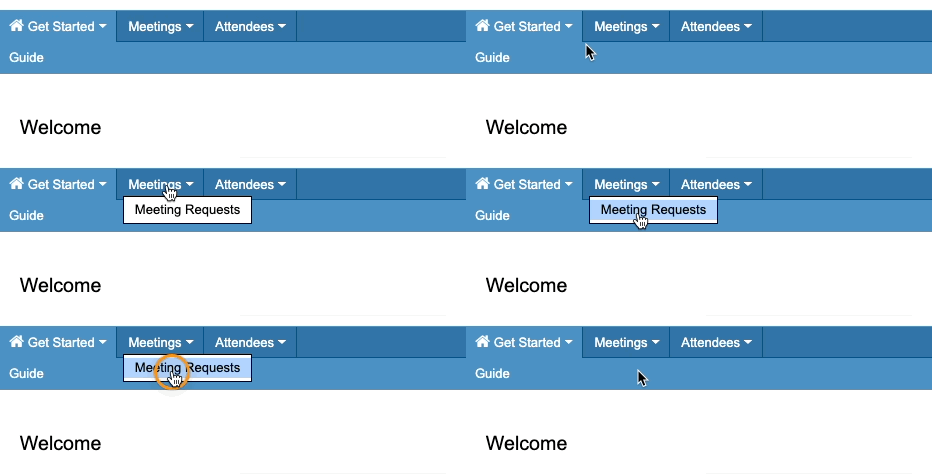
You’ll see a list of all the current requests for your assigned Investors.
Right now, they’re arranged in the order they were created:
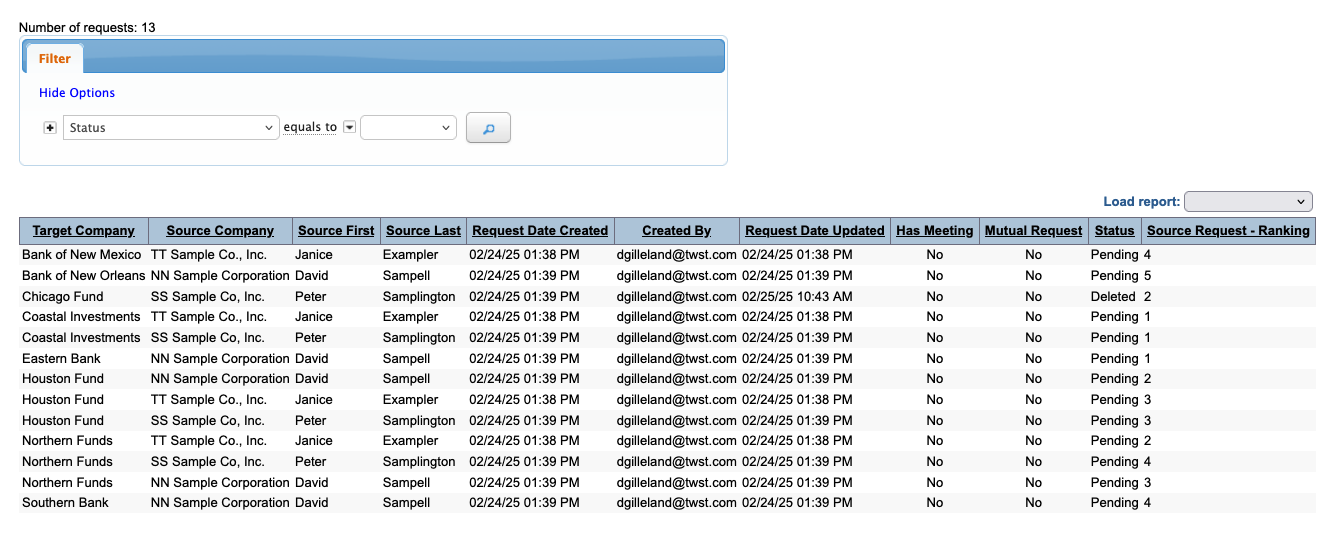
| The Source is the Investor who made the meeting request. The Target is the Company that received the request. |
Sorting the Requests list
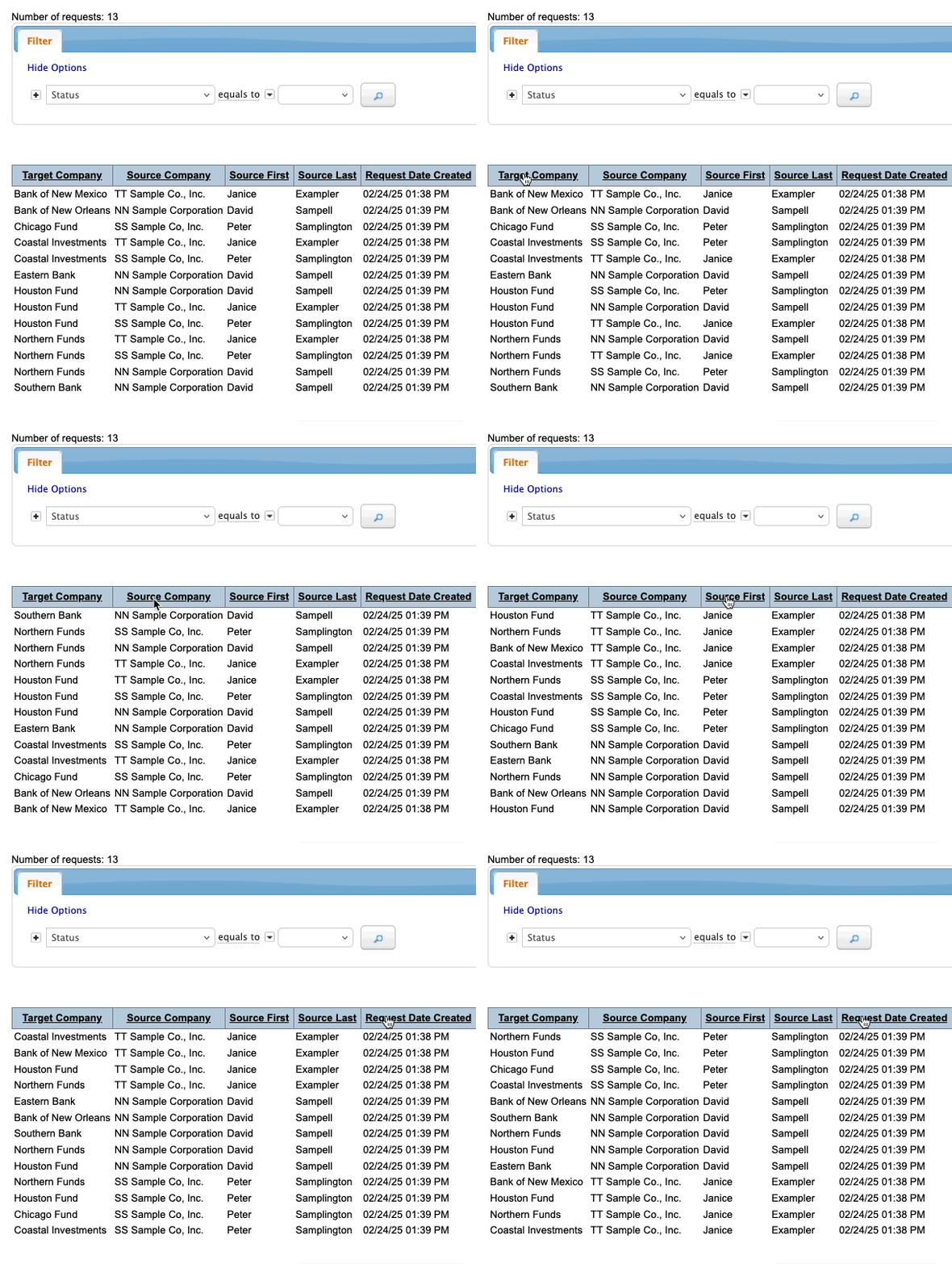
To re-sort the list, click on any linked column title. That arranges the whole list in ascending or descending order:
Filtering the Requests list
To narrow the list down, use the Filter. It’s a flexible tool that lets you see specific kinds of requests.
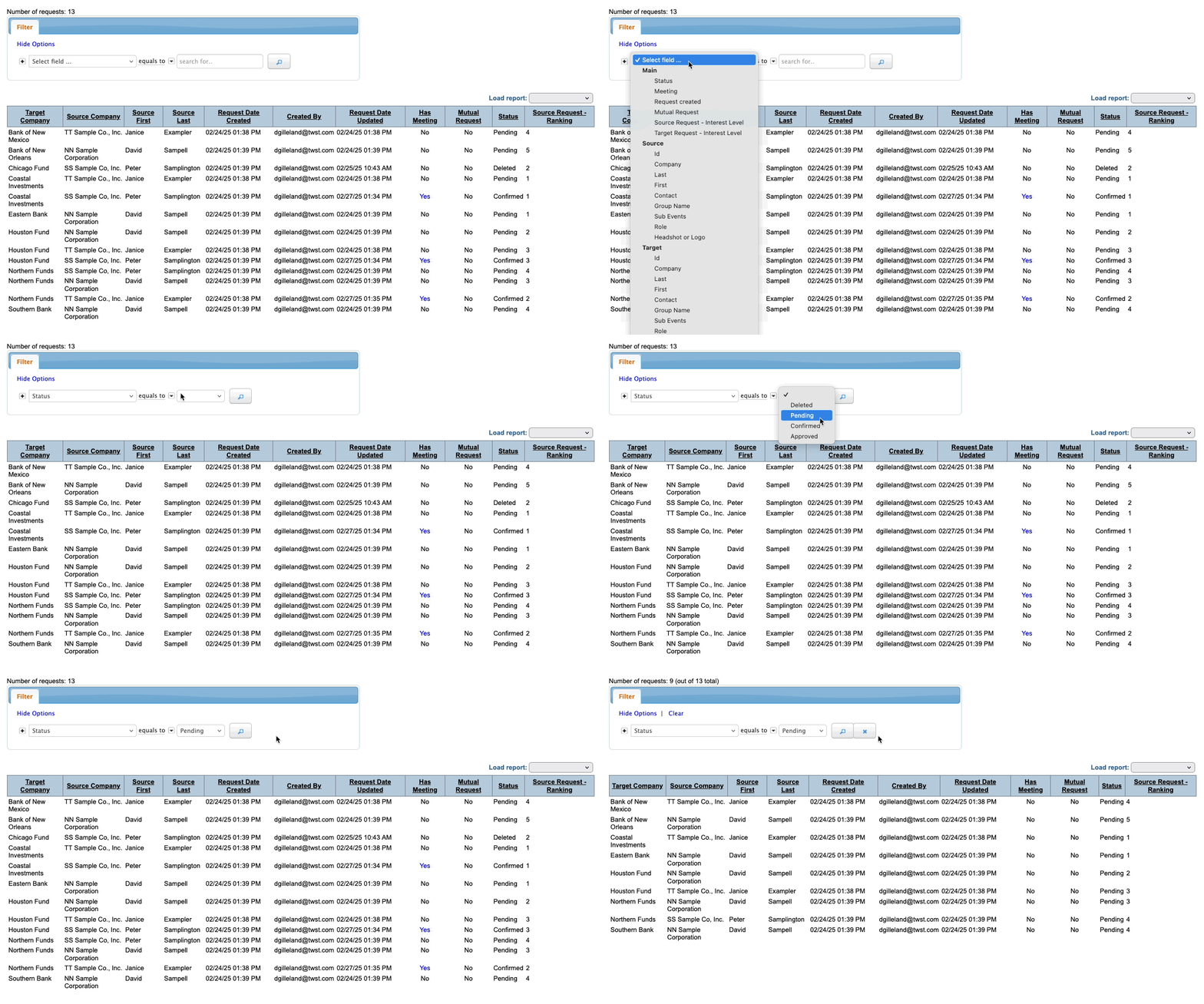
You can filter by many different criteria. In this example, let’s filter the list by current Status, so we can see the requests that that are still pending:
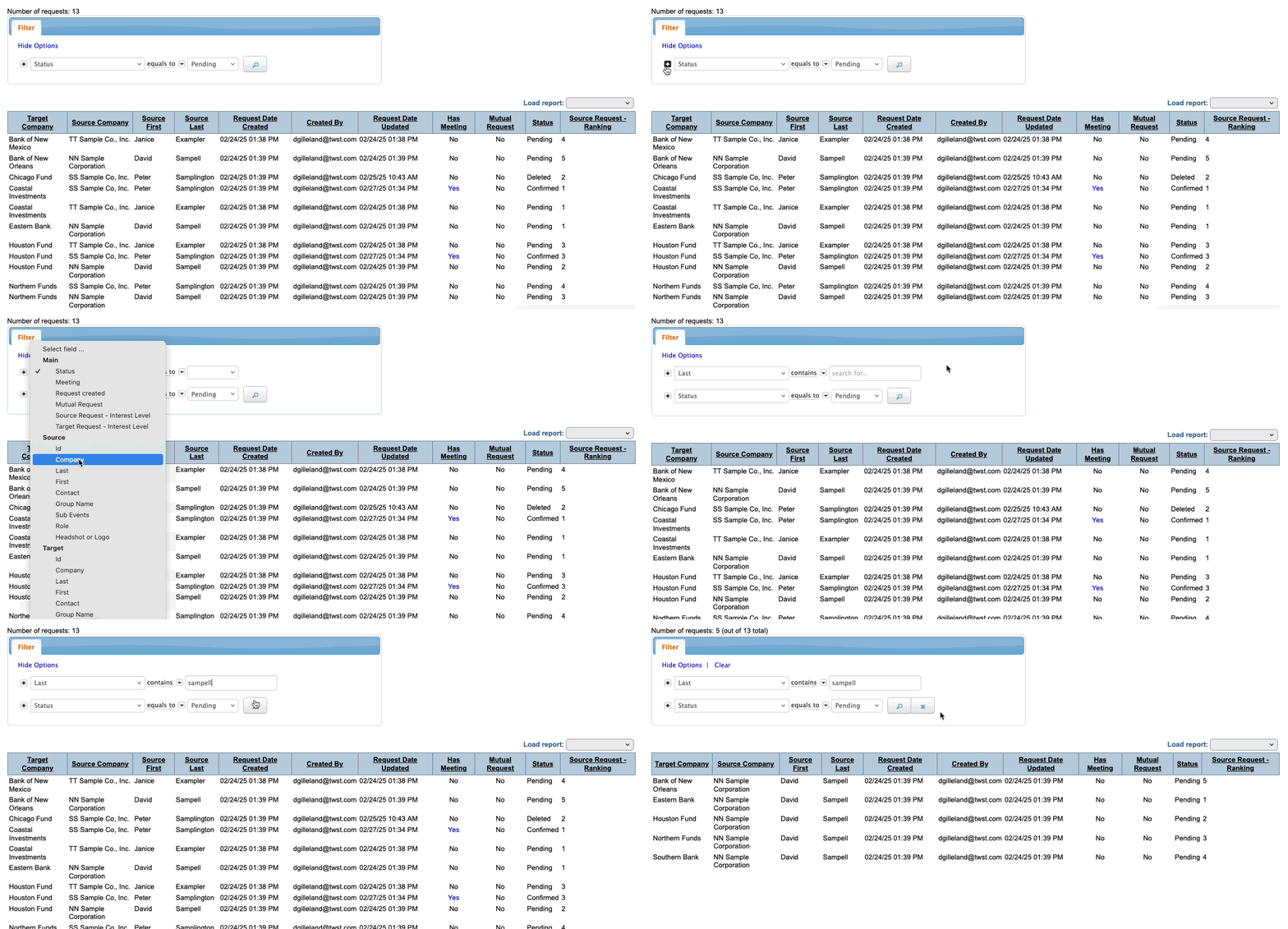
You can even combine filters! Here’ we’re looking for one Investor’s pending meeting requests:
Changing a request
The Meeting Request List gives you a flexible overview of what’s been requested.
If you need to update a meeting request, you’ll use the Attendee List:
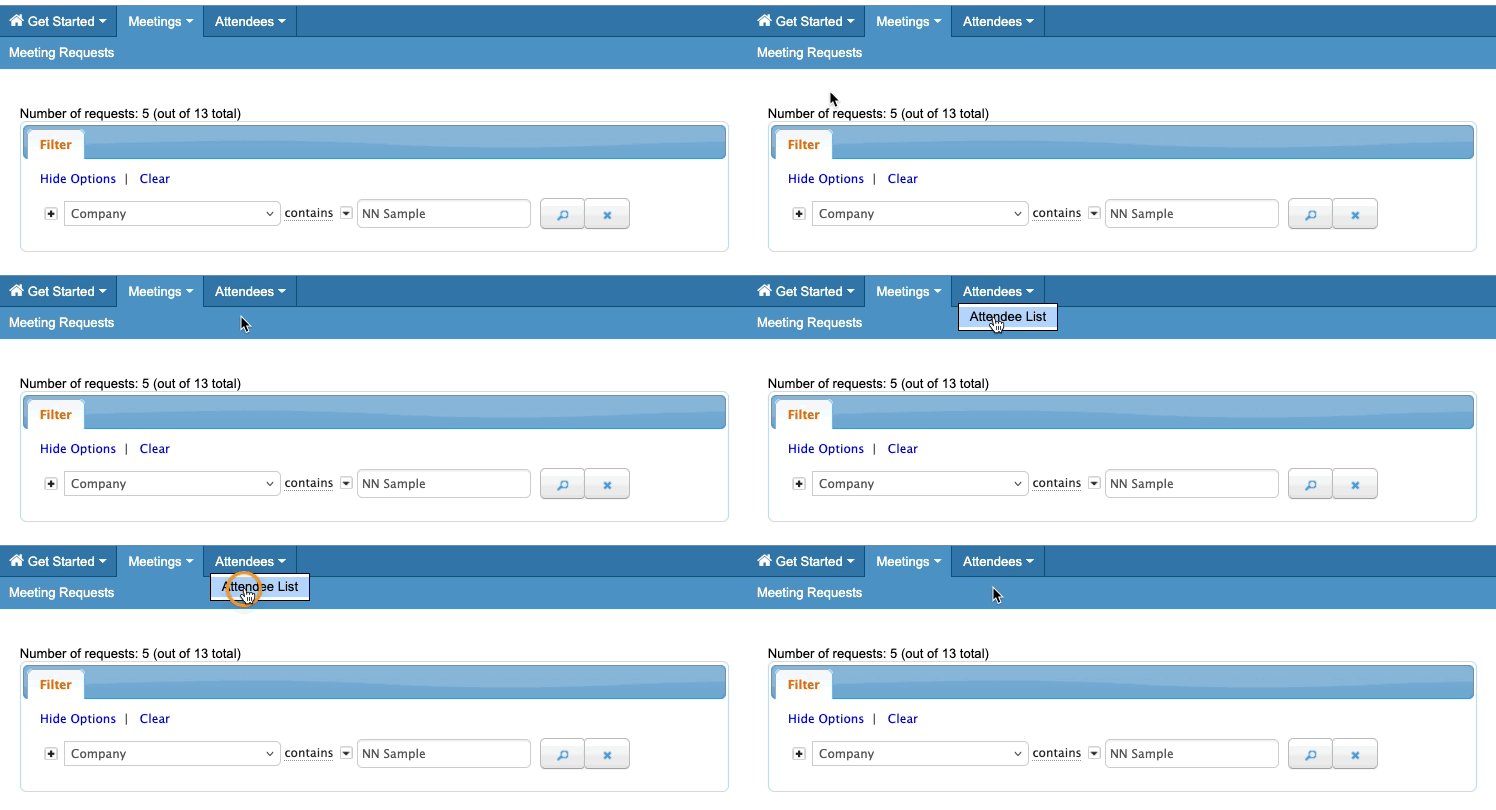
On the Attendee List, you’ll see only the Investors assigned to you.
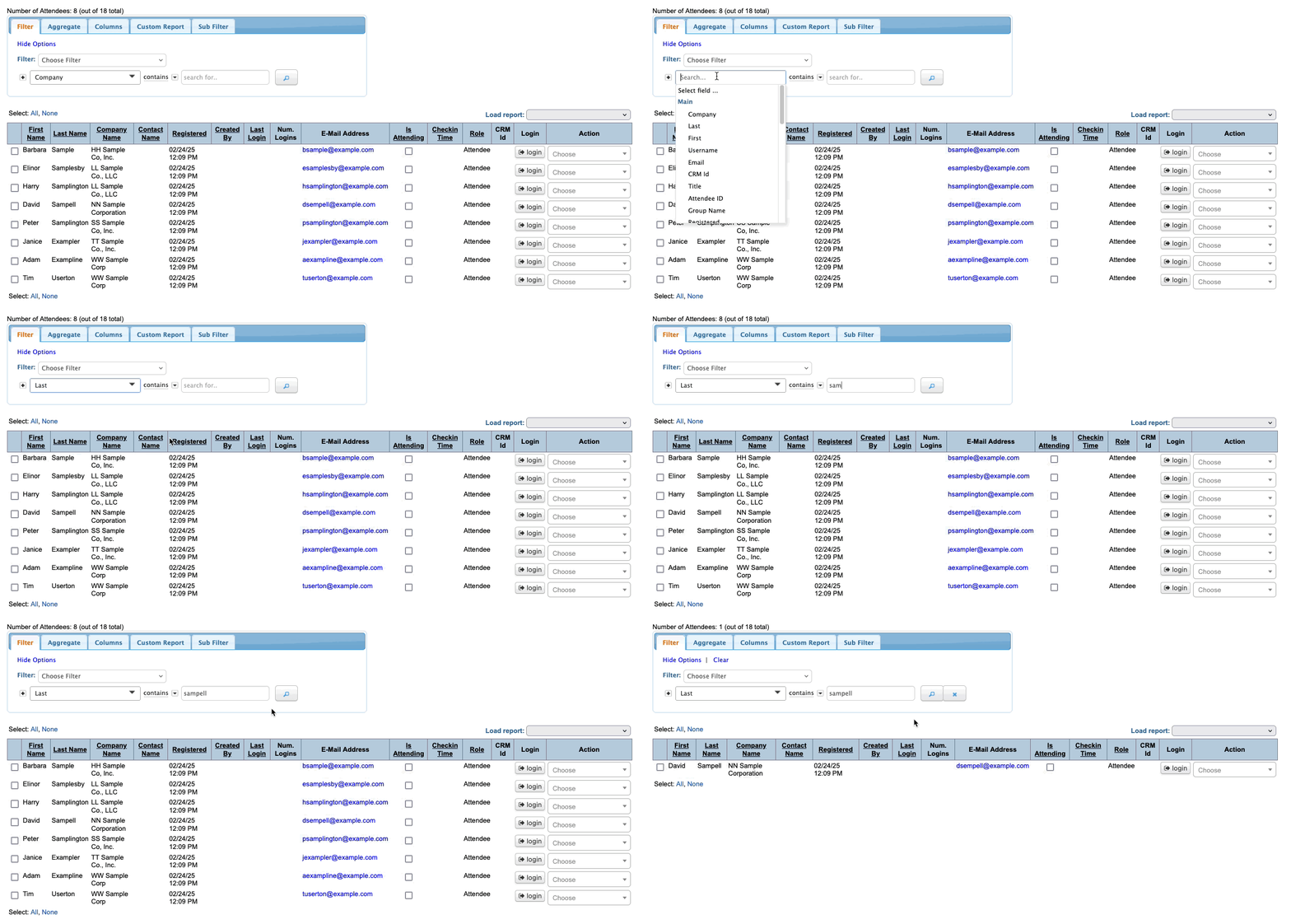
You can use the same Sort and Filter tools we covered above. So let’s filter to locate David Sampell here:
Each Attendee has an Action menu. Let’s use it to access David’s Meeting Requests Sent page:
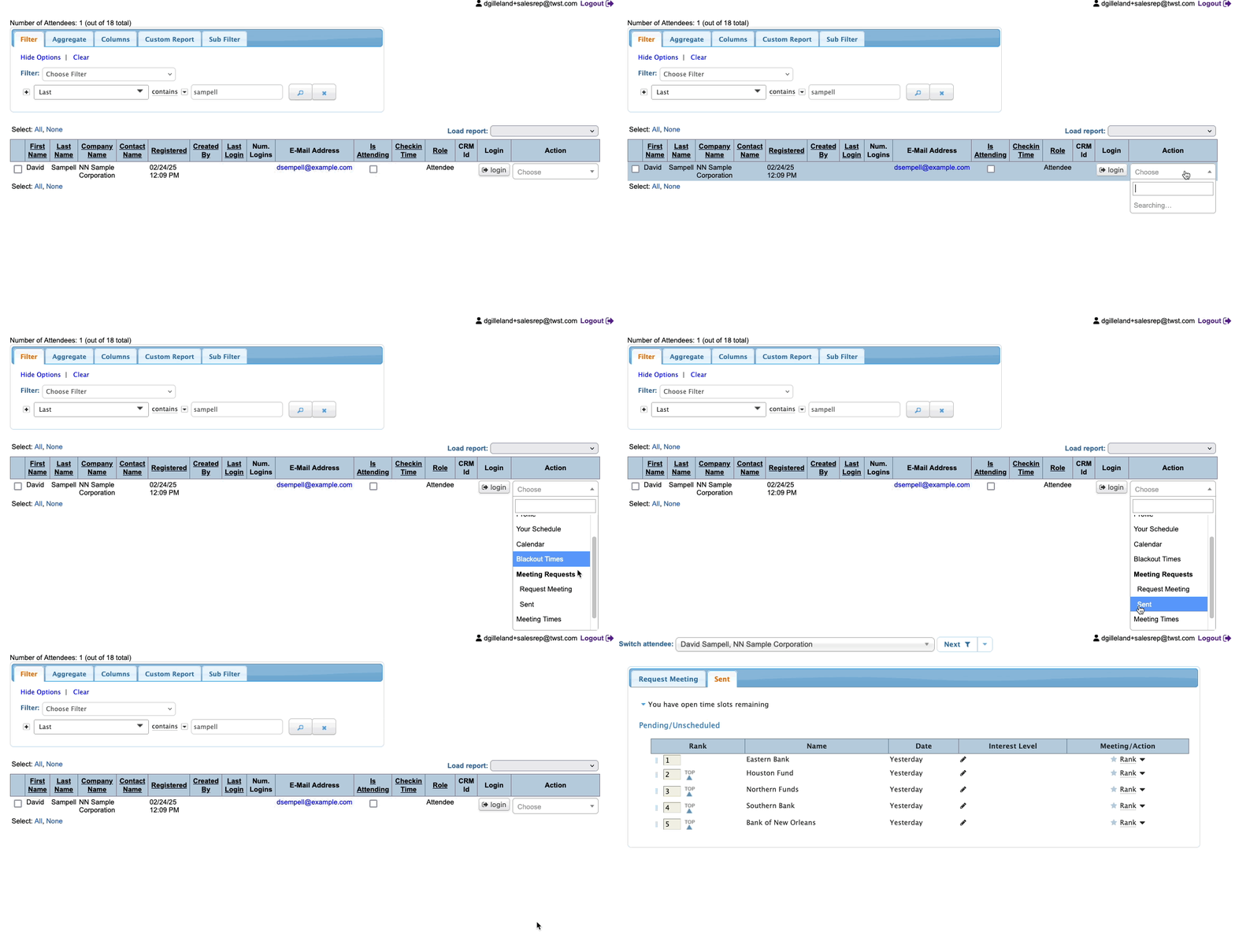
Now we can update any of David’s meeting requests.
In this example, David has indicated that meeting with Southern Bank is his top priority. So let’s move that request to the top of the list:
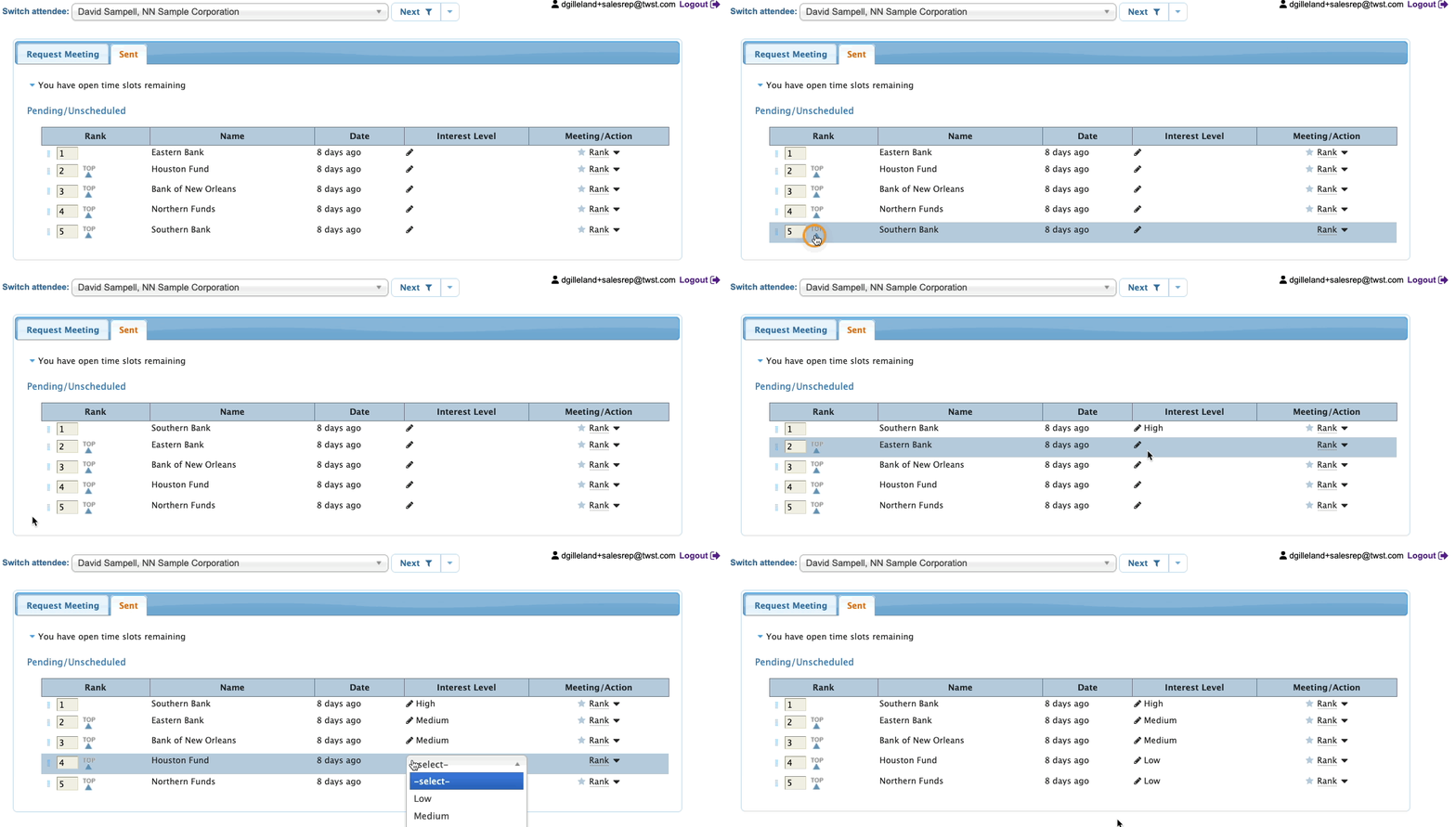
You can move any request to a different priority rank, so the event Admin can schedule the highest-value meetings. You can also add the Investor’s interest level in each meeting.
Canceling a request
If an Investor wants to cancel a meeting request, you can do that from this page. Use the Meeting/Action column:
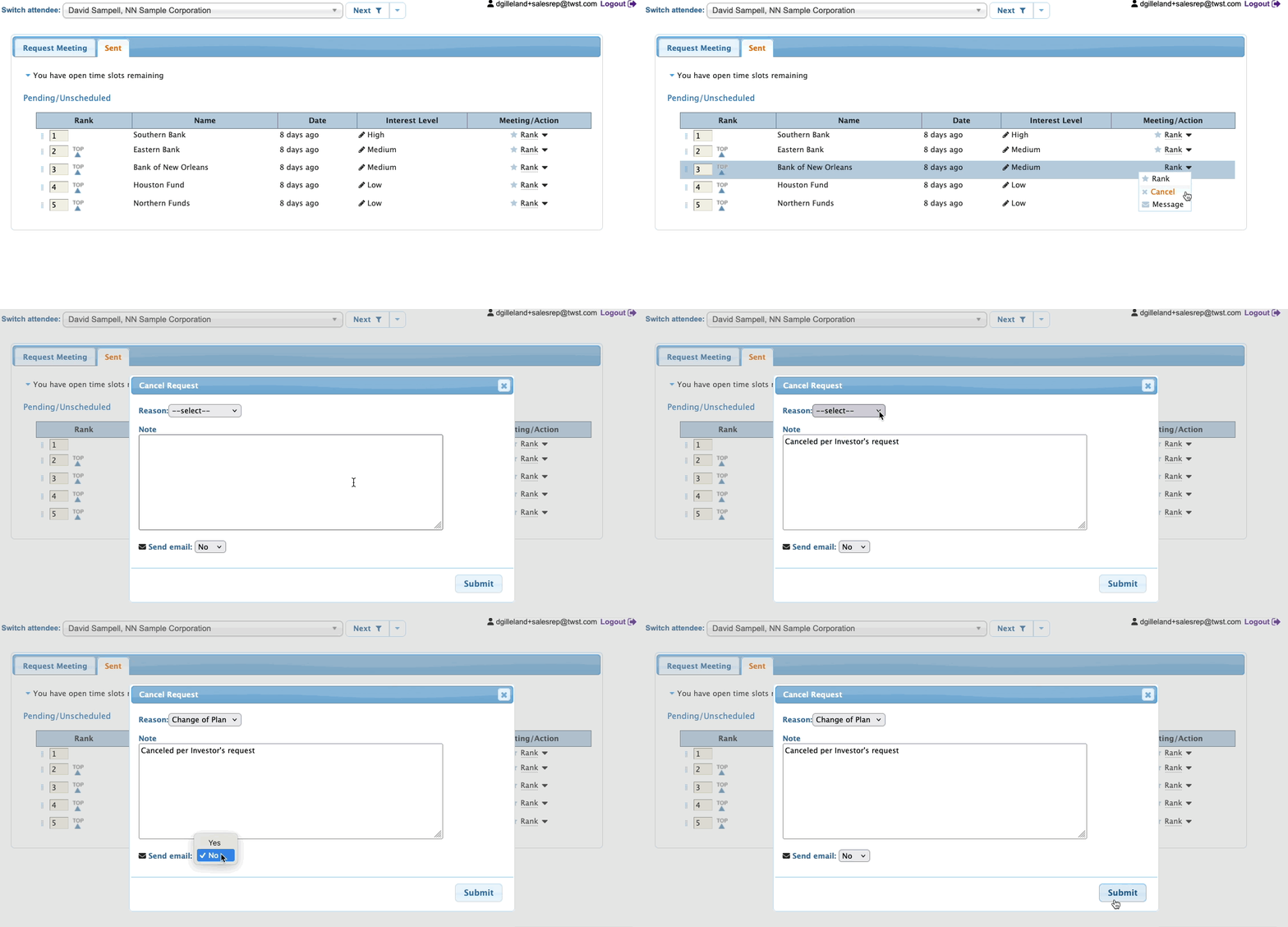
MeetMax will prompt you to add a cancellation reason, and you can add any additional notes you need. You can even email the Investor a cancellation notice.
Adding a new request
Need to make a new request for this Investor? Click over to the Request Meeting tab:
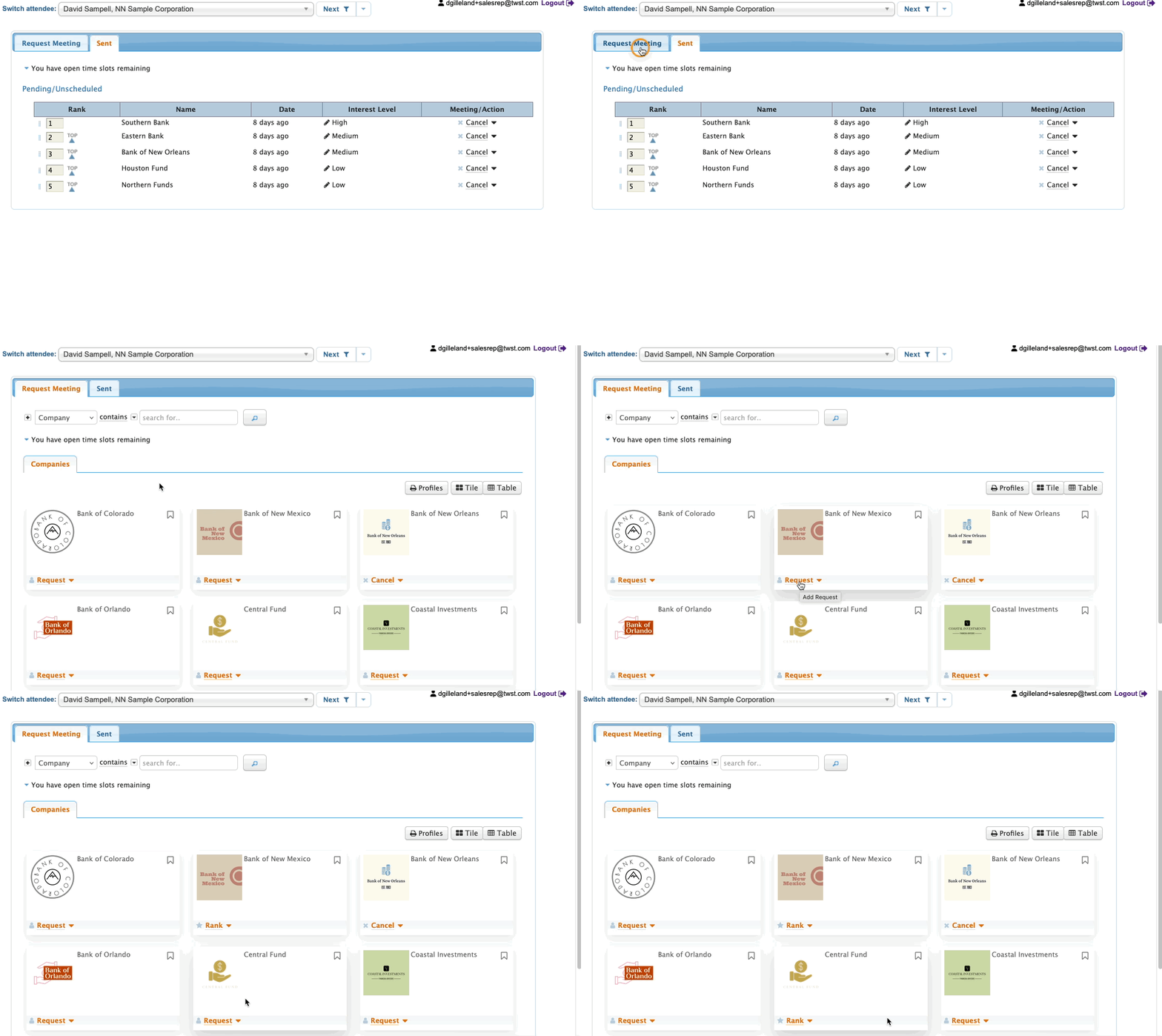
Click the Request link for as many Companies as you need.
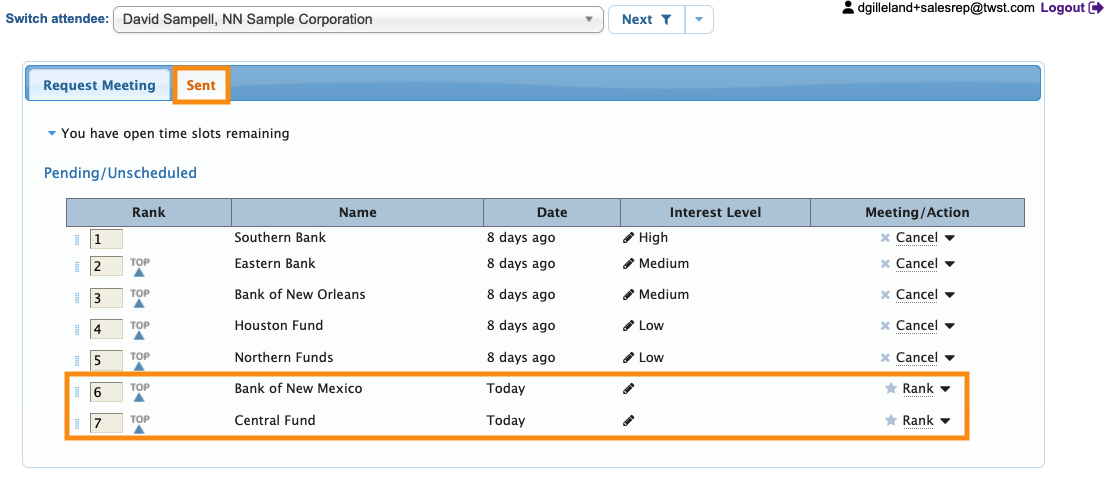
You can then click back over to the Sent tab. You’ll see the new requests there, and you can add rankings: