


How do I update my PDF agenda?

Our Support team can install your PDF as a menu item in the Attendee or Company menus. They’ll use a Short Link to create a URL for this page.
You can update that PDF at any point. Follow these steps to make the new version visible in your participant menus.
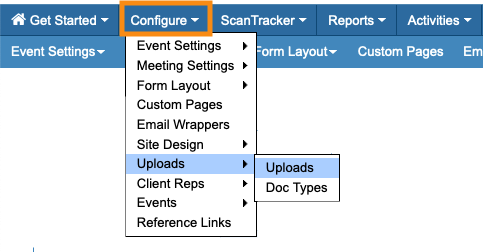
- Step 1. Head to the Configure tab, and choose Uploads:
- Step 2. Upload the new PDF to MeetMax. Make sure it has a different file name than the original.
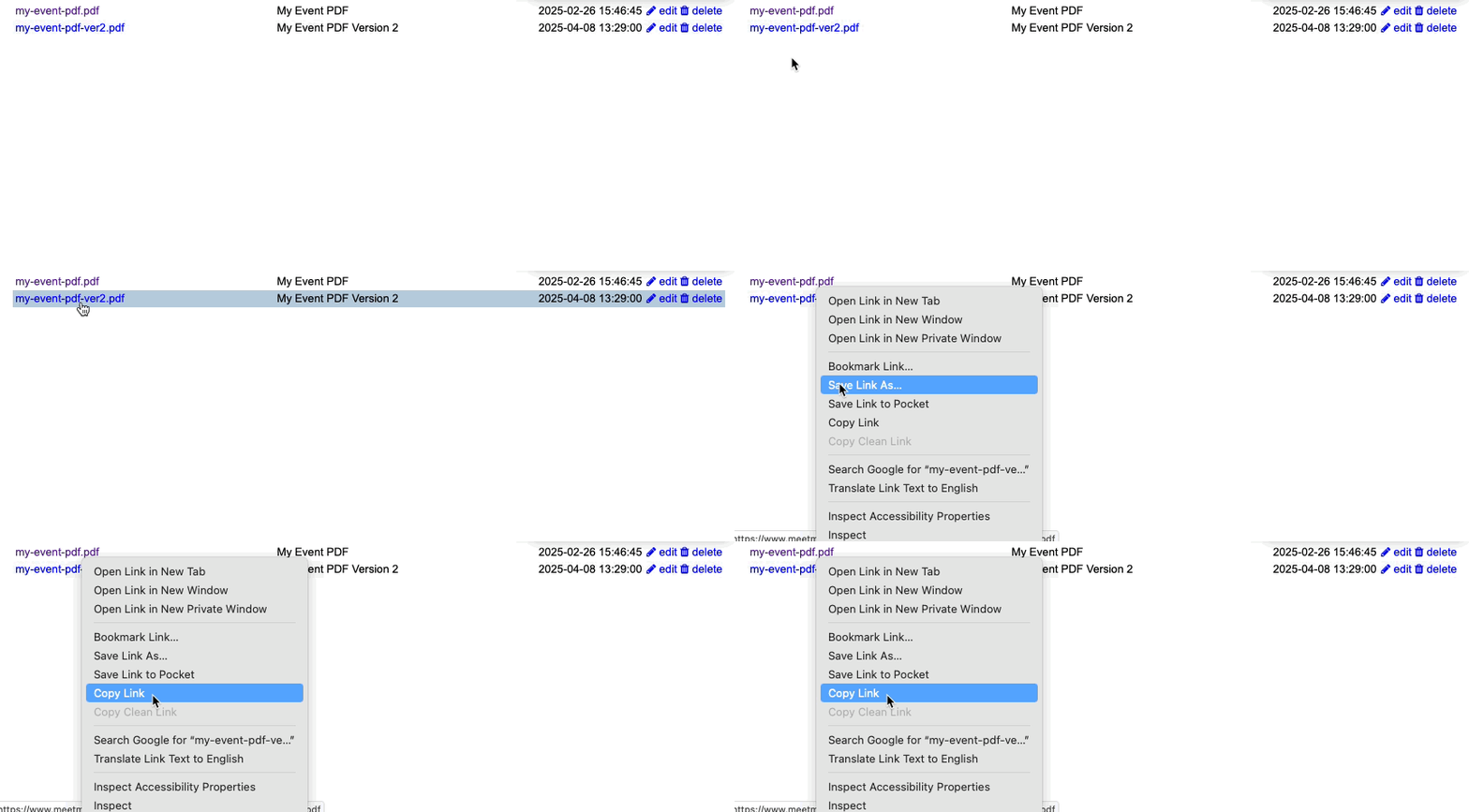
- Step 3. Right click on the new file upload, then copy the link:
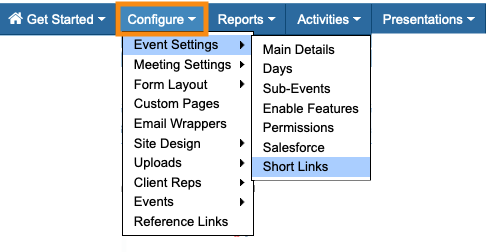
- Step 4. Now, head back to the Configure tab. Choose Event Settings, then Short Links:
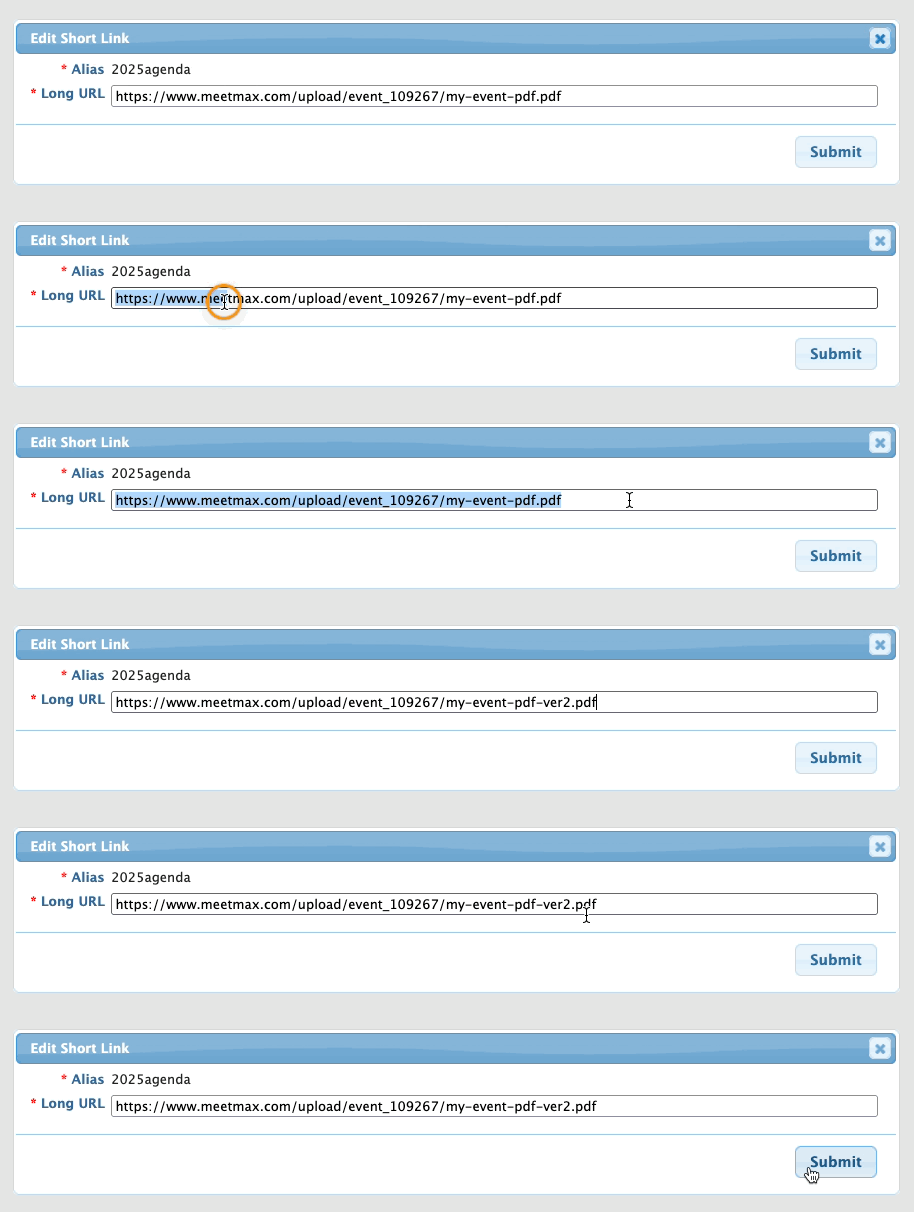
- Step 5. Locate the original PDF’s short link. Click Edit:
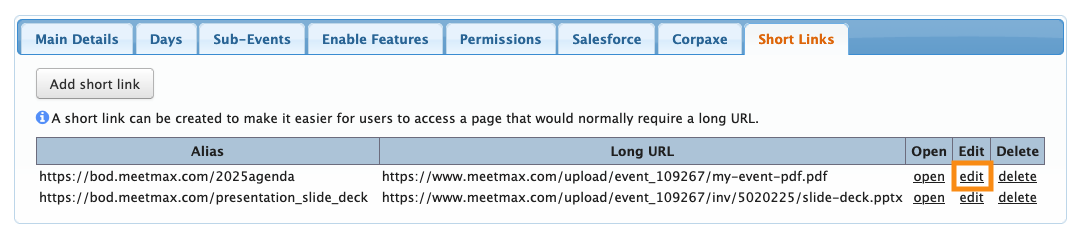
- Step 6. In the Long URL field, replace the old file’s URL with the new one.
- Click Submit to save:
-
It can take up to 24 hours for the new version of the PDF to display. This is because of the time it takes for information to update on many servers across the internet.

