How do I update my PDF agenda?

This article is for events using a Custom Page with an embedded PDF.
You can upload an updated PDF any time, to display on the same page.
| This feature was released in August 2026. For events created before that, our Support team would have installed your PDF agenda from the backend. If you need an update, reach out to them for help. |
- Step 1. Give your updated PDF a different file name than the original.
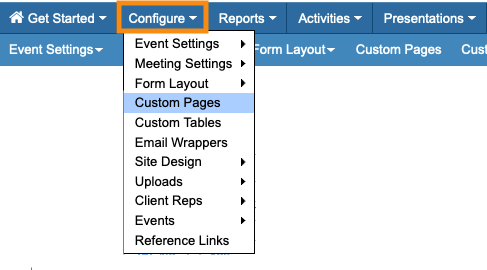
- Step 2. Head to your Custom Pages list:
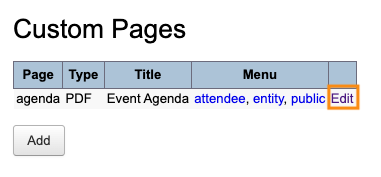
- Step 3. Locate the page you need to update. Click the Edit link:
- Step 4. You’ll see your original file on this page. Click the Replace button.
- Then choose the new PDF from your computer:
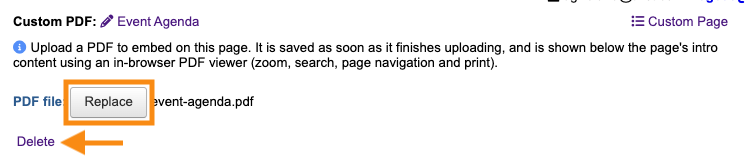
- Step 5. After upload, you’ll see the new file name. The upload saves automatically:
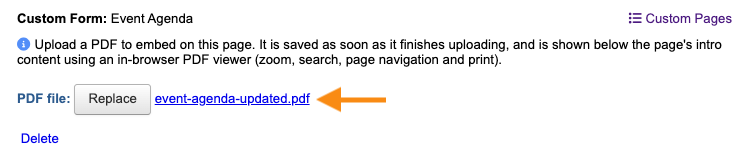
- All participants who had access to the original Custom Page will now see the updated PDF.
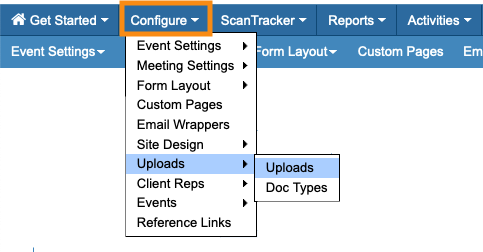
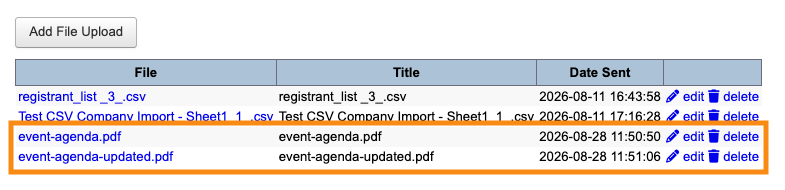
- Step 6. Head to the Uploads page for your event, and you’ll have access to all versions you’ve uploaded: