The options you have for declining meeting requests will depend on how your event is structured. In this article, we’ll show all three methods.
In this article:
How an Attendee declines
If your meeting program is Unmoderated, Attendees will receive meeting requests from other Attendees.
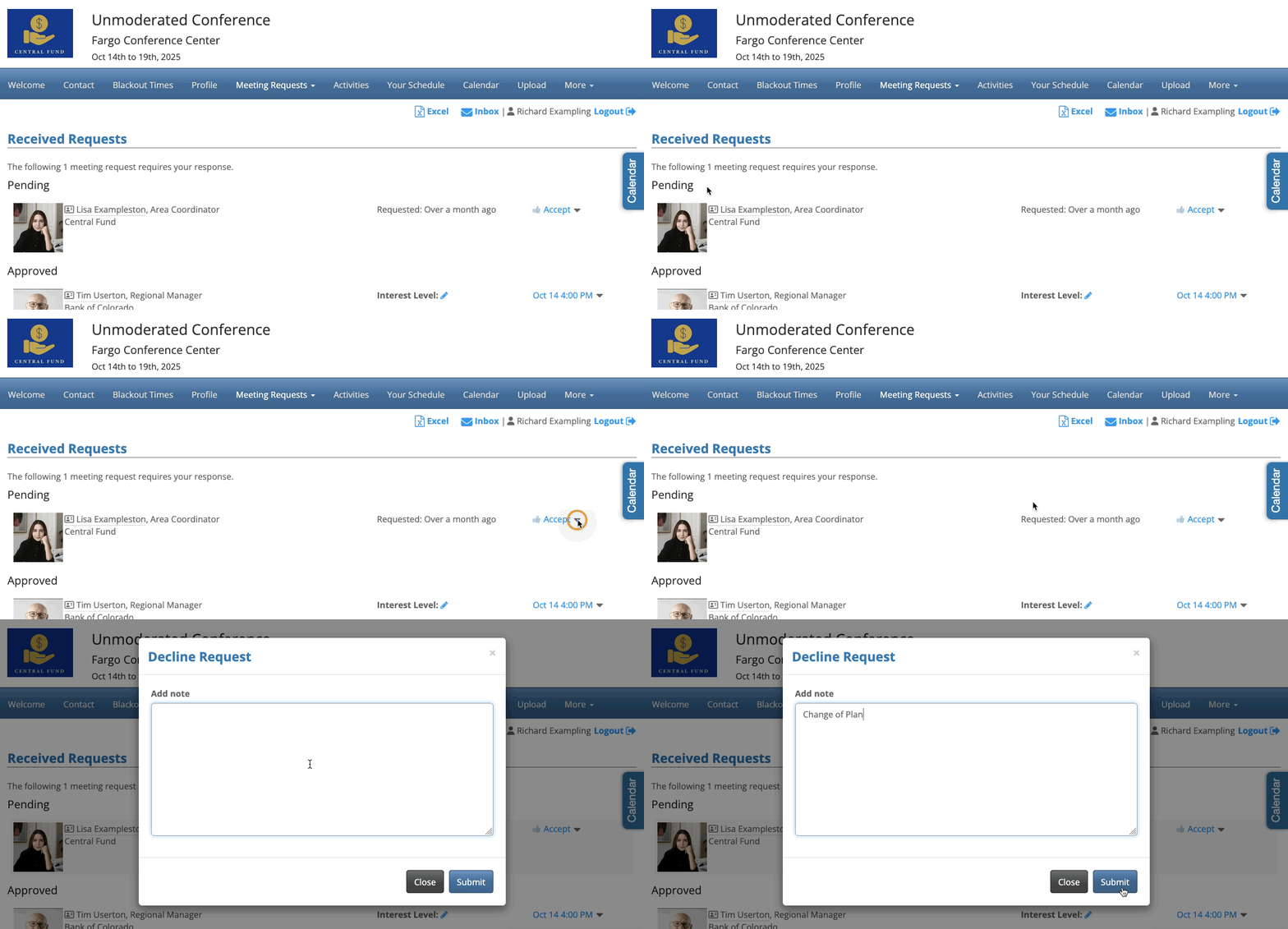
To view these requests, they’ll log into MeetMax, then go to the Meeting Requests Received tab:

On the Meeting Requests page, they’ll work in the Pending section. To decline a request, they’ll use the menu to choose Decline.
They can then add a reason, which appears on the email notification the requestor receives. Click Submit to save:
How a Company declines
If you’re running a Moderated meeting program, Companies might approve or decline meeting requests they receive from Attendees. (Not all meeting programs use this step.)
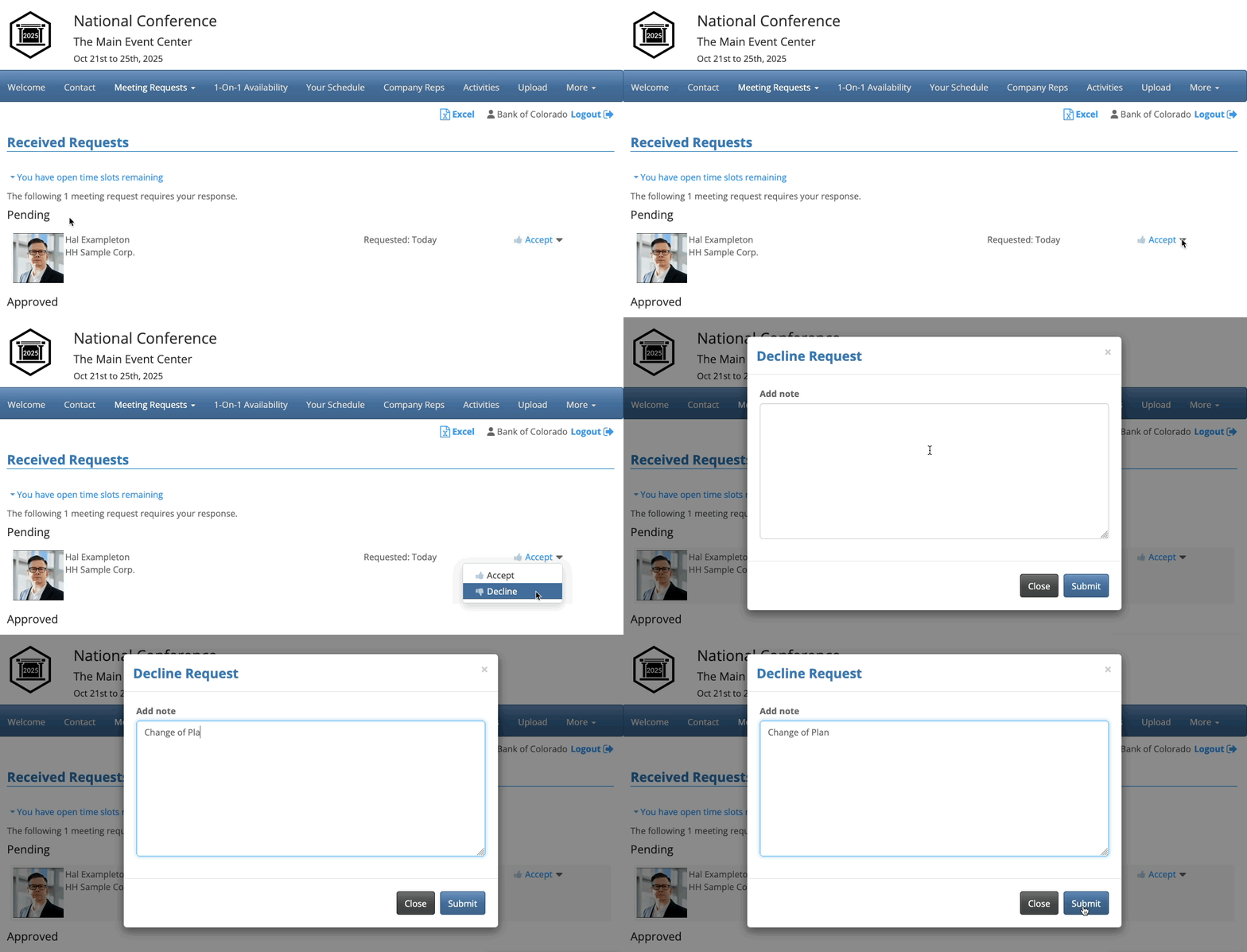
When a Company logs into MeetMax, they’ll head for the Meeting Requests Received tab:

In the Pending section of the page, the Company can use the menu to Decline any request.
They can add a reason, which appears on the email notification the requestor receives. Click Submit to save:
How an Admin declines
From your Admin account, you can decline meeting requests on behalf of any Attendee or Company.
- Step 1. In this example, we’ll decline a meeting request on behalf of a Company.
- Head to the Company List:

-
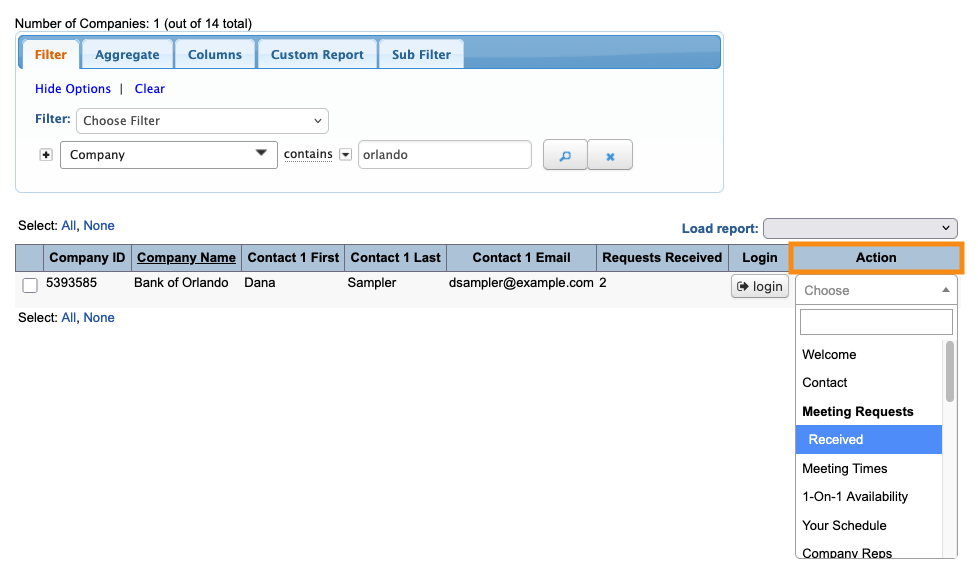
The process for Attendees is the same; you’d just start in the Attendee List instead. - Step 2. Filter the list to locate the Company you need to work with. Then use the Action menu to choose Meeting Requests Received:
- In the Pending section of the page, use the menu to Decline any meeting request.
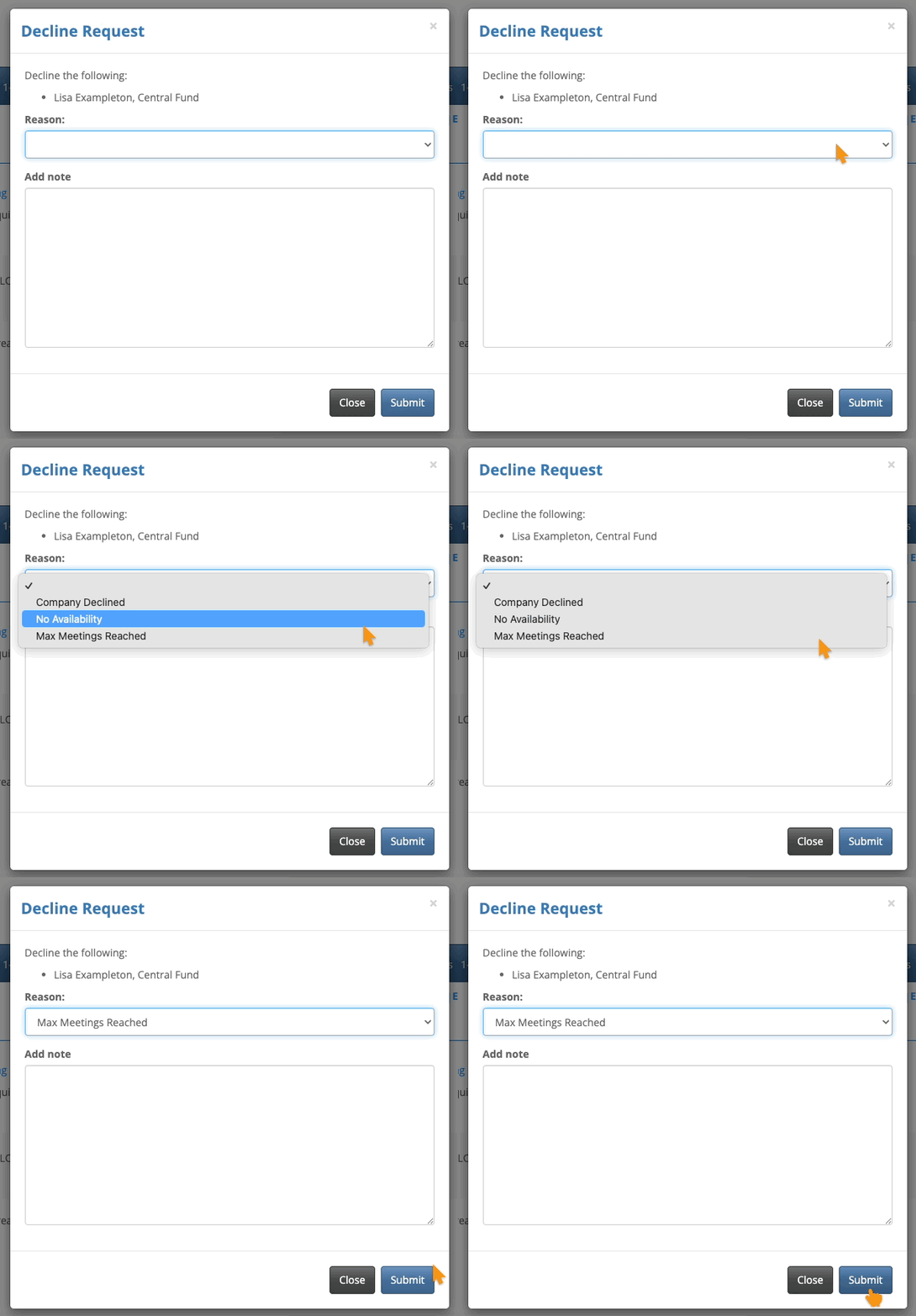
- You can add a reason, and choose whether to send an email notification to the requestor. (That email will contain the decline reason you’ve entered.)
- Click Submit to save: