How do I remove one participant from a group meeting?

You can remove any individual from a group meeting, without canceling the meeting.
In this example, a Company is hosting a group meeting, and we want to cancel one Attendee’s participation. You could also use these steps to cancel one participant in any other type of meeting.
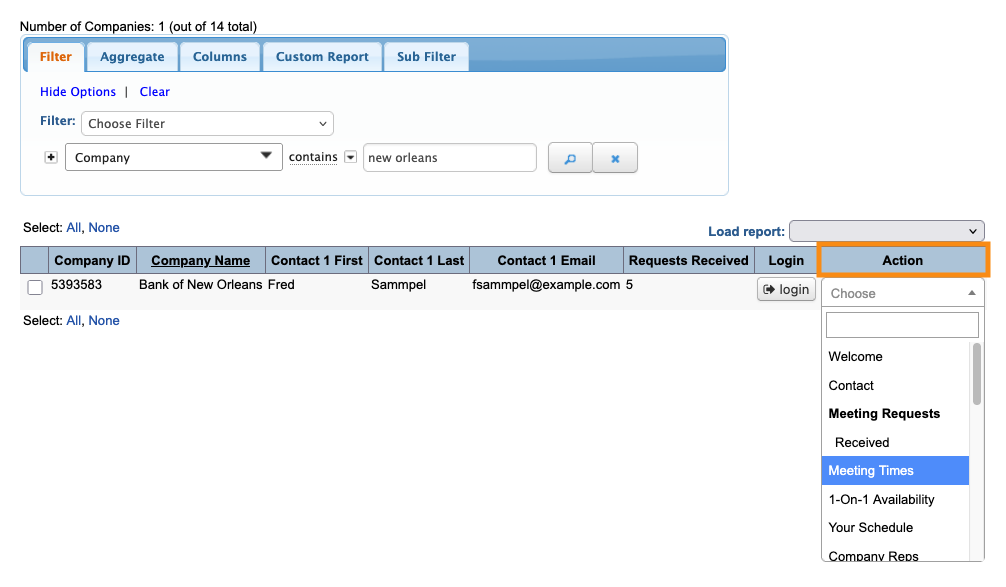
- Step 1. Head to the Company List:

- Step 2. Filter the list to locate the Company whose meeting you need to update.
- Use the Action menu to choose Meeting Times:
- Step 3. Locate the meeting. Then click the Cancel button.
-
Don’t worry! You won’t be canceling the meeting. You’ll be able to choose the individual participant you’re canceling in a moment. 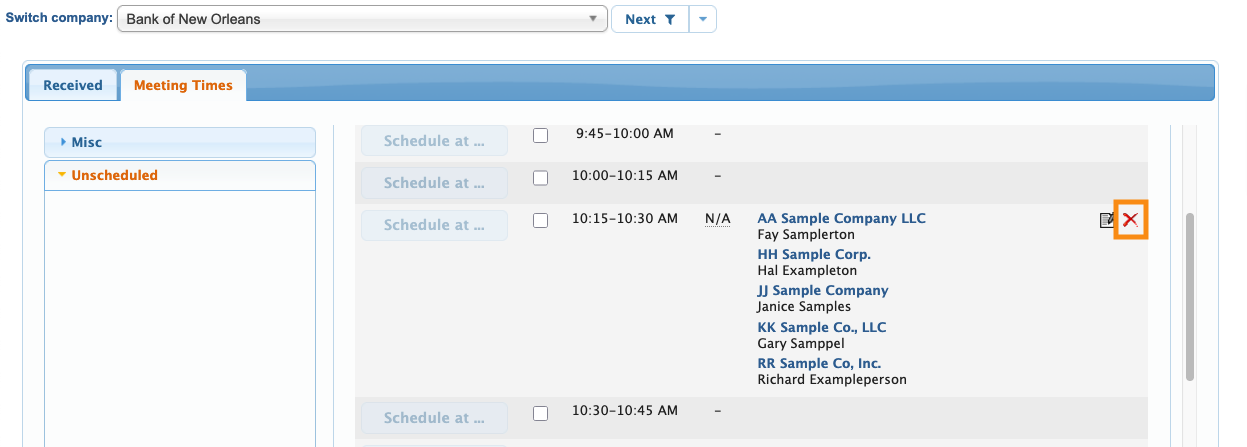
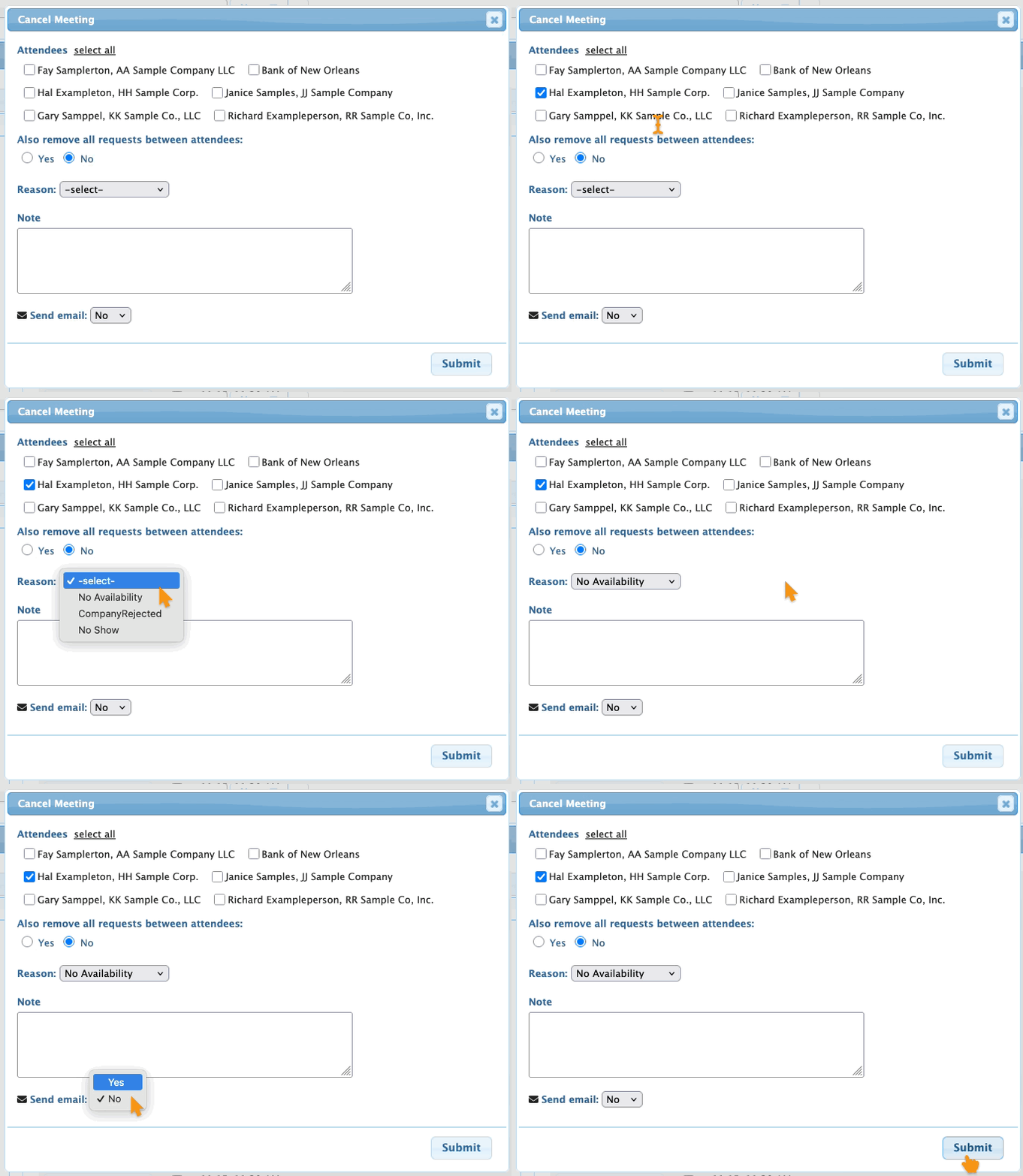
- Step 4. In the pop-up, click the checkbox for any Attendees you need to remove from this meeting.
- Choose one of your event’s cancellation reasons. You can also choose whether to email the canceled Attendees from here.
- Click Submit to save: