Report: Attendees with no meetings

How it’s used:
• With this report, you can quickly find all Attendees who’ve requested meetings, but haven’t been scheduled yet.
• You can customize the report to your meeting program’s structure.
• If you need to see who hasn’t made any meeting requests, here’s a good report for that.
In this article:
Running the report
- Step 1. Head to the Attendees tab. Choose Attendee List:

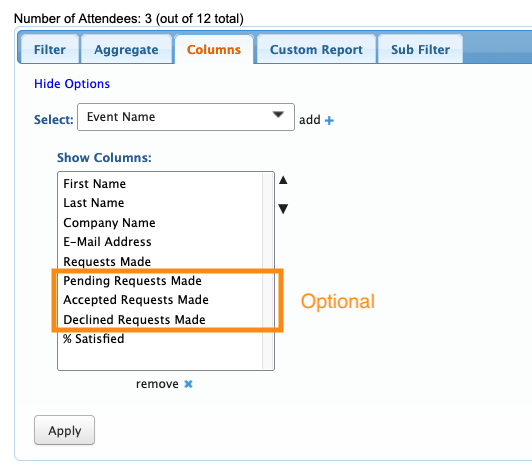
- Step 2. Go to the Columns tab. Here, you can add and remove columns. Click Apply to save the changes.
- We recommend this set of columns for this report:
-
Your event might have slightly different names for these columns. You might not need all of these columns. If your meeting program doesn’t have an approval step for recipients of the meeting requests, for example, you can leave out the Pending, Accepted, and Deleted Requests columns - Step 3. Now, head to the Filter tab. Set the top filter to Without Confirmed Meetings:
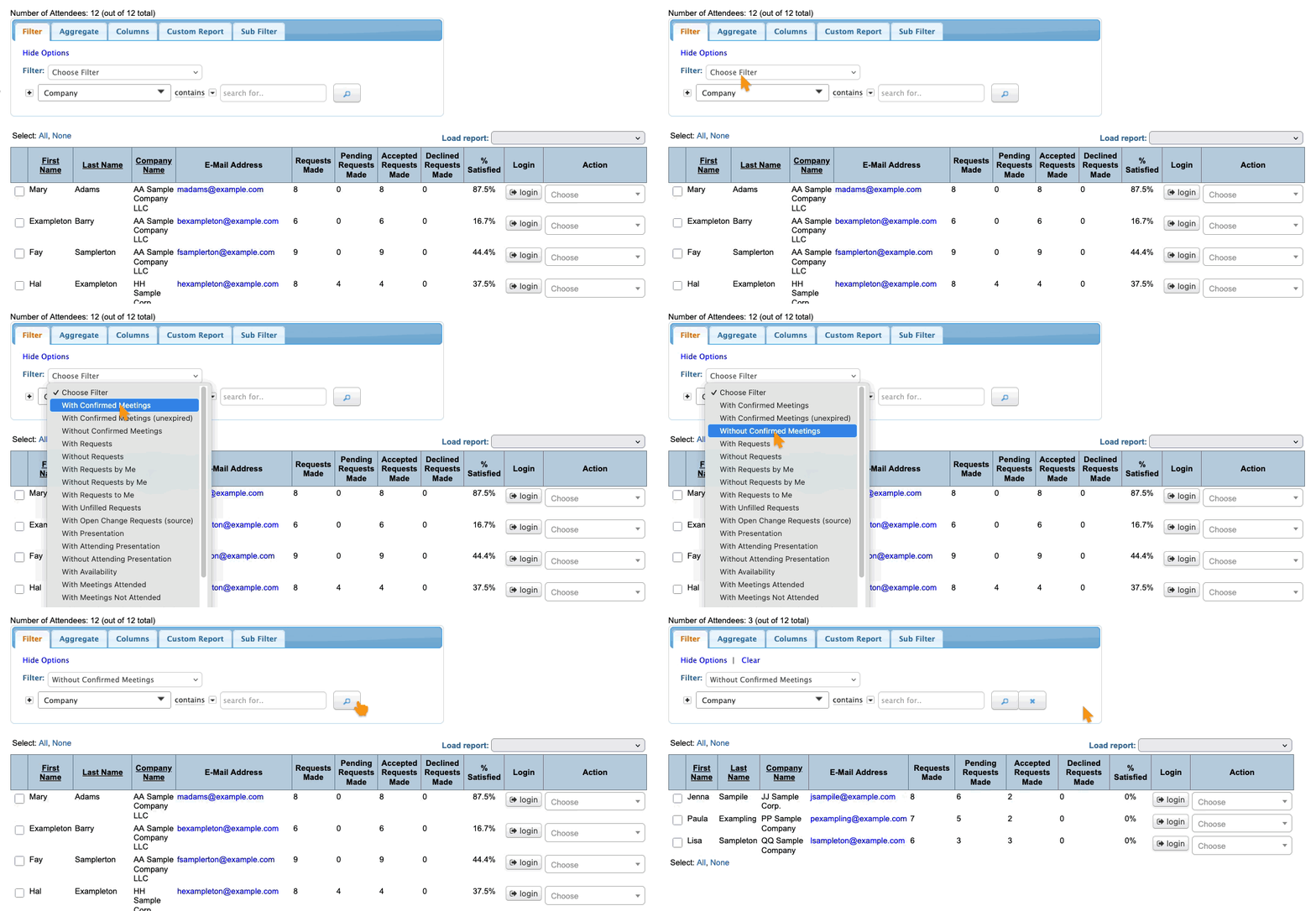
-
The % Satisfied column tells you how many of an Attendee’s meeting requests have been scheduled into meetings. The percentage for this report’s Attendees will be zero. Then, as you’re scheduling meetings, you can check back to this column to track your progress.
Exporting the report
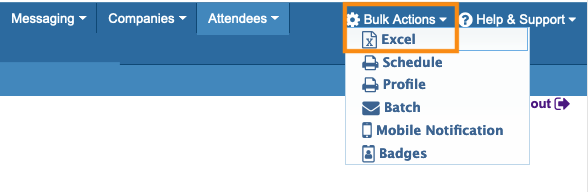
To export the report in spreadsheet form, head to the top right corner of the page. Click on the Bulk Actions tab, then choose Excel.
You can open the exported file in any spreadsheet software:
Saving the report
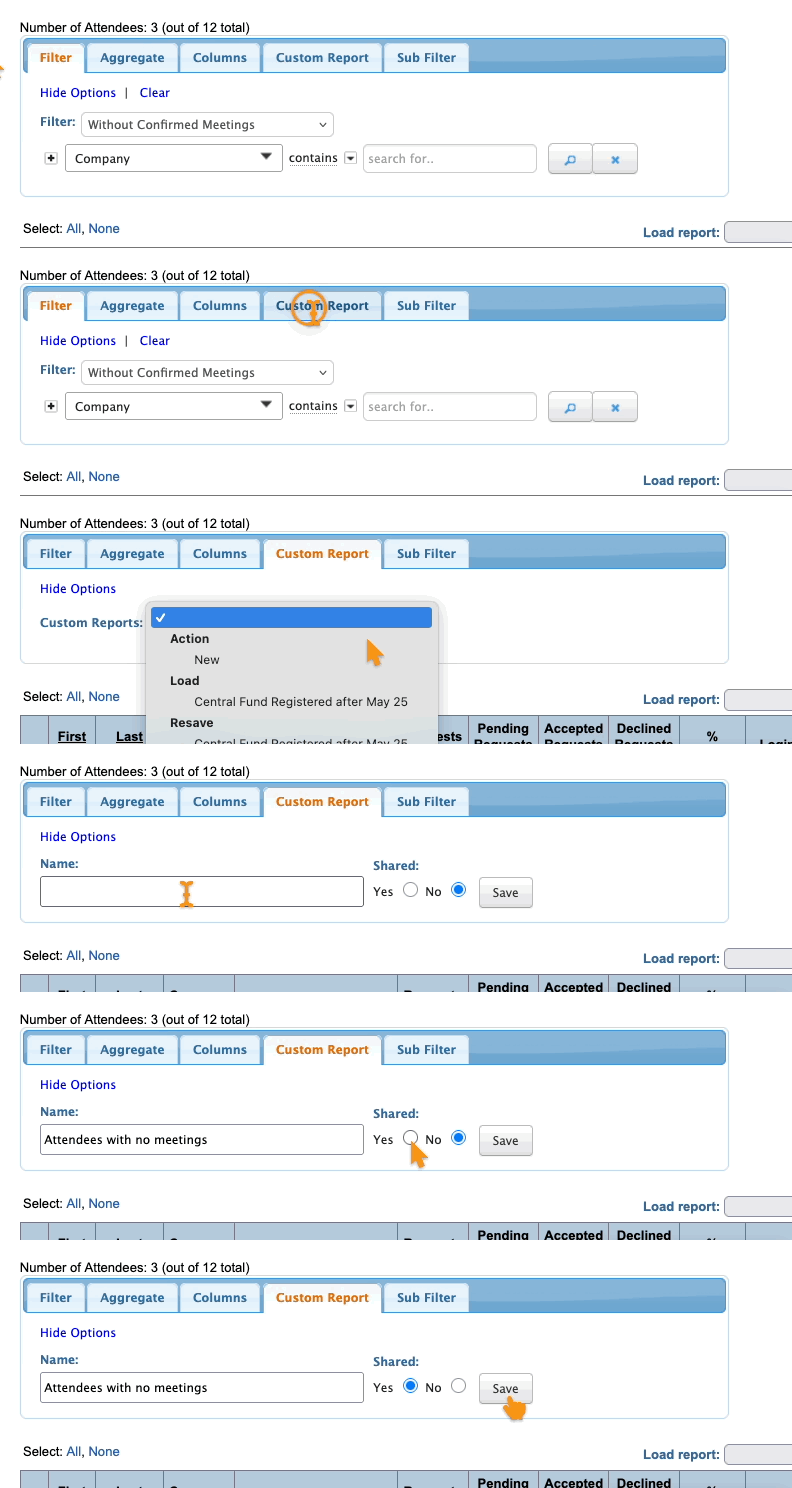
Want to save this report so you can quickly access it later?
Head to the Custom Report tab. Choose New from the menu.
Then give the report a title, choose whether to share it with your team, and click Save: