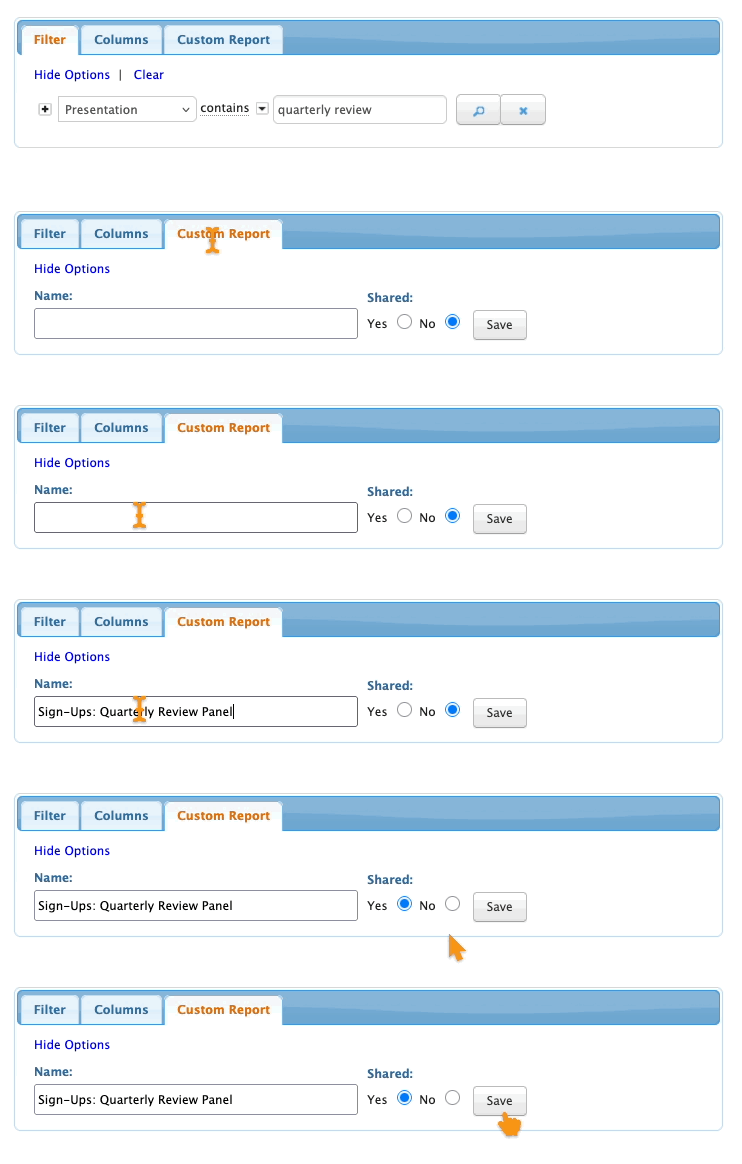
Report: Who's signed up for a presentation

How it’s used:
• This report lists each participant who’s signed up for a presentation.
• You can use this report as a check-in list, or as a contact list if a presentation must be moved or canceled at the last minute.
• You can run a master list of sign-ups for all presentations, or filter this report to a single presentation.
In this article:
Running the report
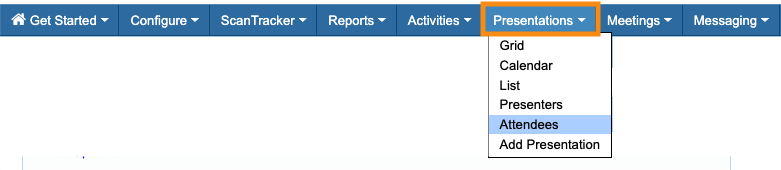
- Step 1. Head to the Presentations tab. Choose Attendees:
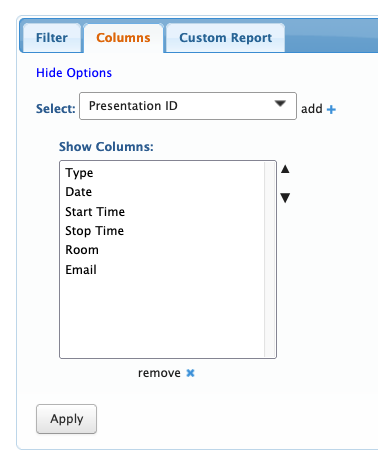
- Step 2. Go to the Columns tab. Here, you can add and remove columns. Click Apply to save the changes.
- We recommend this set of columns:
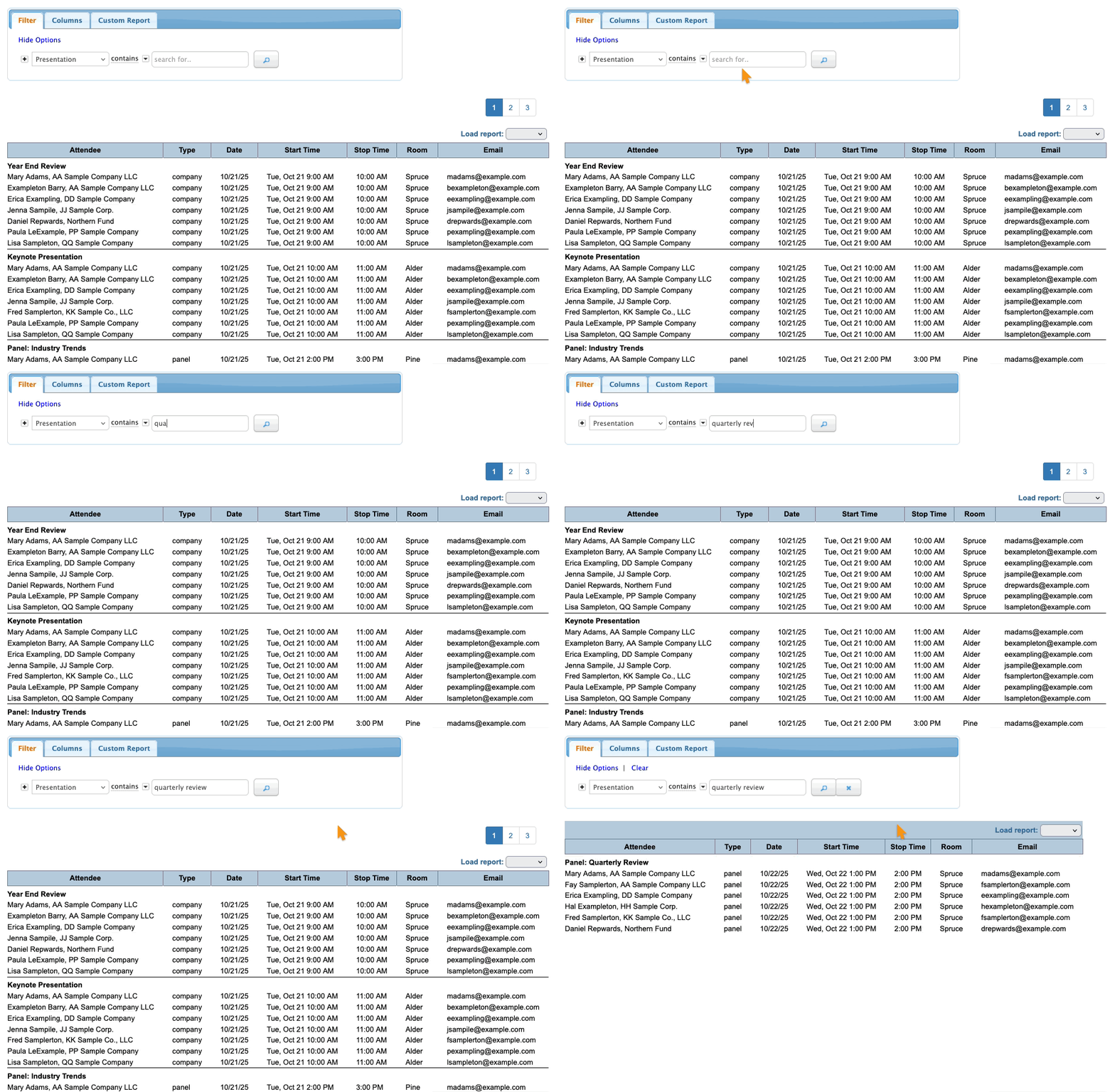
- Step 3. Now, head to the Filter tab. By default, you’ll see a list of everyone who’s signed up for all presentations at your event:
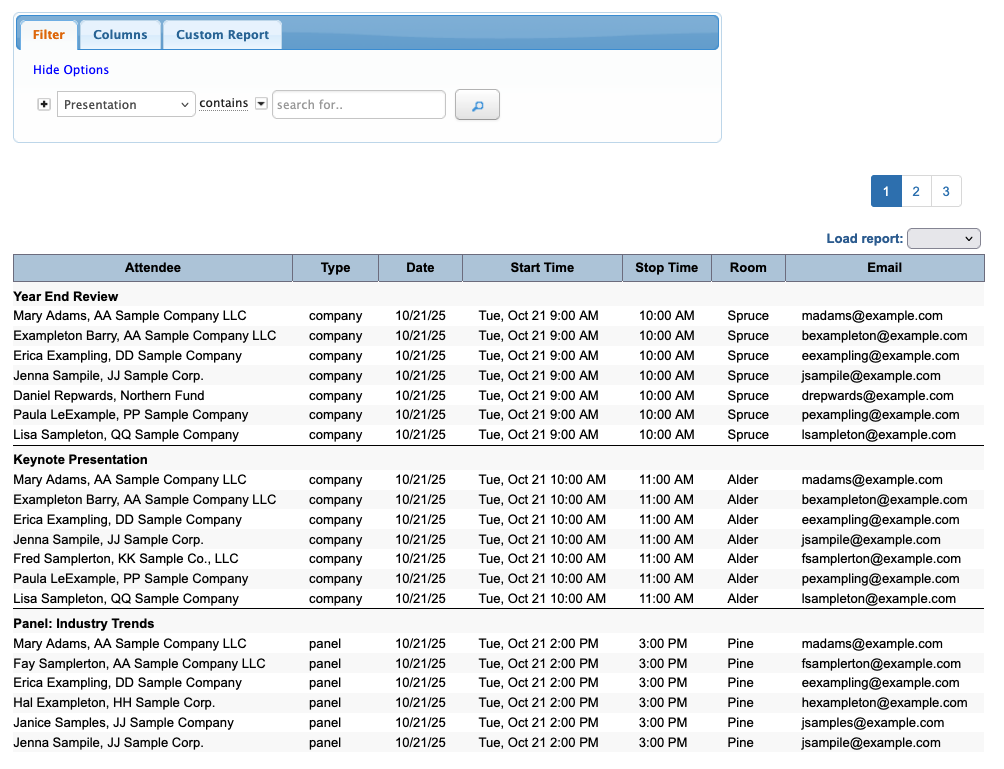
- Step 4. If you want to narrow the report to a single presentation’s sign-ups, use the Presentation filter.
- Enter all or part of the presentation title:
Exporting the report
To export the report in spreadsheet form, head to the top right corner of the page. Click Excel.
You can open the exported file in any spreadsheet software:

| You can also Print a copy of your report from here if you need a check-in list. | |
| With the Email link, you can send a quick message to a group of participants. |
Saving the report
Want to save this report so you can quickly access it later?
Head to the Custom Report tab. Then give the report a title, choose whether to share it with your team, and click Save: