


In this article:
- Data you can include in reports
- Adding and removing columns of data
- Filtering the list
- Exporting your report
Data you can include in reports
The Attendee List collects all the information from your event registration forms.
You can export your entire list, or use filters to run reports on subsets of your attendees.
| You’ll notice that MeetMax has a lot of filter options. Not all of these will apply to your event. You can filter your list according to the information you’ve captured during registration. |
Adding and removing columns of data
In the Columns tab, you’ll update the scope of your report. You can add columns of information, or remove them. You can also re-order them:
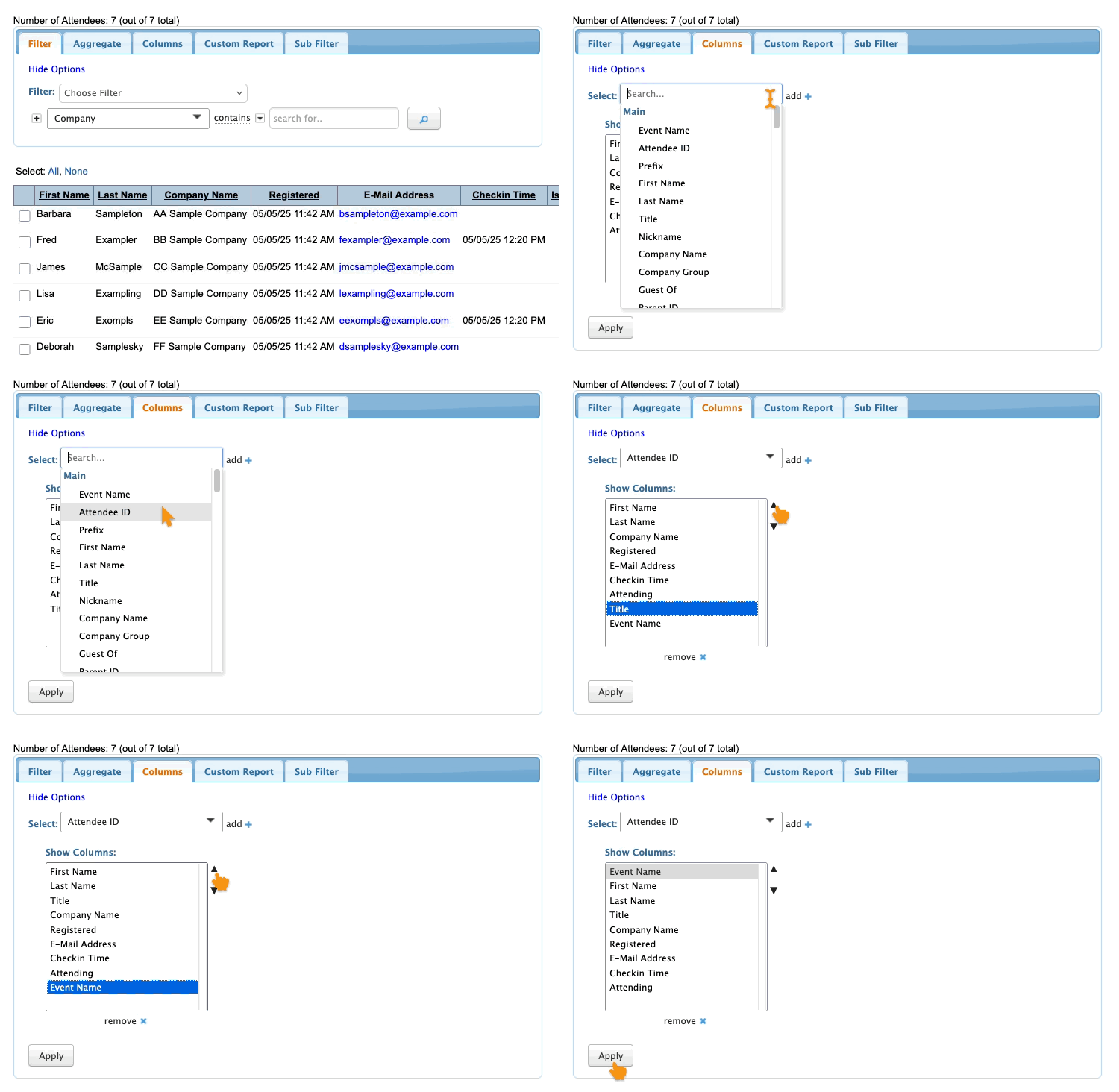
When you export reports from your Attendee List, you’ll see only the columns you’re currently including.
Filtering the list
The Filter tab is optional. If you need an export of your entire Attendee List, you don’t need to add any filters.
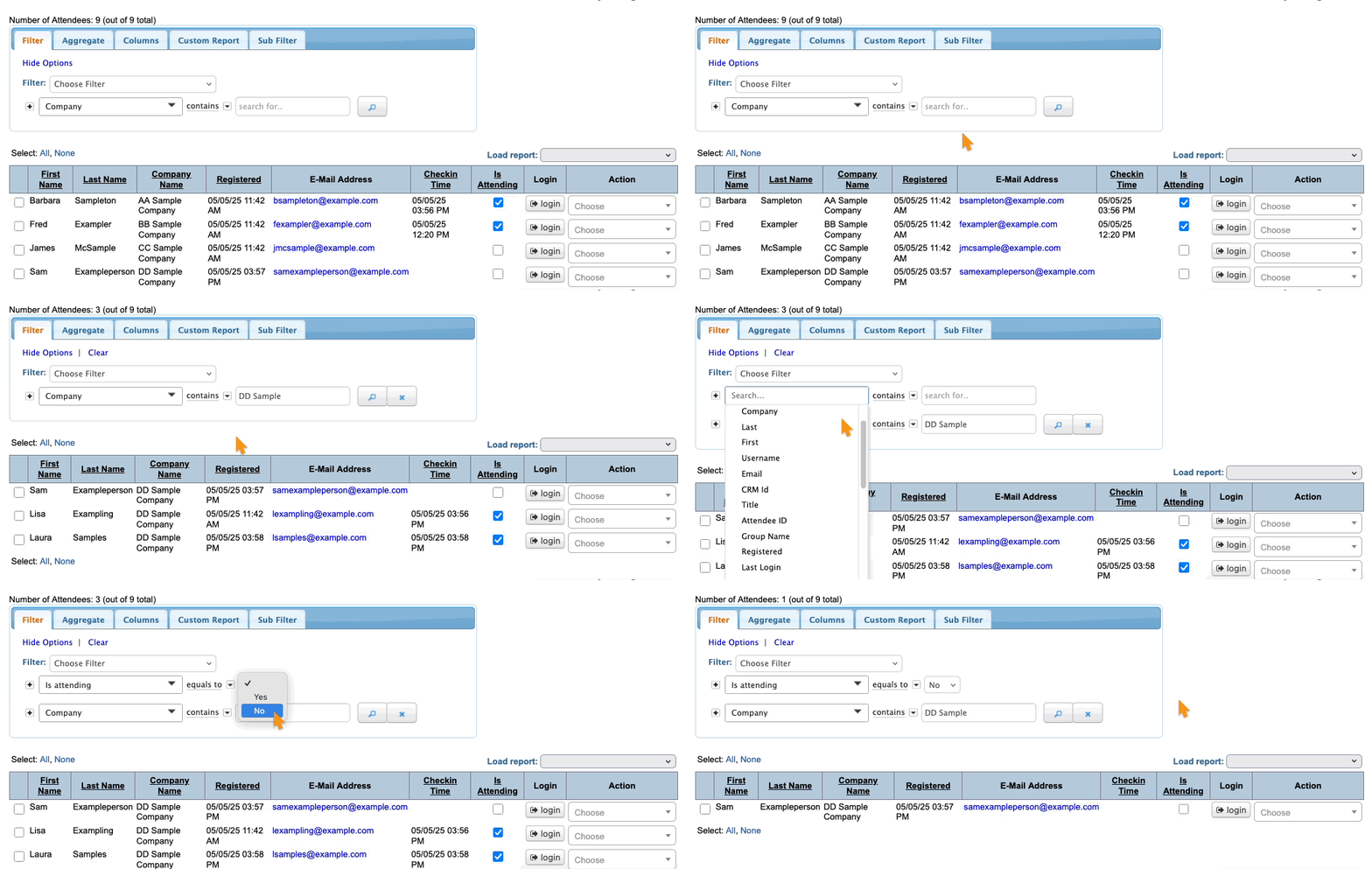
If you want to export a subset of your list, you’ll add one or more filters.
In this example, we wanted to see only the registrants from a specific company. Then we added another filter to show which of that group never checked in:
Exporting your report
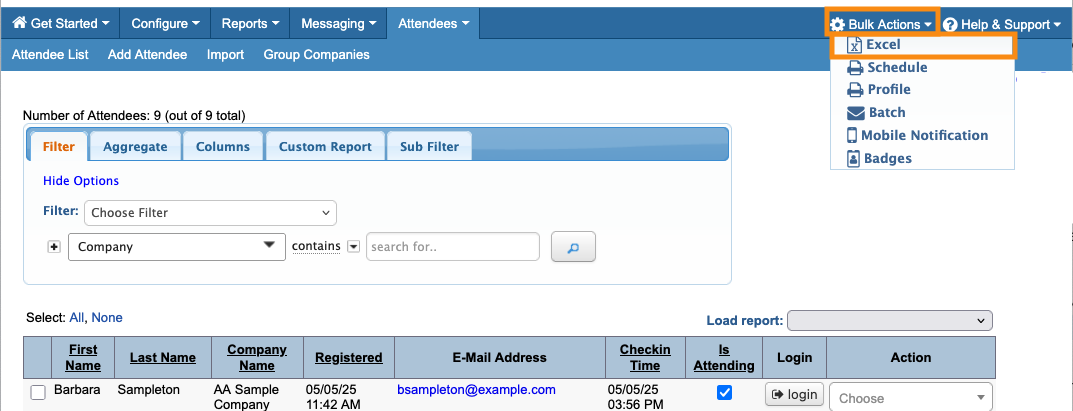
When you’re ready to export your Attendee List, head to the top right corner of the page.
Click on Bulk Actions, then choose Excel from the menu:
You can open the exported file in any spreadsheet software.
| MeetMax retains the data for your event for 15 months after its conclusion. After that it’s permanently deleted, so be sure to export your data before then. Learn more about our data storage policy here. |

