How do I move meeting tags between events?

If your team is adding informational tags to meetings, you might want to reuse your set of tags in other events.
- Step 1. Start in the event where you’ve set up your tags.
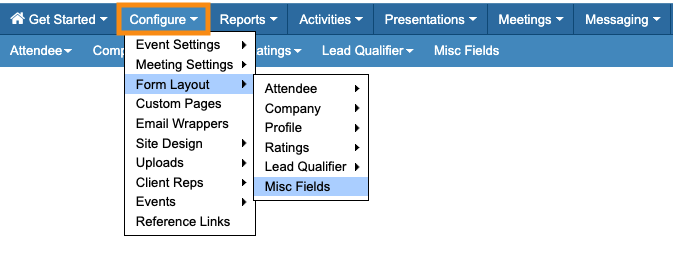
- Head to the Configure tab. Choose Form Layout, then Misc. Fields:
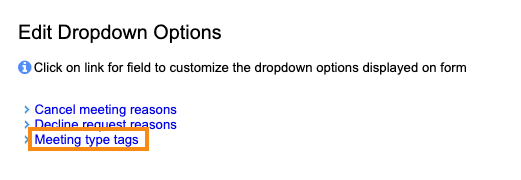
- Step 2. Click the Meeting Type Tags link:
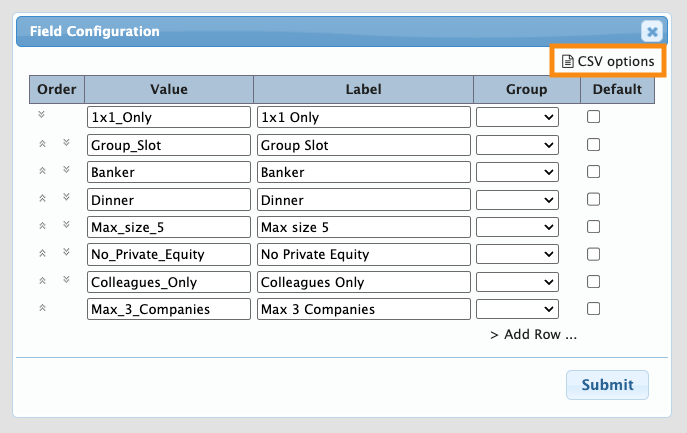
- Step 3. In the pop-up, head to the top right corner. Click the CSV Options link:
- Step 4. Highlight the whole CSV list and copy it to your clipboard:
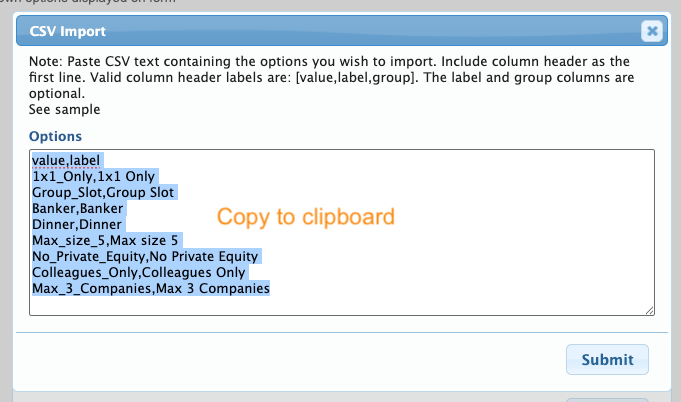
- You can then close this pop-up.
- Step 5. Now, use the Configure tab to switch to your new event:
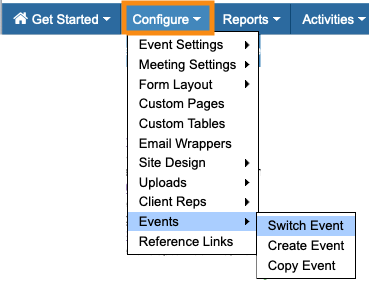
- Step 6. Repeat Steps 1-3 above to go to the Meeting Type Tags.
- Click CSV Options and paste your copied list to replace the default one. Click Submit:
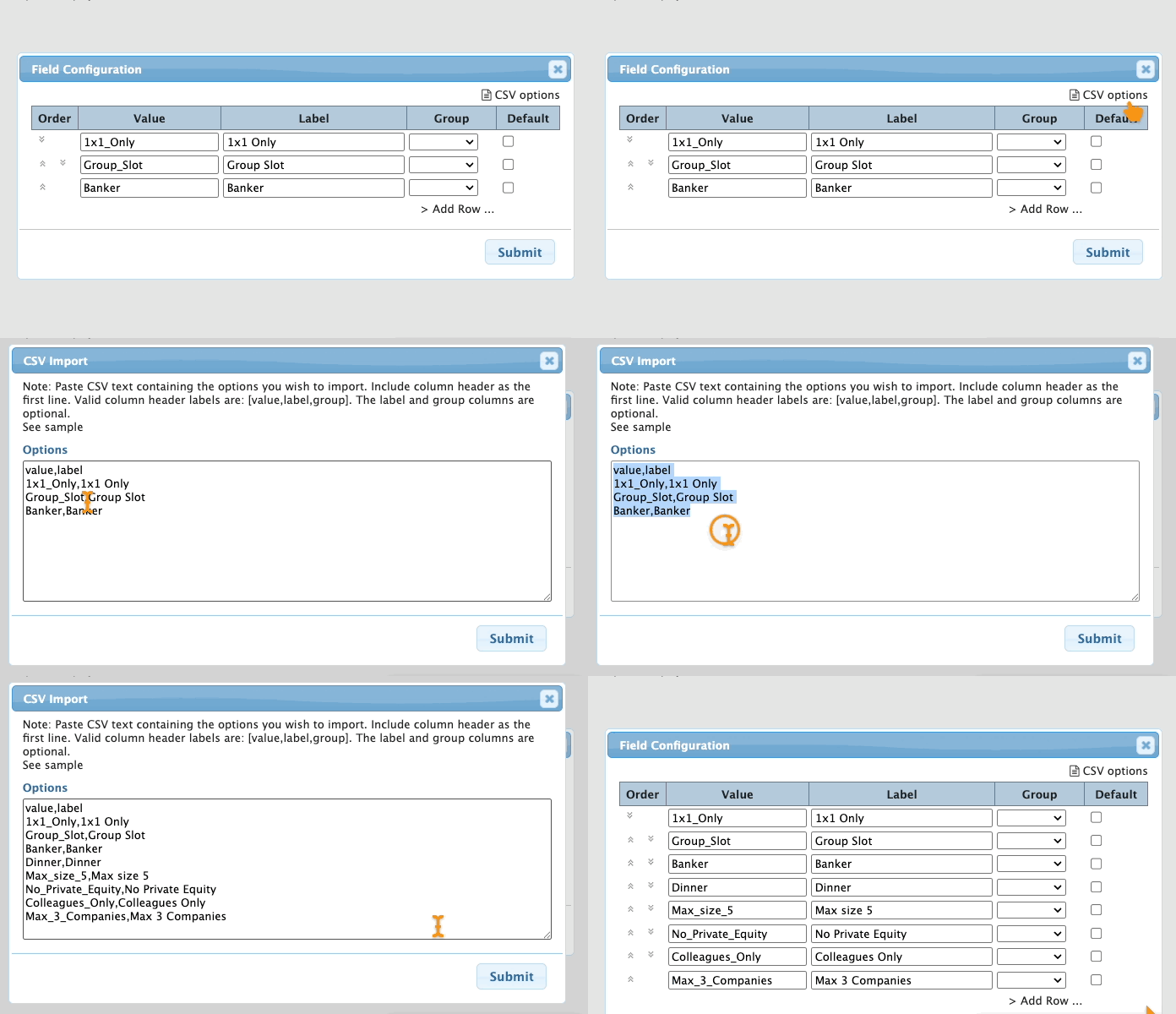
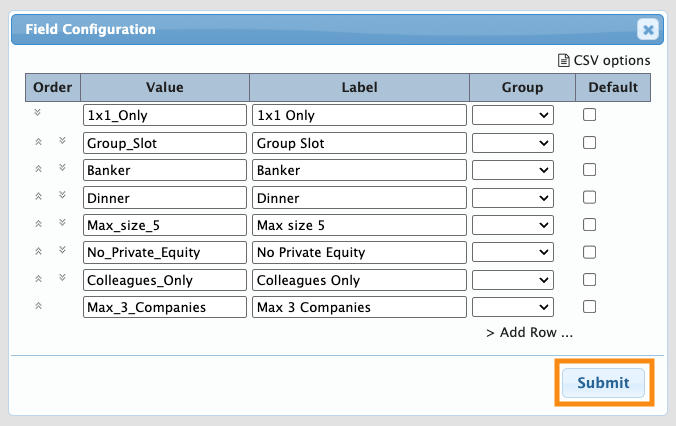
- Step 7. Click Submit once more, to save the new settings: