In this article:
- Where is it?
- Why is it useful?
- Adding keywords to a meeting
- Your keyword list
- Adding keywords to schedules
Where is it?
You’ll add keywords from either the Attendee List or Company List:


| This feature is available while you’re scheduling meetings from existing requests. You can also create a meeting from scratch, but you’ll need to save it before adding keywords. | |
| You can use keywords with Moderated and Unmoderated meeting programs. |
Why is it useful?
For some events, you might want to categorize different kinds of meetings.
For example, let’s say your event will have meetings for both sales pitches and contract discussions. You might want to make it clear which meetings are which type.
You can use meeting keywords either internally or externally, or both.
- Keywords can help your scheduling team keep track of different kinds of meetings.
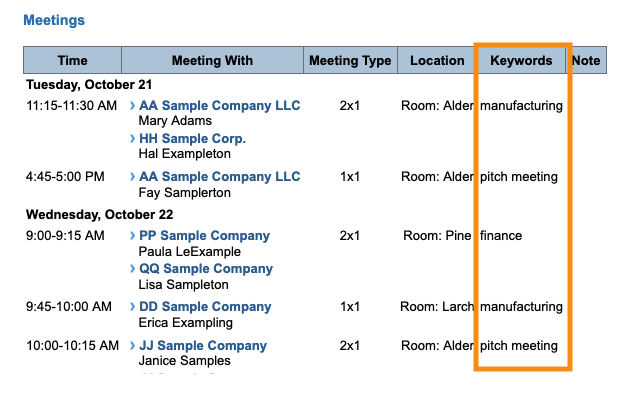
- You can also make keywords visible to participants, on their event schedules.
| MeetMax also has a Meeting Type Tags feature - an internal tool designed to help a team of schedulers coordinate efforts. |
Adding keywords to a meeting
You can add keywords to individual meetings, and leave any meeting without keywords.
- Step 1. Head to the Company List:

- If you’re adding a keyword from an Attendee record, you’ll start in the Attendee List instead.
- Step 2. Filter the list to locate the Company you need. Use the Action menu to choose Meeting Times:

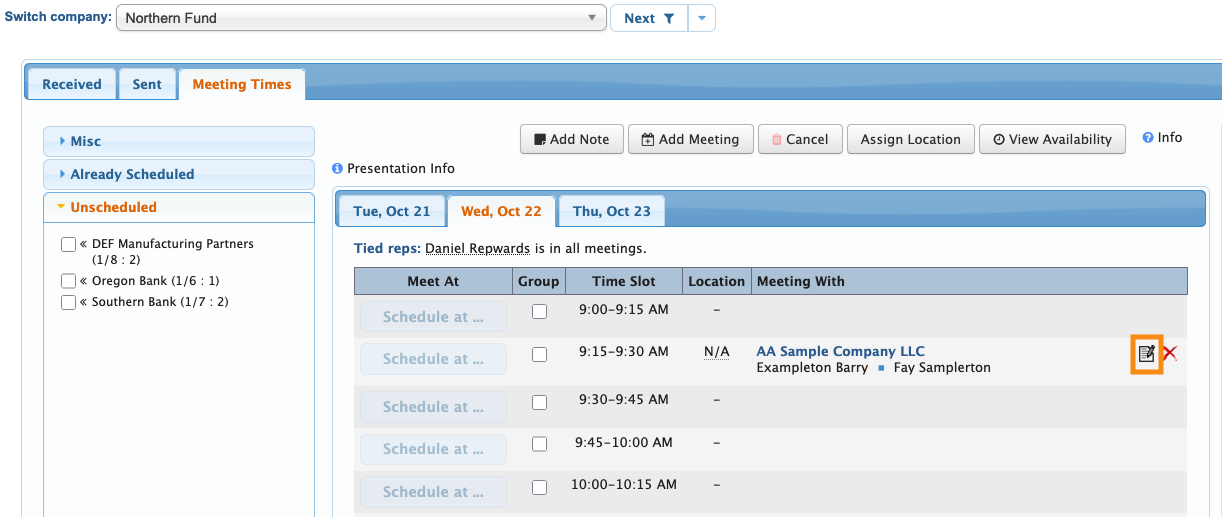
- Step 3. Locate the scheduled meeting you want to tag. Click the Edit icon:
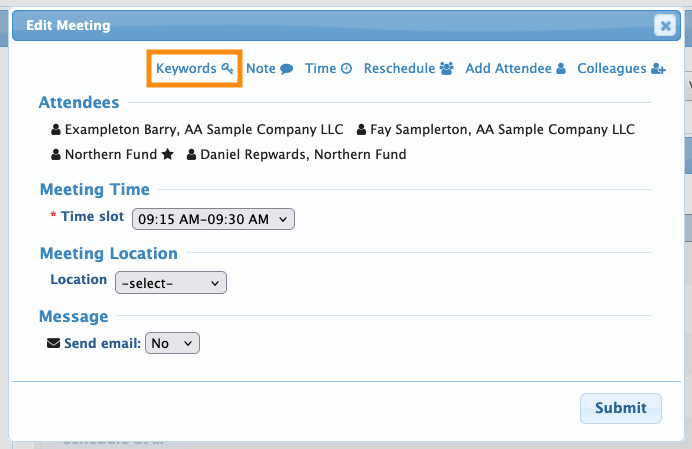
- Step 4. In the pop-up, click the Keywords link:
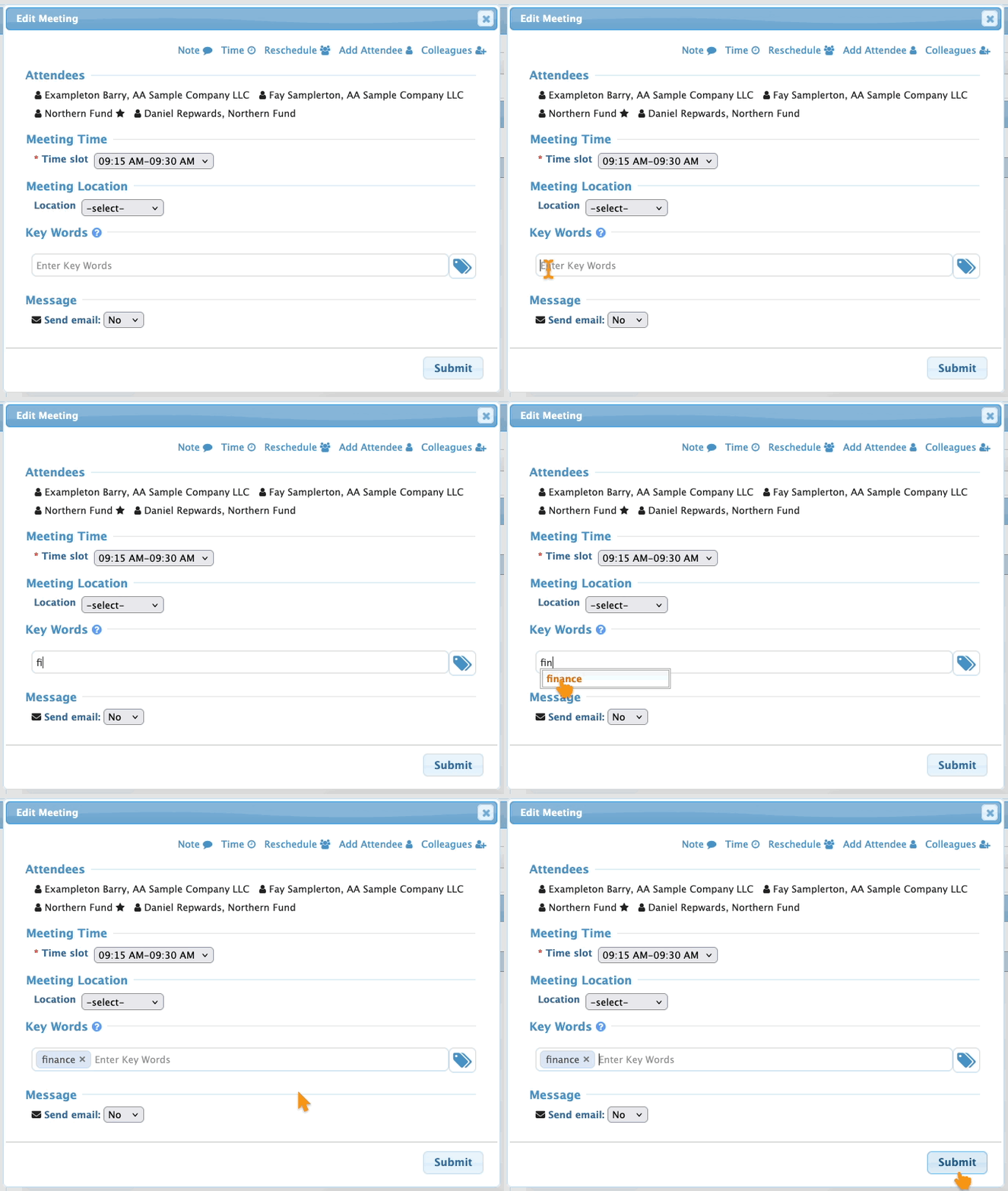
- Step 5. Now you’ll be able to type in any keywords you’d like to add to this meeting. Hit Enter to complete each one. Then click Submit:
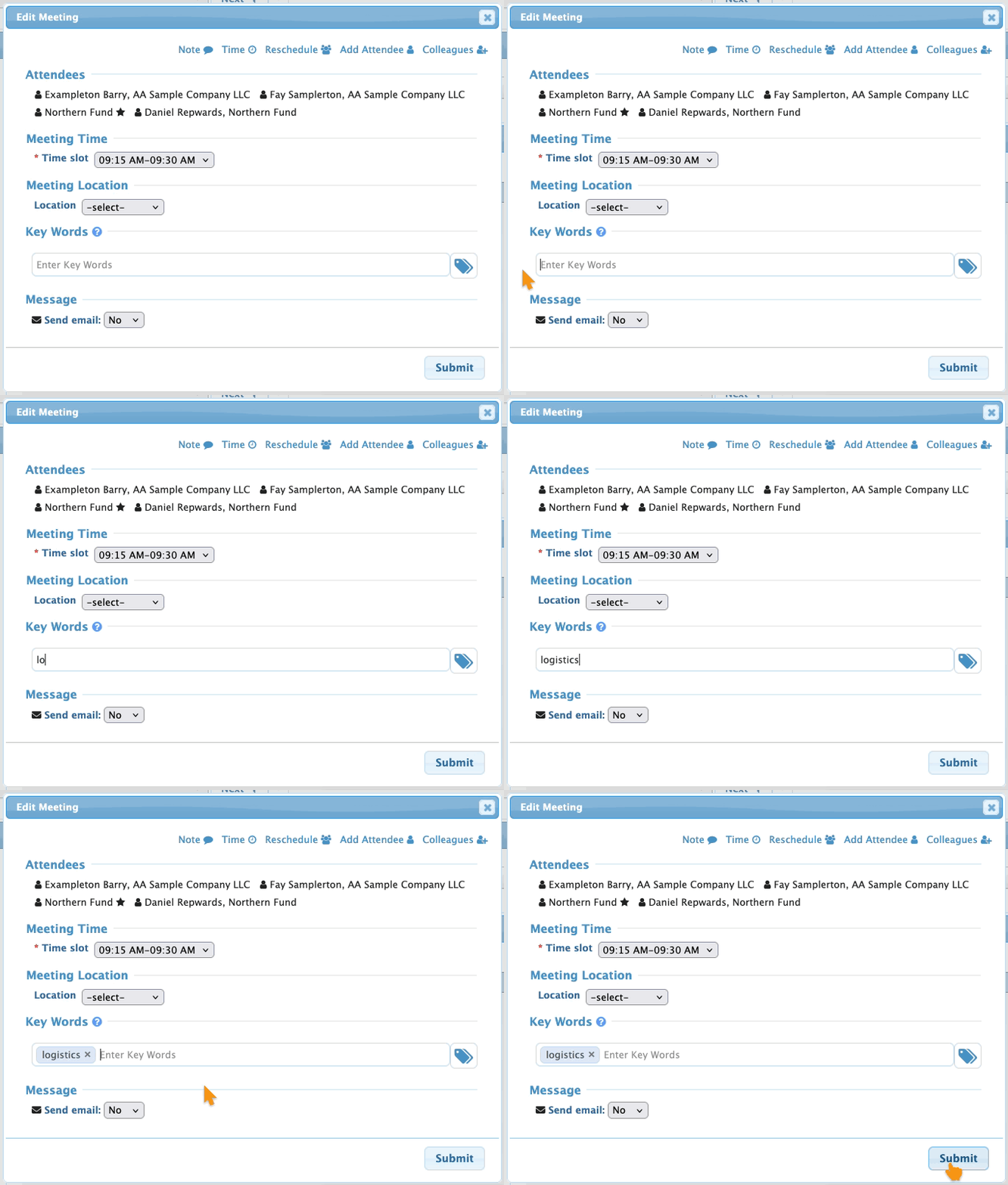
- See the section below for more details on managing your keywords.
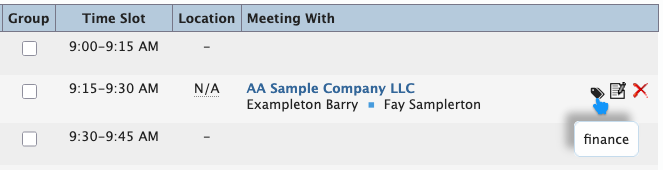
- Step 6. You’ll then see the tag icon on this meeting. Hover over it to see the keywords:
Your keyword list
Once you’ve added a keyword to any meeting and saved it, that keyword becomes available to your team to use.
MeetMax uses type-ahead functionality to help prevent duplicate keywords. Type any portion of a keyword, and you’ll see a matching existing one:
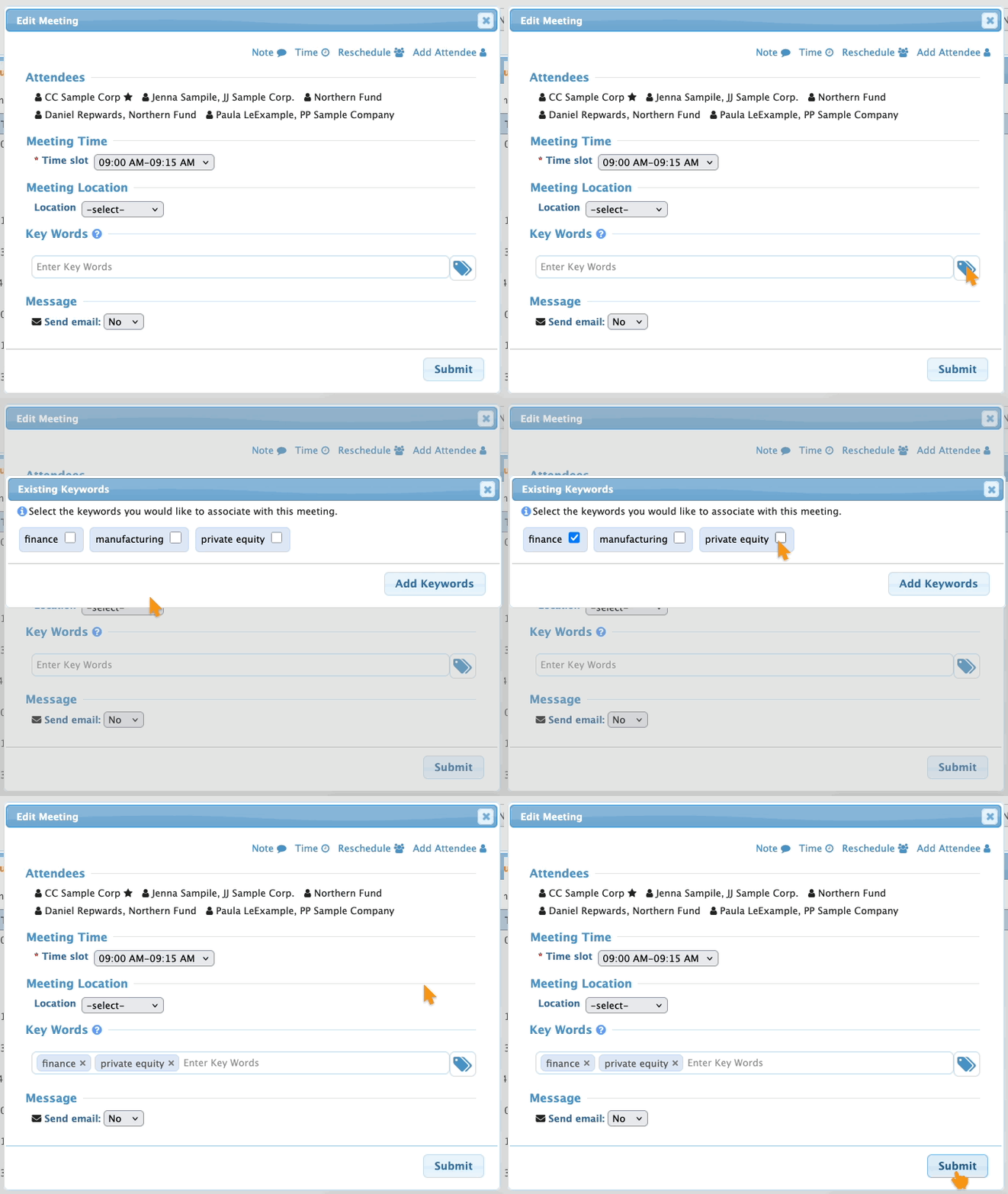
If you’d rather not have your team typing in keywords, they can click the tag icon instead. That brings up a list of existing keywords to choose from:
If you need a keyword to contain more than one word, put the phrase in quotes:


Adding keywords to schedules
You can display keywords on either Attendee or Company schedules, or both.
- Step 1. Start in either the Attendee or Company List. (We’ll show the Company List here, but the process is the same if you start in the Attendee List.)

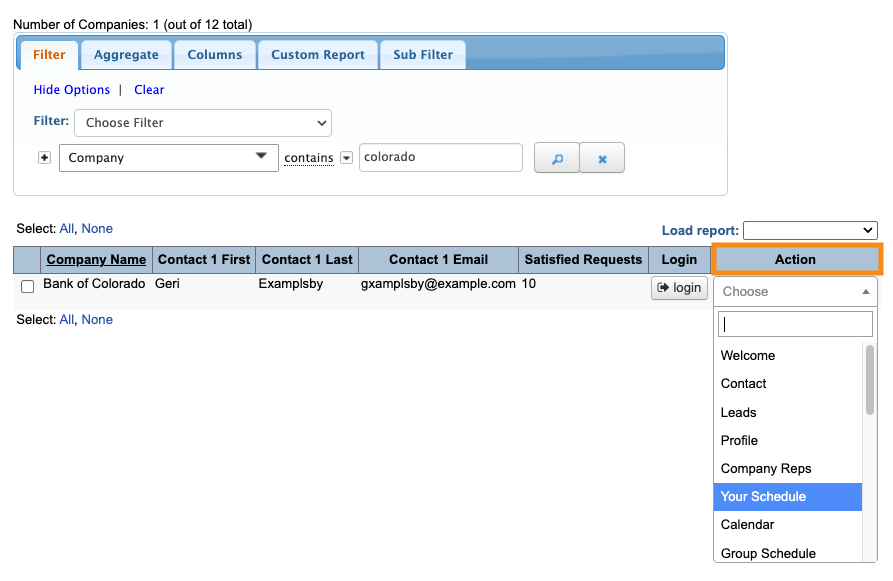
- Step 2. Use any Company record - the changes you make here will save for everyone. Use the Action menu to choose Your Schedule:
- Step 3. Make sure you’re viewing the Company version of the schedule. Click the Settings button:
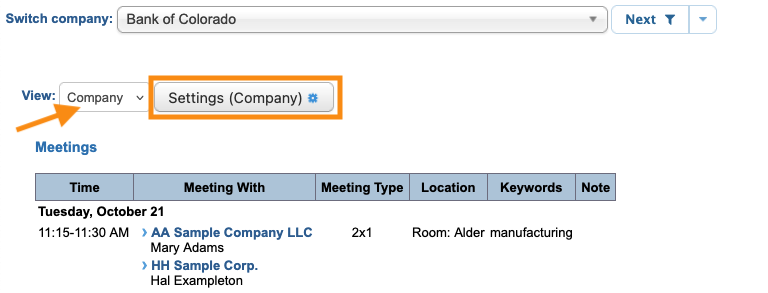
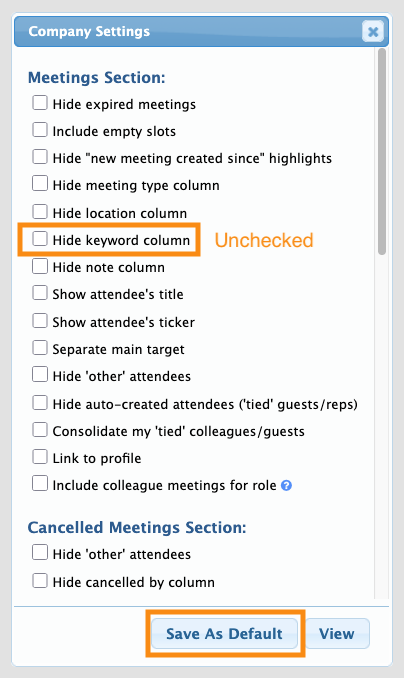
- Step 4. In the Schedule Settings, make sure the Hide Keyword column checkbox is unchecked. Click Save as Default:
- Step 5. Every Company’s schedule will now include a Keywords column: