


How many people are scheduled in this meeting?

MeetMax offers two ways to see the number of participants in your scheduled meetings.
In this article:
Adding the Info column
You can add this column to the Meeting Times page any time, and remove it any time
- Step 1. You can do this from the Attendee List or Company List - the change will be visible to everyone.
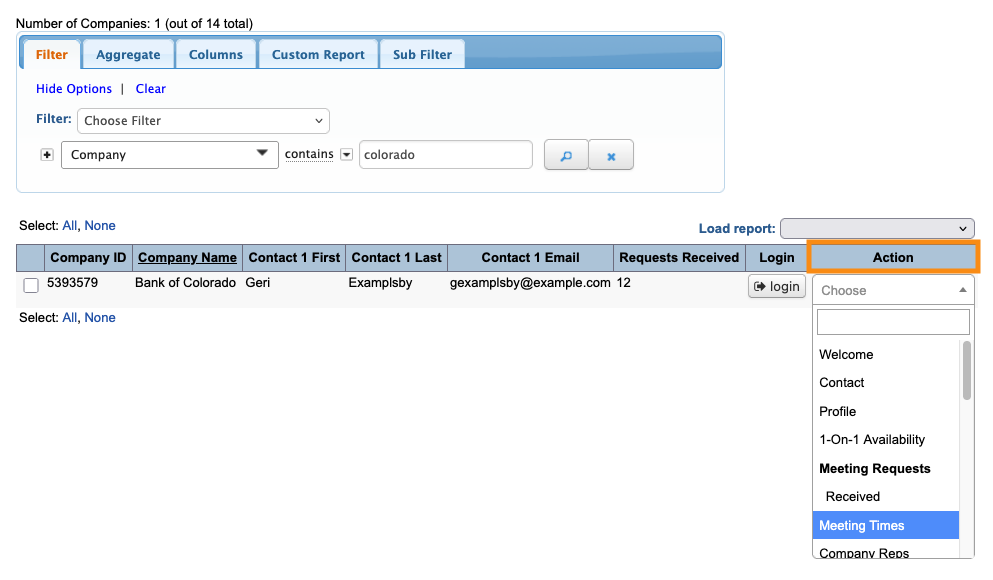
- In this example, we’ll start in the Company List:

- Step 2. Use any record. The change you make here will be visible to everyone.
- Use the Action menu to choose Meeting Times:
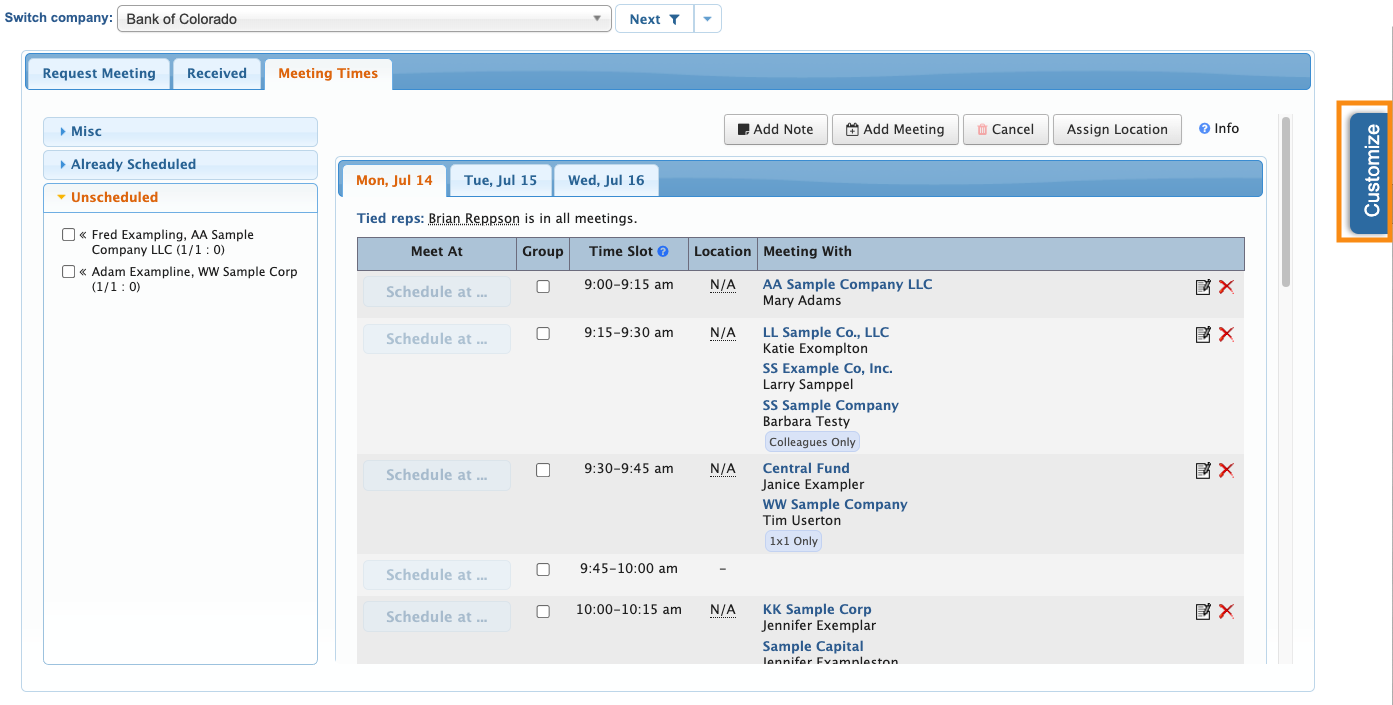
- Step 3. On the Meeting Times page, head to the right edge and click the Customize button:
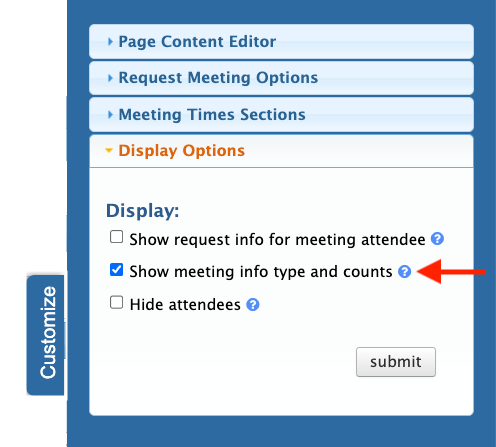
- Step 4. In the slide-out panel, click on the Display Options section. Then click Show meeting info type and counts.
- Click Submit to save:
- Step 5. All Meeting Times pages now display the Info column, which shows participant counts:
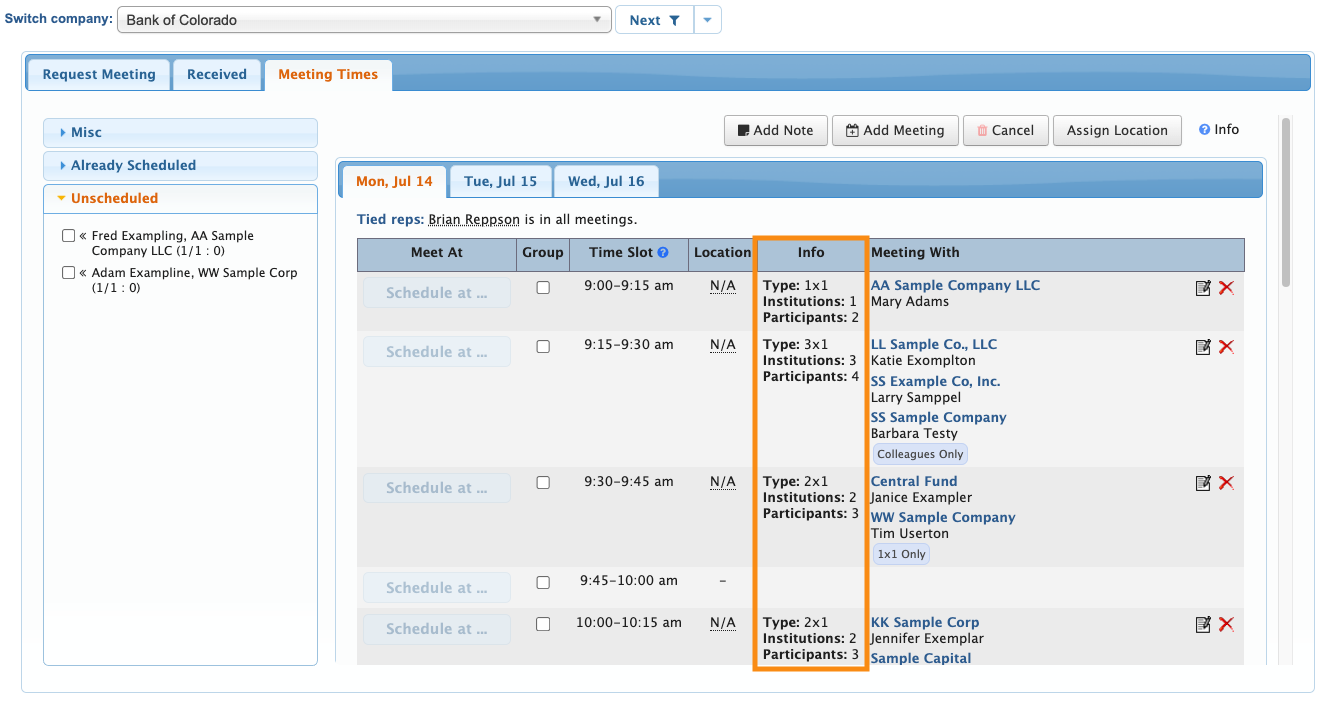
- • Institutions: The number of Companies in this meeting, not including the Company hosting it
- • Participants: The number of Attendees and Company Reps in this meeting, including those from the host Company
Running a report
If you’d rather have participant counts in spreadsheet form, use these steps.
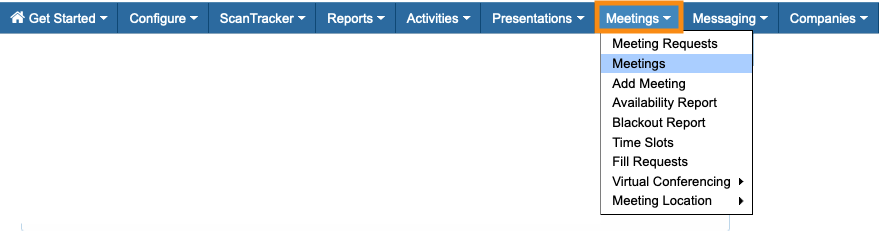
- Step 1. Head to the Meetings List:
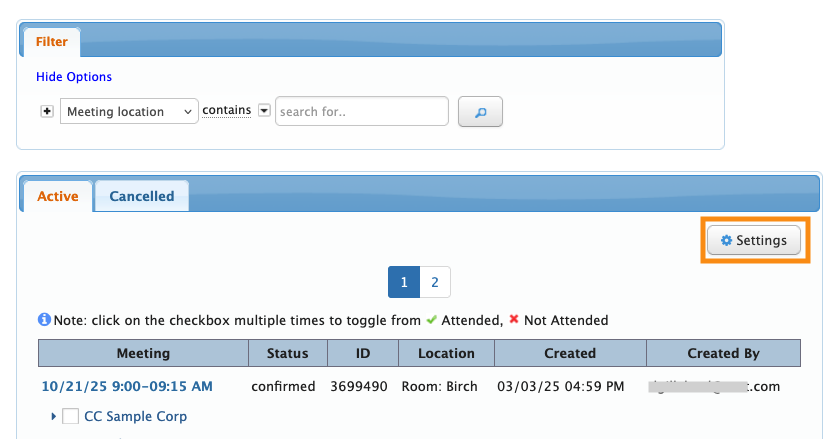
- Step 2. Click the Settings button:
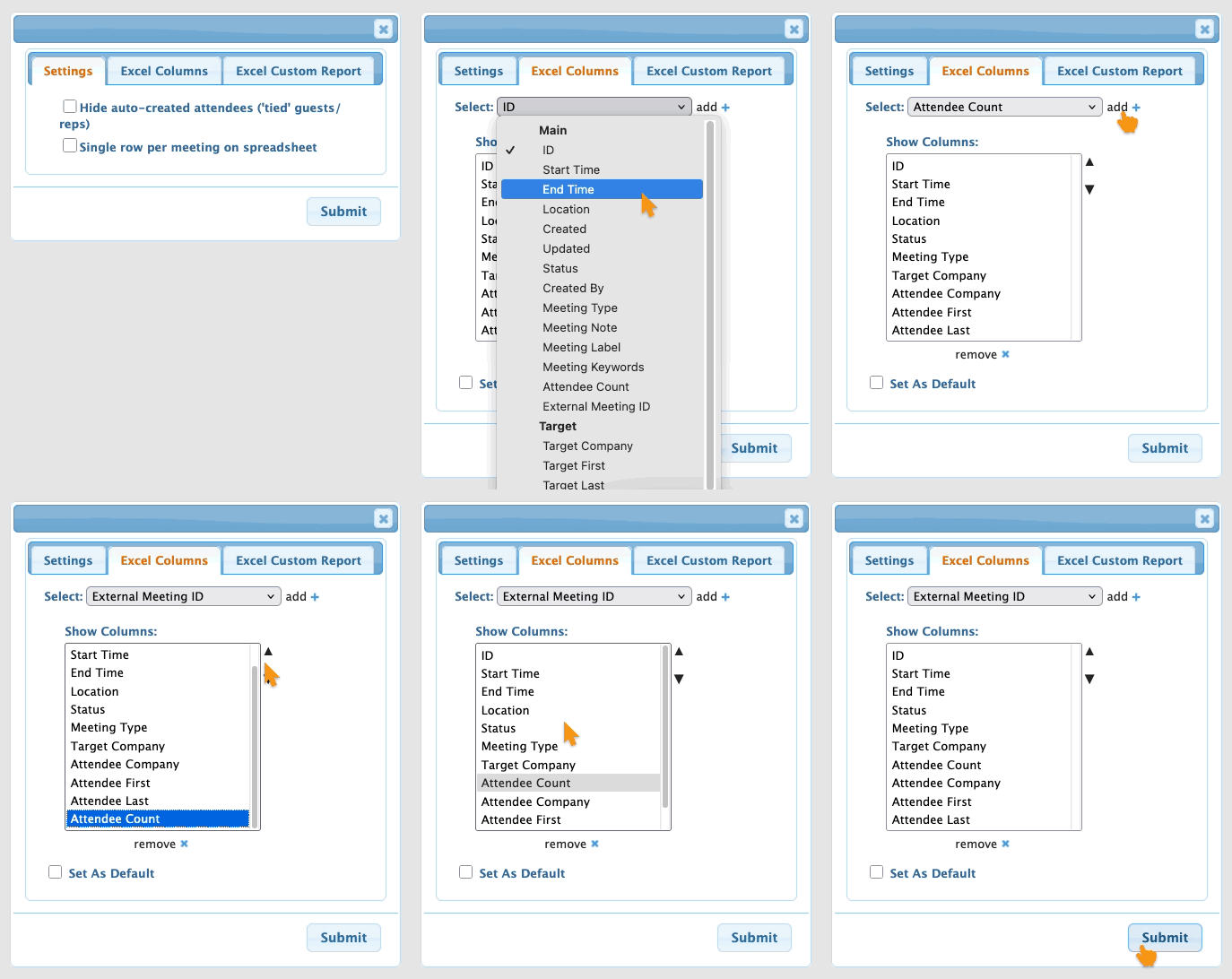
- Step 3. In the pop-up, click the Excel Columns tab.
- Step 4. Add the Attendee Count column to your report. You can also remove any columns you don’t need, and re-order columns.
- Click Submit to save:
-
The Meetings List on your screen won’t change. The column updates only appear in an exported spreadsheet. - Step 5. Head to the top right corner of the page and click the Excel link:

- You can open the downloaded file in any spreadsheet software.


