How do I manually adjust a participant’s balance?

There might be cases where you need to post a manual adjustment to a participant’s balance due, before they pay their invoice.
| We’ll show this process from the Attendee List, but you can also enter balance adjustments from the Company List. | |
| In this example, we’re posting a balance adjustment to a pending registration. You can also use this process on completed registrations. |
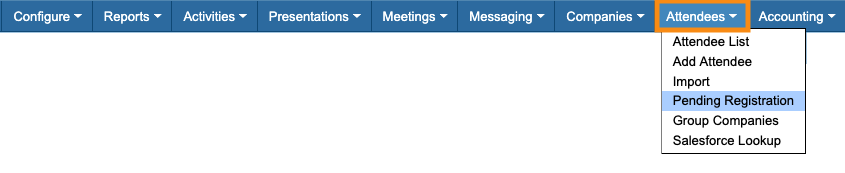
- Step 1. Head to the Attendees tab. Choose Pending Registration:
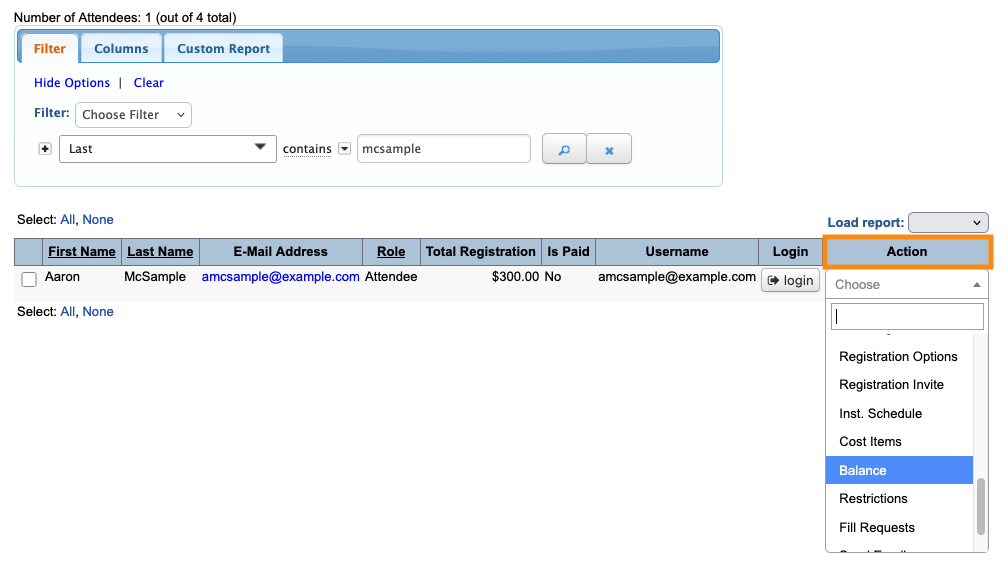
- Step 2. Filter the list to locate the person you need to update. Use the Action menu to choose Balance:
- Step 3. On the Adjust Balance page, you’ll see the participant’s current invoice balance.
- • To increase the balance due, choose Debit.
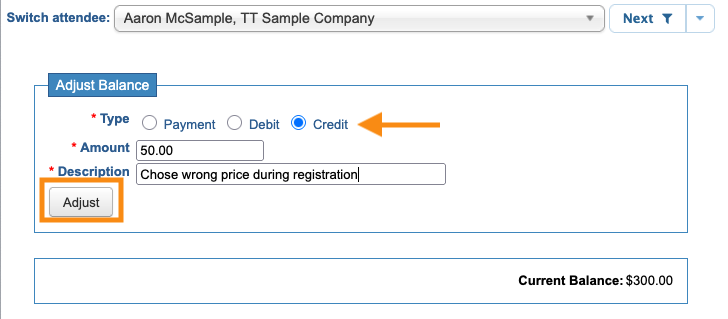
- • To decrease the balance due, choose Credit:
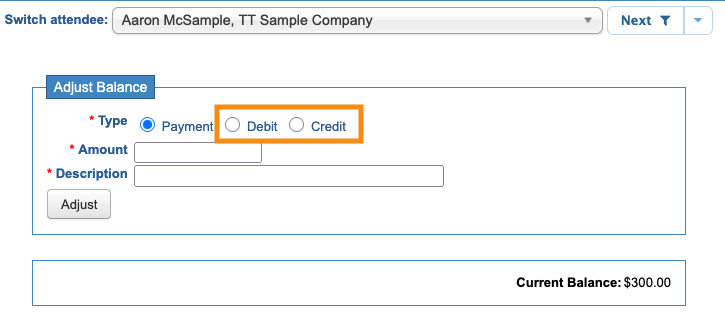
- Step 4. In this example, we’re posting a Credit to reduce this participant’s registration payment.
- Enter the Amount, and a Description. Then click Adjust to save:
-
If the participant hasn’t paid their invoice yet, they’ll remain in the Pending Registration list until their invoice is paid in full.
Viewing the transaction
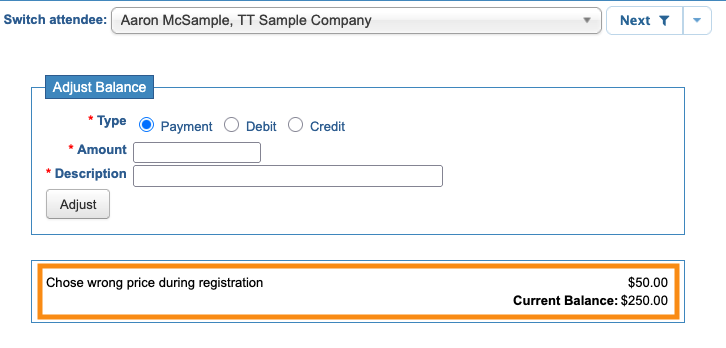
You’ll see the manual adjustment and updated balance on the participant’s Adjust Balance page:
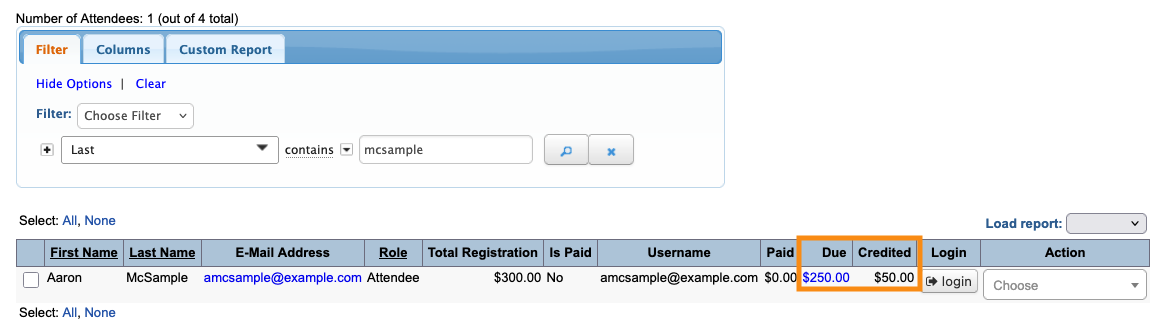
On the Attendee List, you can add the Credited and Due columns to easily see balance adjustments:
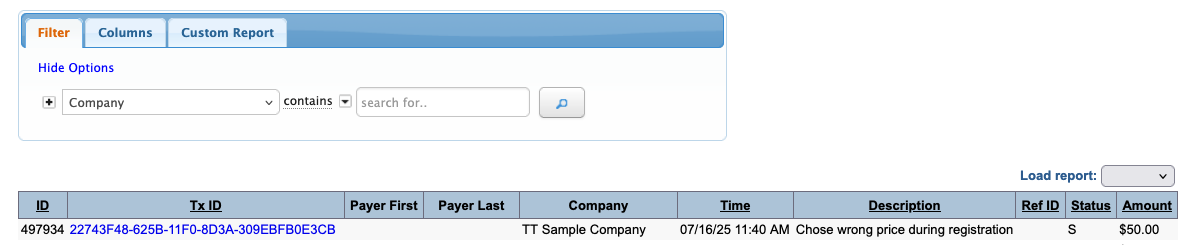
You can also find the manual adjustment on your Transactions List: