In this article:
Where is it?
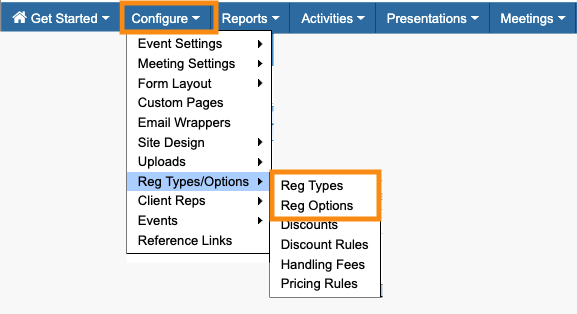
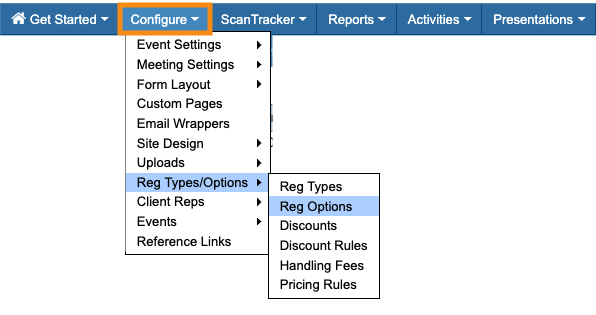
You’ll set up the pricing from the Configure tab:
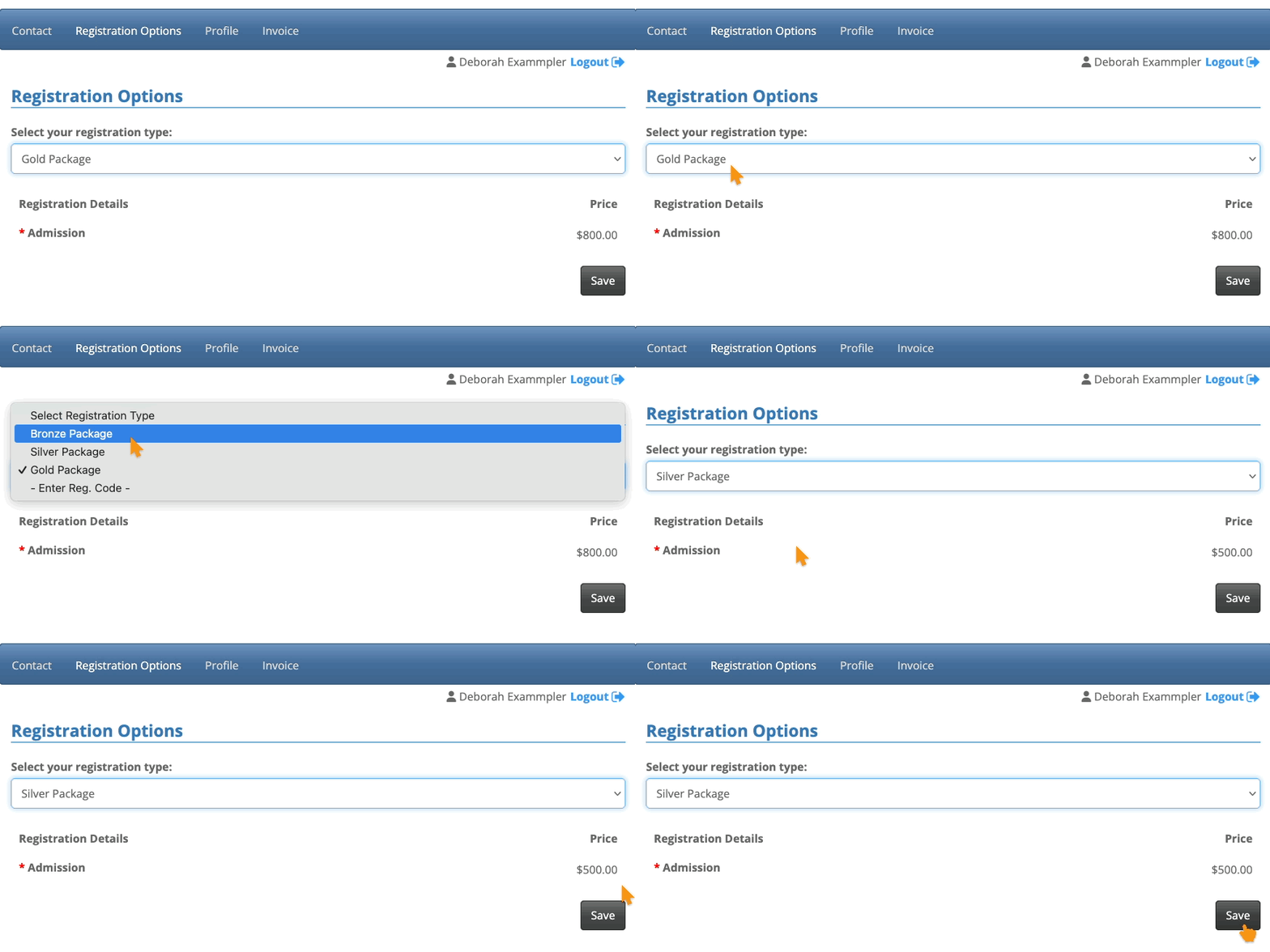
After that, new registrants will access MeetMax, and find their options in the Registration Options page:
| Before they pay, an Attendee can only see the MeetMax features you’ve granted access to. You’ll configure that in the Menu Editor. |
Setting up
For this example, we have three registration levels. These are all available throughout registration:
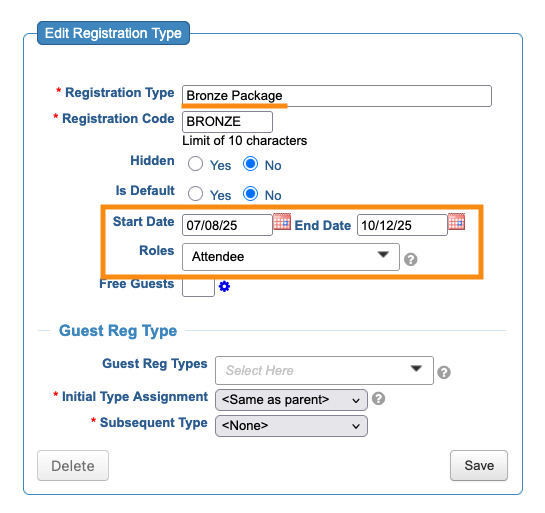
- Bronze package: Includes only admission to the event
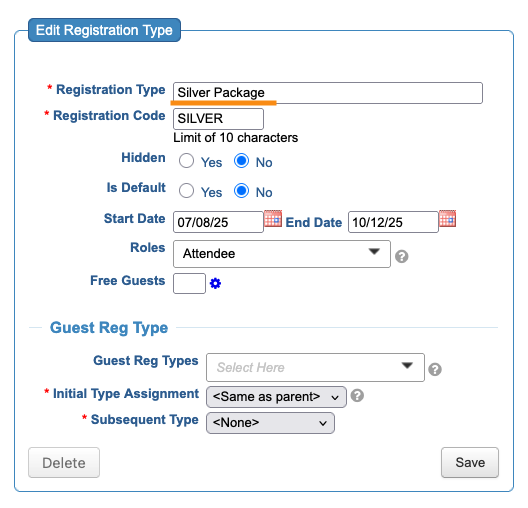
- Silver package: Includes admission and access to 1x1 meetings
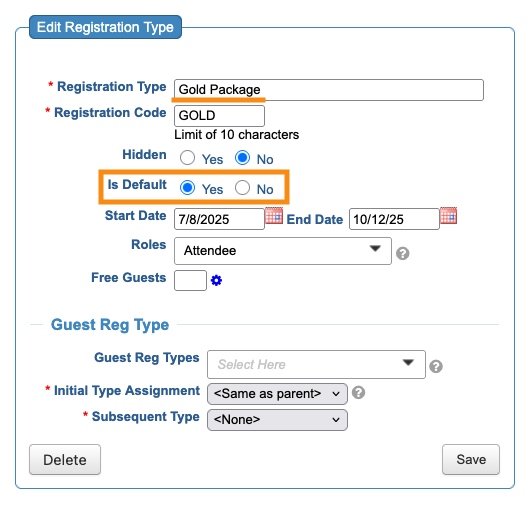
- Gold package: Includes admission, access to meetings, and a VIP Q&A session
Creating the Registration Types
For each of the package options above, create a separate Registration Type:
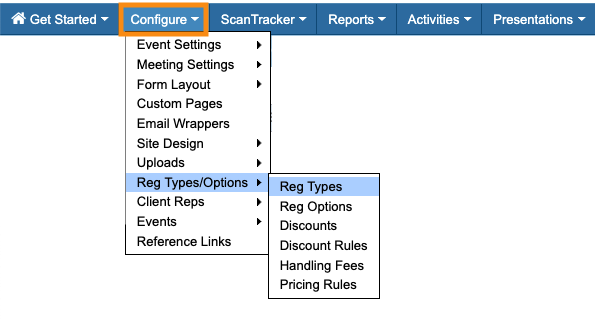
For this set of three:
- We’ve made them all available in the same date range.
- They’re all available only to the Attendee role.
- We’ve set the Gold package as a default, so registrants see it first.
| For this registration scenario, we don’t need any of the Guest settings. | |
| These Registration Types only create the ticket options. We’ll give each one a price in the next section. |
Creating Registration Options
Create one Registration Option, called “Admission” or similar. (If your account has this default Registration Option, you can edit it.)
For this scenario:
- Make this Registration Option required, so every Attendee has to choose one of these packages.
- MeetMax will list all of the Registration Types you’ve just created. Assign a price to each one:
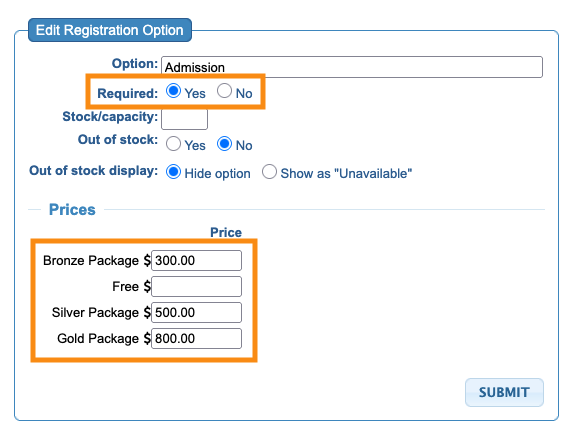
| Free is a default Registration Option in MeetMax, so you can offer complimentary admission as needed. Leave it blank for this scenario. |
What participants see
Once an Attendee completes their event registration, they’ll be taken to their MeetMax account. They’ll see the Registration Options and Invoice tabs, plus any other tabs you’ve granted access to before payment.
The Attendee will use the menu to choose between your Registration Types. MeetMax automatically updates the pricing to match your Registration Option:
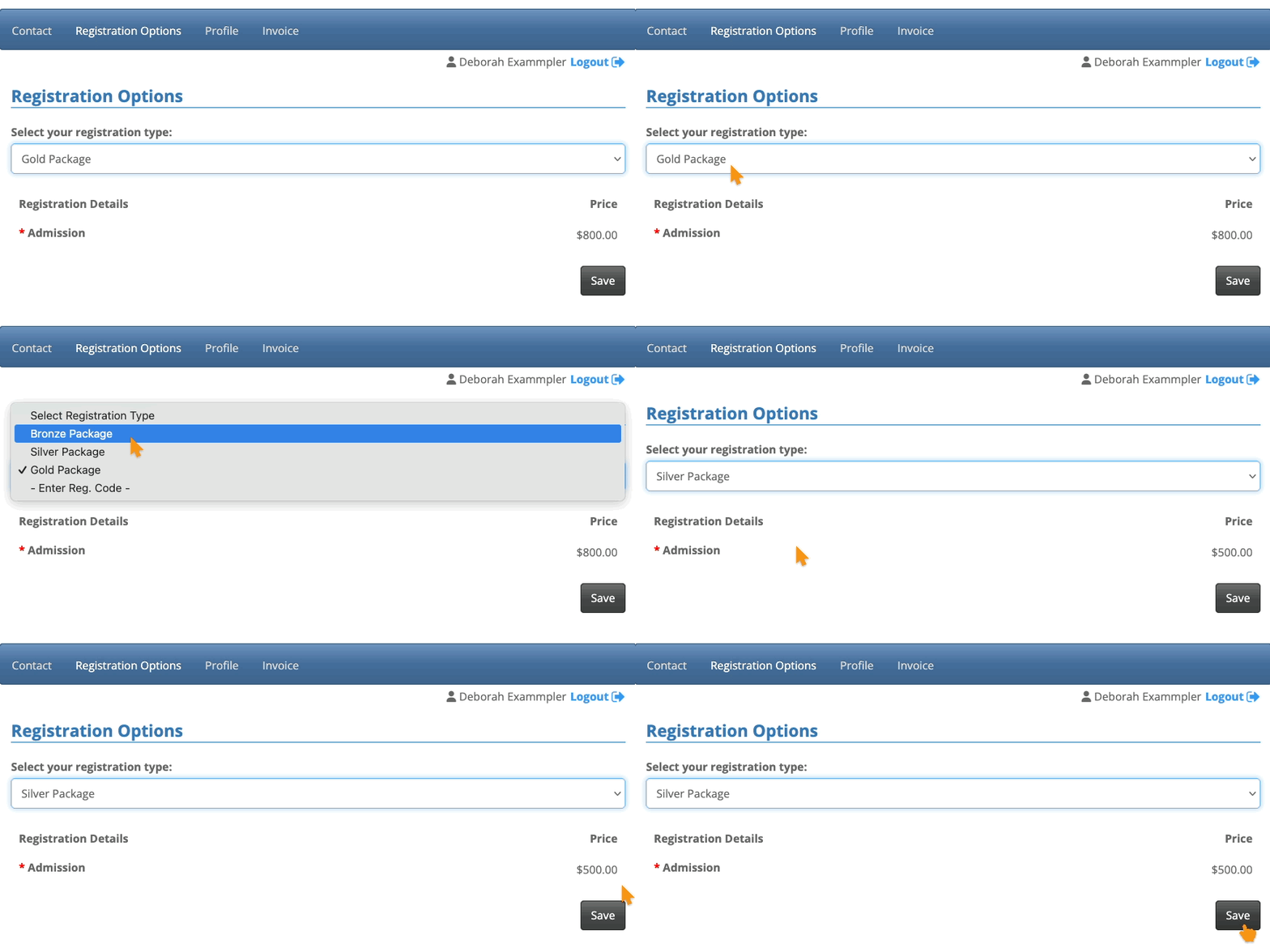
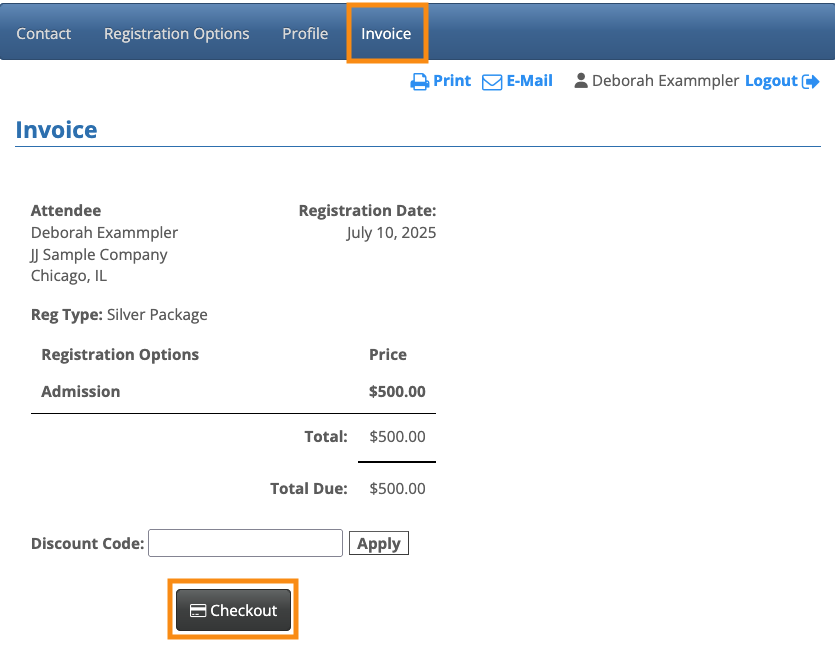
Once the Attendee saves their choice, the Invoice tab reflects it. Now the Attendee can proceed with payment: