


In this article:
Where is it?
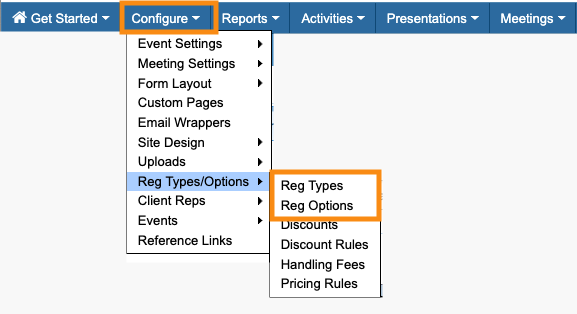
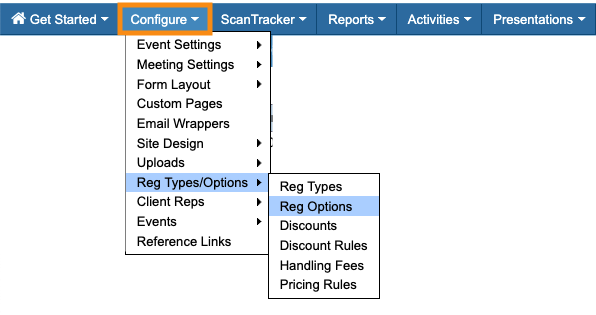
You’ll set up the pricing from the Configure tab:
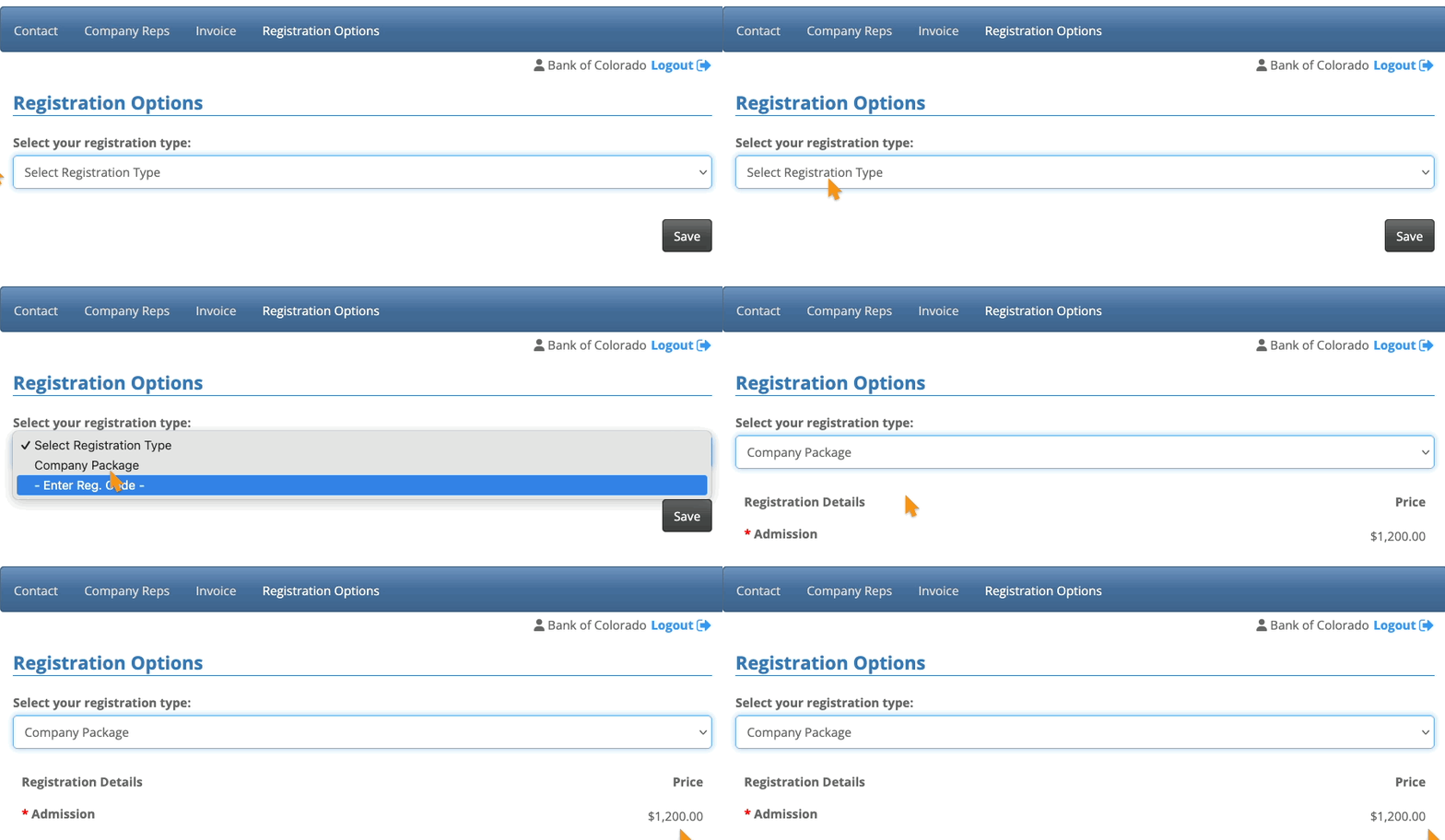
After that, newly-registered Companies will access MeetMax, and find their options in the Registration Options page:
| This scenario applies to the Company user role. Your event might use this kind of payment for Sponsors, Exhibitors, or other “Seller” roles. | |
| Before they pay, a Company can only see the MeetMax features you’ve granted access to. You’ll configure that in the Menu Editor. |
Setting up
For this example:
- When a Company registers for our event, they can bring up to 3 team members for free.
- For each additional team member, the Company pays our full admission fee.
Creating the Registration Types
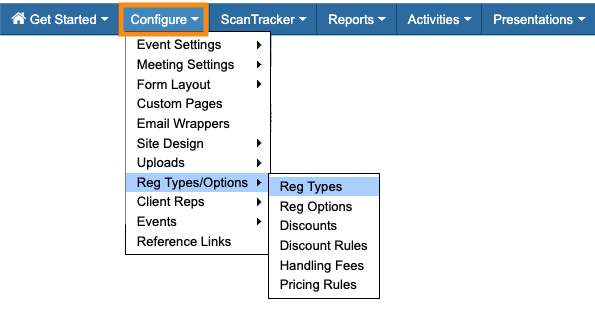
First, we’ll create a Registration Type:
For this Registration Type:
- We won’t need it to be Hidden or Default. You can assign an active date range if you want, but it’s not required.
- This Registration Type applies two user Roles: Company and Company Rep.
- We’ll set the number of Free Guests to 3:
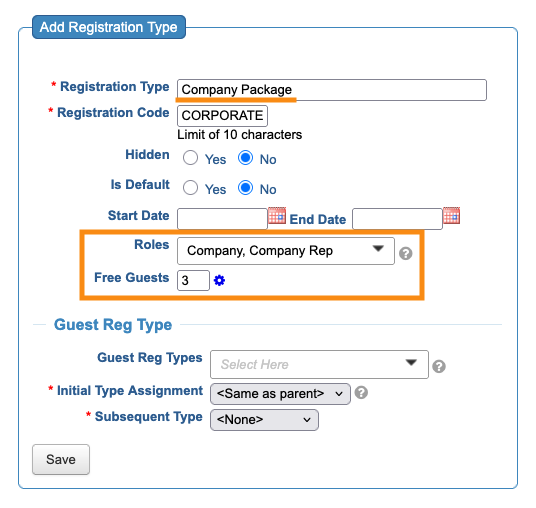
Once that’s done, click on the gear icon next to Free Guests.
That opens up the Free Guests settings:
- Free Guests Qualifying Charges: Choose the Registration Option that applies - in this case, it’s our Admission option.
- Free Guests Filter: We’ll set the free guests to apply only when a registration is using the Registration Type we just created.
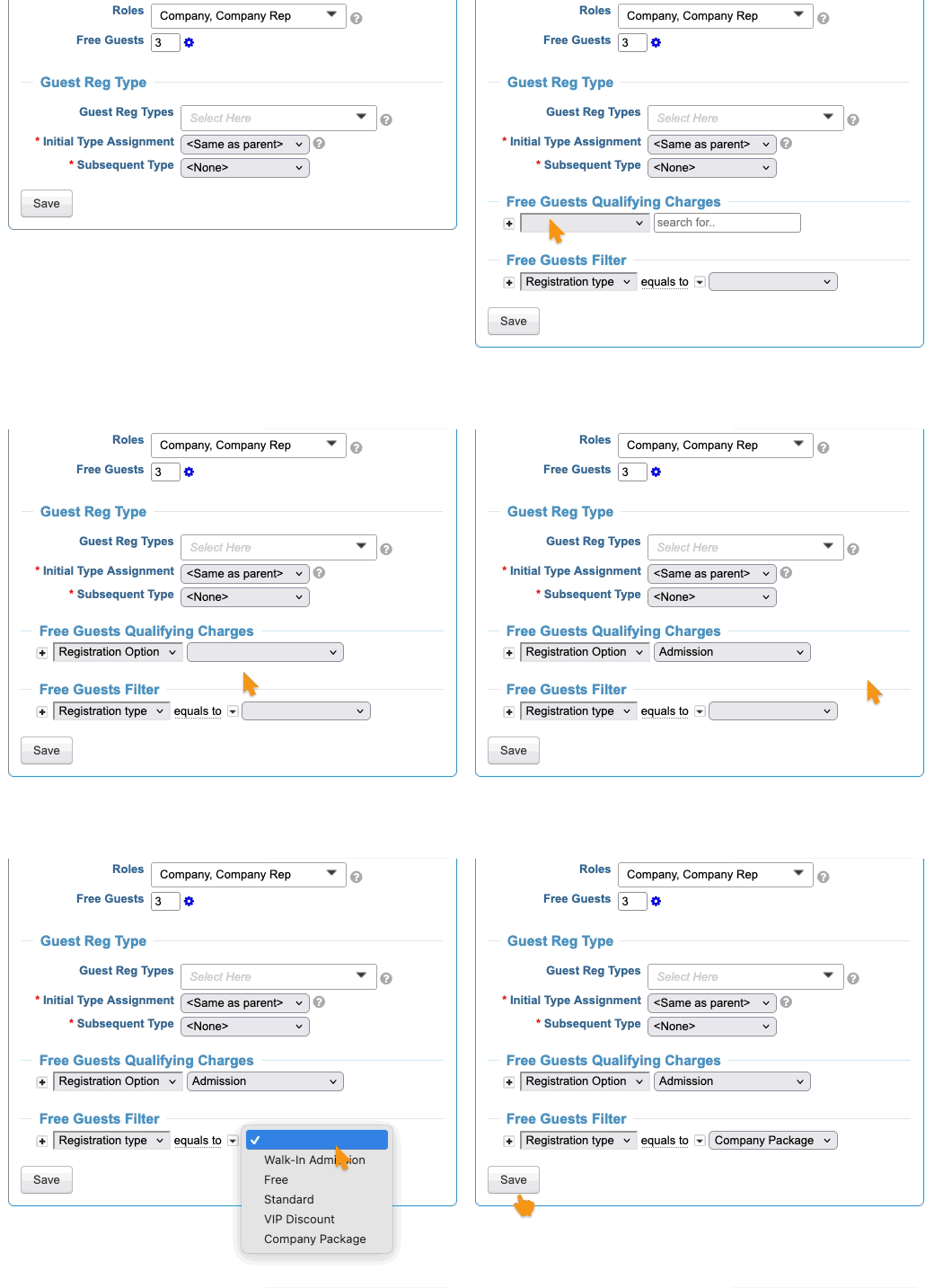
Be sure to click Save!
| You can skip the Guest Reg Type section for this scenario. | |
| These Registration Types only create the ticket options. We’ll give each one a price in the next section. |
Creating Registration Options
We’ll need one Registration Option:
Here, we’re editing our existing “Admission” Registration Option. It displays all of our event’s Registration Types, including the one we just created. So we’ll add this Company price there.
Click Submit to save:
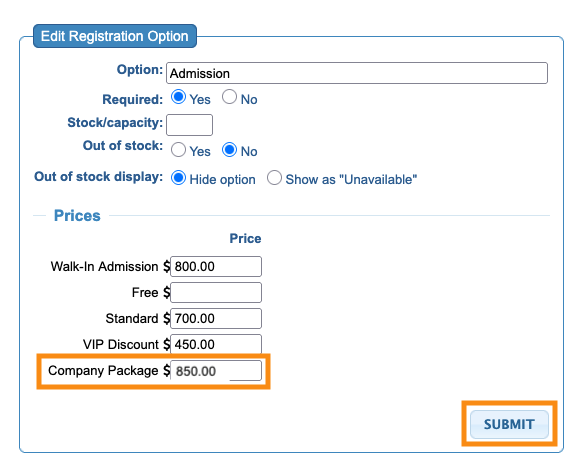
| Free is a default Registration Option in MeetMax, so you can offer individual complimentary admissions as needed. Leave it blank for this scenario. |
What participants see
Once a Company’s main contact finishes registration, they’ll be taken to their organization’s MeetMax account. They’ll see the Company Reps, Registration Options and Invoice tabs, plus any other tabs you’ve granted access to before payment:
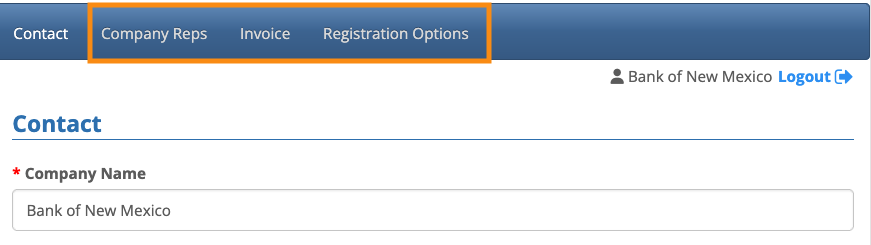
| Our Support team can also configure this registration so participants don't see the Registration Options page at all - they'd just use the Invoice page. |
On the Company Reps page, the Company contact will enter their team members:

Next, the Company contact heads to the Registration Options page and chooses their pricing option:
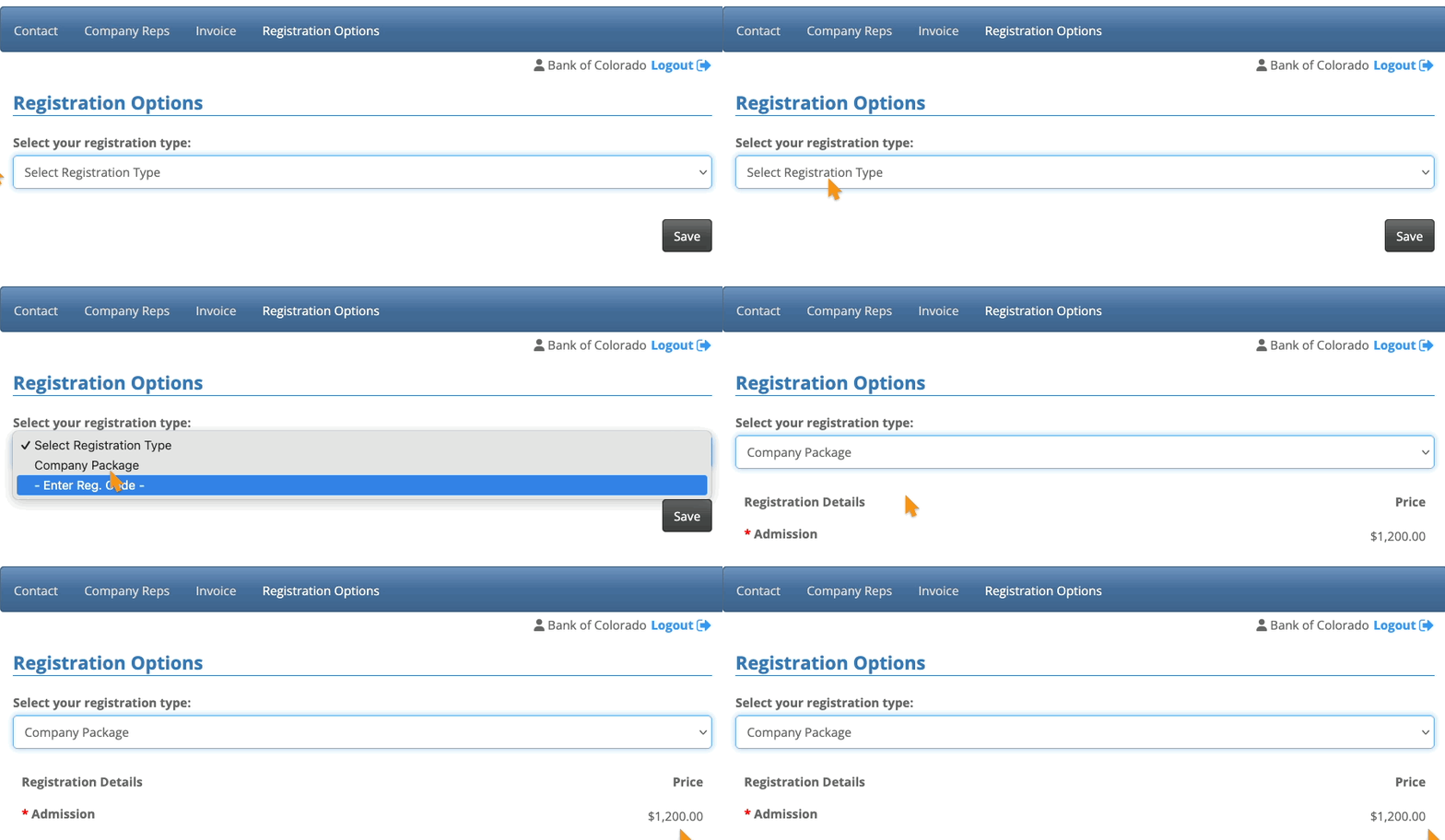
Once that choice is saved, the Invoice tab automatically calculates the total due, taking into account the number of Company Reps.
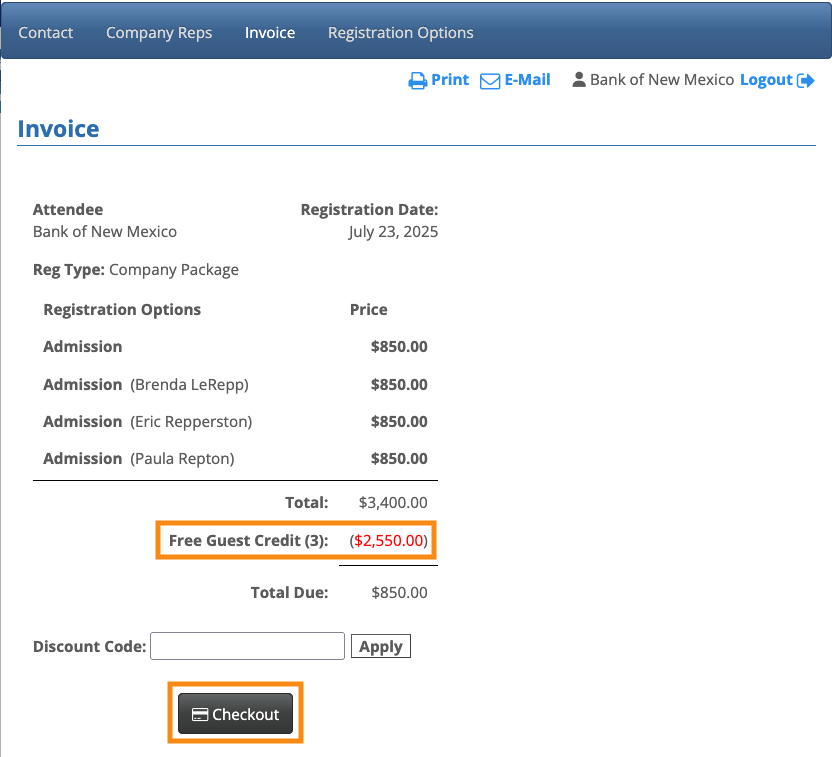
Here, the Company has added 3 Company Reps. Their names appear on the invoice, and MeetMax applies a credit for their admission, so they’ll attend for free:
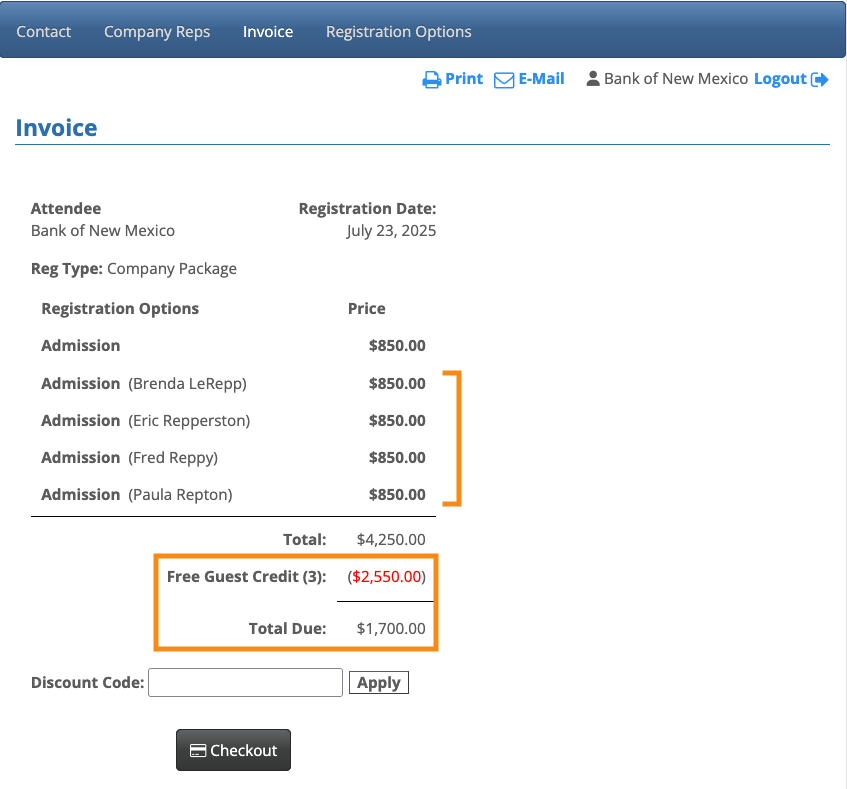
In this example, the Company has added 4 Company Reps. MeetMax credits only 3 of these, as per the registration settings:
| If you want the extra Company Reps to pay a different price than the standard Company registration fee, our Support team is happy to help you set this up. |

