How do I cancel meetings in bulk?

From time to time, you might need to cancel multiple meetings for the same participant. You can to this from any Attendee or Company’s Meeting Times page.
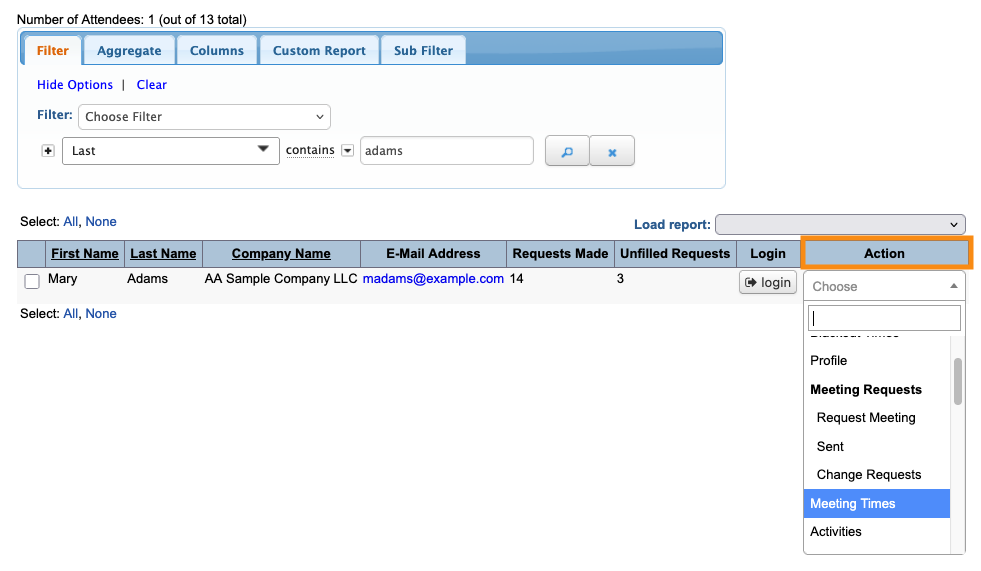
- Step 1. We’ll work from the Attendee List in this example, but you can do the same process from the Company List:

- Step 2. Filter the list to locate the person you need. Then use the Action menu to choose Meeting Times:
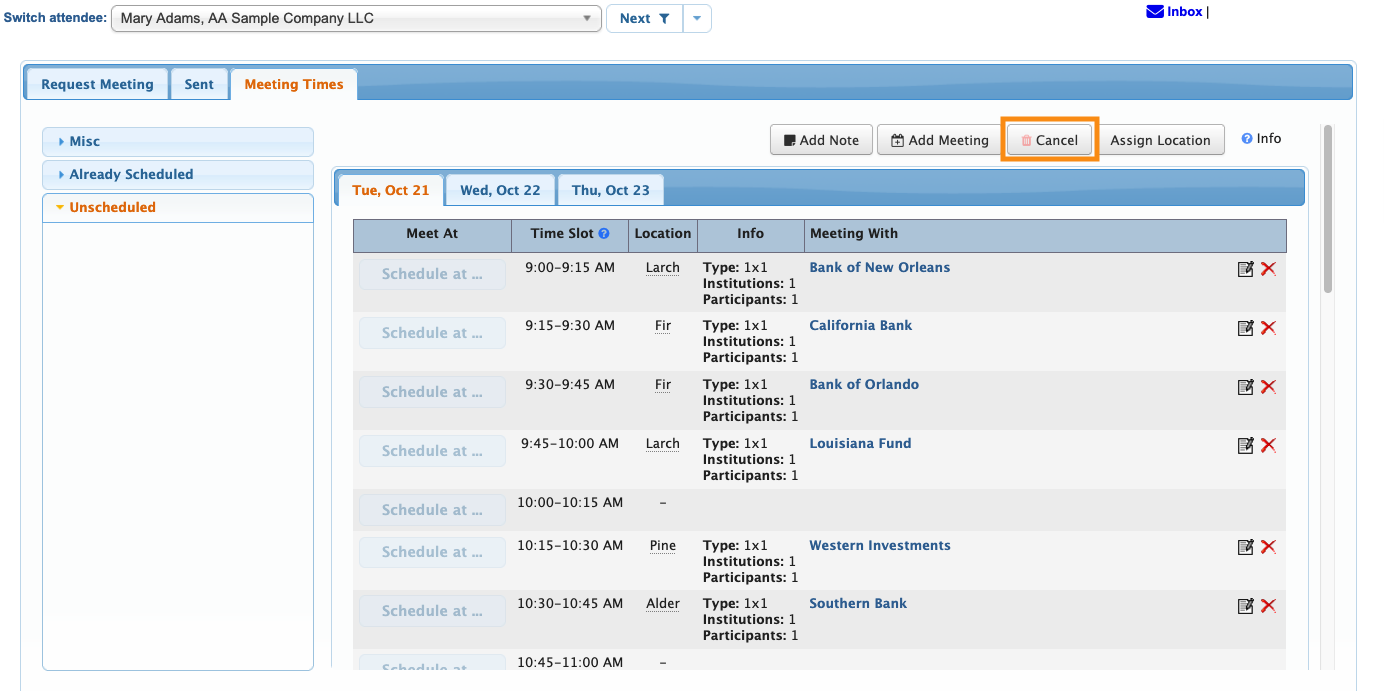
- Step 3. In this example, Mary Adams has multiple meetings scheduled for the first day of our event. But her travel schedule has changed, and now she won’t be at the event until afternoon.
- We need to cancel all the morning meetings. Click the Cancel button to get started:
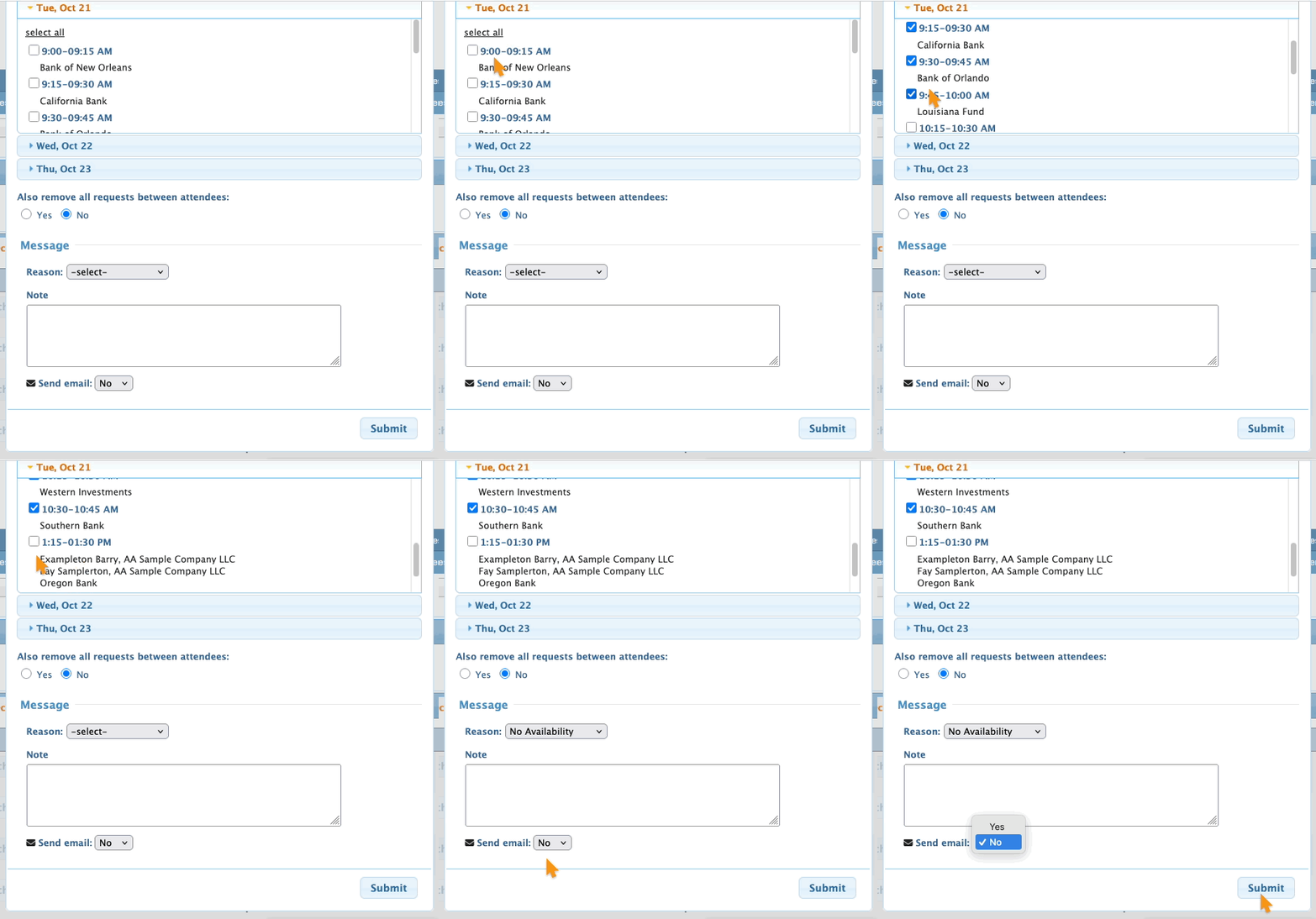
- Step 4. You can click Select All to cancel all of the day’s meetings, or click the checkboxes to cancel individual meetings, as shown here.
- You can also open the meeting lists for other event days, if you need to make cancellations there.
- Step 5. Just like any other cancellation, you can:
- :• Remove the original meeting request, or leave it to schedule again later
- :• Choose a cancellation reason.
- :• Choose whether to email all participants who were scheduled into these meetings.
- Click Submit to save: