


Google Analytics integration

Connect your Google Analytics account, and you can track how participants interact with pages in MeetMax.
In this article:
Where is it?
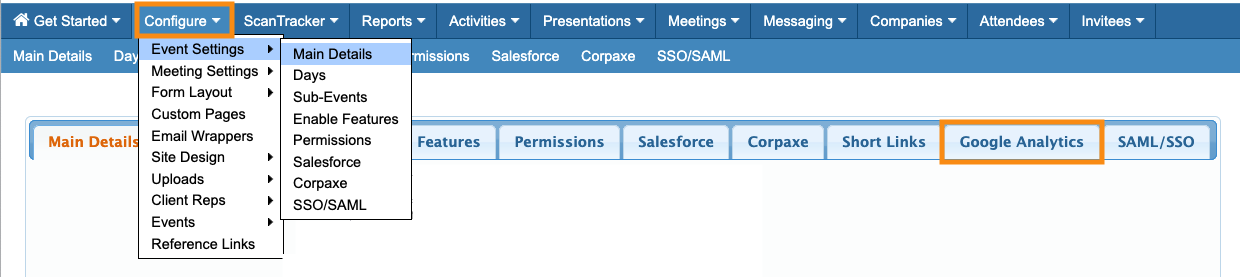
Once it’s enabled, you’ll access the Google Analytics integration from the Configure tab.
If you don’t see the option in your main menu, choose Event Settings, then Main Details. You’ll then see the Google Analytics tab:
Setting up the integration
- Step 1. Log into your Google Analytics account.
- Locate the Measurement ID (also called the Google Tag ID). Learn how to find it here.
- Step 2. In your MeetMax account, head to the Google Analytics page:
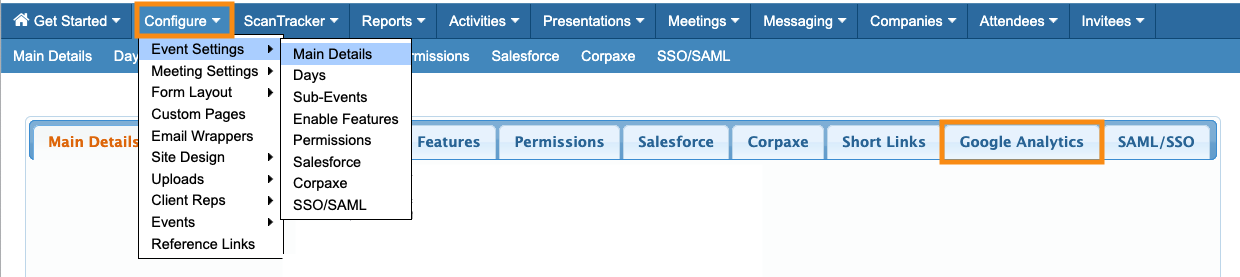
- Step 3. Type or paste in your Measurement ID. Then click Save:

- That’s all you need to do in MeetMax.
Data available in Google Analytics
Once you’ve connected this integration, Google Analytics will track visits to the MeetMax pages your participants visit - both Attendees and Companies.
This includes every page your participants can access once they’re logged into MeetMax. You’ll define which pages everyone can see using the Menu Editor.
- In the Realtime pages section of Google Analytics, you’ll be able to see page traffic happening right now. (This is the quickest way to confirm that the integration is working.)
- Google displays more detailed page data as of yesterday's date. That includes time on the page, bounce rate, and new vs. returning visits.
| There’s an important variable to keep in mind here. If any of your participants uses a web browser other than Chrome, it’s possible that browser is blocking Google tracking. (Chrome, on the other hand, never blocks Google tracking.) Since you (and we) can’t control privacy settings in participants’ browsers, it’s always possible that some participants won’t be represented in your Analytics data. |

