In this article:
- Where is it?
- Enabling Opt-outs
- How an Attendee opts out
- What the Target sees
- Generating Opt-out reports
Where is it?
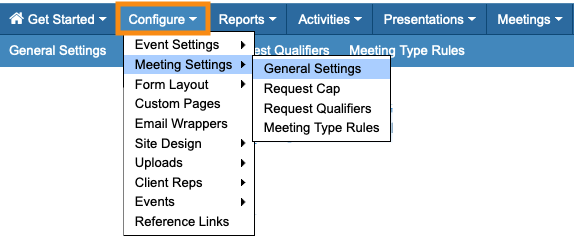
You’ll enable opt-outs in the Configure tab:
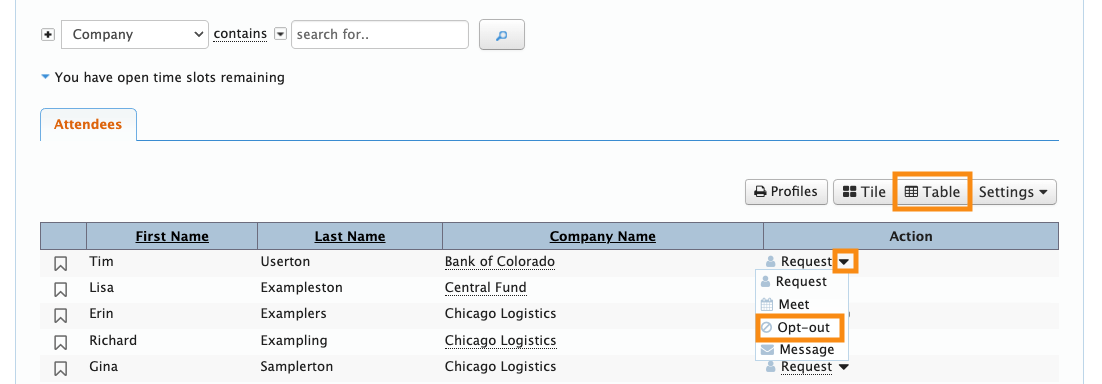
Once you’ve enabled the feature, Attendees can log into MeetMax and head to the Request Meeting page. They’ll see the Opt-Out option for each Target:
| In MeetMax, the Source is the person who requests a meeting. The Target is the person who received that request. |
This feature is useful for:
- Unmoderated programs, where Attendees might want to avoid meeting with existing customers, or Attendees from particular sectors, or people they’ve met with recently.
- Moderated programs where Attendees might prefer not to meet with certain Companies.
Enabling Opt-outs
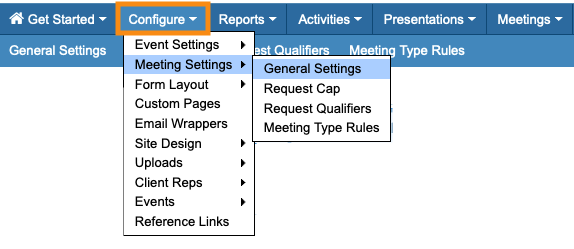
- Step 1. Head to the Configure tab. Choose Meeting Settings, then General Settings:
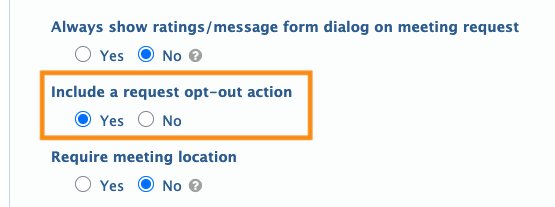
- Step 2. Under Include a request opt-out action, choose Yes:
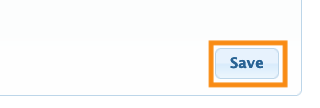
- Step 3. Scroll to the bottom of the page and click Save:
How an Attendee opts out
Any Attendee can log into MeetMax, and then head to the Request Meeting page. This is where they’d see a complete list of meeting Targets.
Each Target has a menu of options, including Opt-out:
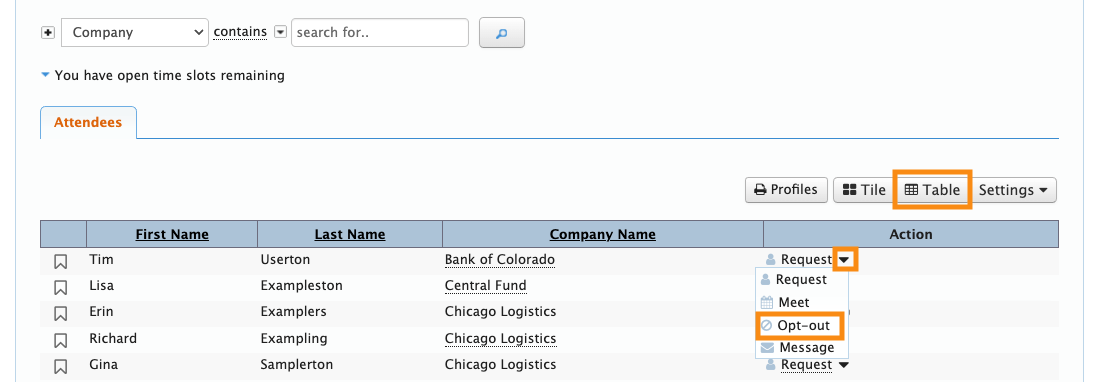
In most events, the Attendee can choose either the Table layout for this page (shown above), or the Tile layout (shown below). Opt-outs can happen in either layout:
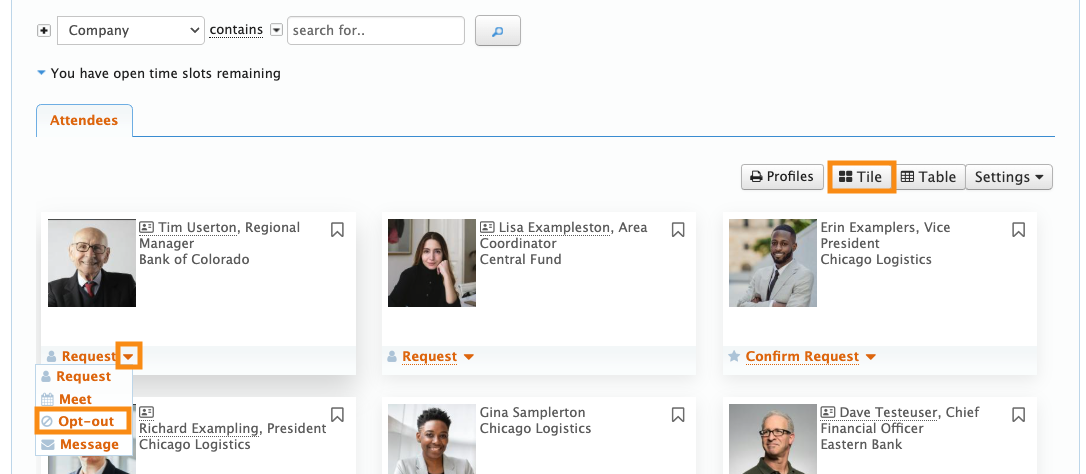
| This page will be branded for your event, and configured according to your layout settings. |
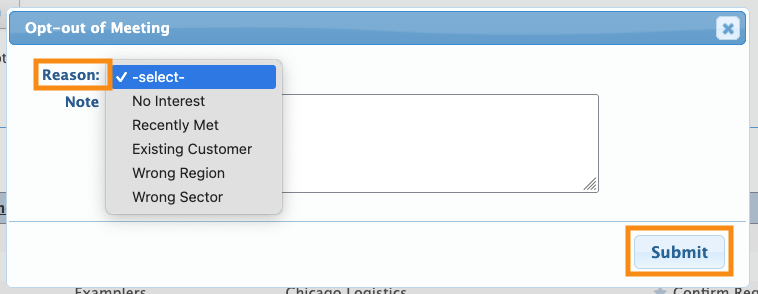
After choosing Opt-out, the Attendee sees a pop-up, where they’ll choose their reason for not wanting to meet with this Target:
Removing an Opt-out
Once the Attendee submits an Opt-out, they can always return to the Request Meeting page and undo it:

Again, they can do this from either the Table layout shown above, or the Tile layout.
What the Target sees
In the example above, Mary Adams opted out of meeting with Tim Userton.
When Tim logs into MeetMax and heads to the Request Meeting page, Mary is labeled as Not available to meet:

Tim can’t see the reason Mary chose when she opted out.
If your event allows Attendees to message each other, Tim could still message Mary.
Generating Opt-out reports
For the most part, Attendees manage their own opt-outs. But you might want to see who’s making and receiving opt-outs.
Once there’s at least one opt-out at your event, you can head to the Meetings tab and see the Opt-outs option:
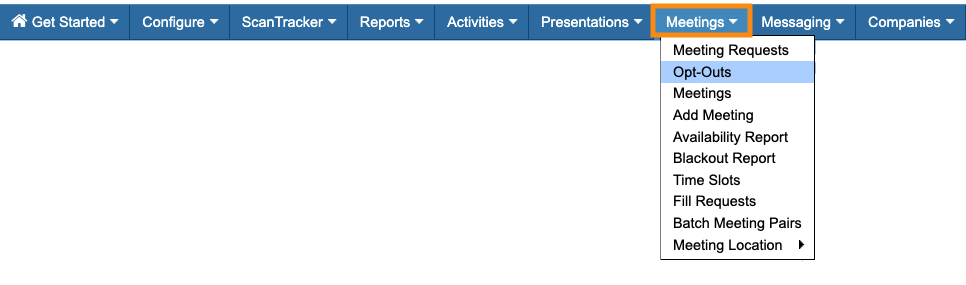
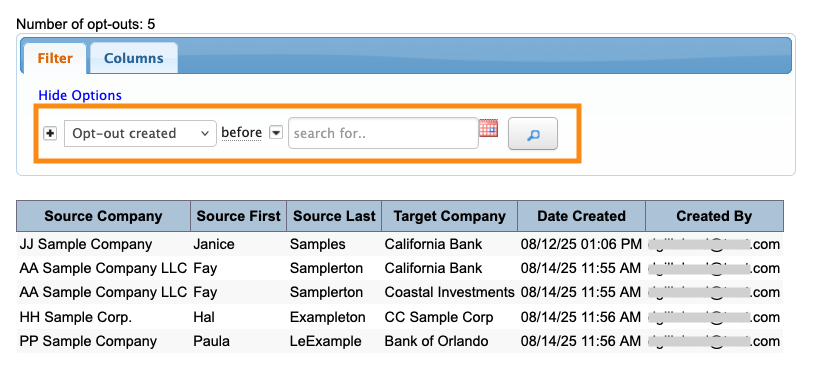
On the Opt-outs page, you’ll see a list of Sources who’ve entered an opt-out, and the associated Targets.
You can use the filters to narrow the view down by date, company name, attendee name, or many other criteria:
Reporting from the Attendee List or Company List
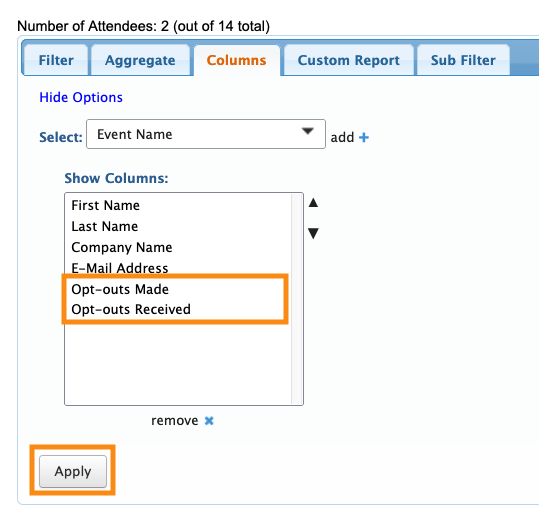
When you enable opt-outs, MeetMax adds two filters to both the Attendee List and Company List:


- Opt Outs Made
- Opt Outs Received
You can add either or both columns to see a count of opt-outs:
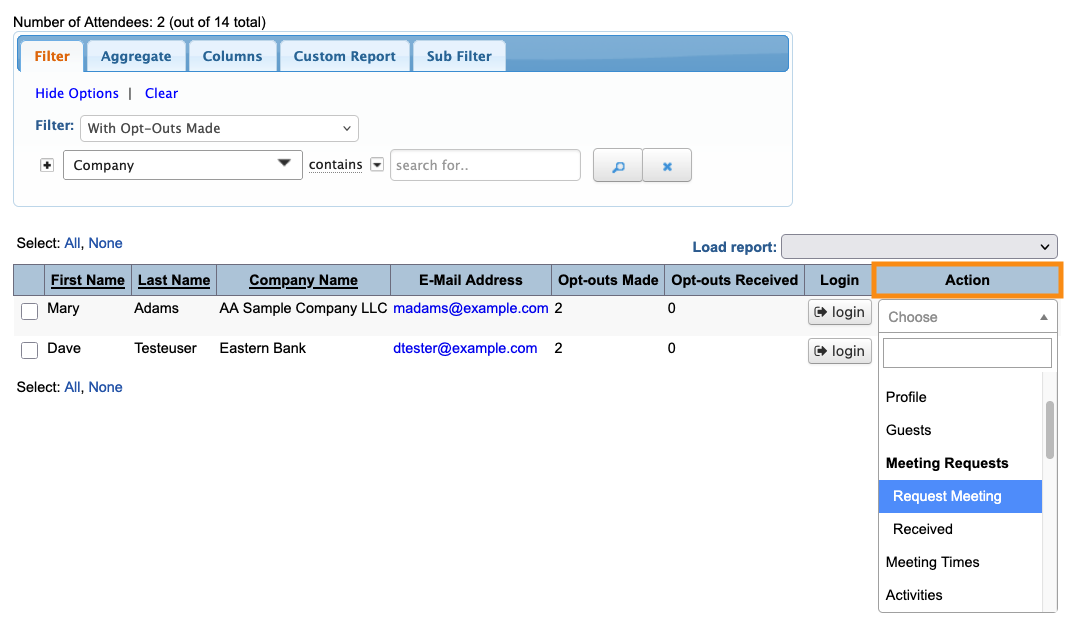
You can also filter either list to see the opt-outs made or received:
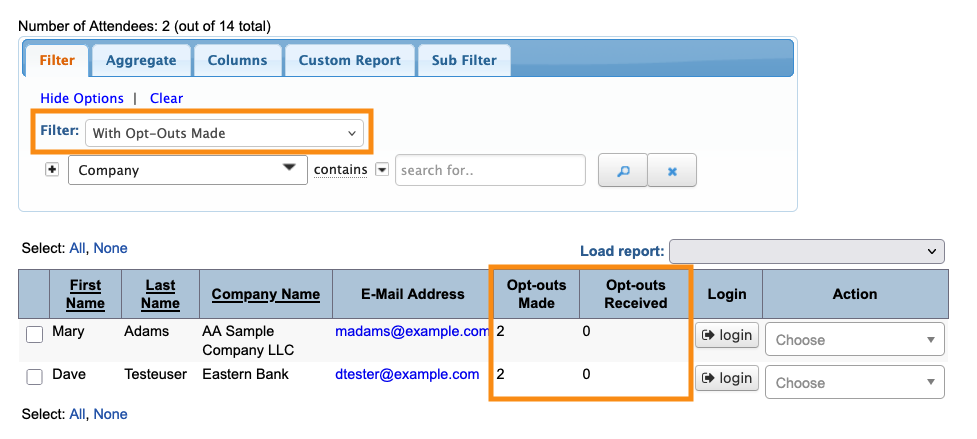
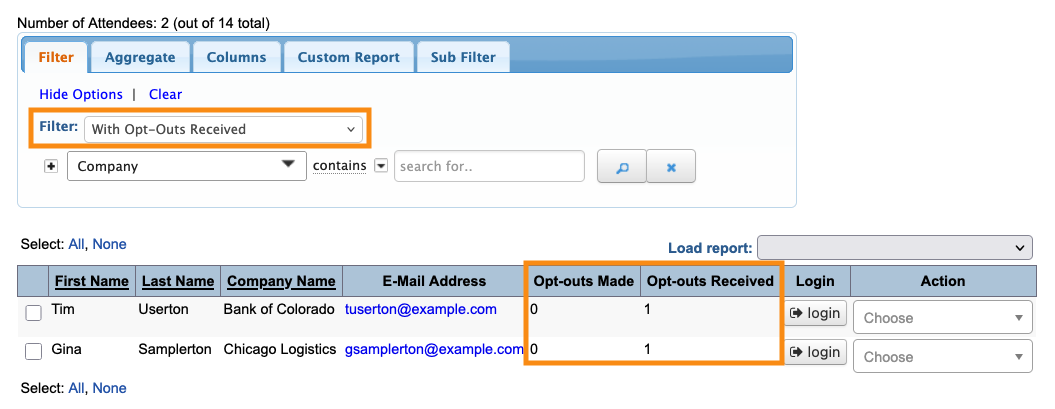
These filters will only show total opt-outs. If you wanted to see who an Attendee has opted out of meeting, you can use their Action menu to go to the Request Meeting page: