

How do I update a bulk import? (Import updates)
Sometimes, after you’ve imported a list of participants to MeetMax, you might need to make a change to each record.
You can do this manually from the Attendee and Company Lists. But our Support team can save you time by uploading the changes.
| We’ll show this process from the Attendee List here, but you can also take the same steps from the Company List. |
Preparing your updated list for our Support team
- Step 1. Head to the Attendees tab Then choose Add Attendee:

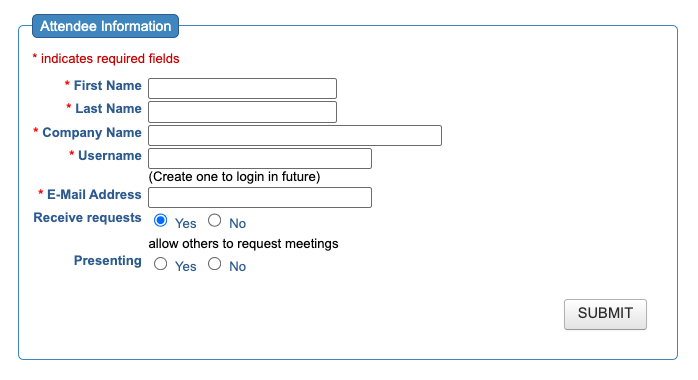
- Step 2. You’ll now see the Admin version of your event’s Attendee registration form. For every field you see here, you’ll need a matching column in your exported list.
- Keep this form open in a separate browser tab while you complete the rest of the steps:
- Step 3. In a new browser tab, head to the Attendee List:

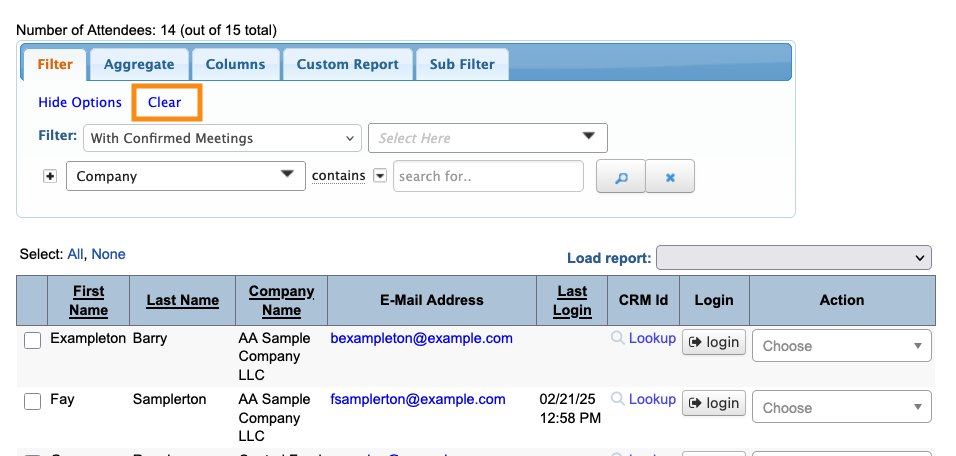
- Step 4. On the Attendee List, click Clear to make sure there are no filters in place:
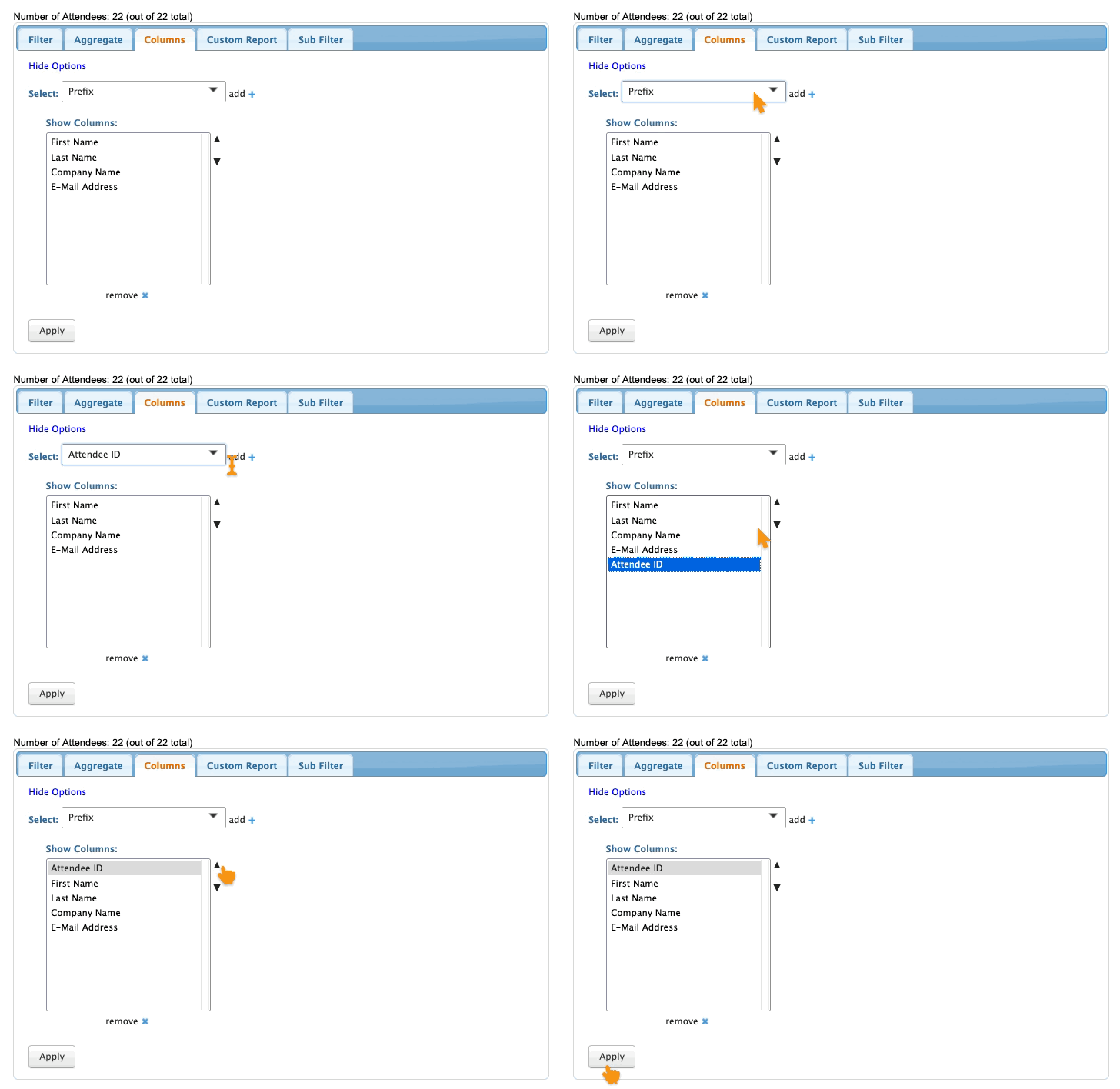
- Step 5. Head to the Columns tab. Add the Attendee ID column - this is data you'll need to have on your spreadsheet.
- Move this column into the first position. (You can do this in MeetMax as shown below, or in your own spreadsheet software.)
- Click Apply to save:
-
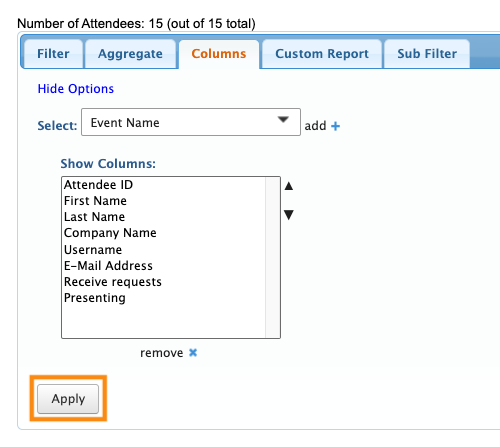
If you're working in the Company List, add the Company ID column instead. - Step 6. Add or remove columns as needed, so that the columns of the Attendee List match the fields in the Admin version of your registration form:
- Step 7. Now that you have the entire list visible and it matches your registration form, head to the top right corner of the page.
- Click Bulk Actions, then Excel:
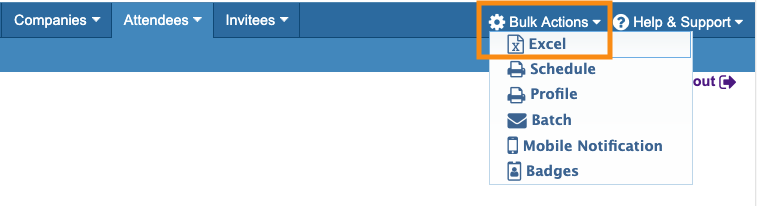
- Step 8. You now have your Attendee List in spreadsheet form.
- Add or update columns for the new data you need to include.
-
The First Name, Last Name, and Company Name fields can’t be updated with this process. To change those fields, you’d need to manually update each record. - Step 9. Export the updated spreadsheet as a CSV file, with UTF-8 encoding.
- Then send that file to our Support team. They can upload it for you.

