


How do I update participant records in bulk? (Import updates)

Sometimes, after you’ve added all of your Attendees or Companies, you need to make a change to each record.
You can do this manually from the Attendee and Company Lists. But our Support team can save you time by uploading the changes.
| We’ll show this process from the Attendee List here, but you can also take the same steps from the Company List. |
- Step 1. Head to the Attendee List:

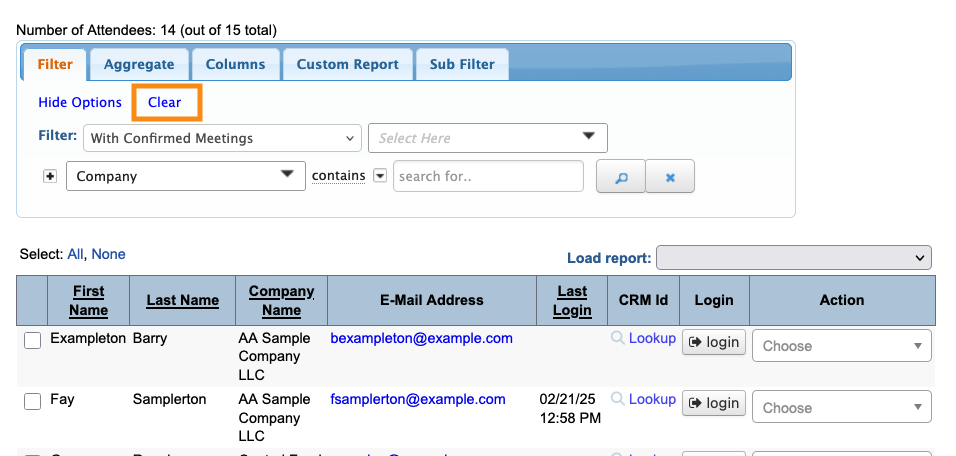
- Step 2. On the Attendee List, click Clear to make sure there are no filters in place:
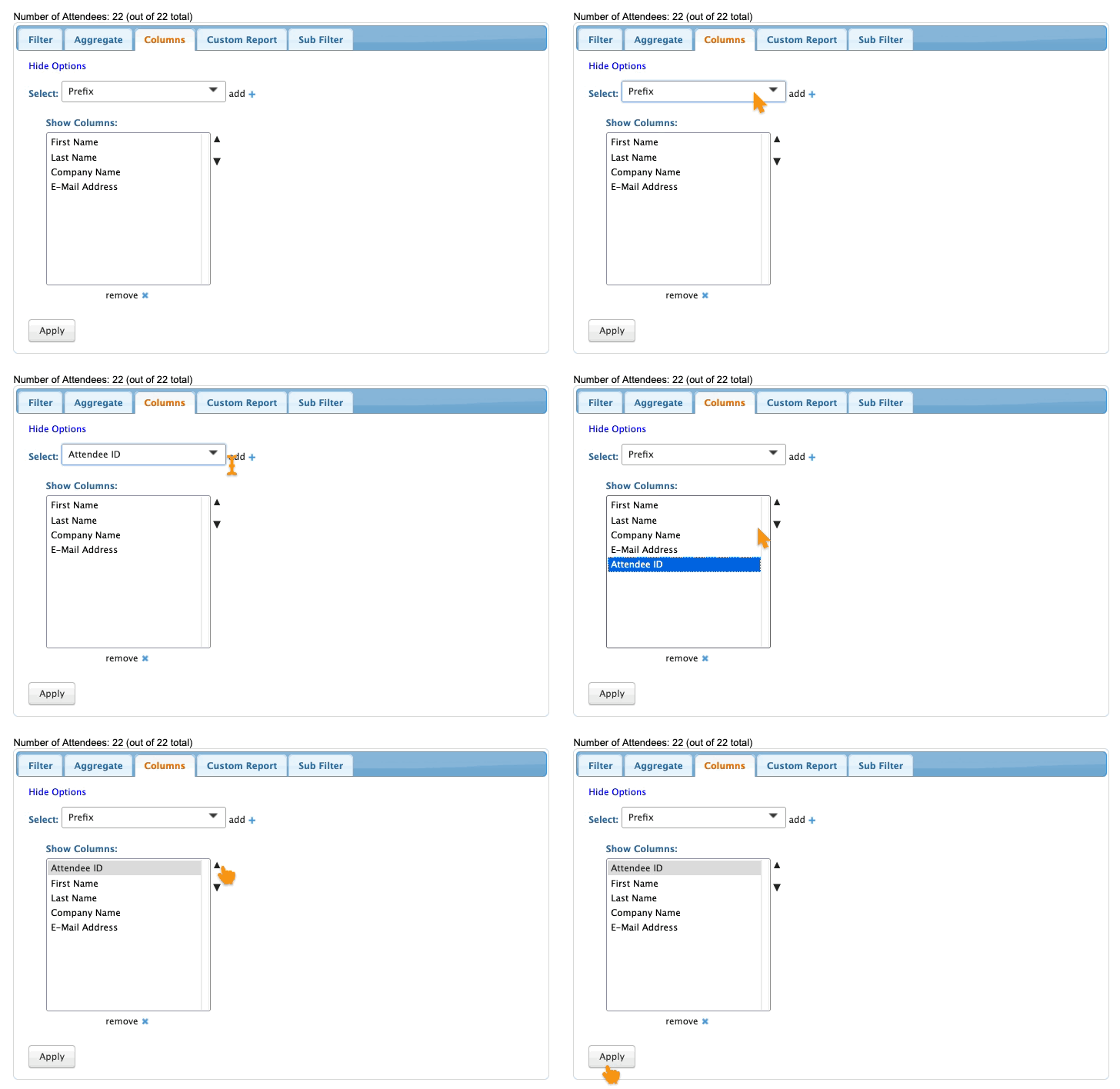
- Step 3. Head to the Columns tab. Add the Attendee ID column - this is data you'll need to have on your spreadsheet.
- Move this column into the first position. (You can do this in MeetMax as shown below, or in your own spreadsheet software.)
- Click Apply to save:
-
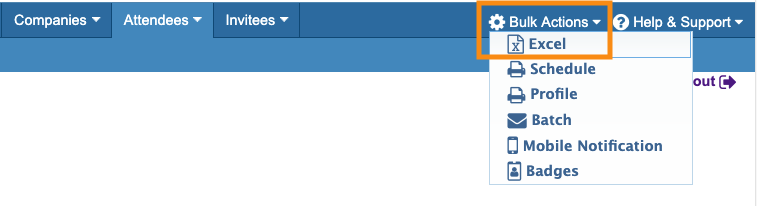
If you're working in the Company List, add the Company ID column instead. The other columns should match the fields in your event registration form. - Step 4. Now that you have the entire list visible, head to the top right corner of the page. Click Bulk Actions, then Excel:
- Step 5. You now have your Attendee List in spreadsheet form. Add one or more columns for the new data you need to include.
- Step 6. Export the updated spreadsheet as a CSV file, with UTF-8 encoding.
- Then send that file to our Support team. They can upload it for you.
Registration form fields
In order for the import to work, your spreadsheet and registration form must match.
If you’ve added columns to your spreadsheet, you’ll also need to add matching fields to your Attendee registration form. You can do this on the public form or the Admin version, or both.
Add or create a field for each data column you added to the spreadsheet. Make sure the field names match the column names exactly.

