


In this article:
| Our Support team is happy to work with you on automated scheduling. To learn more about how automation works in general, see this article. To learn more about the automated scheduling tools, see this article. |
Checking the result of automation
MeetMax shows you the general results of each automation pass, including a list of pairings that MeetMax couldn’t create meetings for:
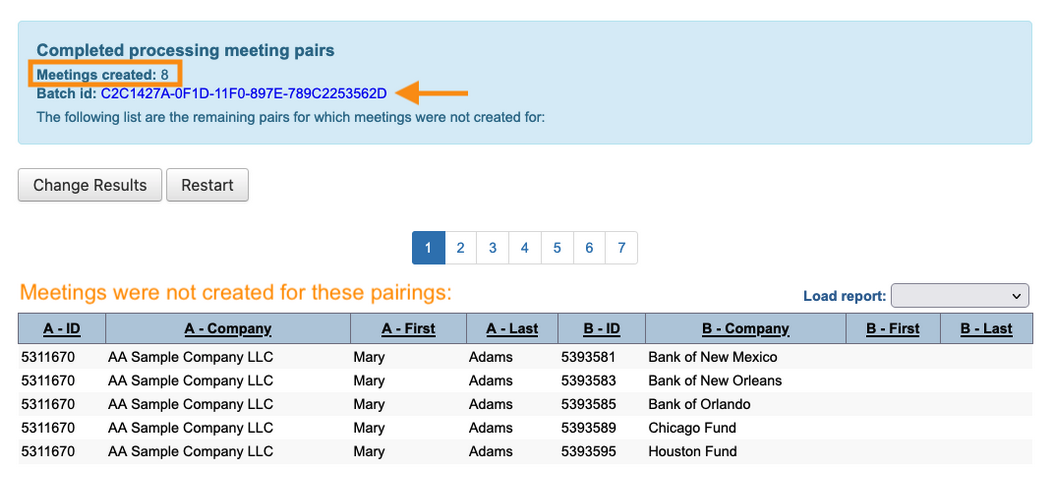
| In this list, the A columns are Sources (people who requested the meetings). The B columns are Targets (people who received those requests). |
Adding columns to the Attendee or Company List
You might want a broader picture of specific participants and their meeting requests. You can add a number of columns to the Attendee List or Company List for that:
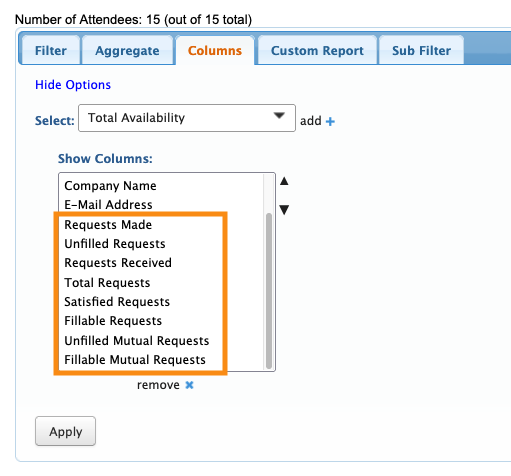
You won’t need all of these! Requests Made and Unfilled Requests will apply to most events.
These columns give a general picture of who didn’t get all the meetings they requested:
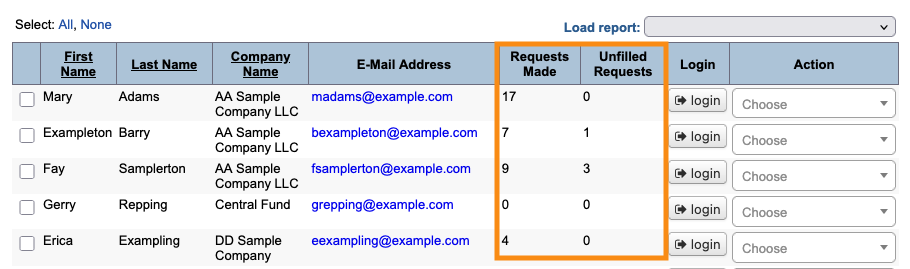
Beyond that, you can add other columns that meet the needs of your event.
FIltering to show a group you’ve just scheduled
Automated scheduling typically happens in “passes,” where you isolate a priority group of participants and have MeetMax create their meetings. Learn more about setting up an automation pass here.
Once you’ve finished an automation pass, head to the Attendee List or Company List. Apply the same filters that you used for your automation pass.
That way you’ll get a targeted overview of how many requests MeetMax was able to fill.
Troubleshooting questions
MeetMax starts with the filters and settings of your automation pass. Then it overlays:
- Request rankings (or, the order in which requests were created)
- Available time slots
- Each participant’s individual availability
So while there might be a meeting request in place, other factors might prevent MeetMax from creating the meeting.
Here are some things to investigate:
Availability issues
- Have all participants entered their meeting availability into MeetMax?
- Do the Source and Target have available time slots in common?
- Is either participant scheduled for presentations or activities in these common time slots? (Do you have conflict management enabled for your event?)
- Did you schedule any meetings manually before you ran this automation? (That decreases the availability for an automation pass.)
Request/Ranking issues
- How many meeting requests did each participant make? (Few requests means few scheduled meetings.)
- Have participants ranked their meeting requests by priority?
- Did your automation filters exclude any specific rankings?
Settings issues
- Is conflict management enabled for your event? (If it is, MeetMax will prevent meetings from being scheduled at times when a participant has signed up for presentations and activities.)
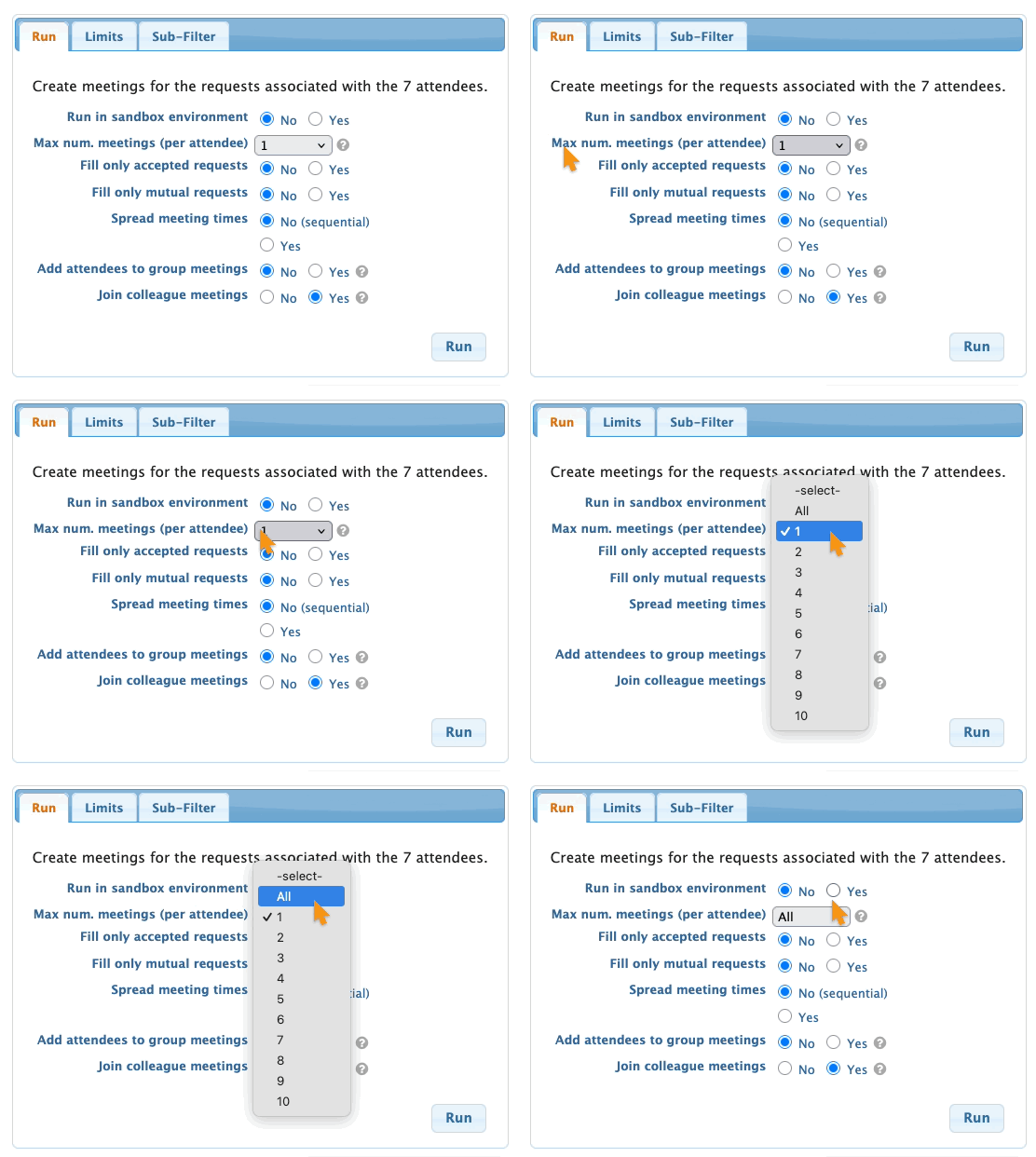
- Have you set the Max num meetings correctly? (At the default setting of 1, only one meeting is created per participant.)
- Is your event allowing participants to opt out of meeting with specific Targets?
| If none of these explain why the meeting wasn’t created, our Support team is happy to help with more investigation. |

