


Maxmum number of meetings for a participant

This setting applies to individual participants. Keep in mind that you can also set meeting request limits for each user role.
Adding an Admin form field
- Step 1. You’ll first install an Admin field on your event’s registration form.
- We’ll show the Attendee form here, but the process would be the same on the Company form.
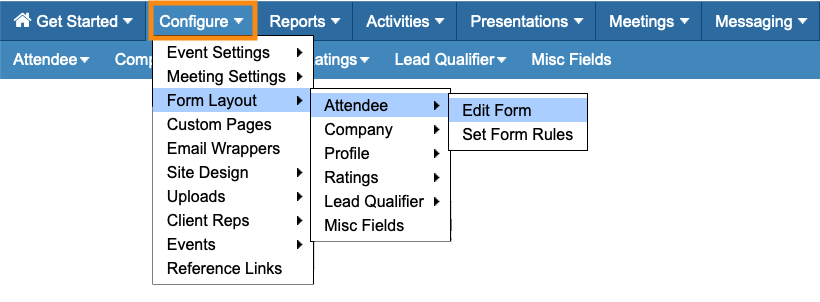
- Head to the Configure tab. Choose Form Layout, then Attendee, then Edit Form:
- Step 2. In the Form Editor, head to the Form Version menu. Choose Admin:
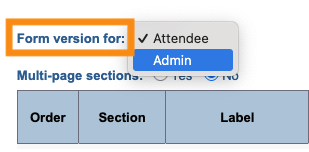
- With this setting, you can now add a form field that’s only visible to your Admin team.
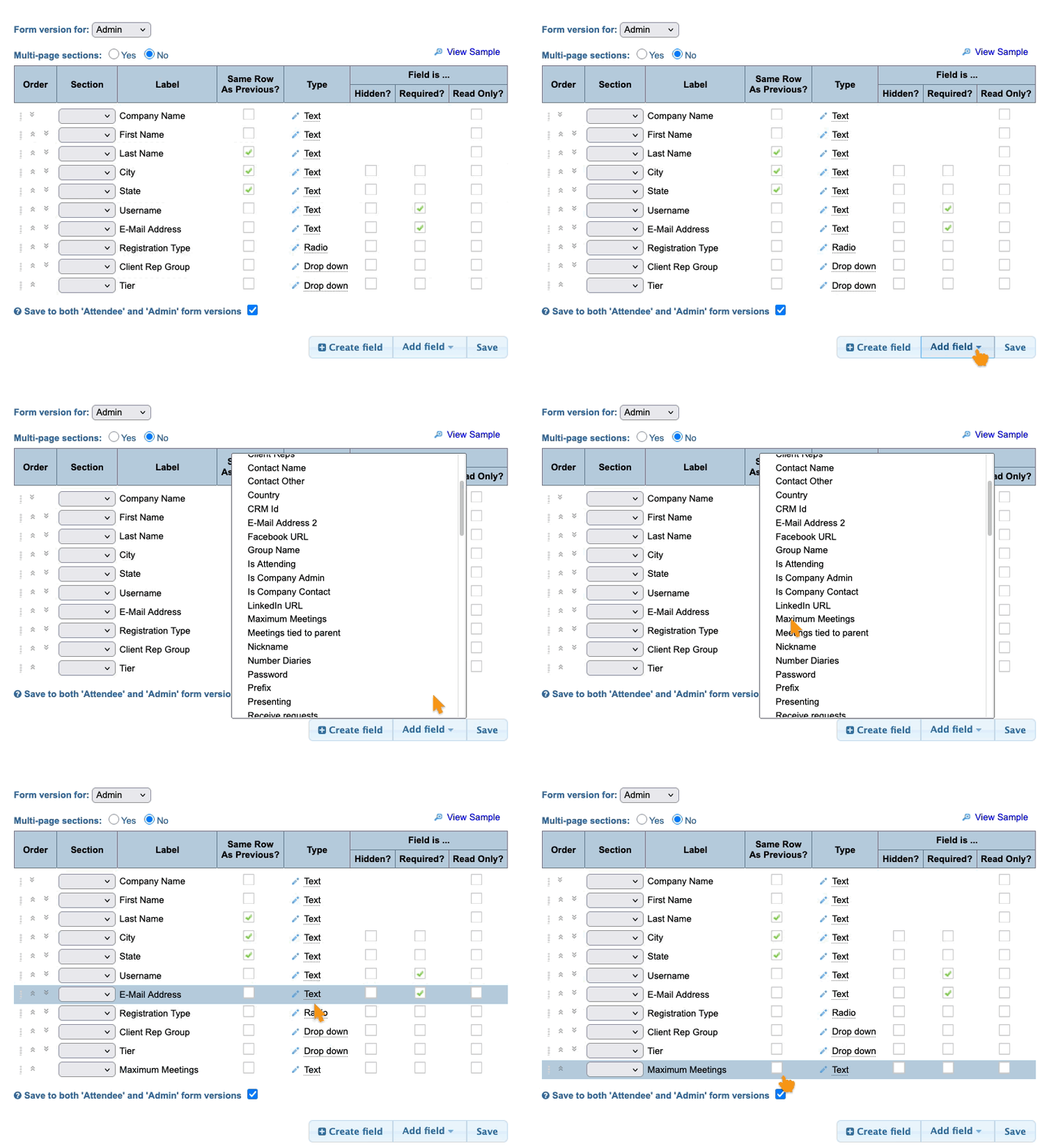
- Step 3. Head to the Add Field menu. Choose Maximum Meetings:
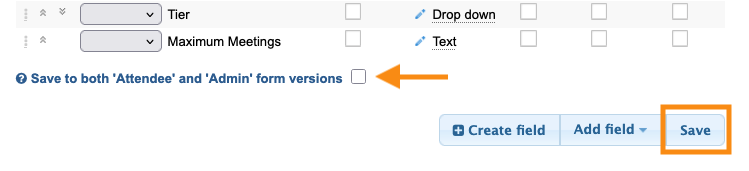
- Step 4. Make sure the box is unchecked, then click Save:
Setting the maximum
Once the Admin field is in place, you can enter a maximum for any participant.
- Step 1. Head to the Attendee List:

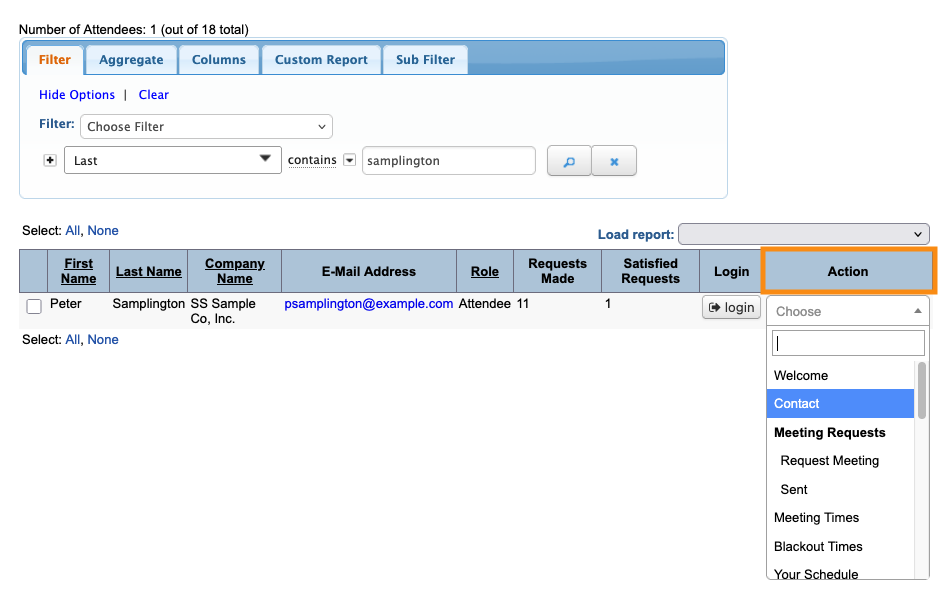
- Step 2. Filter the list to find a participant. Then use the Action menu to choose Contact:
- Step 3. Enter the maximum number of meetings for this participant. Then click Submit:
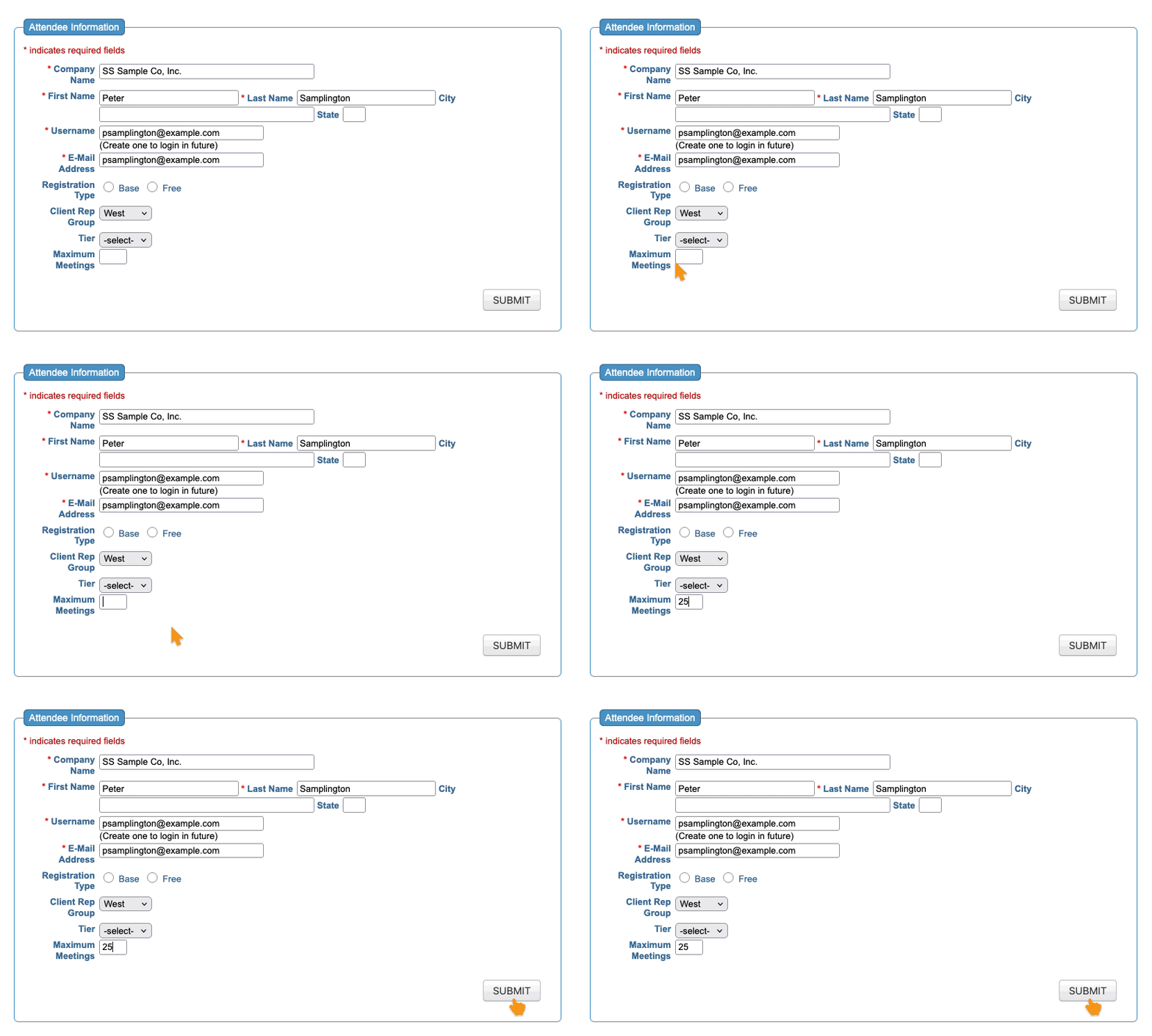
-
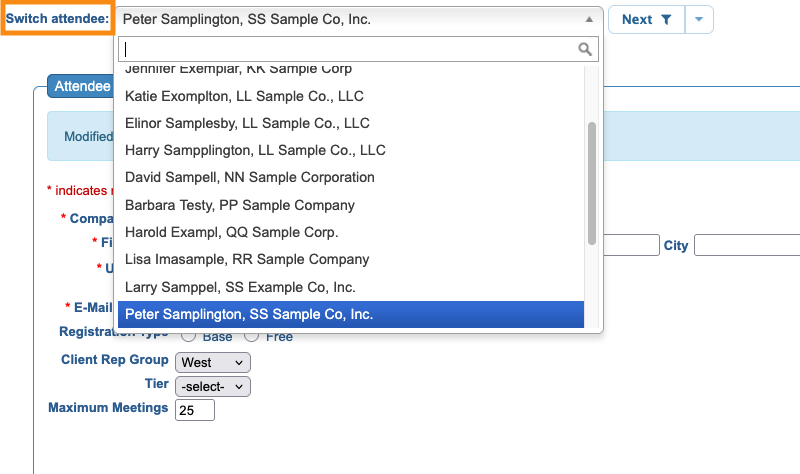
If you don't want to limit this participant's meetings, leave this field blank. - Step 4. If you want to navigate to another participant’s record, head to the top of the page and use the Switch Attendee menu:
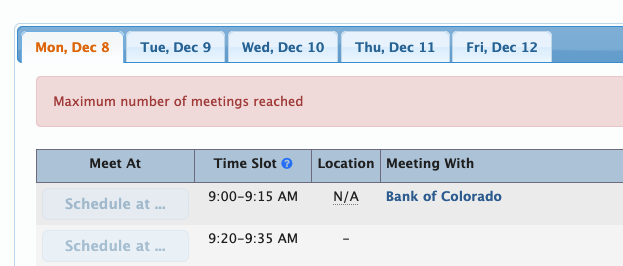
With this limit set, MeetMax will notify you when the participant has reached their maximum. You’ll see the message on the Meeting Times page:
You can also configure the Request Meeting page so it shows other participants when this person has reached their maximum

