


In this article:
Where is it?
Once you’ve configured the message, participants can log into MeetMax and see it on the Request Meeting page:
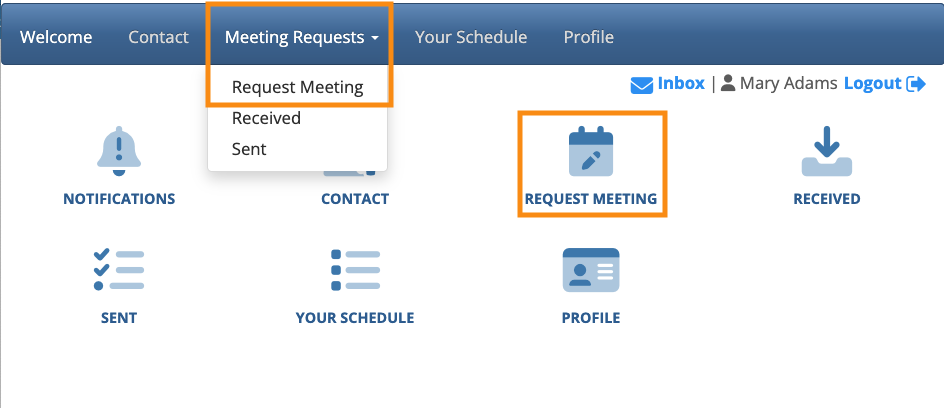
| This page will be branded for your event, and contain the menu options you’ve enabled. |
Accessing the settings
There are several settings options here, and you likely won’t use them all. Feel free to choose the ones that make sense for your event.
| We’re assuming here that you’ve already set up meeting maximums for some or all participants at your event. |
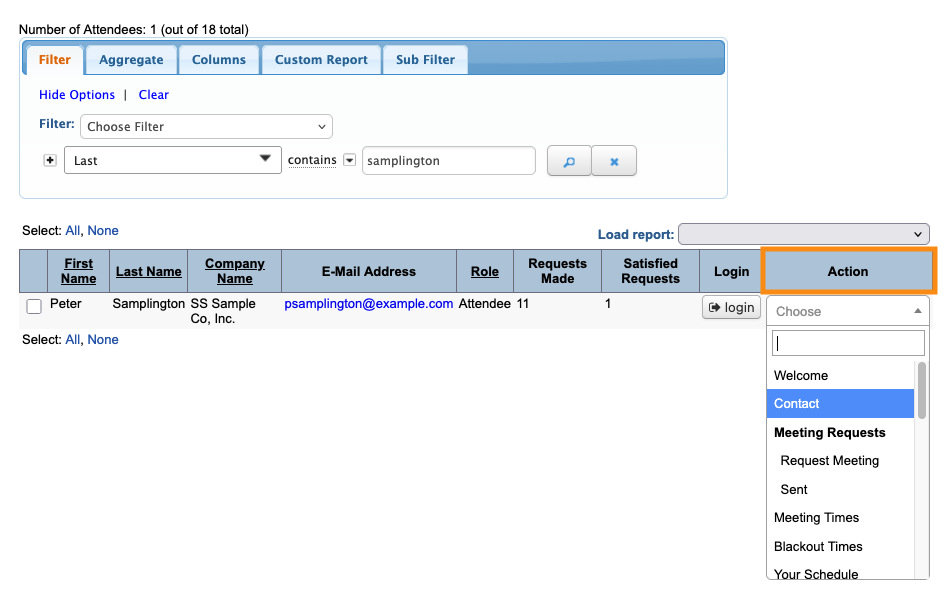
- Step 1. Head to the Attendee List:

- Step 2. Choose any record - changes you make here will apply to everyone. Use the Action menu to choose Request Meeting:
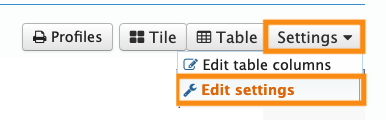
- Step 3. Click the Settings button. Then choose Edit settings:
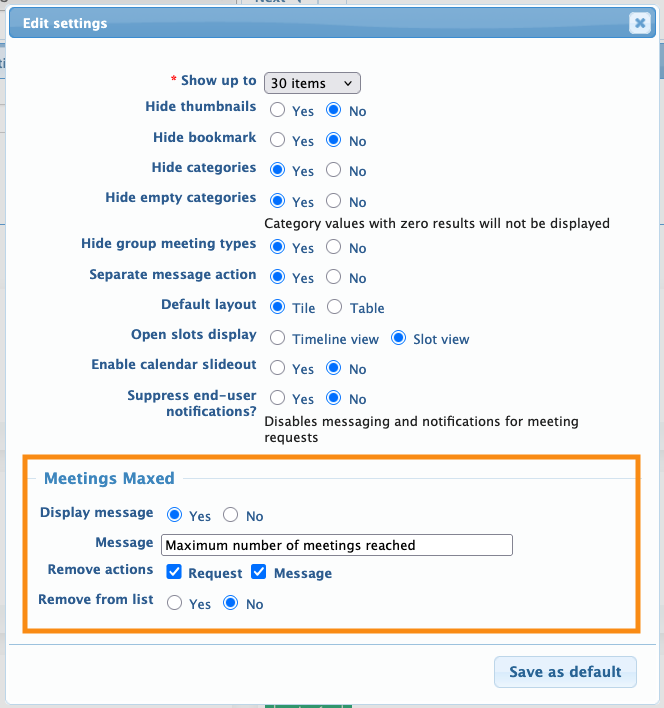
- The Meetings Maxed section is at the bottom of the pop-up. We'll cover each setting in the sections below:
-
Every setting here applies to both the Tile and Table views.
Display message
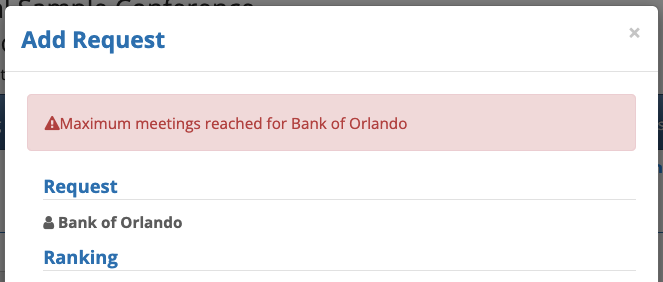
With this setting, participants can still request meetings from anyone. But if their target has reached their maximum, a banner will appear:
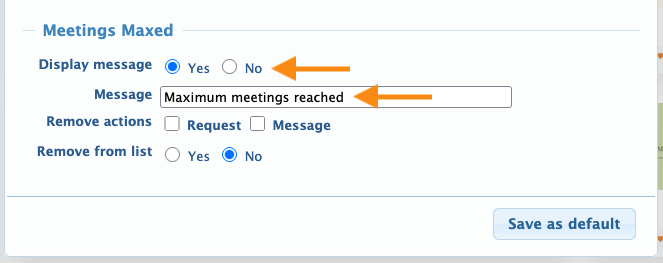
You can customize what the message says. Keep in mind, however, that MeetMax will add the participant’s name to that message. Here’s what it looks like:
Remove actions
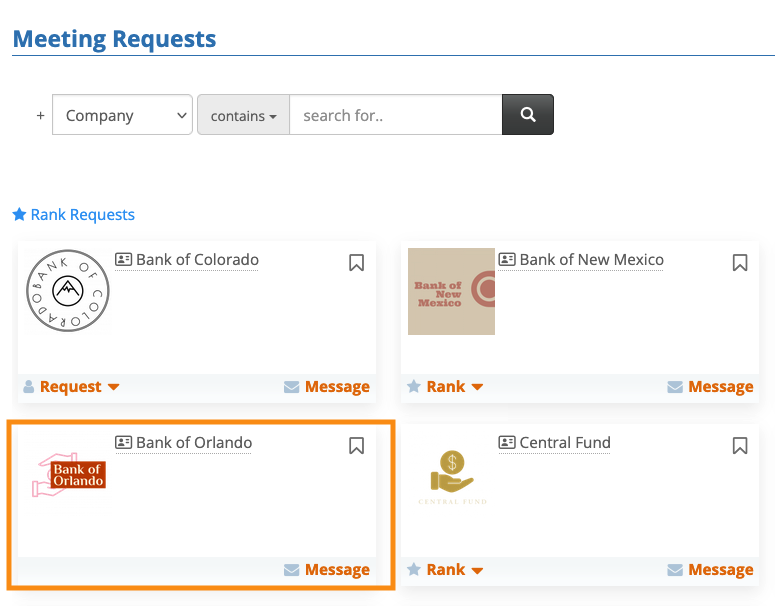
When a participant has reached their maximum, you might want to remove the option to submit requests. You can also remove the option to send them messages:
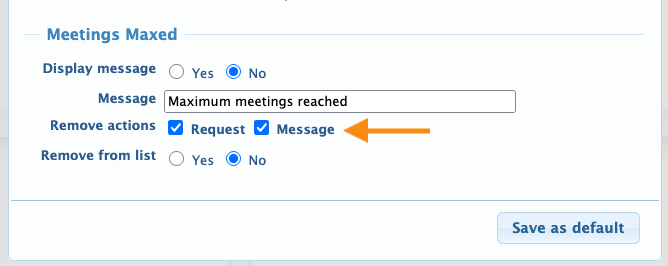
You can remove either or both actions.
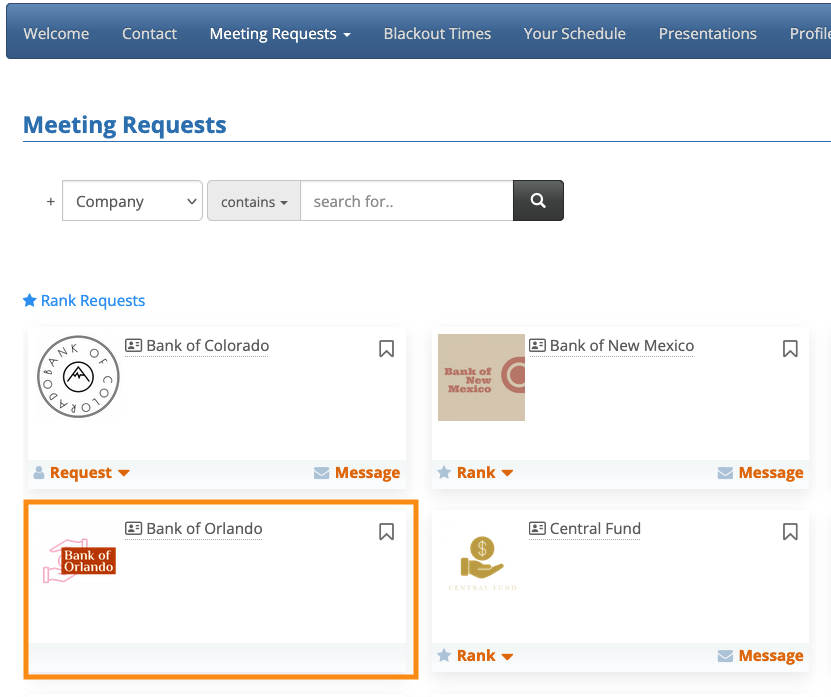
Remove from list
When a participant reaches their maximum, you can also choose to remove them from the Request Meeting page altogether.
They’ll still appear everywhere else in MeetMax, however:
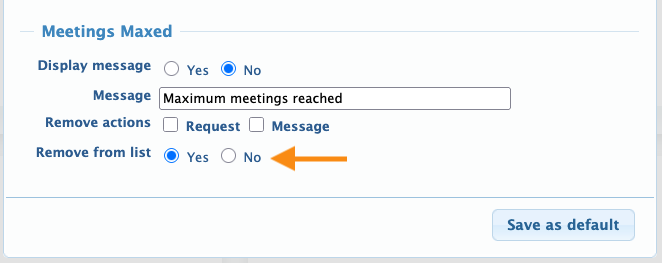
Be sure to click Save as default!

