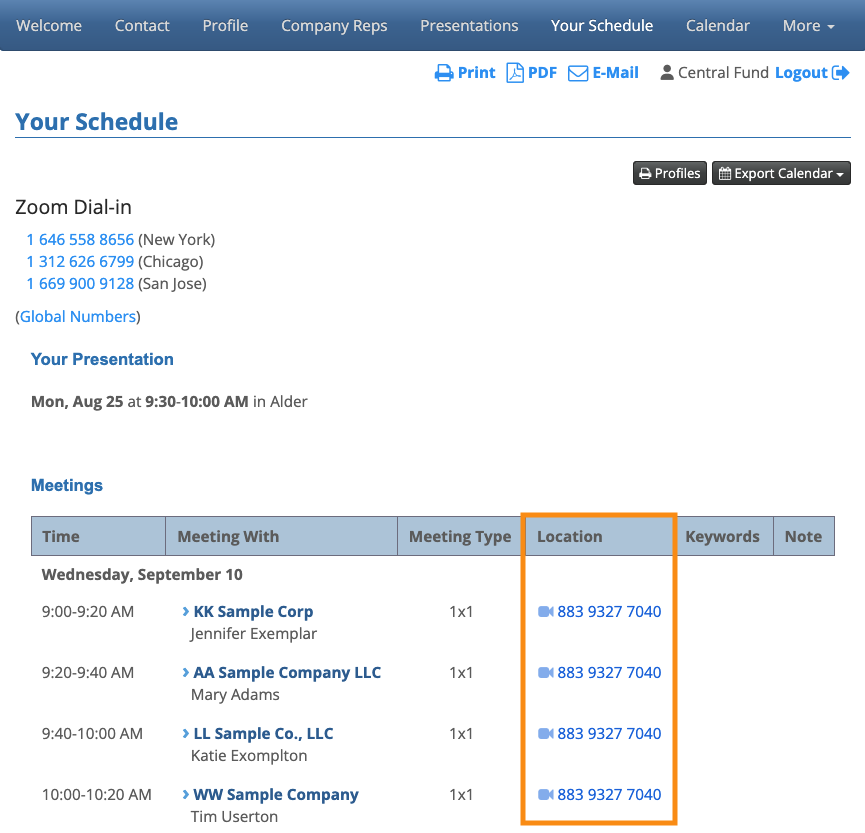
Can a Company use the same Zoom room for all meetings?

| We’re assuming here that you’re contracting Zoom rooms through MeetMax. |
By default, MeetMax will assign different Zoom rooms to different meetings. If a Company is hosting multiple meetings in a day, by default they’d be logging into a different Zoom room for each meeting.
For some events, it might be simpler if a Company has one dedicated Zoom room, where MeetMax schedules all of their day’s meetings. You can set this up for any Company.
- Step 1. First, you’ll add a field to the Admin version of your Company registration form.
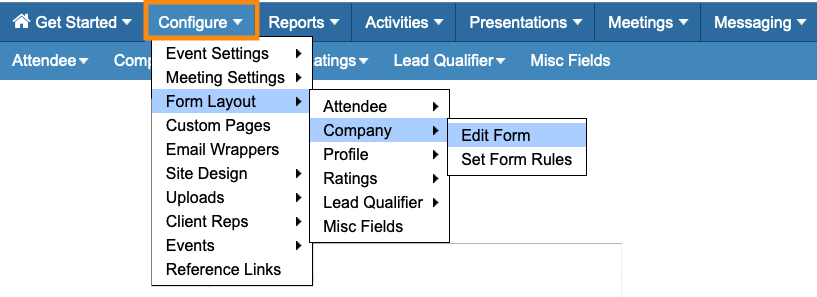
- Head to the Configure tab. Then choose Form Layout, then Company, then Edit Form:
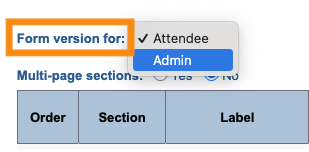
- Step 2. In the Form Editor, set the Form Version menu to Admin:
- Step 3. Click the Add Field button. Then choose Re-use Zoom Meeting:
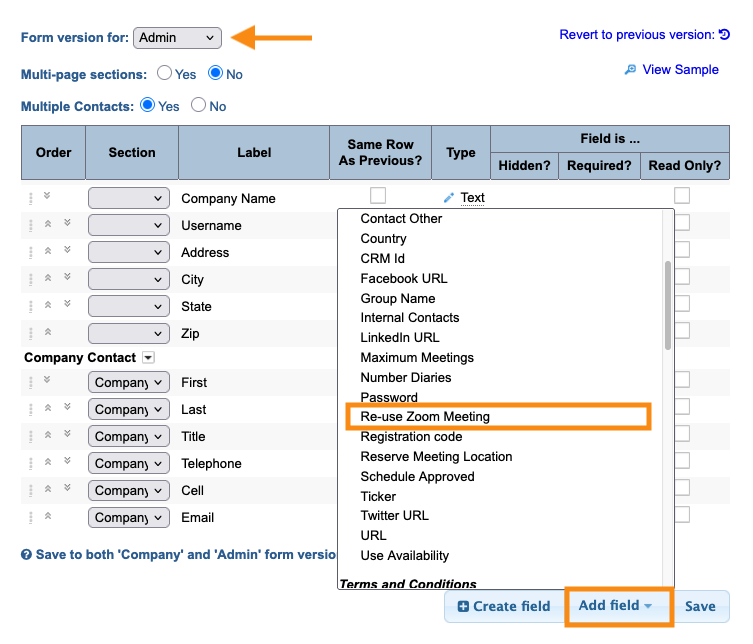
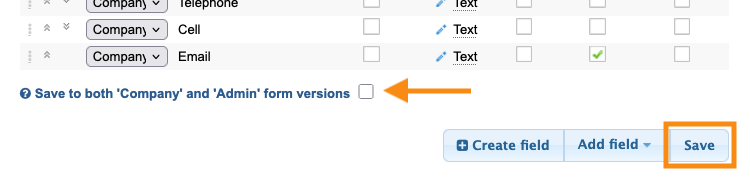
- Step 4. Make sure the check box is not checked, and click the Save button:
- Step 5. Now, head to the Company List:

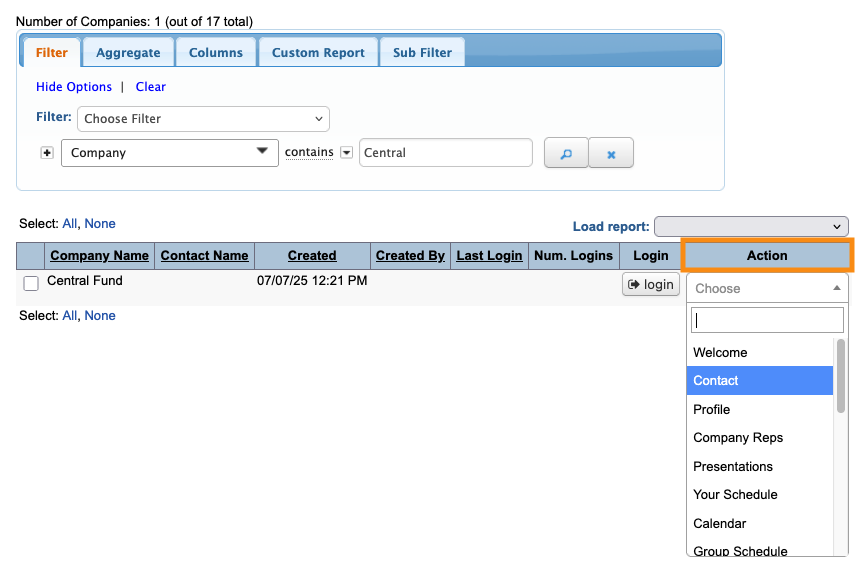
- Step 6. Filter the list to find the Company you need. Use the Action menu to choose Contact:
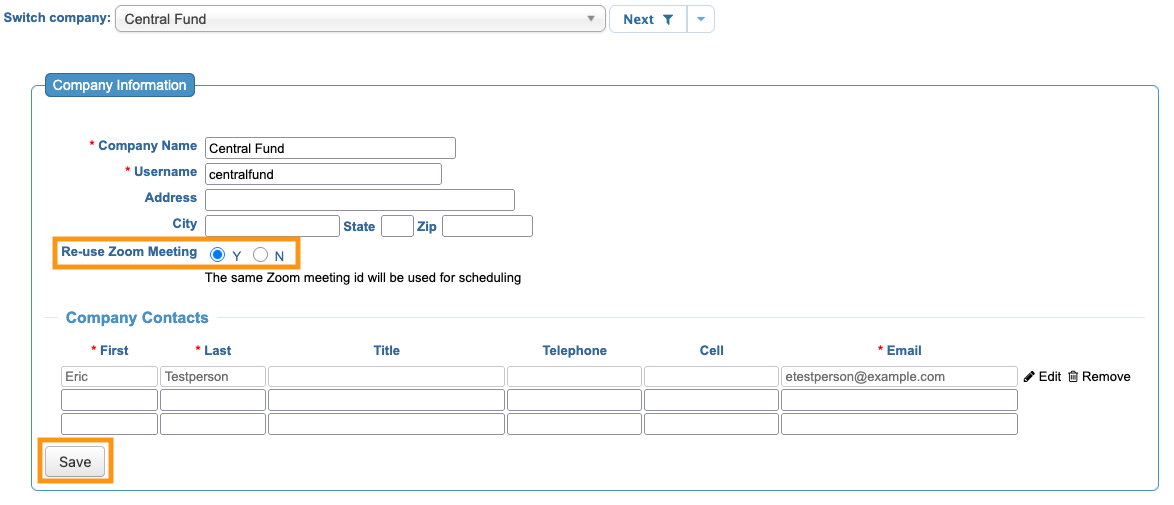
- Step 7. Set the Re-use Zoom Meeting field to Yes. Then click Submit:
- With that setting in place, MeetMax will always assign the same Zoom room to this Company’s meetings, as shown in this sample schedule: