


In this article:
- Where is it?
- Adding an Attendee’s Colleagues to a meeting
- Adding a Company’s Colleagues to a meeting
- Showing Colleagues on schedules
| If you don’t see the Colleagues option in your event, reach out to our Support team to have it enabled. |
Where is it?
You’ll add colleagues to a scheduled meeting via the Attendee List or Company List:


Use the Action menu to choose Meeting Times:

Adding an Attendee’s Colleagues to a meeting
In this example, Katie Exomplton is an Attendee who has several colleagues at the event. Katie has a meeting scheduled with a Company, Bank of Orlando. She wants to have her colleagues added to this meeting.
- Step 1. Head to the Company List:

- Step 2. Filter the list to find the company whose meeting you need to update. Then use the Action menu to choose Meeting Times:

- Step 3. Locate the meeting where you need to add colleagues. Click the Edit button:
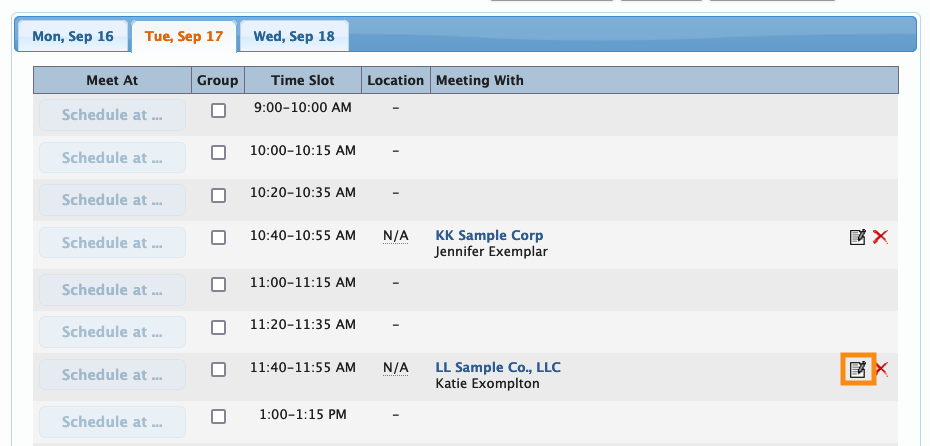
-
You can also add Colleagues while you’re creating a new meeting from this page. - Step 4. You’ll now see a pop-up with the meeting details. Head to the top right corner and click the Colleagues link:
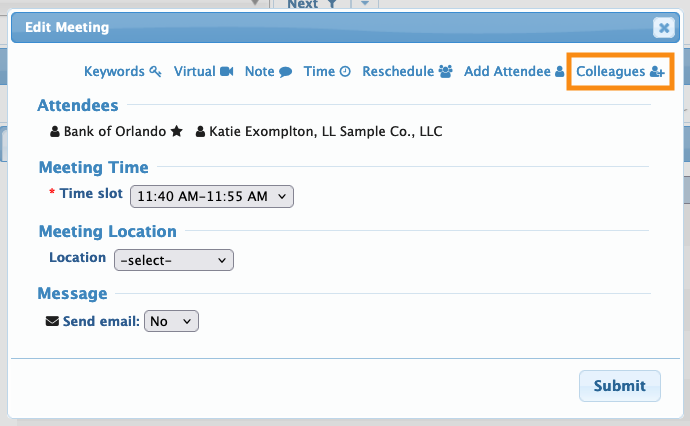
-
This link will appear only when one or more of the participants has colleagues at your event. - Step 5. MeetMax will display all of the Attendees from Katie’s company. Each person has a checkbox, so you can click all of them to add everyone, or click only some of them.
- See how one colleague below is greyed out? That’s because they’re unavailable for this meeting time. They either have a blackout time set, or another meeting scheduled:
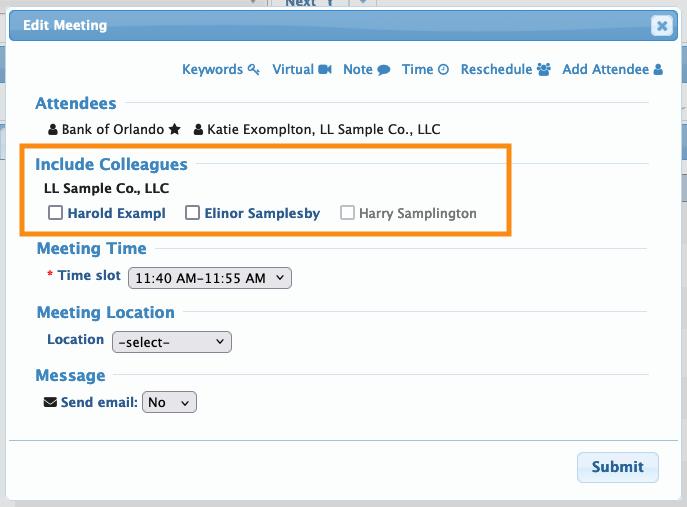
- Step 6. Once you choose the colleagues to add, you’ll be prompted to re-choose the meeting’s location.
- After that, you can have MeetMax email everyone who’s just been added to this meeting. Add a personal message if you like.
- Click Submit to save the change and send emails:

- Step 7. If you’ve opted to send email, each of the added colleagues will get a message something like this:

Adding a Company’s Colleagues to a meeting
| This section won’t apply to all events. |
For a Company, all of its Company Reps are considered Colleagues.
- By default, when MeetMax schedules a meeting for a Company, it automatically add all of its Reps to that meeting.
- Some events, however, will “untie” Company Reps from their Company’s meetings, so that they can be scheduled individually.
In this example, Central Fund has a meeting booked. One of its Reps, Deborah Exampling, was added to this meeting automatically. We want to add more Colleagues.
- Step 1. Head to the Company List:

- Step 2. Filter the list to find the Company you need. Then use the Action menu to choose Meeting Times:

- Step 3. Locate the meeting you need, and click the Edit icon:

- Step 4. When you click the Colleagues link, you can add any of Central Fund’s other Reps to this meeting:
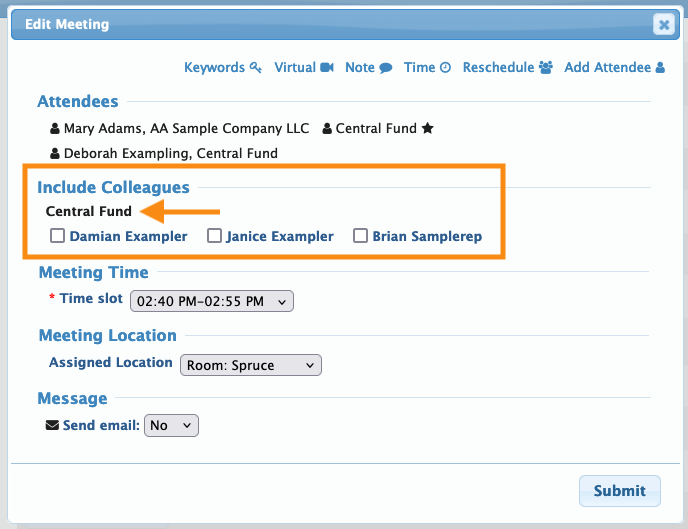
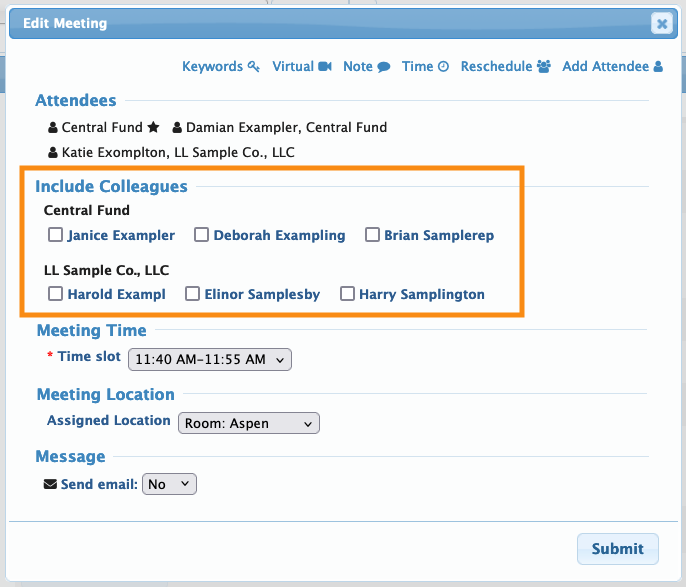
There might even be cases where you have the option to add colleagues for both the Company and the Attendee:
Showing Colleagues on schedules
If you like, you can customize the Attendee and Company schedules to display the names of all Colleagues in each meeting.
- For Attendee schedules: Include Colleague meetings for role
- For Company schedules: Consolidate my tied Colleagues

