


In this article:
Where is it?
When participants log into MeetMax, they’ll see the bookmark icons in several places.
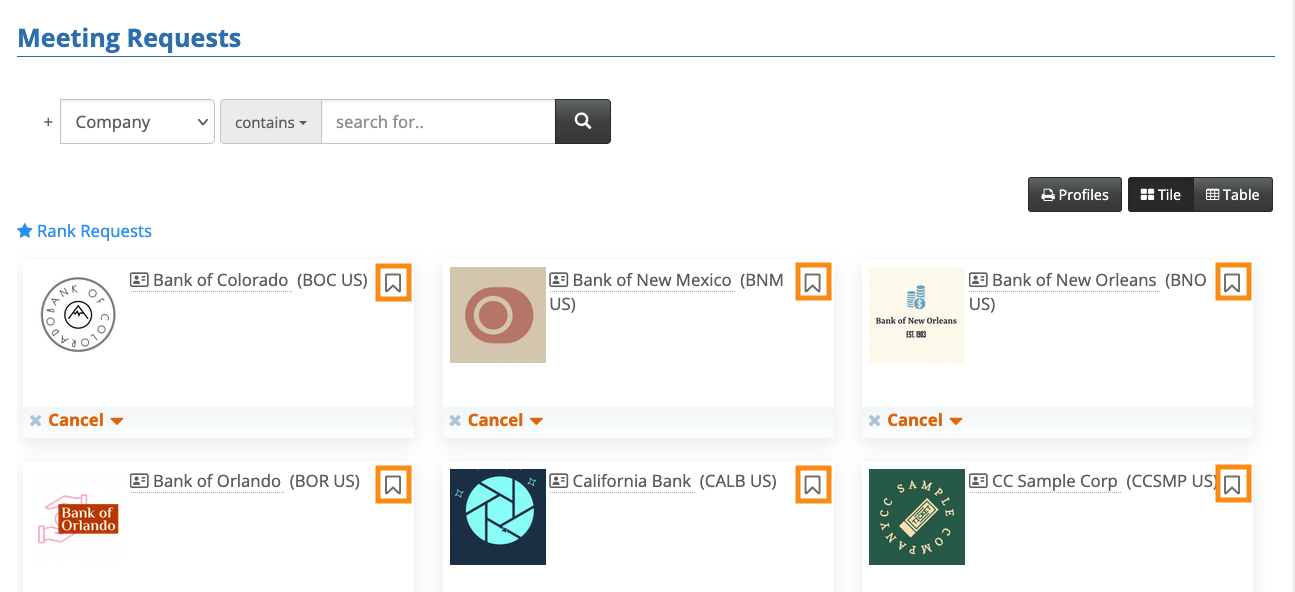
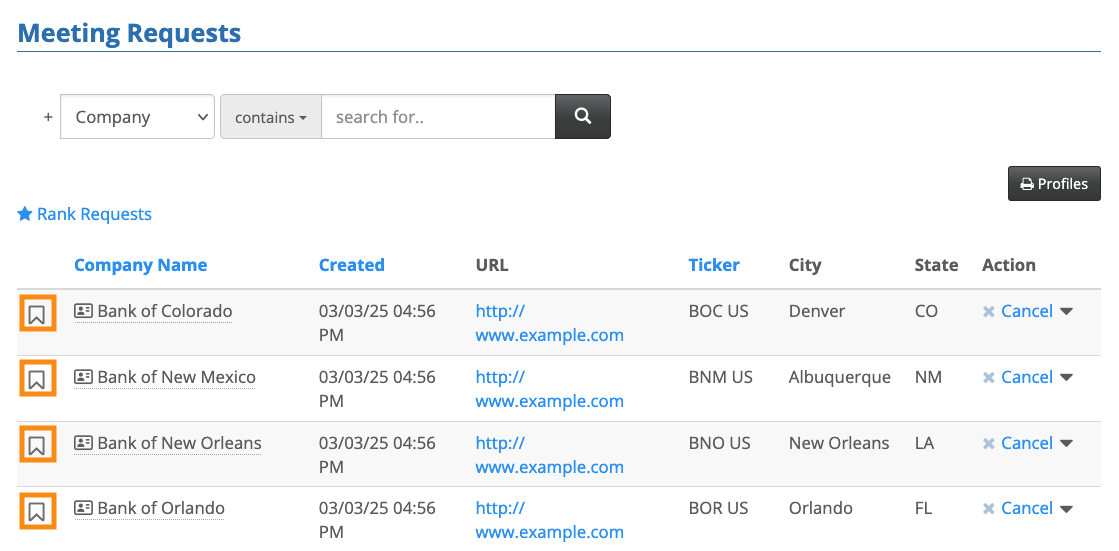
Request Meeting page
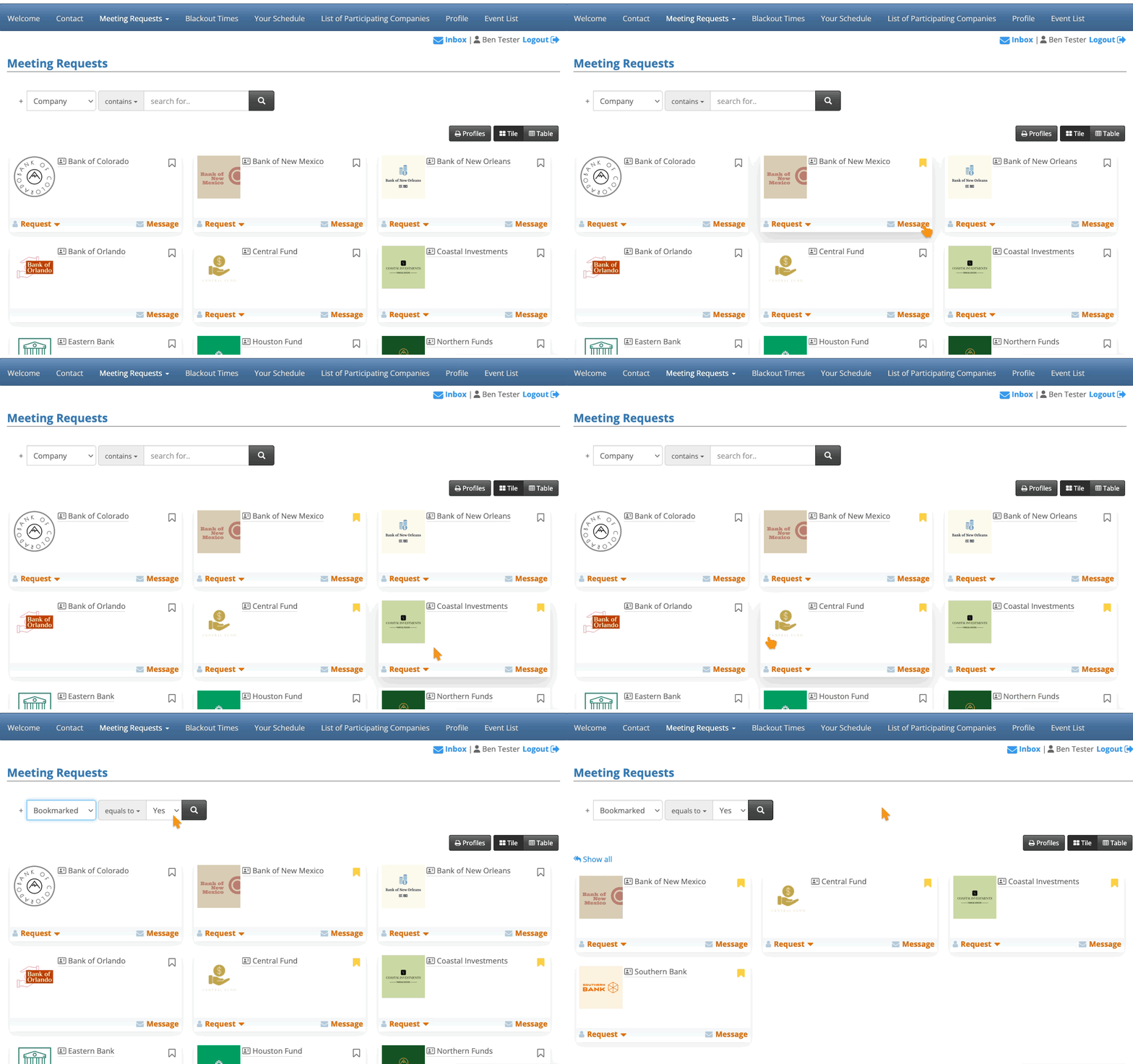
The bookmark icons appear in both the Tile and Table layouts:
Custom List pages
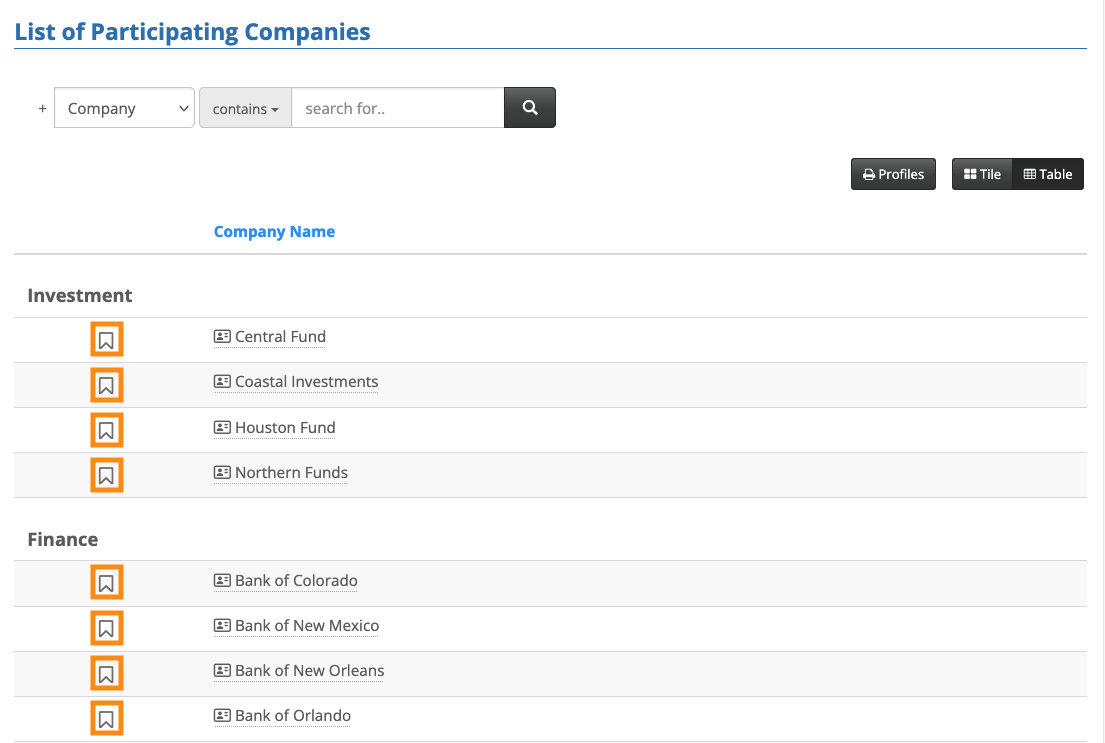
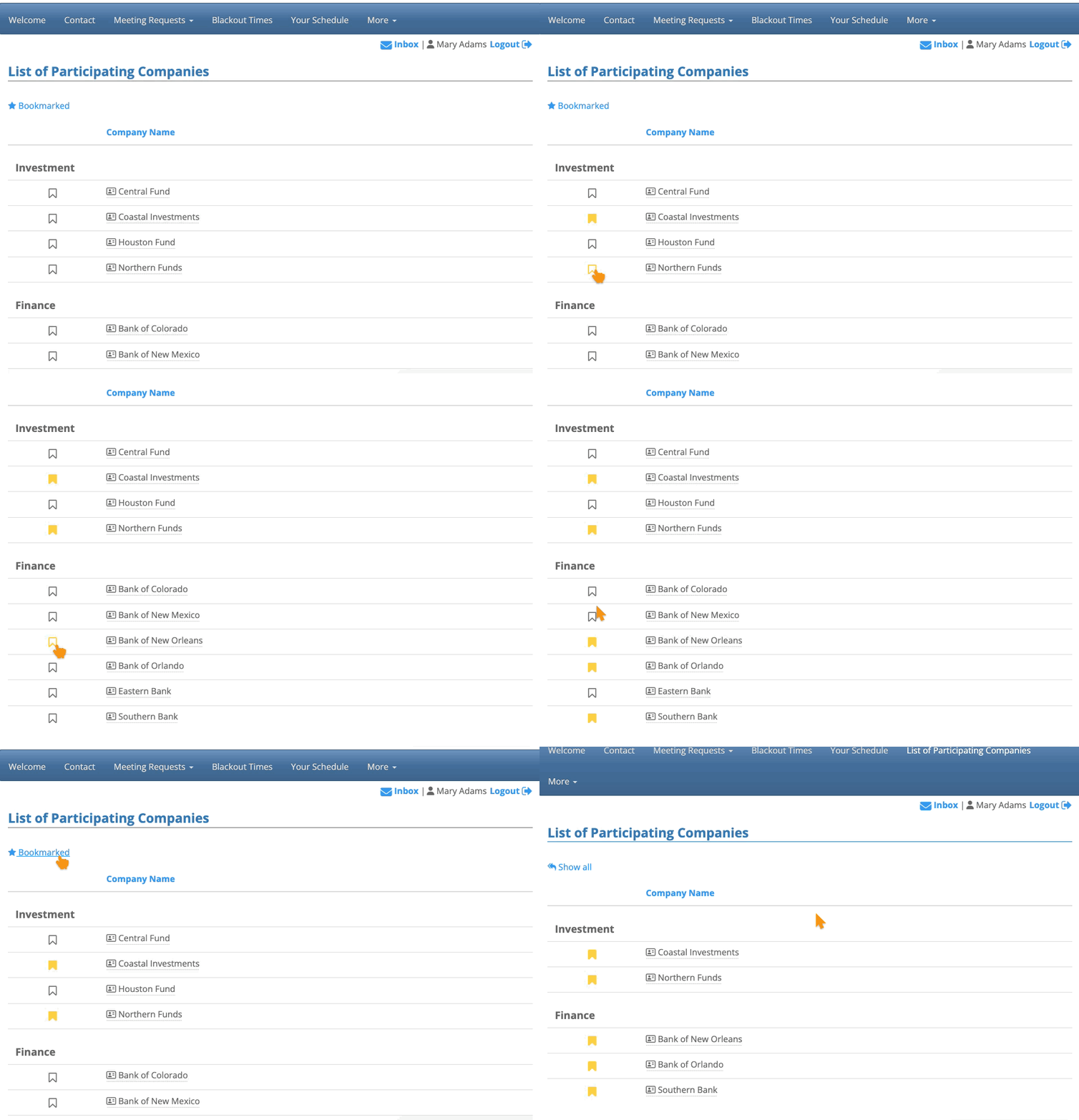
If your event has created a web page to display a customized list of participants, the bookmark icons appear there automatically:
Profile pop-up
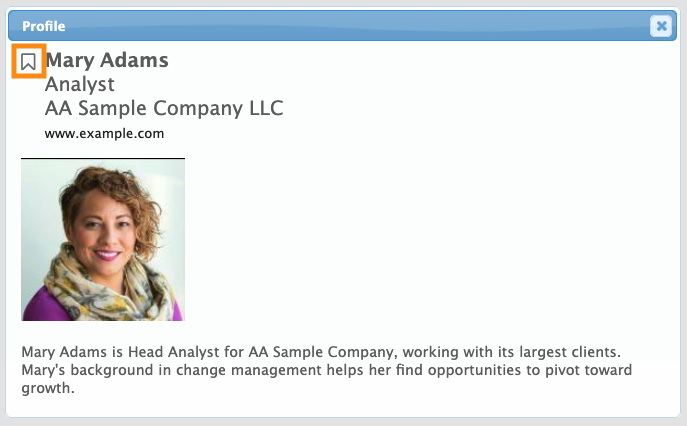
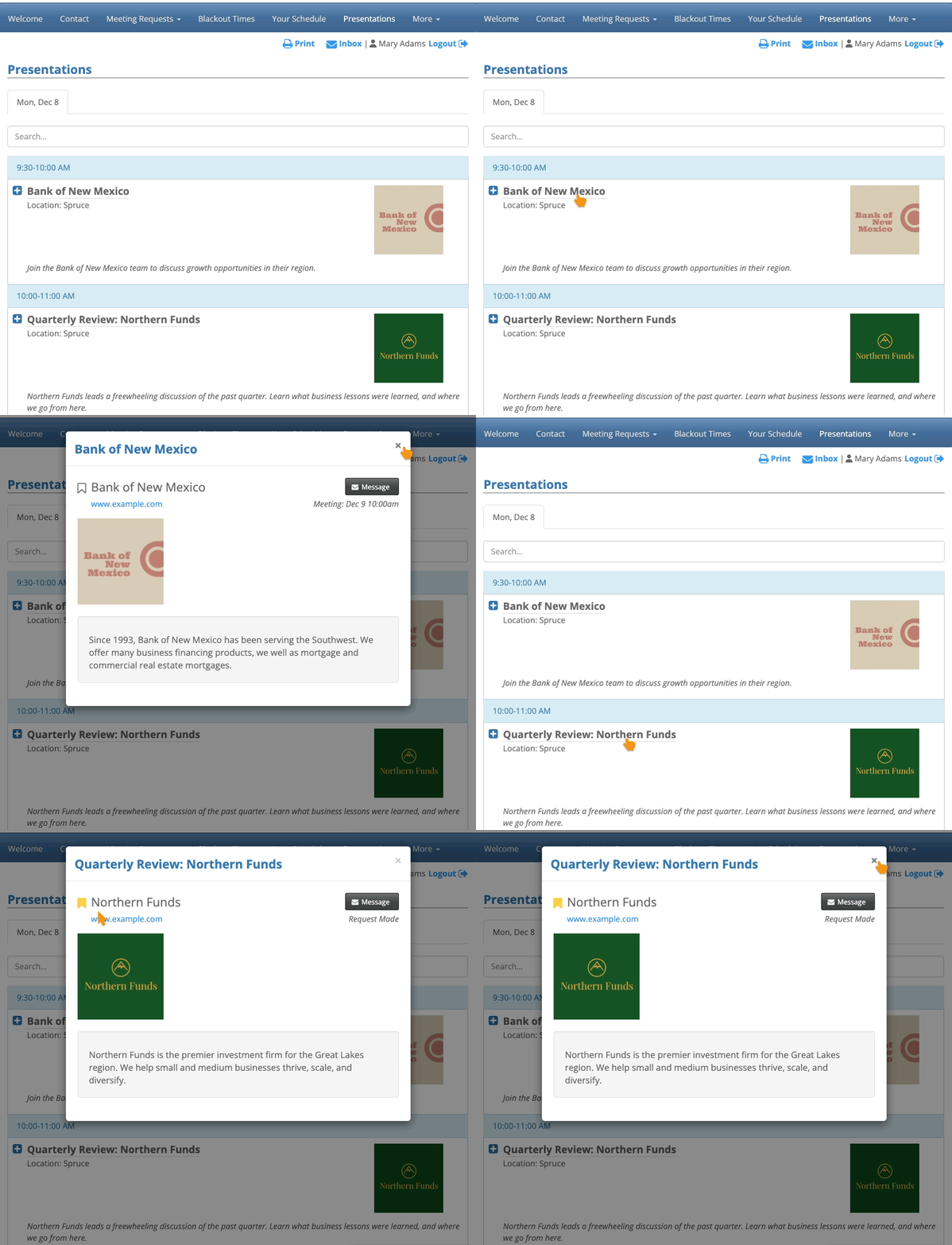
As an option, your event can display Attendee and/or Company names as links. Those links open a participant’s Profile in a pop-up, which includes the bookmark icon:
| Bookmarks appear to logged-in participants, and you’ll also see them in your Admin view. |
Why is it useful?
MeetMax gives participants access to connect directly with each other. Depending on your event, that might look like:
- Requesting a 1x1 meeting
- Sending a message
- Attending a presentation
The Bookmark icon helps everyone keep track of their own list of key people. Once you’ve bookmarked an Attendee or Company, that bookmark displays throughout MeetMax.
Showing or hiding the Bookmark icons
The bookmark icon displays by default. You can remove it from some or all locations. The links below will show you the steps.
What participants see
On the Meeting Requests page, participants can add bookmarks. Then, they can filter the page to display only those people/companies:
A Custom List page works the same way. Participants can bookmark and then filter the list:
In addition to the pages shown above, There are other locations in MeetMax where Attendees or Companies names can appear as links. Clicking these opens up a Profile pop-up.
Here’s what a logged-in Attendee would see from the Presentations page. In this example, we previously bookmarked Northern Funds on another page, so we can also see that here in their Profile:
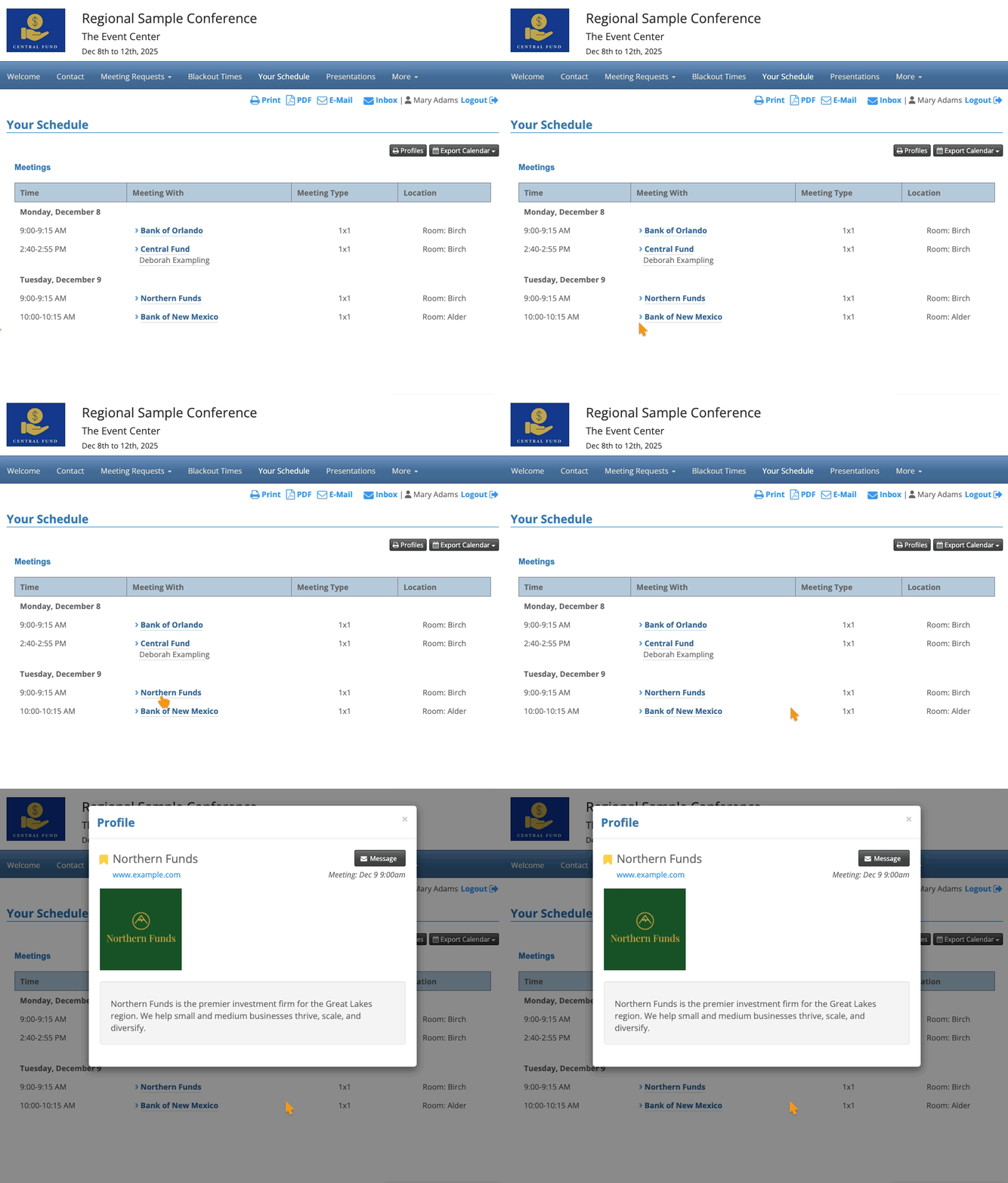
A logged-in Attendee sees something similar on their Your Schedule page.
Names are clickable links to Profiles, and the bookmark icon appears on each profile:
The bookmark icons are connected in all of these locations. You can activate or deactivate a bookmark in any location, and that change will appear everywhere else.

