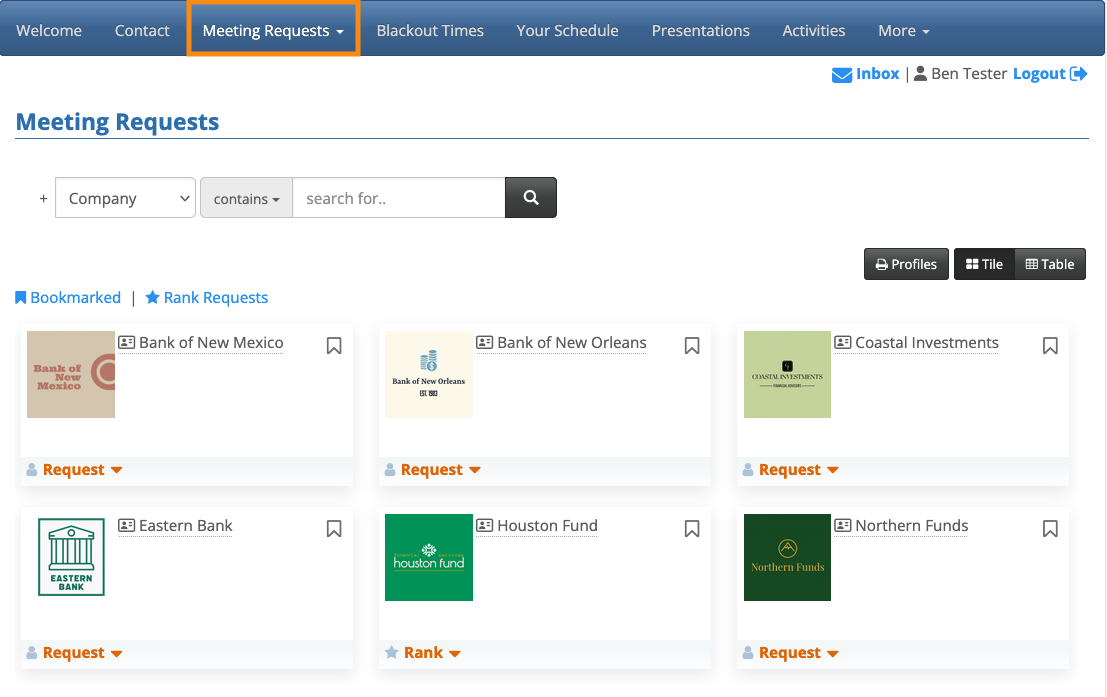
Your event might have certain Companies that aren’t available for meetings. On the Attendee’s Request Meeting page, you can customize how MeetMax displays that status.
Setting a Company as unavailable
MeetMax has two ways to set Companies as unavailable. Your event might be using either or both of them.
Admin form field
In the Form Editor, you can head to the Admin version of the Company registration form. Add the default Available for 1-on-1’s field:
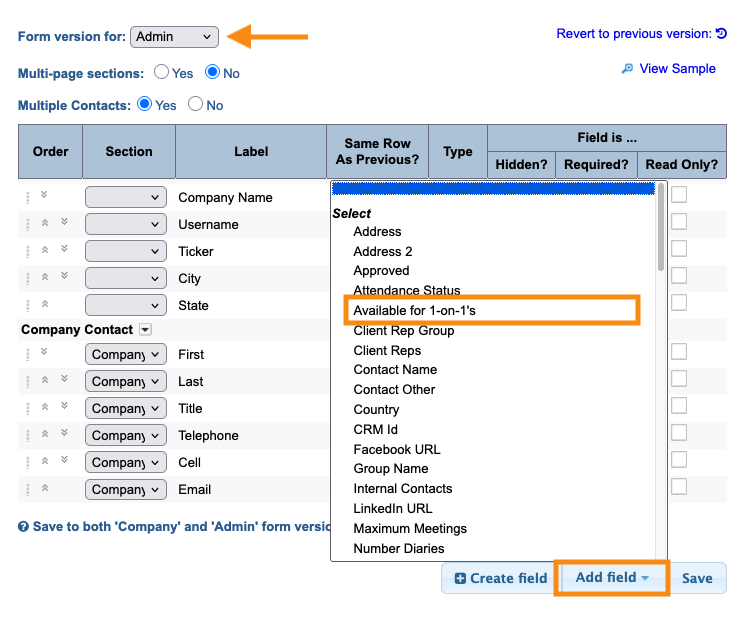
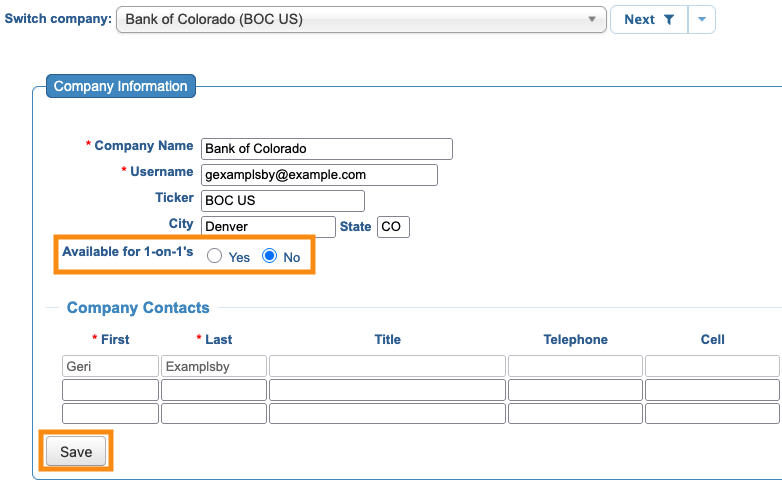
With this field in place, your team can set individual Companies to be available for meetings, or not:
Request Qualifiers
Your event might be using the Request Qualifiers feature, which lets participants choose the type of meetings they do and don’t want.
If Request Qualifiers are in place, they’ll cause Companies to display as either available or unavailable, depending on the circumstance.
Customizing the display
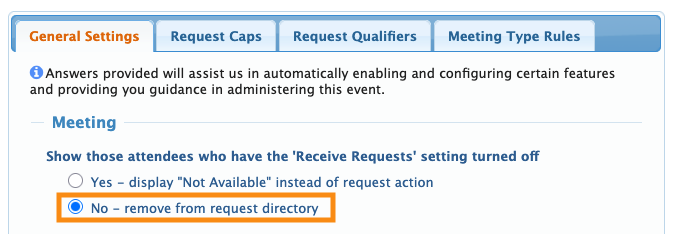
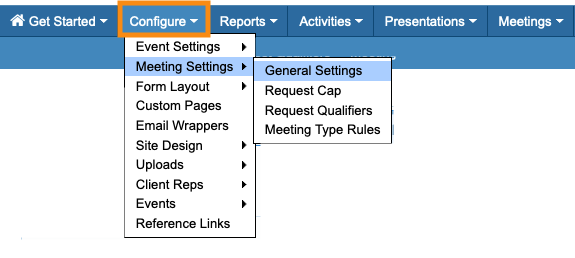
Head to the Configure tab. Choose Meeting Settings, then General Settings:
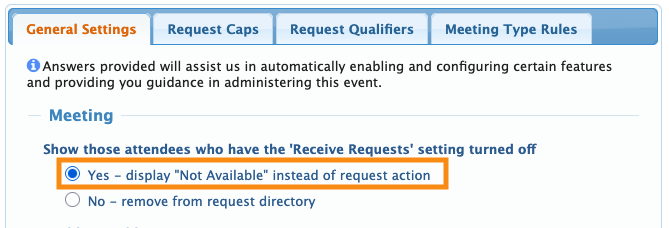
In the Meeting section, choose one of the options below.
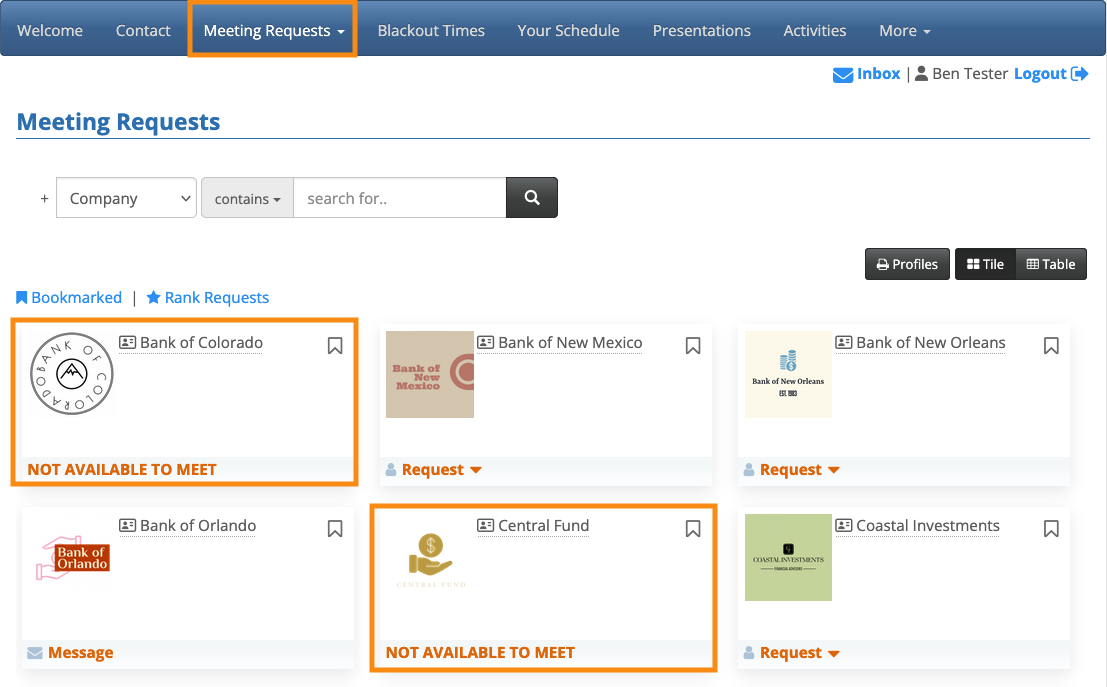
If you choose Yes, the Request Meeting page keeps all Companies visible to Attendees. Unavailable Companies display that status, as shown below:
If you choose No, MeetMax removes unavailable Companies from the Request Meeting page.
In the example above, Bank of Colorado and Central Fund aren’t available for meetings. In the example below, they’re not listed on the page: