How do I download a logo or headshot from MeetMax?

There are two ways to download a Company logo or Attendee headshot.
From your browser
This is an easy, general method. You can download this way from any web page that’s displaying the logo or headshot.
Below is a quick route to Profile images.
- Step 1. Head to the Company List or Attendee List (depending on who you need to grab the image from):


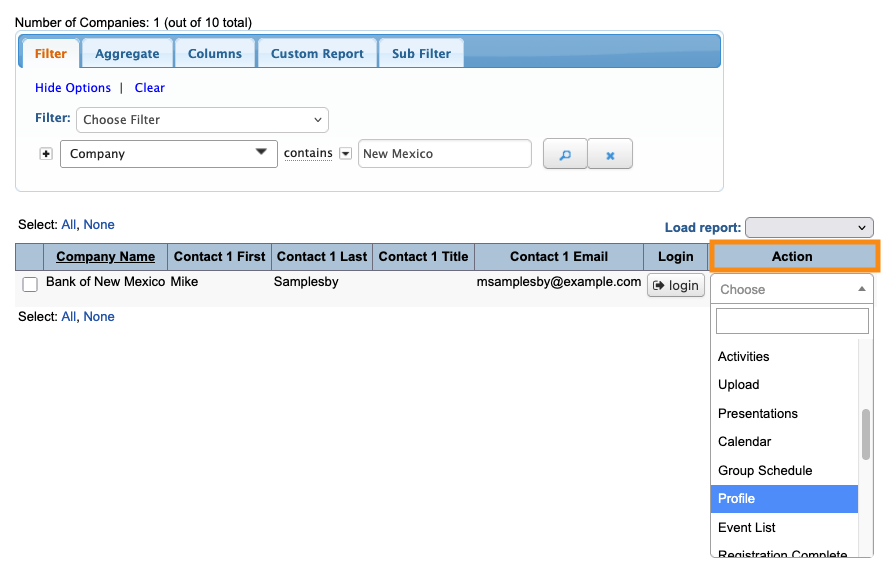
- Step 2. Filter either list to locate the Company or Attendee you need. Use the Action menu to choose Profile:
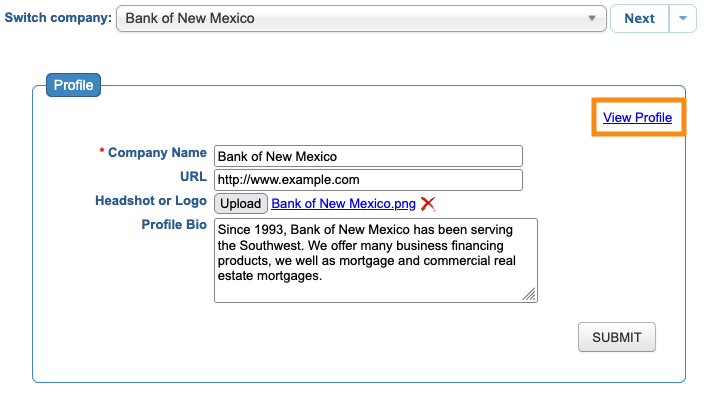
- Step 3. On the Profile form, click the View Profile link to display the logo/headshot:
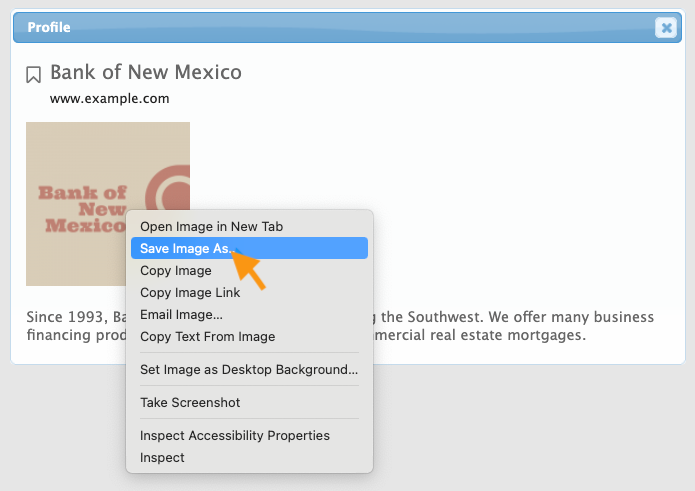
- Step 4. In the pop-up, right-click on the image. Your browser will display a menu where you can save it to your own computer:
From the Uploads page
If your event has Companies log into MeetMax and upload their own logos, you can retrieve those images from the Uploads pages.
- Step 1. Head to the Company List:

- Step 2. Filter the list to find the Company you need. Use the Action menu to choose Upload:
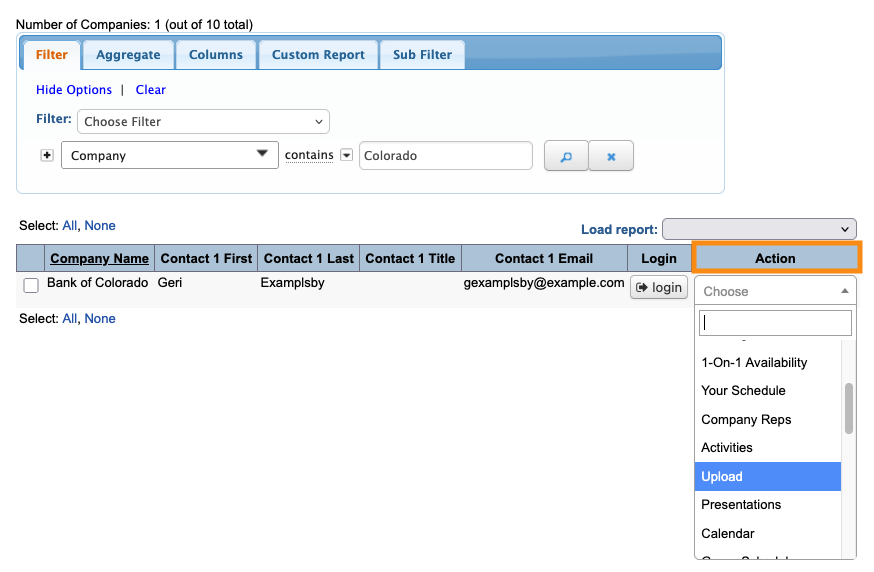
- Step 3. On the Company’s Upload page, click on the name of the logo file:
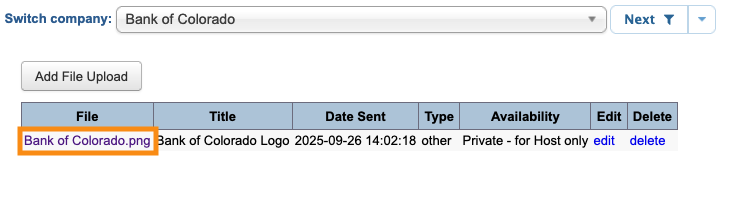
- Step 4. The image will open in a new browser tab. Right click on it, and your browser will display a menu where you can save the file to your own computer: