


Adding a pop-up notice of new Inbox messages

This feature helps you make new Inbox messages more prominent. It’s especially useful for Unmoderated meeting programs.
In this article:
Where is it?
Once enabled, logged-in participants will see the pop-up message on any page of MeetMax:
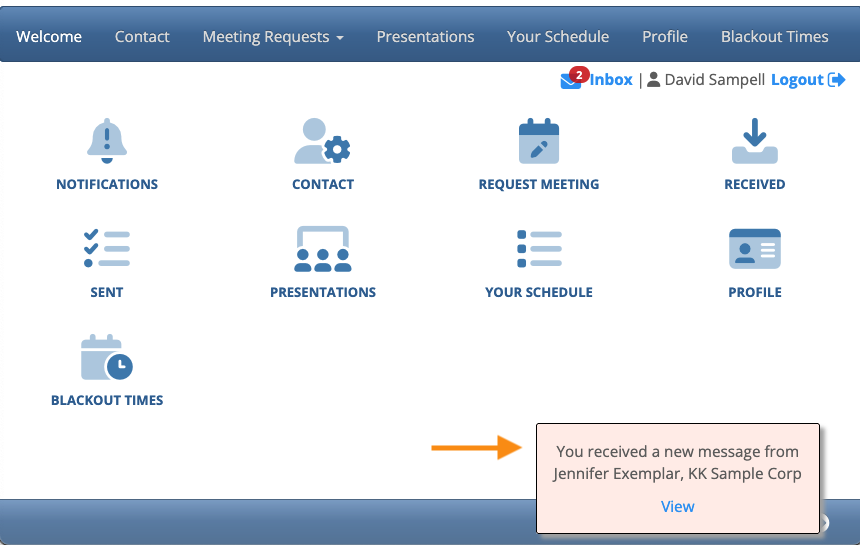
| Participants must be logged into MeetMax to see these pop-ups. If they receive messages while they’re logged out, MeetMax will place those messages into the Inbox. |
Enabling the pop-up
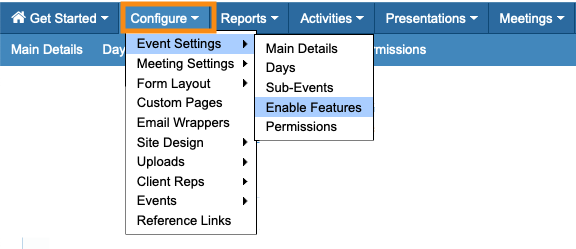
- Step 1. Head to the Configure tab. Choose Event Settings, then Enable Features:
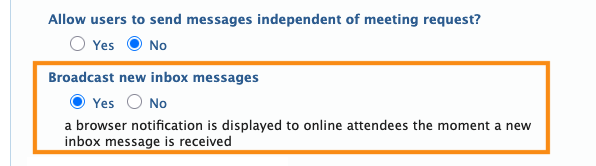
- Step 2. Under Broadcast new Inbox messages, choose Yes:
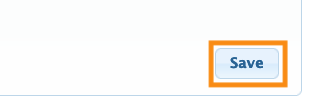
- Step 3. Scroll to the bottom of the page and click Save:
What participants see
By default, logged-in participants will see pop-up notifications when:
- Someone requests a meeting
- Someone has confirmed a meeting they’ve requested
- Someone reschedules the meeting
You can also enable your participants to send each other messages outside of meeting coordination. In that case, everyone will also see pop-up notifications for those messages:
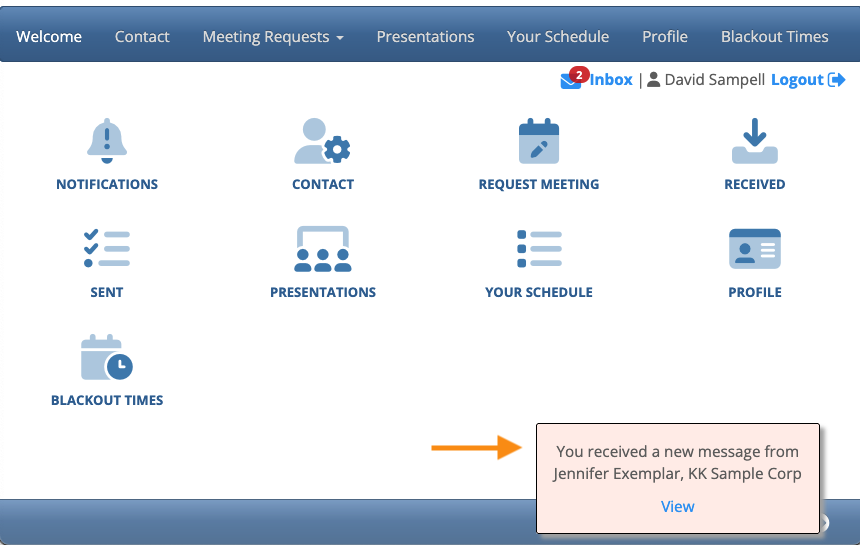
When a participant clicks the View link, they’re taken to the Inbox messages. There, they can use the default reply options.
Every reply and every new message generates the pop-up notification above.

