In this article:
- Where is it?
- Why is it useful?
- Enabling a hybrid meeting
- Grouping participants for hybrid meetings
- Parts of a Hybrid Meeting Rule
- Adding a Rule: Simple example
- Adding a Rule: More complex example
- Editing or Deleting a Hybrid Meeting Rule
Where is it?
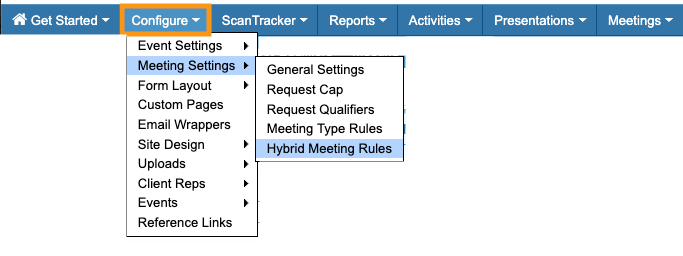
Once enabled, you’ll create and manage Hybrid Meeting Rules from the Configure tab:

Why is it useful?
In MeetMax, a “Hybrid Event” is one that has both in-person and virtual parts. Hybrid events can be structured in many ways:
- Your event might have separate in-person days and virtual days, or times.
- Your event might have locations on-site for in-person participants to meet with virtual participants.
- Your event might have both virtual and in-person participants, who’ll only meet within their groups.
While you’re scheduling meetings for hybrid events, it can be challenging to keep track of which ones are virtual and which are in-person.
Hybrid Meeting Rules help MeetMax automatically assign the right kind of location to each meeting - Zoom rooms or physical meeting locations.
Enabling a hybrid meeting
- Step 1. Head to the Configure tab. Choose Meeting Settings, then General Settings:
- Step 2. Under Enable hybrid meetings, choose Yes.
- That opens a related setting, Disable room assignment by default:
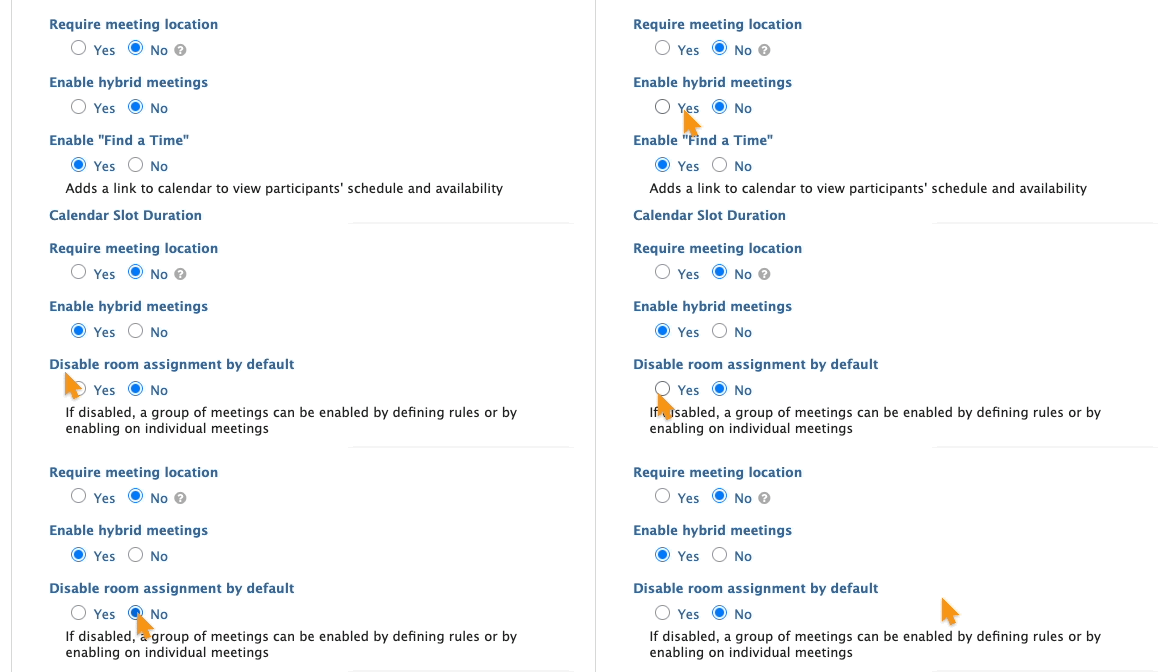
- Depending on your event’s structure, you might choose Yes or No here.
- • If your event will have significantly more virtual meetings and in-person ones, it’s useful to choose Yes. You’ll be allocating Zoom rooms for most meetings. (For the in-person meetings, you’d be able to override this setting and assign locations.)
- • If your event will have separate days for in-person and virtual meetings, use the Yes setting. You’ll then create rules for each day’s room assignments.
- • If your event is mostly in-person, or a balance of virtual and in-person, leave this setting at the default of No. (Your Hybrid Meeting Rules will then determine location assignments.)
- Step 3. Scroll to the bottom of the page and click Save:

-
In addition to the above setting, our Support team needs to enable your event for virtual meetings. You can use Hybrid Meeting Rules whether you’re contracting Zoom rooms from MeetMax, or providing your own virtual rooms.
Grouping participants for hybrid meetings
Once you’ve enabled a hybrid event, MeetMax adds an Attendance Status field to your registration forms.
It’s a drop-down field, with these choices:
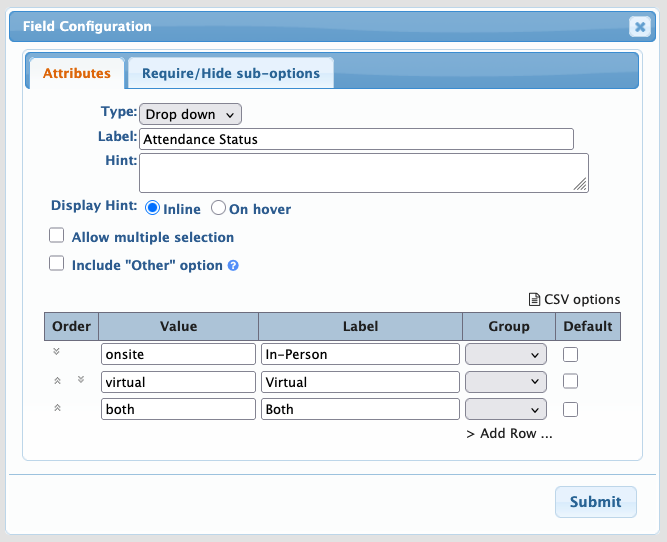
| You can customize this field as needed. |
You can add the Attendance Status field to the Attendee form, or Company form, or both.
Depending on your event, you can:
- Add the field to your public registration forms, and let participants choose their own type of attendance.
- Add the field to the Admin version of your forms, so your team can assign the attendance type.
With this field, you’ll organize your participants into groups, so you can base your Hybrid Meeting Rules on these groups.
Parts of a Hybrid Meeting Rule
Hybrid Meeting Rules are flexible. Our Support team is happy to help design the most useful rules for your event’s structure.
Each rule consists of:
- Condition(s): One or more elements that trigger the rule. These might be based on the Attendance Status field, or specific days or your event, or something else.
- Action: The type of location MeetMax assigns, if a meeting matches the Condition(s).
Adding a Rule: Simple example
Let’s say our event is two days:
- Day 1 is in-person
- Day 2 is virtual
- Step 1. Head to the Configure tab. Choose Meeting Settings, then Hybrid Meeting Rules:
- Step 2. Add a Name for this rule. It’s internal only, so make it descriptive.
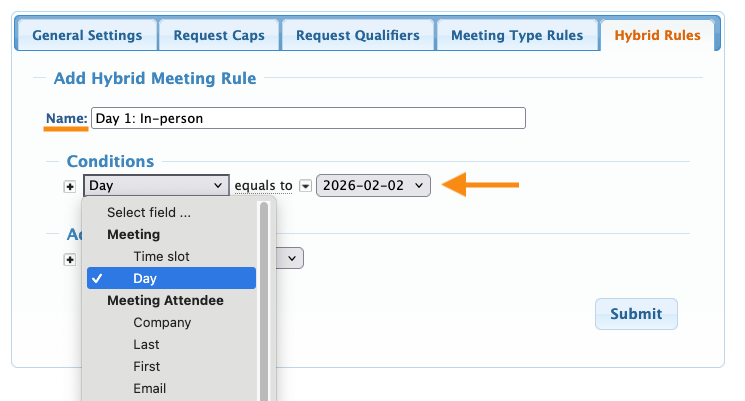
- Step 3. Set the Conditions for your rule. Here, we’re choosing the Day condition, and then choosing the first date of our event:
- Step 4. Time to attach an Action to this Condition.
- Since Day 1 is our in-person day, we’ll choose Room Assignment, and then Enable.
- Click Submit to save:
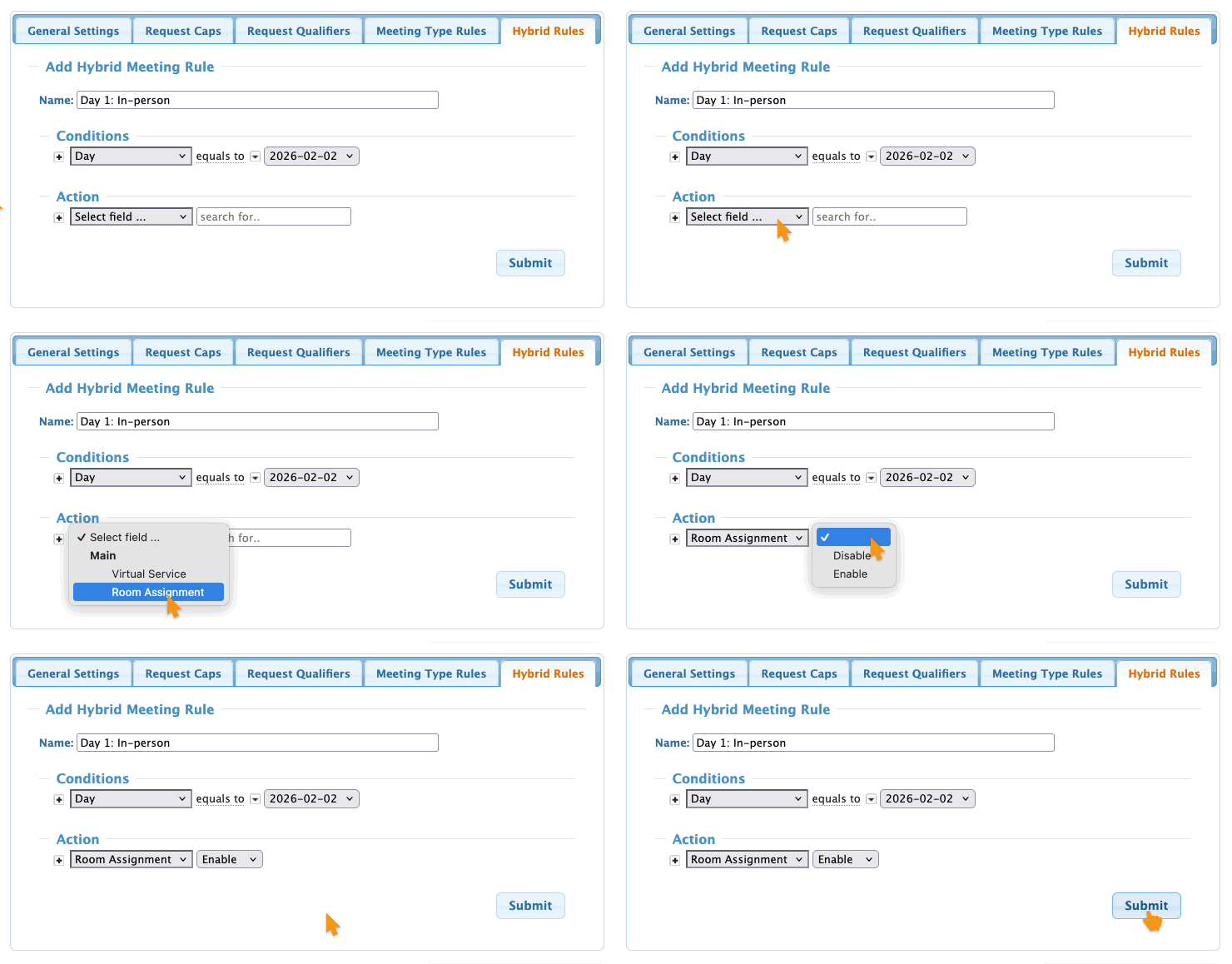
- With this rule in place, all meetings on Day 1 will automatically be considered in-person meetings. MeetMax will let you assign meeting locations to them.
- Step 5. Since Day 2 of our event is virtual, we’ll create a second rule.
- • The Condition is set to our second day.
- • The Action will be to assign a Virtual Service, like a Zoom room, to all meetings:
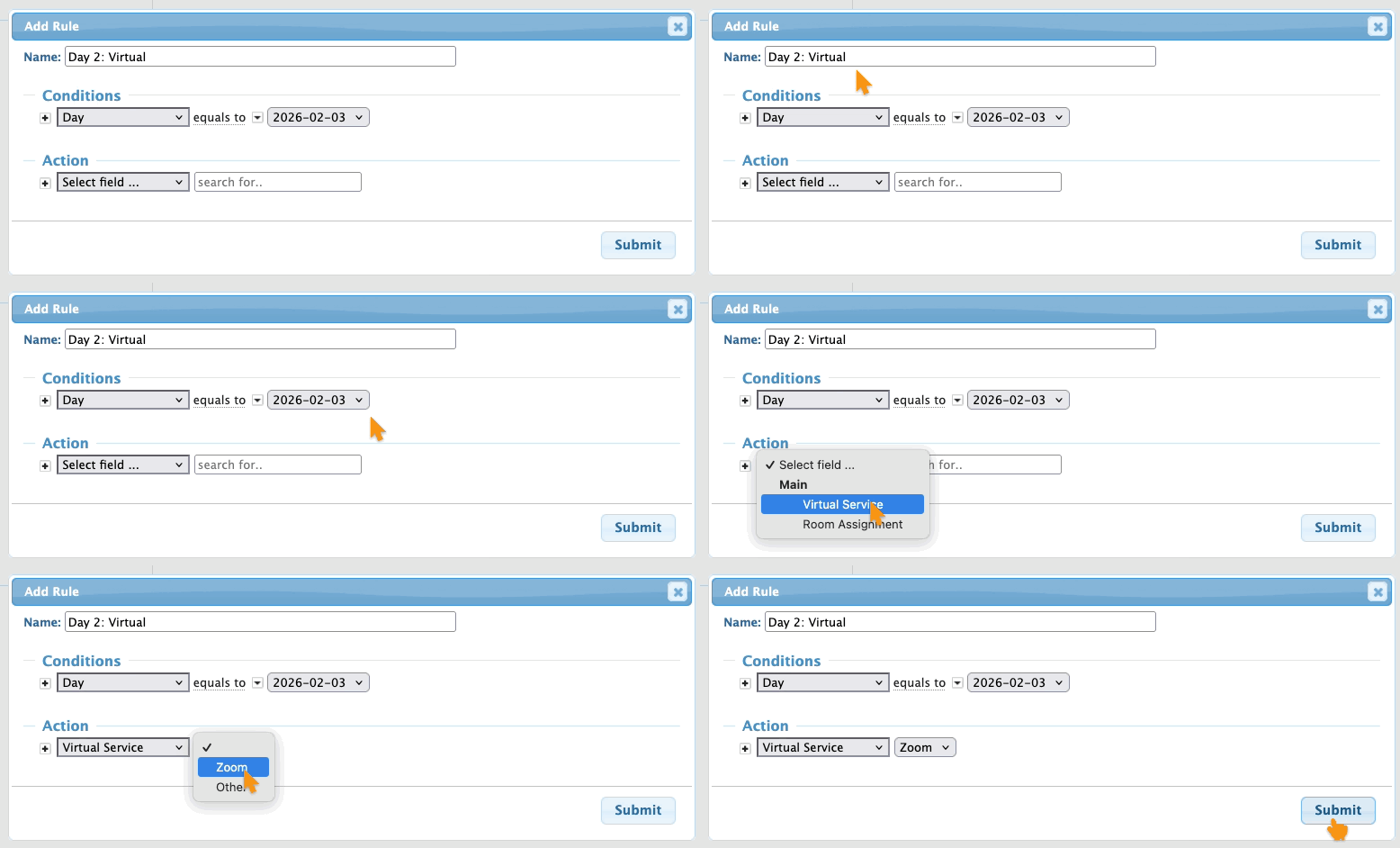
- Now, MeetMax will allocate your event’s Zoom rooms only to the meetings on Day 2.
Adding a rule: More complex example
This example uses the Attendance Status field. At our event:
- All Companies are attending in person.
- Attendees will be both in-person and virtual.
- Virtual Attendees can request meetings with the in-person Companies. (We’ll have rooms set up on-site where Companies can take their virtual meetings.)
We need to automatically assign the correct type of location to each meeting - but we need a way to know which requests involve in-person Attendees, and which ones involve virtual Attendees.
That’s where the Attendance Status field will come in handy.
| Before taking the steps below, you’ll add the Attendance Status field to your registration forms and indicate each participant’s status, as shown in the section above. |
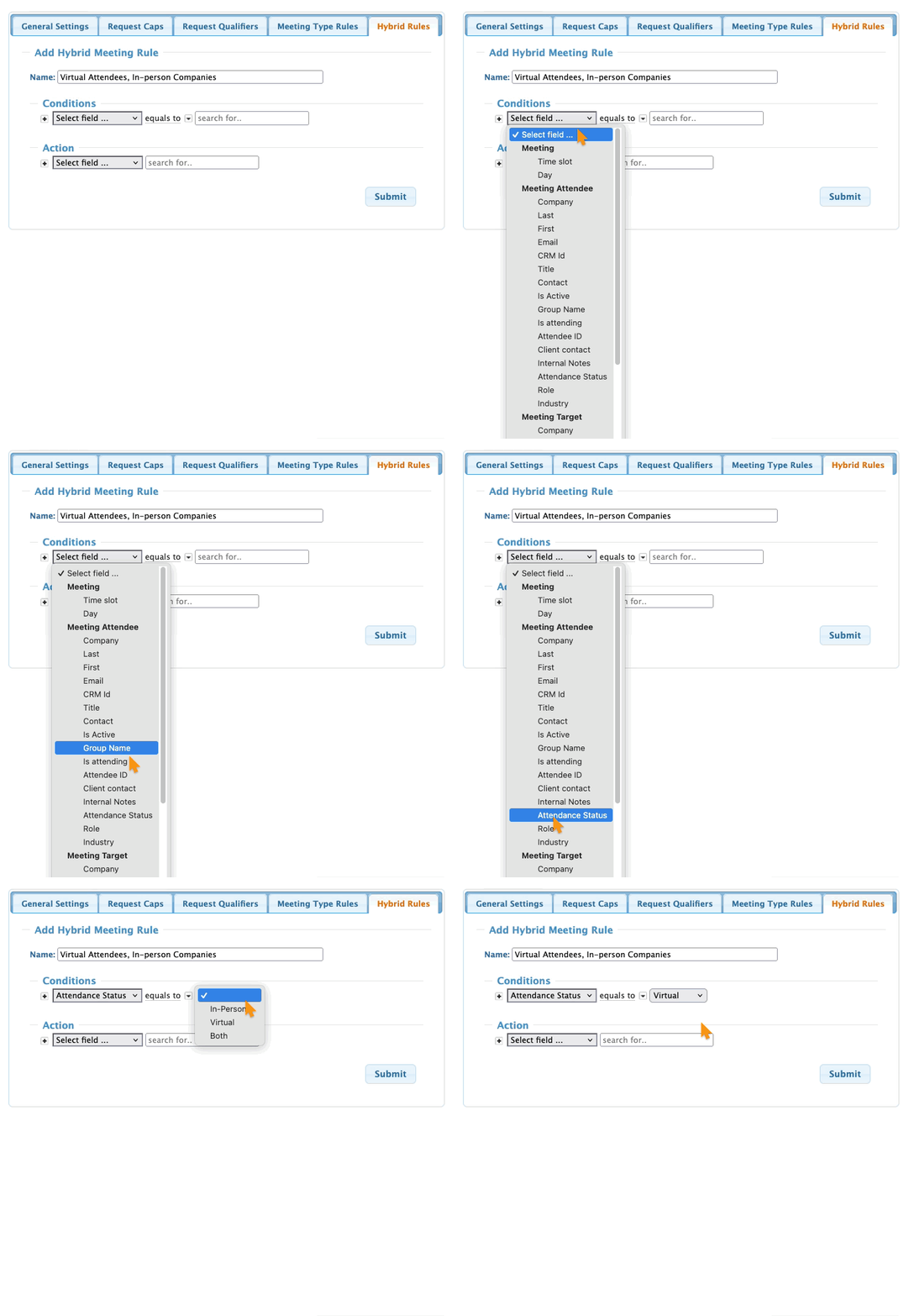
- Step 1. The first Hybrid Meeting Rule we’ll add is for the virtual Attendees.
- In the Conditions menu, there are two sections:
- • Meeting Attendee: The person who requests a meeting. (This is the same as the MeetMax concept of Source.)
- • Meeting Target: The person or organization who receives that request.
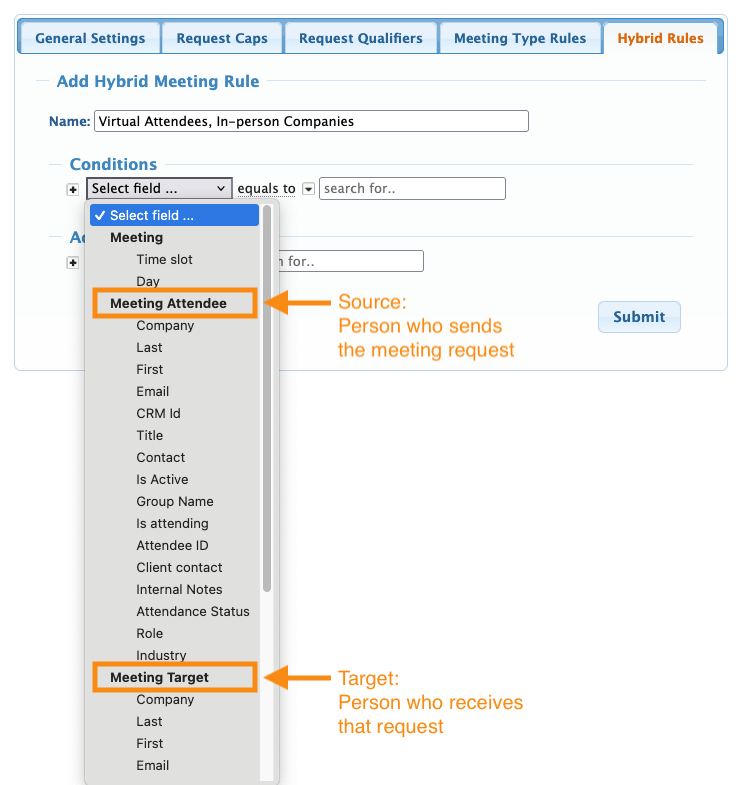
- For this first rule, we’ll need two Conditions filters.
- The first is for the Meeting Attendee, who is Virtual:
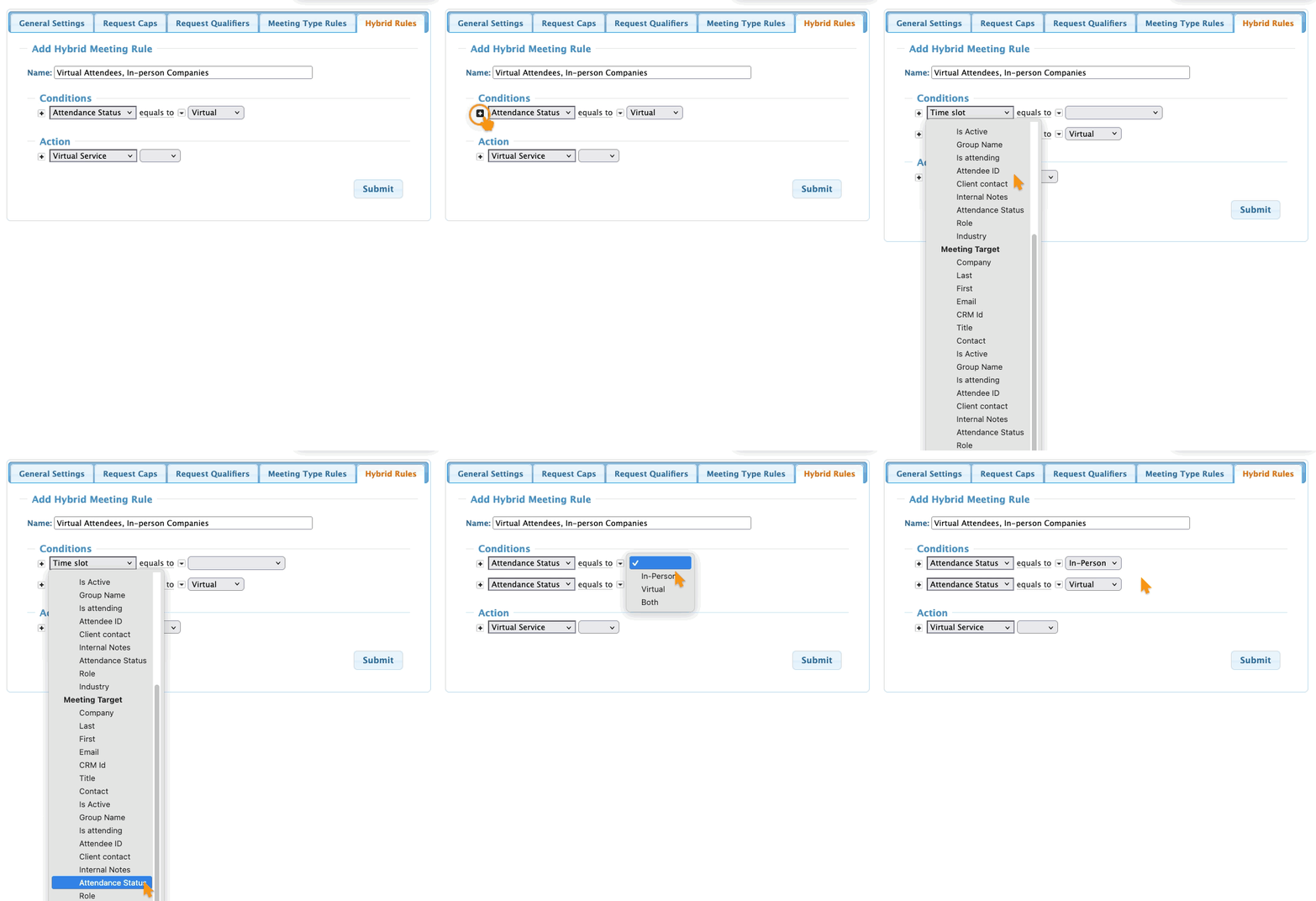
- Step 2. Next, we’ll add a second Conditions filter, to designate the Meeting Target (or Company) as In-Person:
-
You don’t always have to set two Conditions like we’re doing here. That’s only needed when the Meeting Attendee has a different status than the Meeting Target.
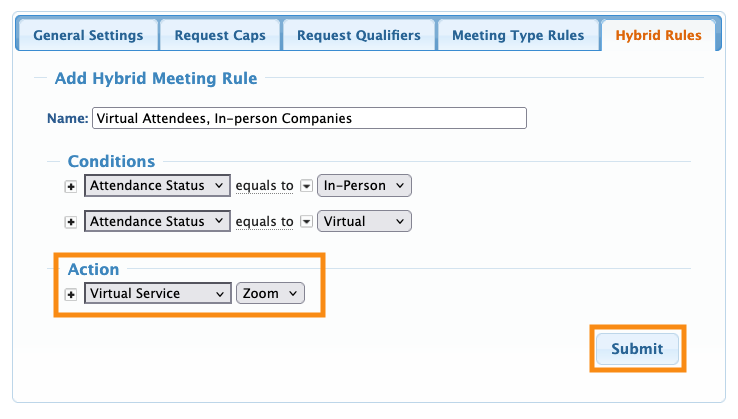
If both roles have the same Attendance Status, when you build your rule you can just set the Condition for the Meeting Attendee. Then your Action will also apply to the Meeting Target automatically. - Step 3. We can now add our Action, assigning this type of meeting to a Virtual Service.
- Click Submit to save the rule:
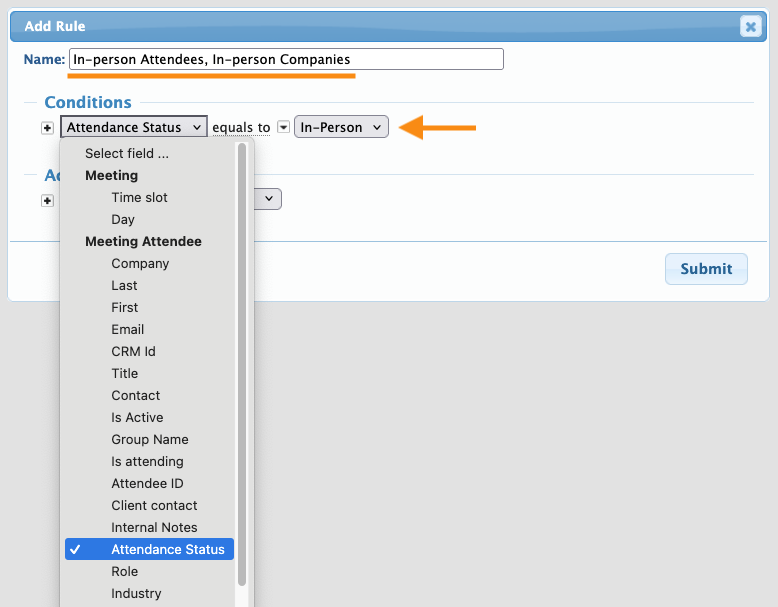
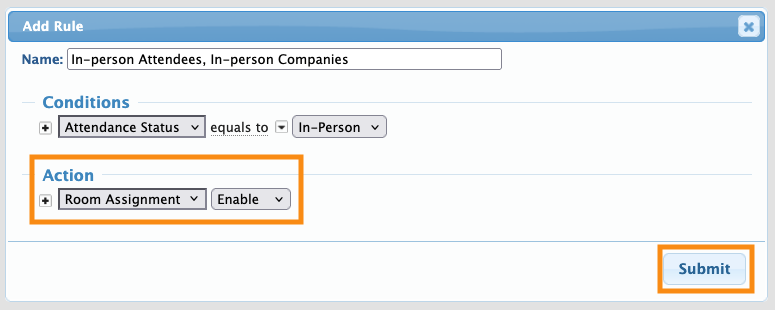
- Step 4. Next, we’ll add a second Hybrid Meeting Rule for the in-person Attendees.
- Because both the Meeting Attendee and Meeting Target are in-person, this rule only needs one Condition:
- Step 5. The Action in this case will be to assign a physical meeting location:
- With these rules in place:
- • If an in-person Attendee requests a meeting with a Company, MeetMax can assign it to a physical location.
- • If a virtual Attendee requests a meeting with a Company, MeetMax will allocate a Zoom room.
Editing or deleting a Hybrid Meeting Rule
Once you’ve created your first rule, the Hybrid Meeting page looks like below.
Click the Edit link to open any rule:
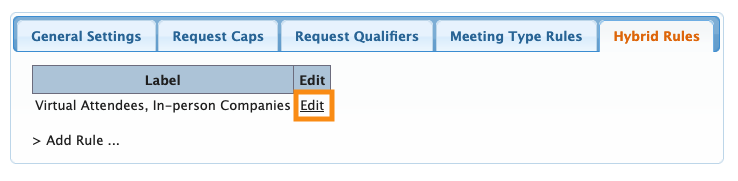
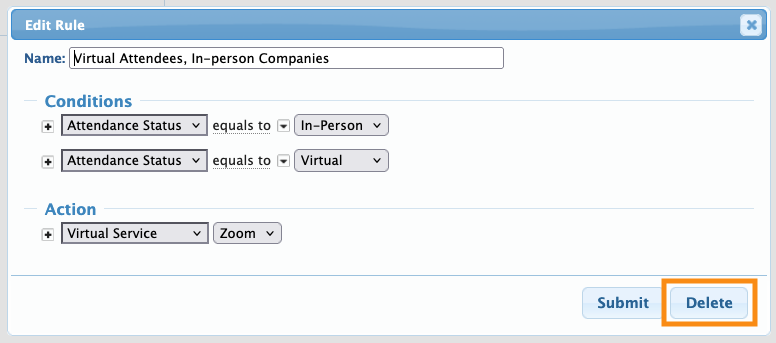
In the pop-up, you can either make changes or click the Delete button: