In this article:
- Where is it?
- What the presenter needs
- Starting the session
- Managing Q&A
- Tracking viewers
- Ending the session
- Downloading session data
Where is it?
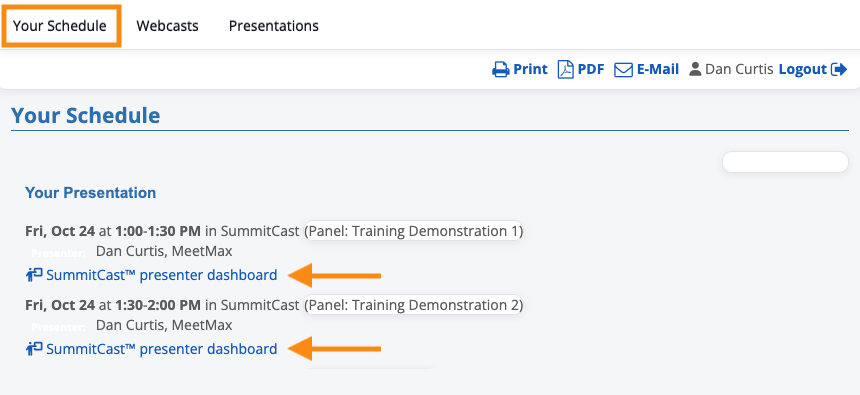
When a presenter logs into MeetMax, they’ll head to the Your Schedule page.
They'll see the schedule of sessions they're presenting. Each one has its own dashboard link:
| Event Admins can’t access the presenter dashboard. Instead, they can access a link to the attendee view from the Presentations List. Learn more about that here. |
What the presenter needs
Presenters need access to these things in order to host a webinar:
Presenter Dashboard link
As an event Admin, you’ll add Presenter Dashboard links to presenter schedules. Learn how to do this here:
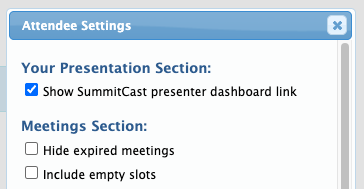
If a presentation has multiple presenters, they’ll all see the presenter dashboard link on their schedules.
Zoom access
Our partners at SummitCast manage webinar livestreams using Zoom. Presenters need a Zoom account. They can use either:
- The Zoom desktop application
- Zoom in a web browser
Starting the session
| We recommend that the presenter access their dashboard at least five minutes before the scheduled start time. The start process might take a few minutes. |
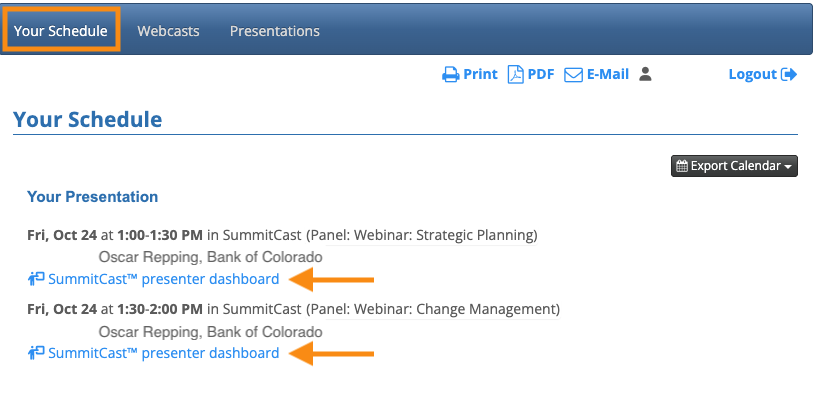
- Step 1. Presenters log into MeetMax and head to the Your Schedule tab.
- Step 2. Click the SummitCast Presenter Dashboard link for the session:
-
If the presenter is presenting multiple webinars, each one will have its own link. - Step 3. On the Presenter Dashboard, the presenter can see how long until the scheduled start time:
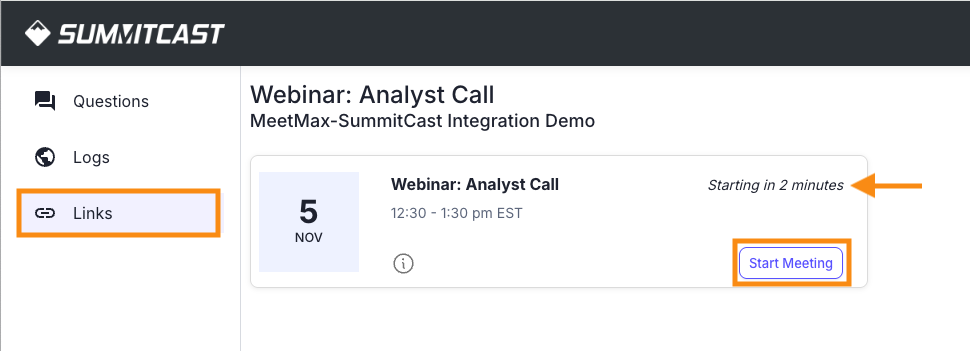
Two steps to start the session:
- On the Presenter Dashboard, click the Start Meeting button. (Again, we recommend doing this a few minutes before the scheduled session time.)
- The presenter's Zoom window then launches.
In Zoom, click the More icon (3 dots). Then choose the option to start livestreaming:
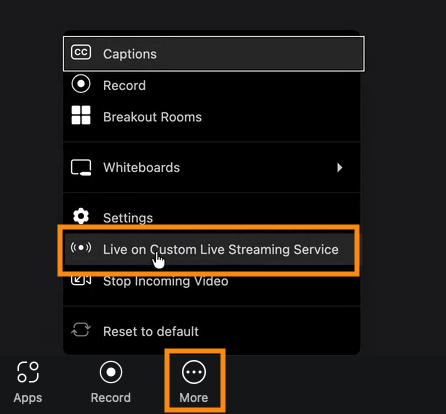
| Presenters will share their screens through Zoom, and manage Q&A through SummitCast (see below). |
Sessions with multiple presenters
The first presenter who accesses the Zoom window is automatically designated as Host.
When subsequent presenters arrive, they’ll have the option to claim the Host role:

Managing Q&A
If you’ve enabled Q&A for webinars at your event, attendees will see a field to enter their questions. It’s at the bottom of the video window:
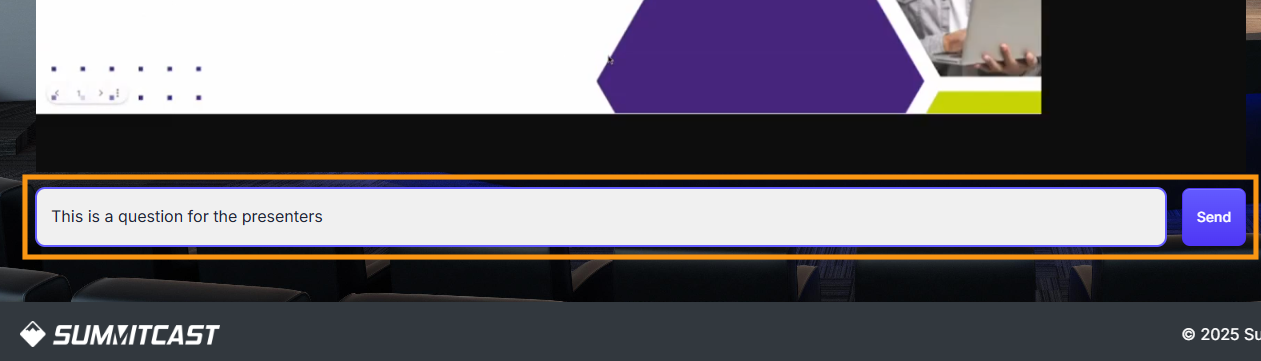
On the Presenter Dashboard, The Questions page updates every few seconds to show the latest questions.
MeetMax organizes questions into tabs:
- New Questions: Incoming questions that haven’t been addressed yet
- Answered: Questions marked as Answered.
- Dismissed: Questions marked as Dismissed
- All Questions: A combined display that’s handy for quickly locating a specific question
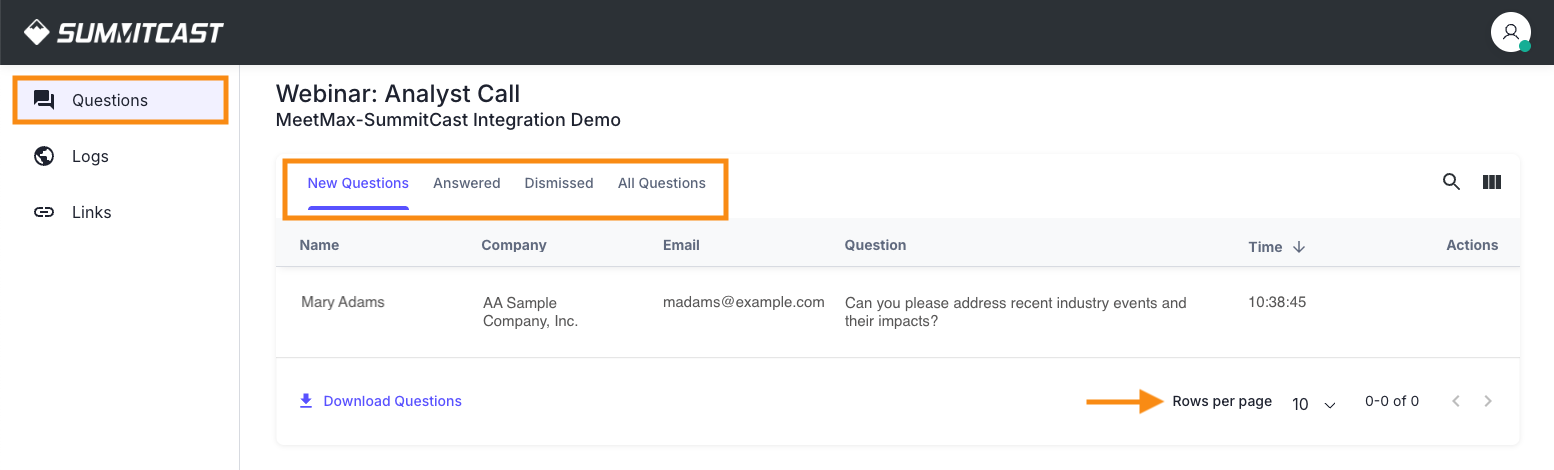
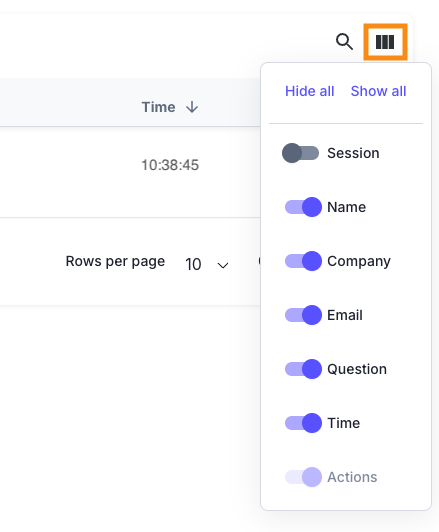
To add or remove columns on this page, head to the top right corner of the page and click the Show/Hide Columns icon:
Answering questions
Presenters can either:
- Answer questions verbally during the live session
- Download the questions after the session to answer via email (See the section below.)
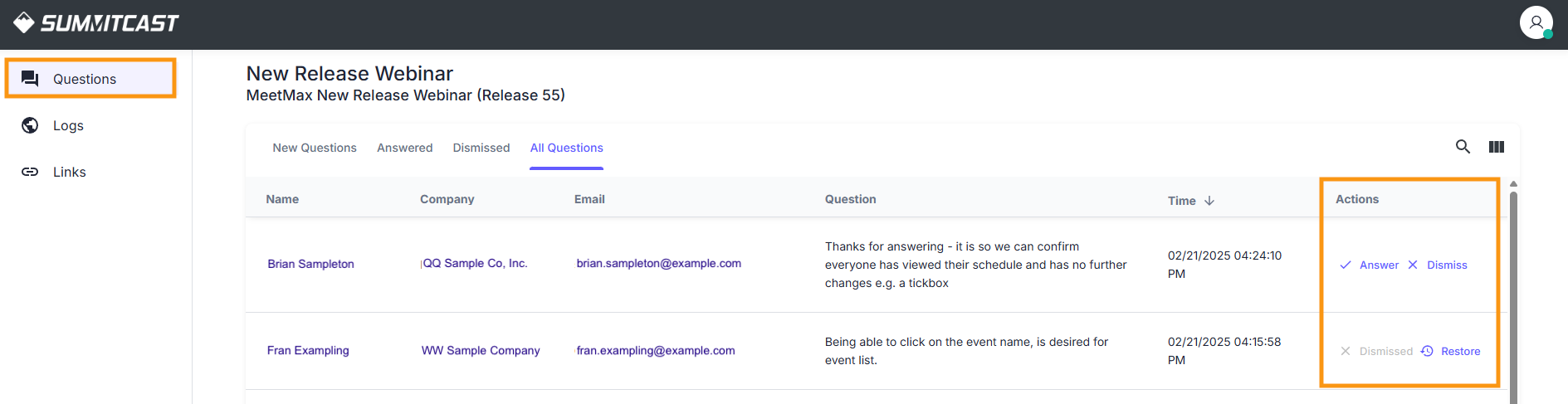
During the live session, presenters can use the Action column to mark questions as Answered or Dismissed. A Dismissed question can easily be restored, as shown below:
| The dashboard is designed to make it easy for a single presenter to manage questions while they’re presenting. But you can also add a second presenter who focuses on managing questions. | |
| Zoom’s interactive features, like Q&A and Raise Hand, are disabled during MeetMax webinars. Attendees engage with presenters via the SummitCast player. |
Tracking viewers
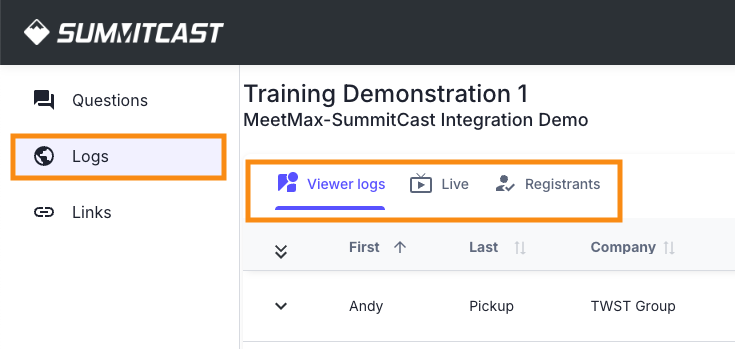
On the Logs page, presenters can track viewer activity both during and after the session. There are three tabs:
- Viewer Logs: See everyone who’s ever logged in to view this session, whether they’re currently present or have already logged out.
- Live: As the name suggests, this is a list of who’s currently viewing during the live session.
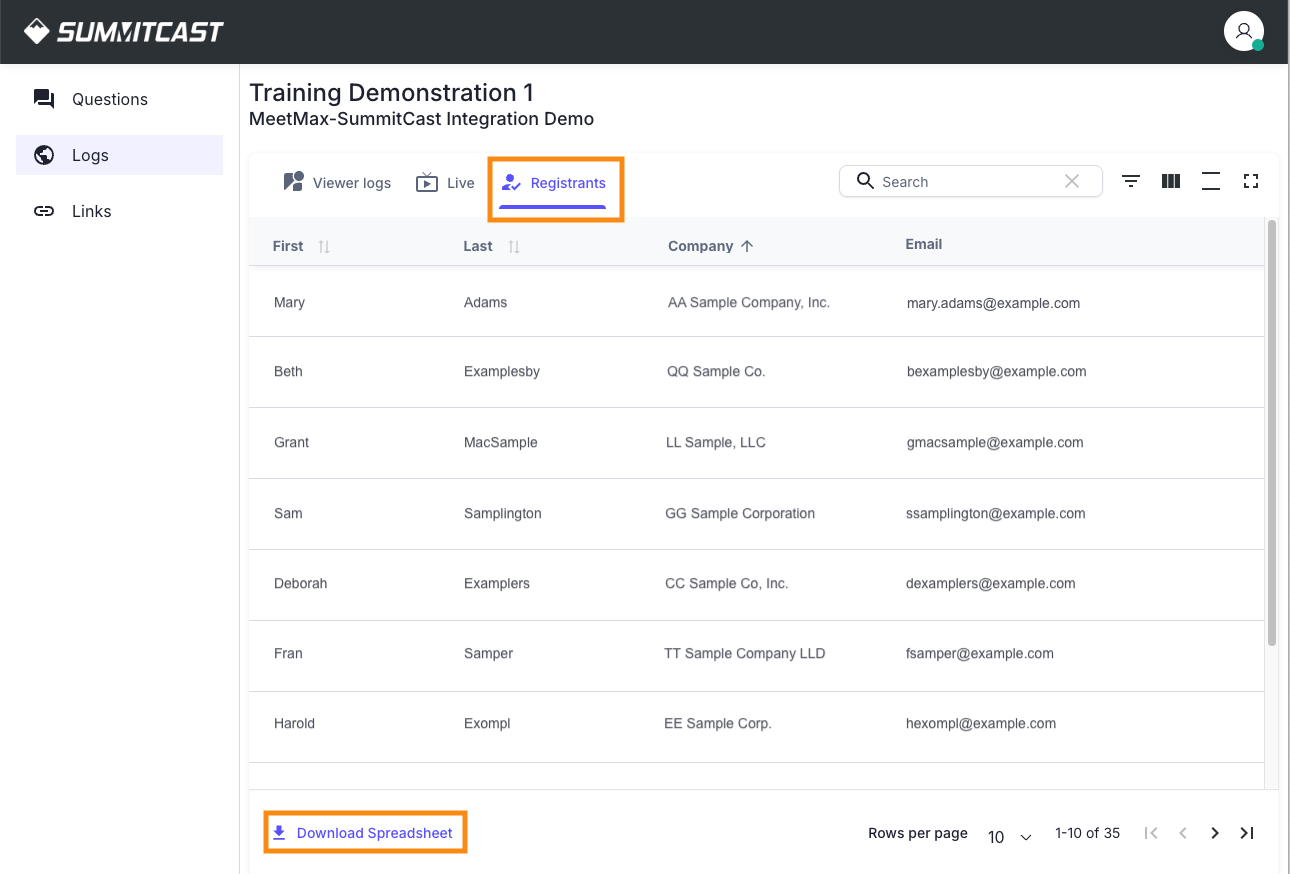
- Registrants: See everyone who signed up for this session, whether they’ve ever logged in to view it or not.
In all tabs, you can search for a specific name, email, or company.
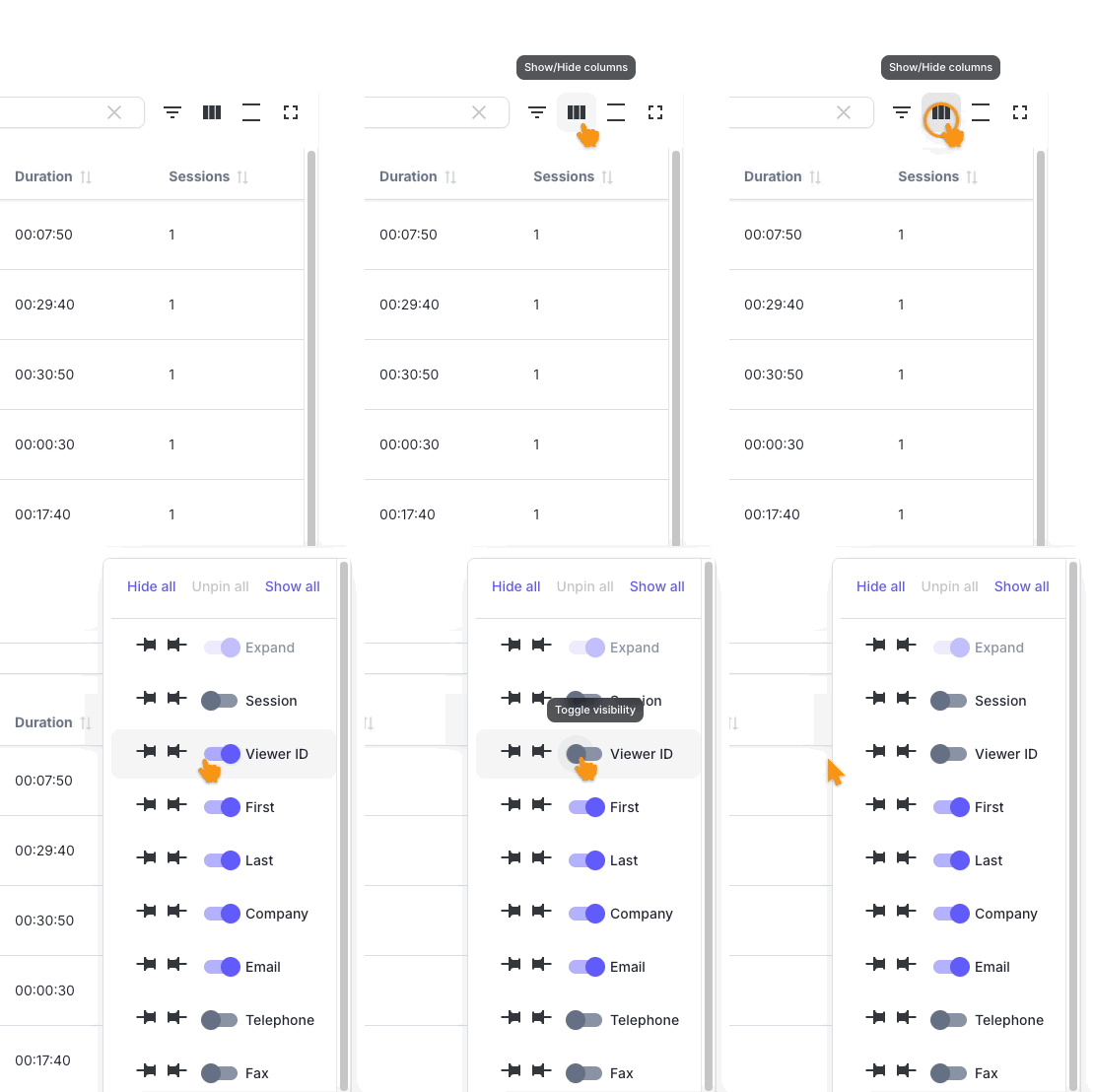
In the top right corner, click on the Show/Hide Columns icon. You can then show or hide any column. You can also pin any column to the right or left edge of the display:
Click on the Filter icon, and you can filter the list by content in any column:

Ending the session
| The broadcast in MeetMax starts and ends automatically at the scheduled times. It will not run over. We recommend presenters use a device to help them monitor when the session is nearing its end. |
If you need to end the session before its scheduled end time, click End Meeting in the Zoom window. That will end the livestream in the SummitCast player.
Downloading session data
At the end of the live session, the presenter can download all its details. For sessions with multiple presenters, each person has the same download access.
Session recording
To download a video of the session, head to the Links page. Once the session ends, SummitCast adds a download link to click:
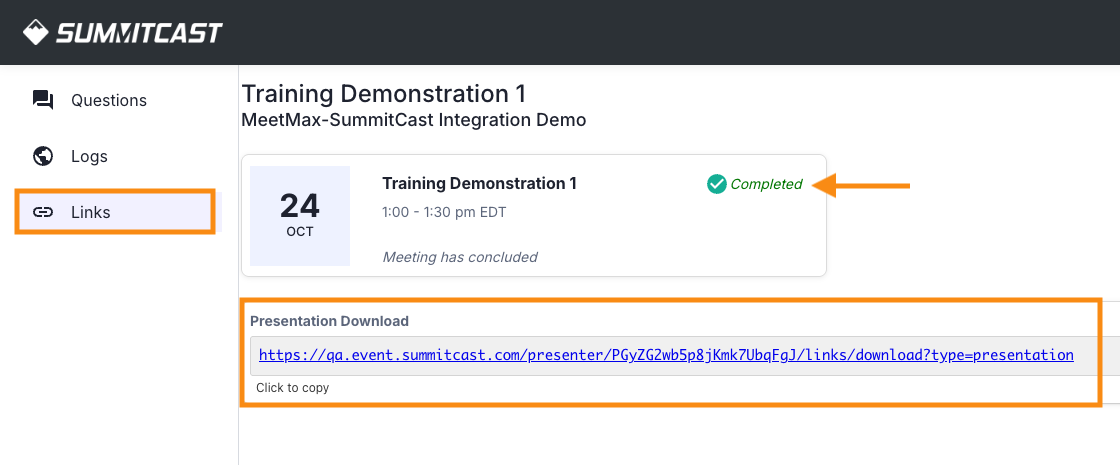
When you download from this link, you’ll get these files:
- Video recording of the session
- Basic Logs report
- Detailed Logs report (See the section below)
Viewer data
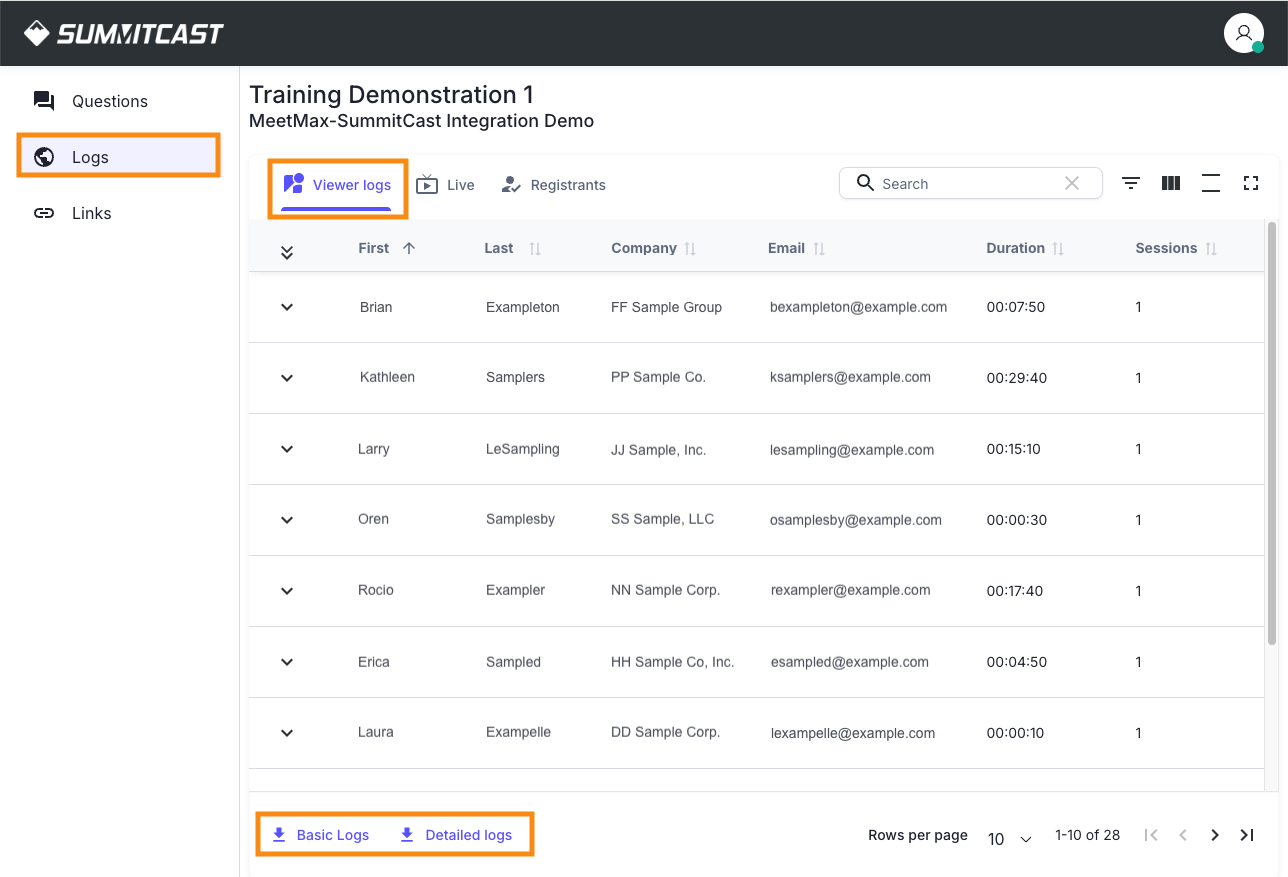
On the Logs page, the presenter can head to the Viewer logs tab to download two viewer reports:
- Basic Logs: This report contains everyone who signed in to view the session, including their contact details and how long they viewed the session.
- Detailed Logs: This report includes deeper viewership details, including the time each viewer arrived and left, and whether they viewed the session live or as a replay.
From the Registrants tab, the presenter can download a list of everyone who signed up for the session, whether they attended it live or not:
Attendee questions
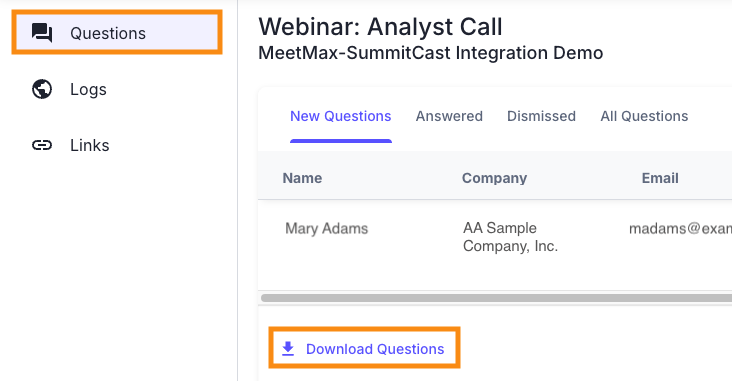
From the Questions page, the presenter can download a full list of the questions asked, and the name and email address of each person who asked a question: