


How do I add a presenter to my webinar?

If you’re using our Self-service webinars feature, you’ll add your presenter(s) to MeetMax before you set up the webinar session.
| A webinar can have a single presenter, or multiple presenters. It's often helpful to have a background participant as well, who manages Q&A and watches for any technical issues. Regardless of how they’ll participate, you’ll add each person as a Presenter in MeetMax. |
Adding presenters to MeetMax
In MeetMax, you’ll add presenters with the Attendee user role.
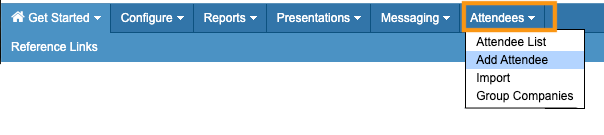
- Step 1. Head to the Attendees tab, and choose Add Attendee:
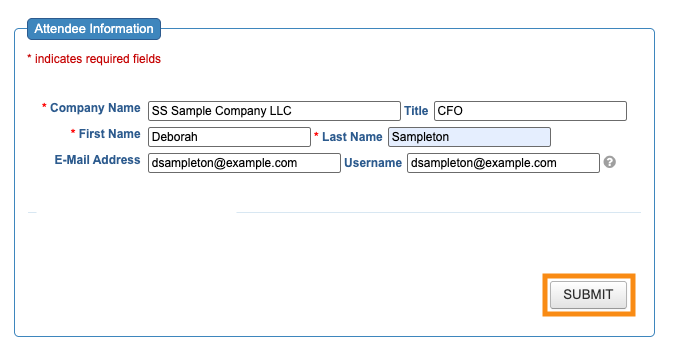
- Step 2. Fill out the registration form, then click Submit to save:
- Step 3. Repeat these steps for each presenter and background participant.
-
If you have a large number of presenters, you can also import them as a list.
Adding a profile and headshot
You’ll complete these steps for each presenter. It’s optional to add a profile for background participants.
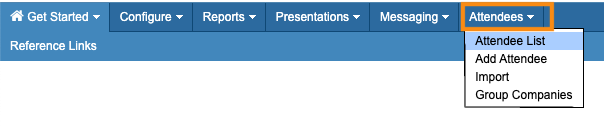
- Step 1. Head to the Attendees tab, and choose Attendee List:
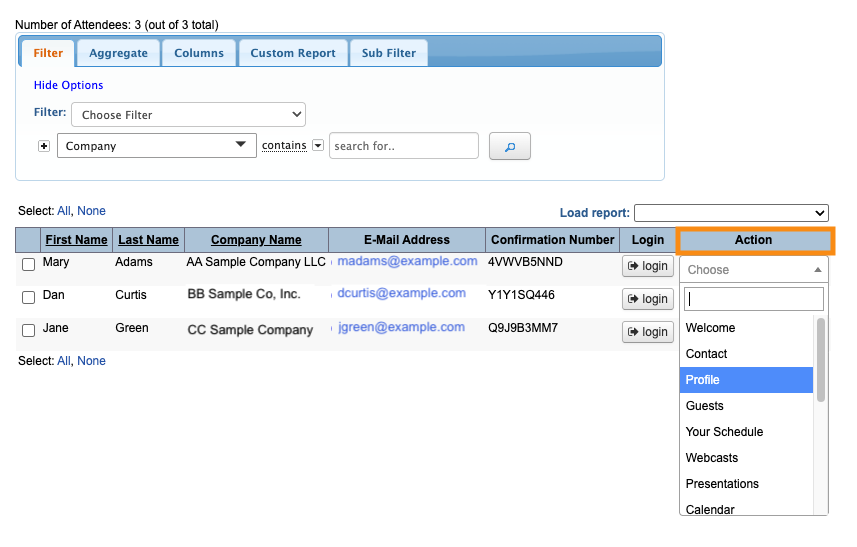
- Step 2. You’ll see your newly-added presenters. Locate the person you need. Then head to the Action menu and choose Profile:
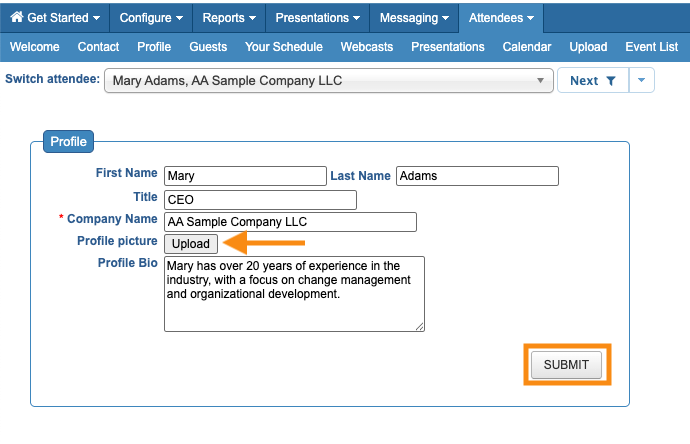
- Step 3. Fill out the Profile form, and upload a headshot.
- • Headshot files should be under 100KB.
- • We recommend a square format, at least 300 x 300 px
- Step 4. Click Submit to save:
When people register for your webinar and log into MeetMax, they’ll see something like this:
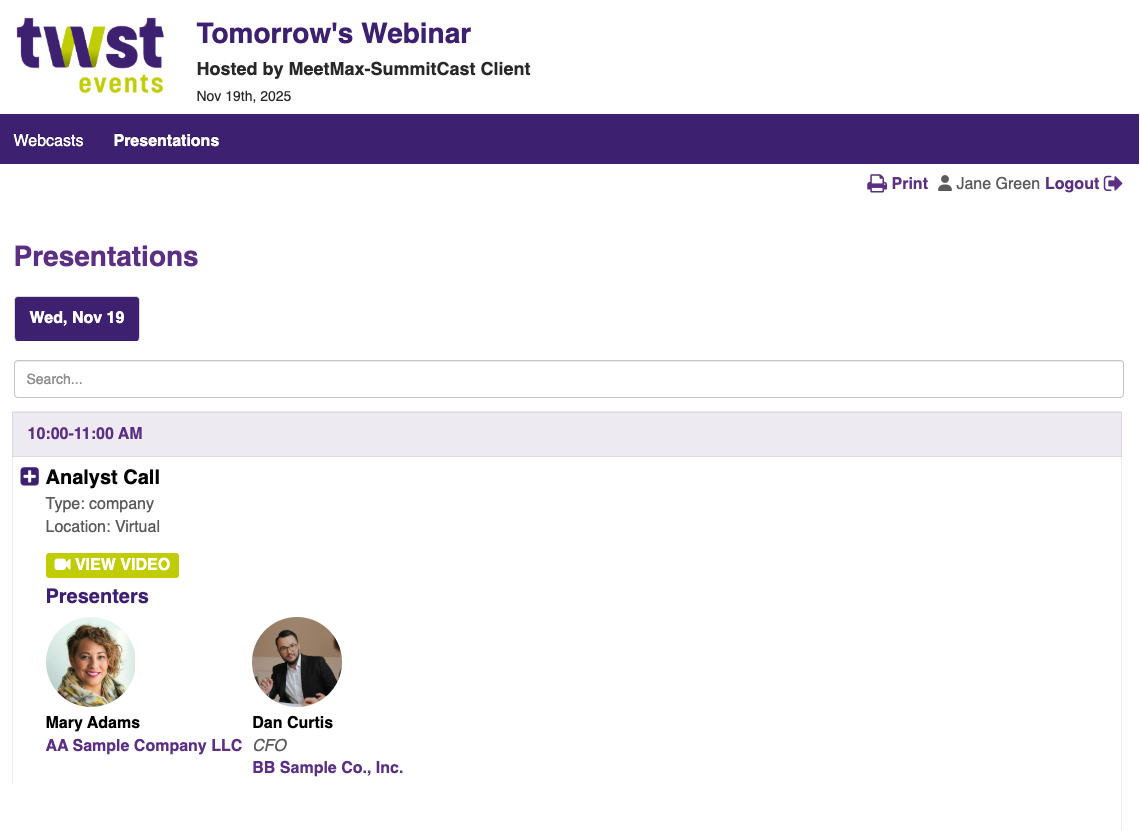
| Attendee pages like these are always branded for your event. |

