


In this article:
Two levels of checks
When you import presentations, it can have a big impact on your overall event schedule - and impact meetings and activities. That’s why MeetMax performs two rounds of checks on your data:
- Round 1: MeetMax makes sure all required fields are filled, and that no presentation overlaps any other. If any presentation fails this round of checks, the whole import will fail.
- Round 2: MeetMax ensures that no presentation will conflict with an existing meeting or activity. If a presentation fails this round, it won’t import - but the rest of the list will.
Error message meanings
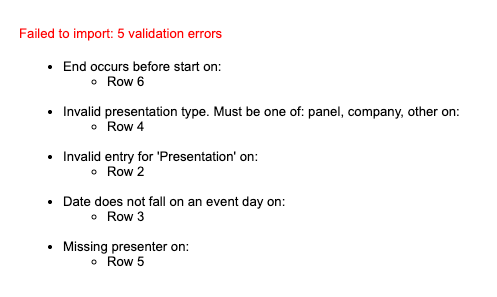
To make it easy to fix issues, MeetMax will show you the specific rows of your spreadsheet that cause an import failure:
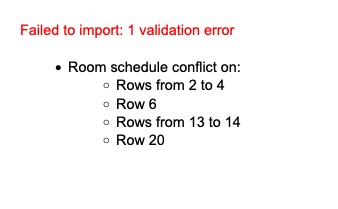
If there’s a widespread issue, you’ll see multiple rows listed:
These are the potential error messages:
| Error Message | Meaning |
|---|---|
| DateTime format error | Make sure your spreadsheet has the recommended date format, and that you’re using a combined date/time column. |
| End occurs before start | The end date or time are earlier than the start date or time. Be sure to check the AM and PM on the times. |
| Start and end are on different days | Presentations must start and end on the same day. |
| Date does not fall on an event day | The presentation’s start and/or end dates are outside the range of the event dates. |
| Room schedule conflict | The room you’ve assigned for this presentation already has an overlapping presentation scheduled. |
| Invalid presentation type | Currently, you can only import presentations with the Company, Panel, Other or Table Talk types. |
| Invalid moderator value | If you’ve added a Moderator column, every row must have a Y or an N. |
| Missing presenter | If you’ve listed a presenter, but that person or Company isn’t currently registered in MeetMax, you’ll see this error. |
| Incomplete presenter name | If any presenter is missing a first or last name, you’ll see this error. |
| Role restriction mismatch | Your event needs to be enabled for Attendees to be presenters. Reach out to our Support team. |
| Presenter schedule conflict | If the presenter has another presentation, meeting, or activity that overlaps the presentation you’re importing, you’ll see this error. |
| Invalid entry for ‘Presentation’ | If a presentation is missing a title, you’ll see this error. |
| Keep in mind that MeetMax also checks to make sure your spreadsheet has columns for the required fields in the Add Presentation form. Learn more about these fields here. |
Sorting your data to find issues
Before you import, you can use your spreadsheet software to sort your data. (Check your software’s help center for instructions on sorting.)
When you sort your spreadsheet in different ways, it can help find overlapping dates and times, as well as missing data. That’s especially helpful when you’re preparing to import a large set of presentations.
Here are some sorts to try:
| Sort | Helps you find: |
| Start Date/Time in order | Date/time conflicts |
| End Date/Time in order | Date/time conflicts |
| Room name in alpha order, plus Start Date/Time in order | Room schedule conflicts |
| Presenter First and/or Last name in order | Missing presenter names |
| Presenter First or Last name in order, plus Start Date/Time in order | Presenters in overlapping presentations |
| Keep in mind that if you sort your data after an import attempt, that will invalidate any row numbers in our error messages. |

