


In this article:
- Why is this useful?
- Adding the form field
- How a Company uses the field
- How an Admin uses the field
- How meeting scheduling works
Why is this useful?
By default, MeetMax “ties” all Company Reps to their parent company. This means that whenever you schedule a meeting for the Company, all of the Reps are automatically scheduled into that meeting.
If you want all Company Reps to operate this way at your event, there’s nothing you need to do - and you don’t need this article!
There might be cases, however, when you want to opt individual Company Reps out of all meetings. Maybe they’re attending only as a presenter, or to manage a trade show booth.
To remove these Reps from your meeting program, you’ll use the Meetings tied to parent form field.
Adding the form field
In MeetMax, Company Reps are a type of Attendee. So you’ll be working with the Attendee registration form.
Depending on your event, you’ll choose one of these options:
- Add it to the public form: Use this if the main Company Contact will register all their own Company Reps, and the Contact wants to choose who is and isn’t tied for meetings.
- Add it to the Admin version of the form: Use this if you want your Admin team to control which Reps are and aren’t tied for meetings.
Either way, use these steps to add the field:
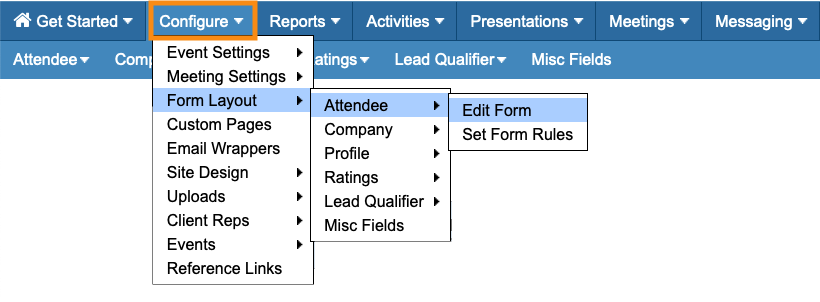
- Step 1. Head to the Configure tab. Choose Form Layout, then Attendee, then Edit Form:
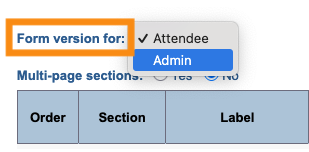
- Step 2. In the top left corner, set the Form version menu. Choose whether you’ll add it to the Attendee (public) version, or the Admin version:
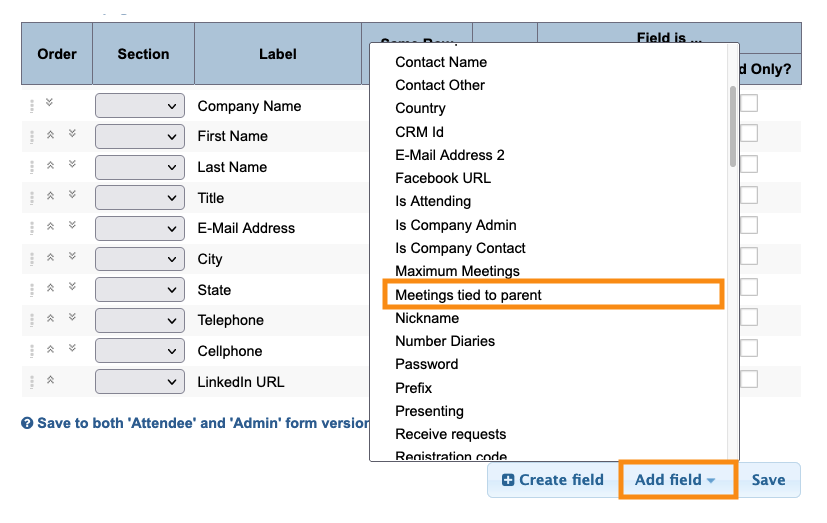
- Step 3. Head to the bottom right corner and click the Add field button. Choose the Meetings tied to parent field:
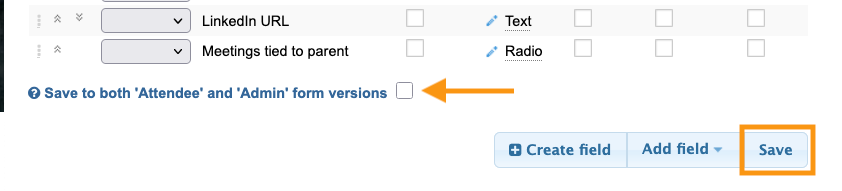
- Step 4. If you want this field in only one version of the form, make sure the checkbox is un-checked.
- If you want it to appear in both the Attendee and Admin forms, check the box.
- Then click Save:
How a Company uses the field
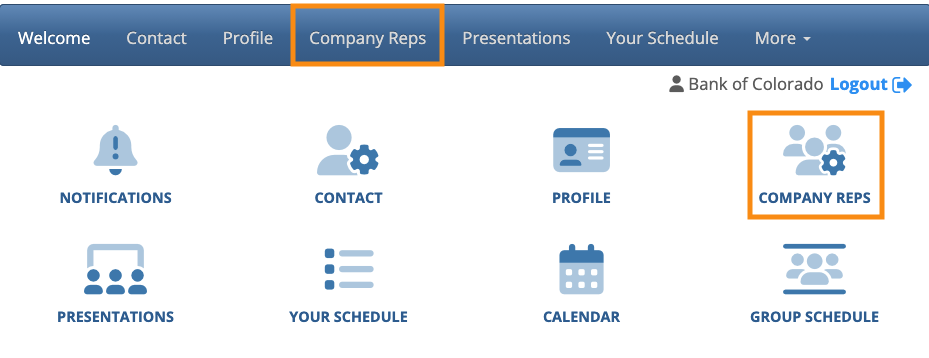
If your event’s participating Companies are adding their own Company Reps, the Company Contact logs into MeetMax, and chooses Company Reps:
The Contact fills out a registration for each Rep, and they’ll set the tied or untied status from here:
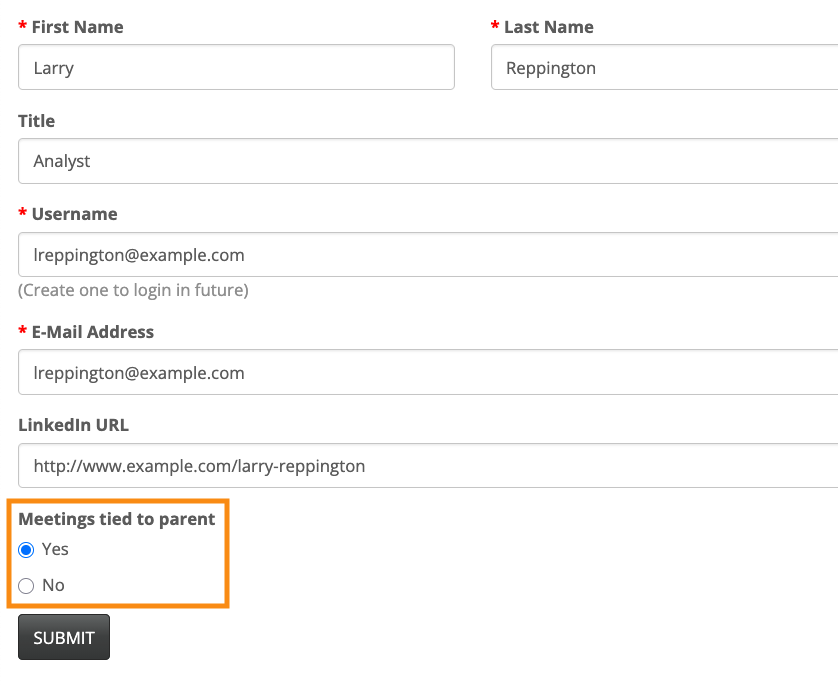
| This field has a default answer of Yes. So the Company only needs to change their untied Reps to No. |
How an Admin uses the field
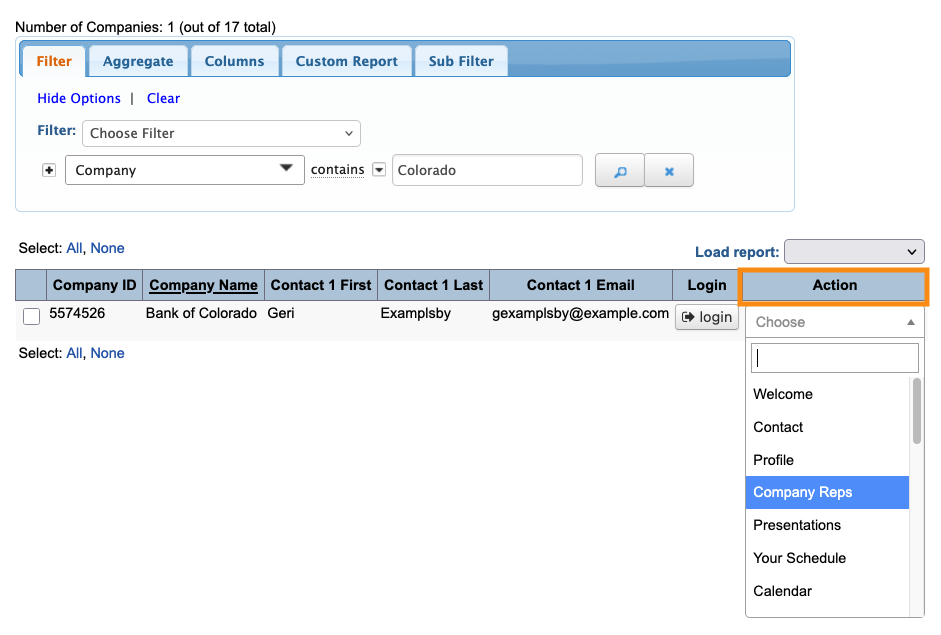
If your Admin team is adding Company Reps, they’ll do that from the Company List:

Filter the list to locate the Company you need. Then use the Action menu to choose Company Reps:
You’ll now fill out the Admin version of the registration form for each Rep. You’ll set the tied or untied status from here:
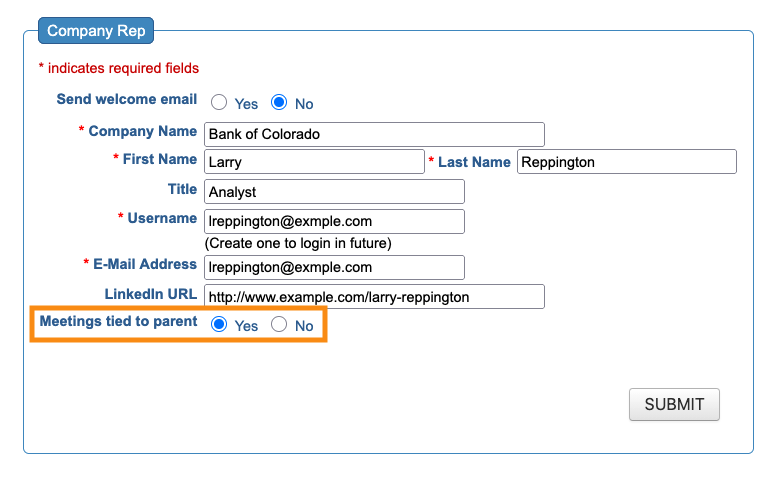
| As with the Company’s view, this field has a default answer of Yes. So you’d only need to change the untied Reps to No. |
How meeting scheduling works
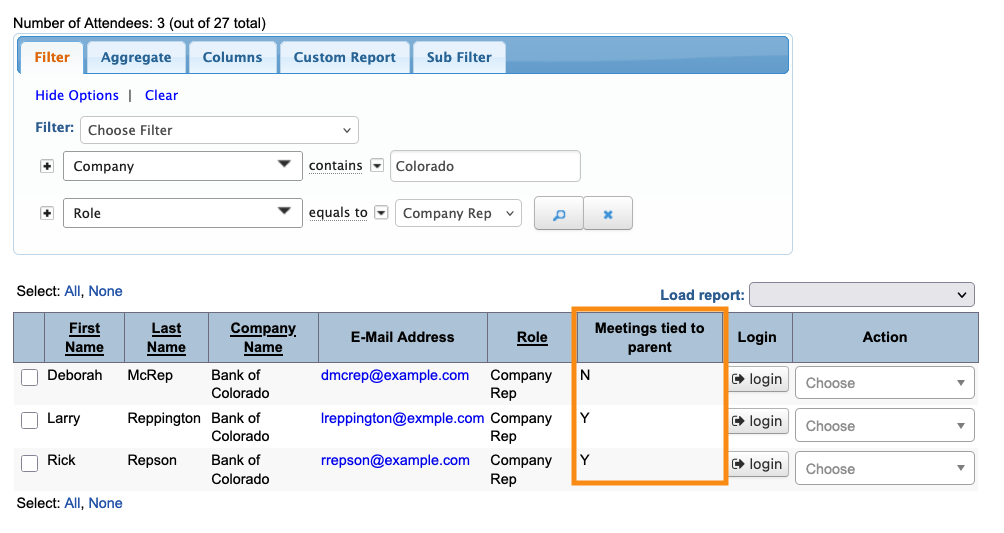
In this example, Bank of Colorado has three Company Reps at our event:
- Two of them will be tied to all of the Company’s meetings.
- One is not tied - they’ll only be presenting, not meeting.
Here’s a filtered view of the Attendee List, where we can see them.
Since we’re using the Meetings tied to parent field, we can now add it as a column here:
On Bank of Colorado’s Meeting Times page, we see a reminder of the tied Company Reps:
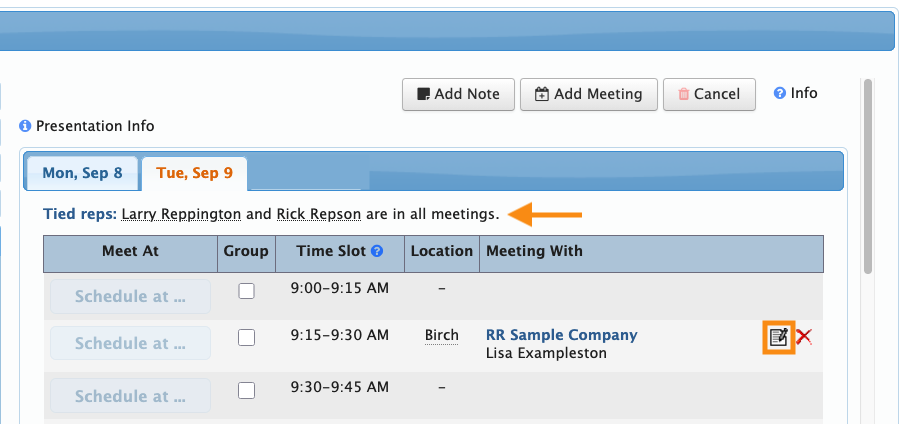
In this example. we’ve just scheduled a meeting. Click the edit icon as shown above.
The meeting details show that MeetMax automatically included the two tied reps.
MeetMax didn’t schedule the untied rep, Deborah McRep:
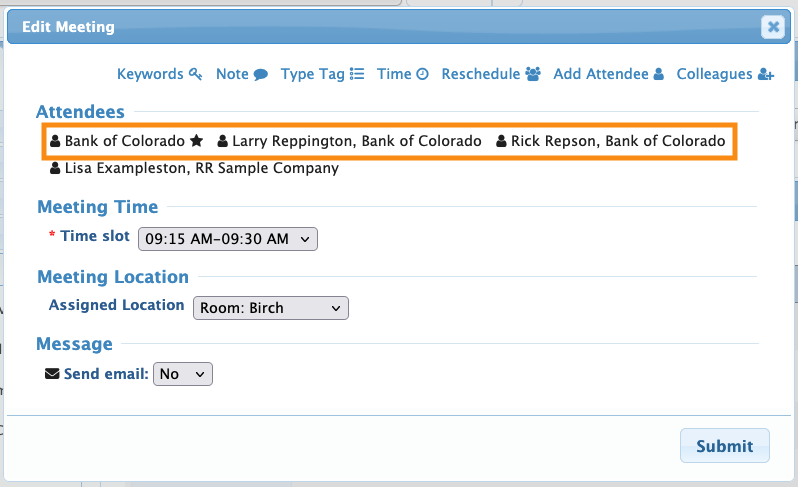
| Untied Reps can’t be added to any meetings. |

