Report: Attendees who haven’t logged into MeetMax

How it’s used:
• This report helps you keep track of registrants who haven’t accessed their MeetMax account yet.
• You’ll be able to follow up with everyone at once, using a batch email.
In this article:
Running the report
- Step 1. Head to the Attendee List:

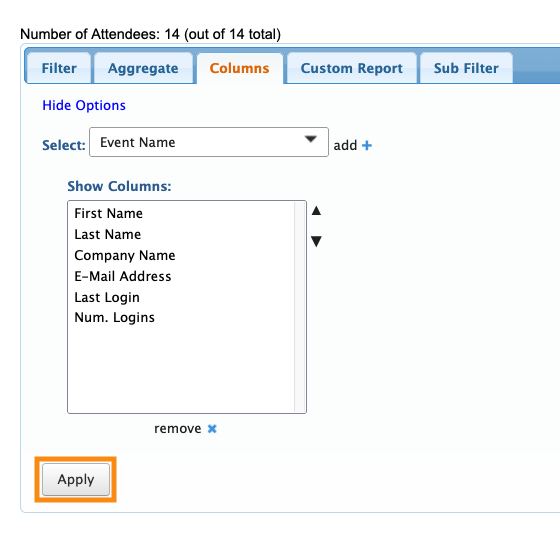
- Step 2. Go to the Columns tab. Here, you can add and remove columns. Click Apply to save the changes.
- This is a good set of columns to use for follow-up. Feel free to add any other columns you need:
-
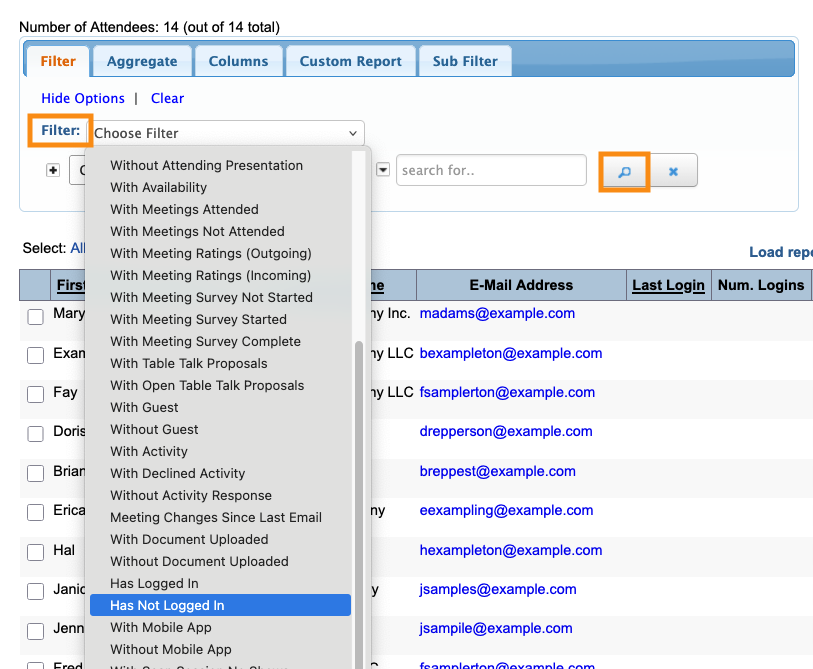
The Last Login and Num. Logins columns are useful for ongoing monitoring. If you save this report and reload it later, these columns instantly tell you who’s logged in since the last time you viewed the report - Step 3. Now, head to the Filter tab. Set the filter to Has Not Logged In. Click the magnifying glass icon:
-
Now that you have this filtered view, you can send a batch email only to these Attendees.
Exporting the report
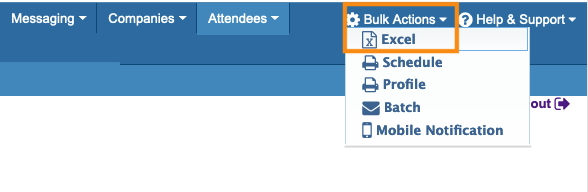
To export the report in spreadsheet form, head to the top right corner of the page. Click Excel.
You can open the exported file in any spreadsheet software:
Saving the report
Want to save this report so you can quickly access it later?
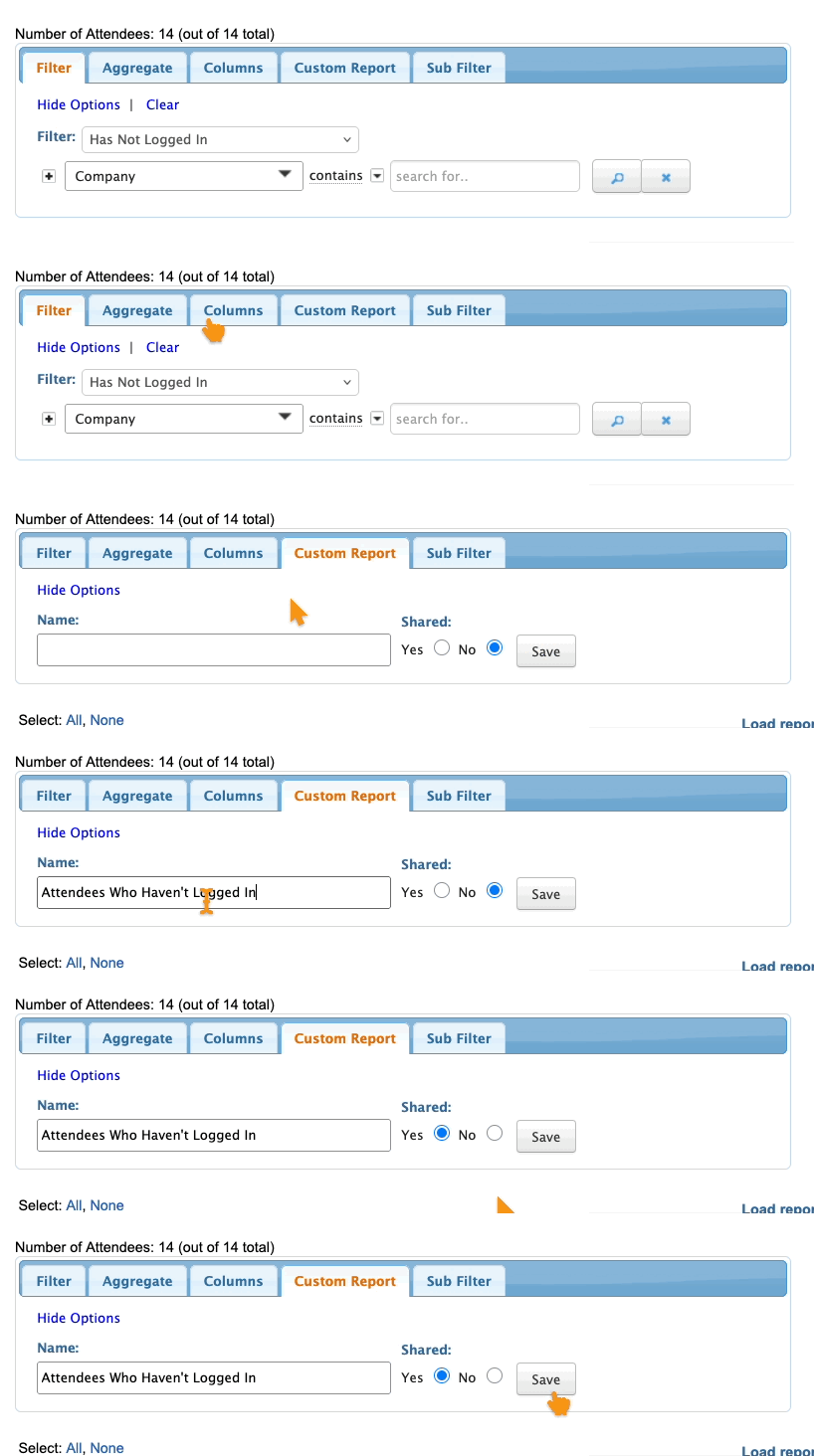
Head to the Custom Report tab. Then give the report a title, choose whether to share it with your team, and click Save: