


How do I let participants download the event Attendee list?

If your event participants can access a list of Attendees, you can also give them the option to download it in spreadsheet form.
| We’re assuming here that you’ve already created a Custom List page that displays your event’s Attendees. |
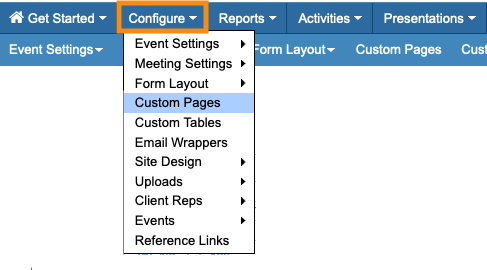
- Step 1. Head to the Configure tab. Choose Custom Pages:
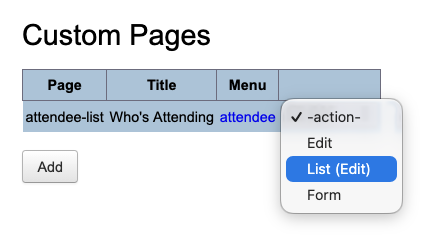
- Step 2. You’ll see your event’s list of Custom Pages. Locate the one you’re using to display the Attendee list. Use the Action menu to choose List (Edit):
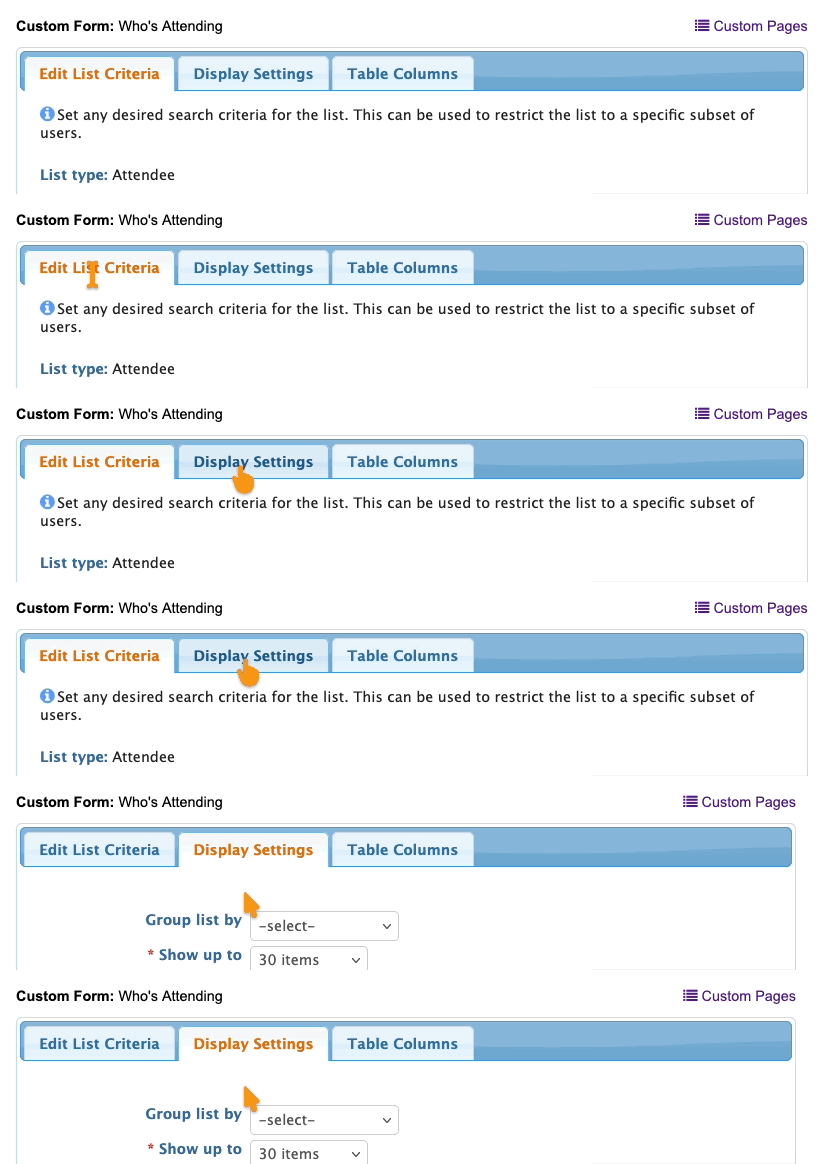
- Step 3. Click on the Display Settings tab:
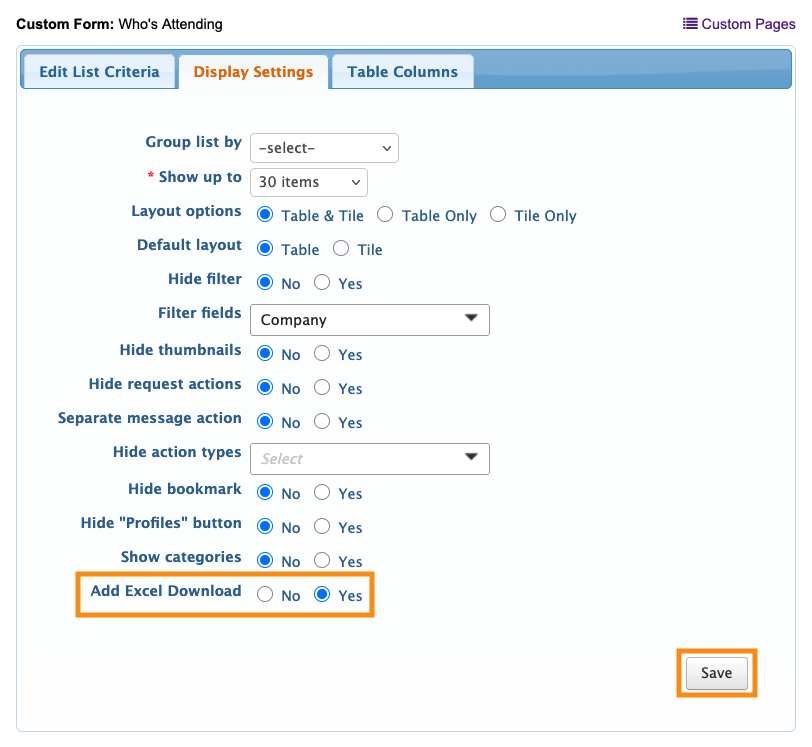
- Step 4. Under Add Excel Download, choose Yes.
- Then click Save:
- Now, when Attendees log into MeetMax and visit this page, they’ll see an Excel button:
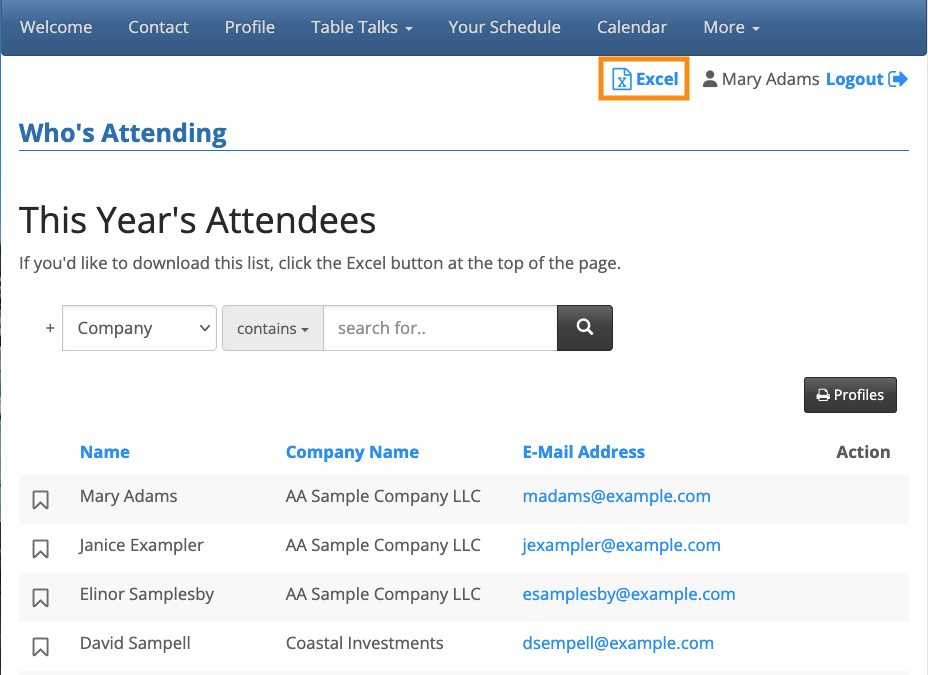
- MeetMax exports the current view of this list. So if the Attendee has applied some filters to narrow the list, the filtered version will download.
- The list downloads in Excel format, but can be opened in any spreadsheet software.

