

How do I import Companies from a previous event?

If your new event will have the same participating Companies as a past event, in many cases you can save time by exporting and then importing the list.
| MeetMax can store event data for 15 months after the event concludes. Then it’s deleted permanently. To have it stored on our servers longer, subscribe to our Event Data Archive service. We’re assuming here that you’re reusing the Company List from an event that you can access. |
Exporting the past Company List
- Step 1. Locate the prior event. You’ll need to filter your event list to show Expired Events:

- Step 2. Open the past event and head to the Company List:

- Step 3. Head to the top right corner of the page. Choose Bulk Actions, then Excel:
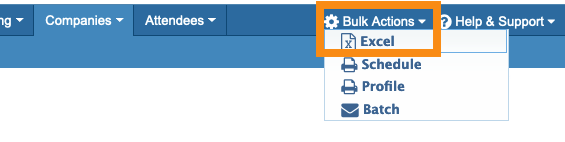
| If you need to use an event that’s already in your archived, use these steps to access it. Then export the Company List as shown above. |
Do the registration forms match?
At this point, it’s wise to think about the Company registration form you’ll be using for the upcoming event. Does it match the registration form for the previous event?
- The forms match: You’re all set to import this Company List to the new event.
- The forms are different: You’ll need to make changes to your exported list. The spreadsheet needs a column for each field in the new event’s registration form.
Importing the list to the new event
Once your spreadsheet of Companies matches the new event’s registration form, you can proceed with importing it to the new event.
Need to import Company Reps?
Keep in mind that Company Reps won’t import along with the Companies. If you also want to import the same set of Company Reps, you can export them from the past event.
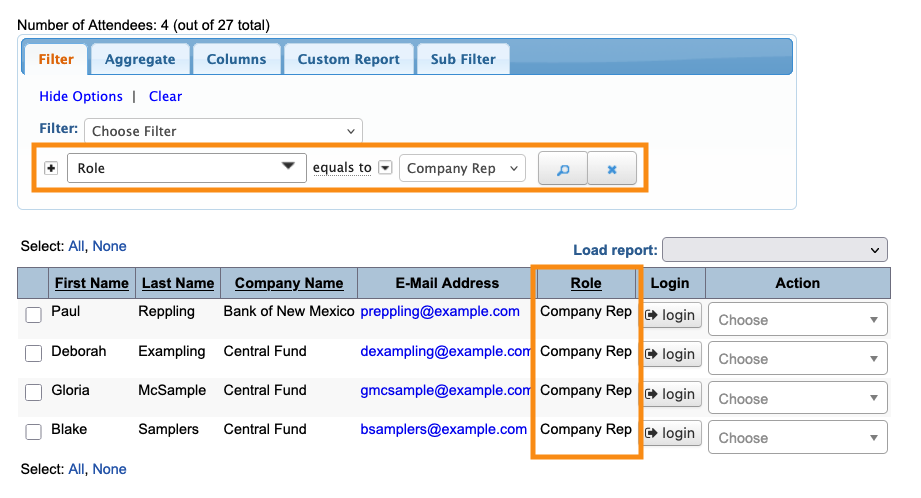
- Step 1. Head to the Attendee List. Filter it for the Company Rep role:

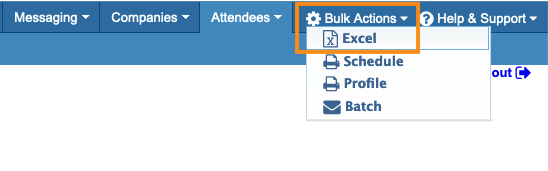
- Step 2. Head to the top right corner of the page. In the Bulk Actions menu, choose Excel:
- Step 3. Consider whether the past and present Company Rep registration forms match. If they don’t, update your exported spreadsheet so it matches the new registration form.
- Step 4. Proceed with importing the Company Reps.

