


Request Meeting page: Filtering by Attendee details

In Unmoderated meeting programs, Attendees can narrow their list of potential meeting partners by names, companies, or tickers.
In this article:
Where is it?
When Attendees log into MeetMax, they’ll see these filters on the Request Meeting page:
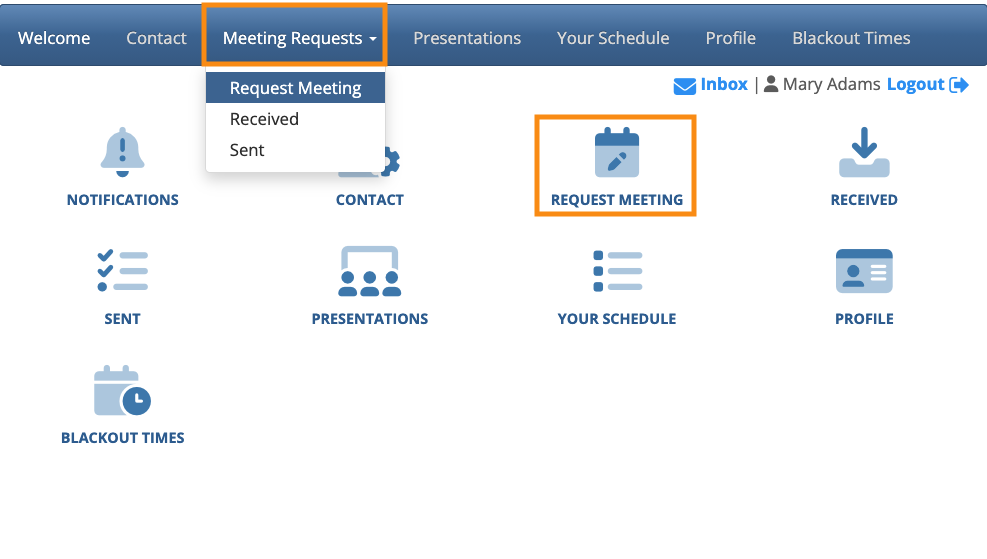
Enabling Attendee detail filters
As an event Admin, you can choose which filters are available to your Attendees.
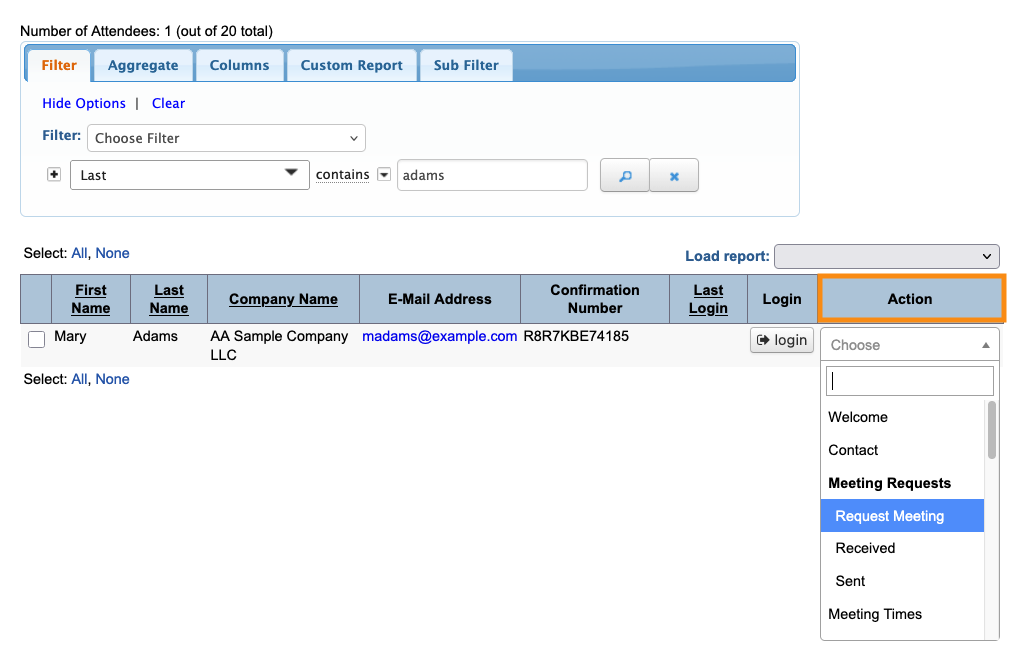
- Step 1. Head to the Attendee List:

- Step 2. Use any Attendee record - change you make here will apply to everyone.
- Use the Action menu to choose Request Meeting:
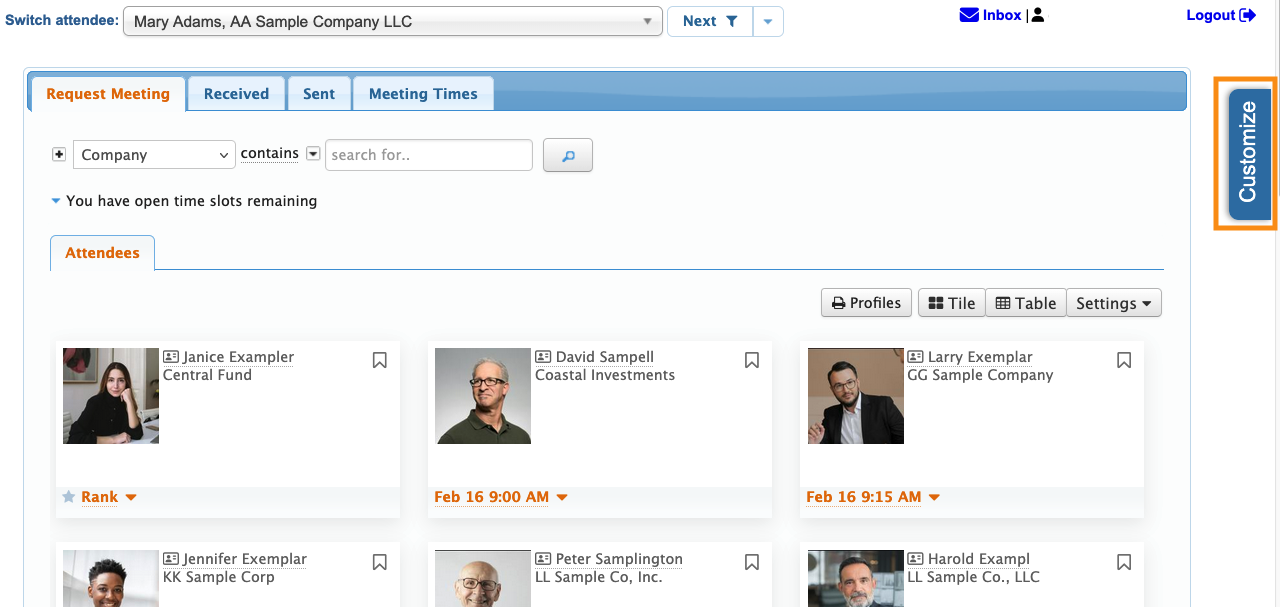
- Step 3. Once you’re on the Request Meeting page, head to the right edge and click the Customize tab:
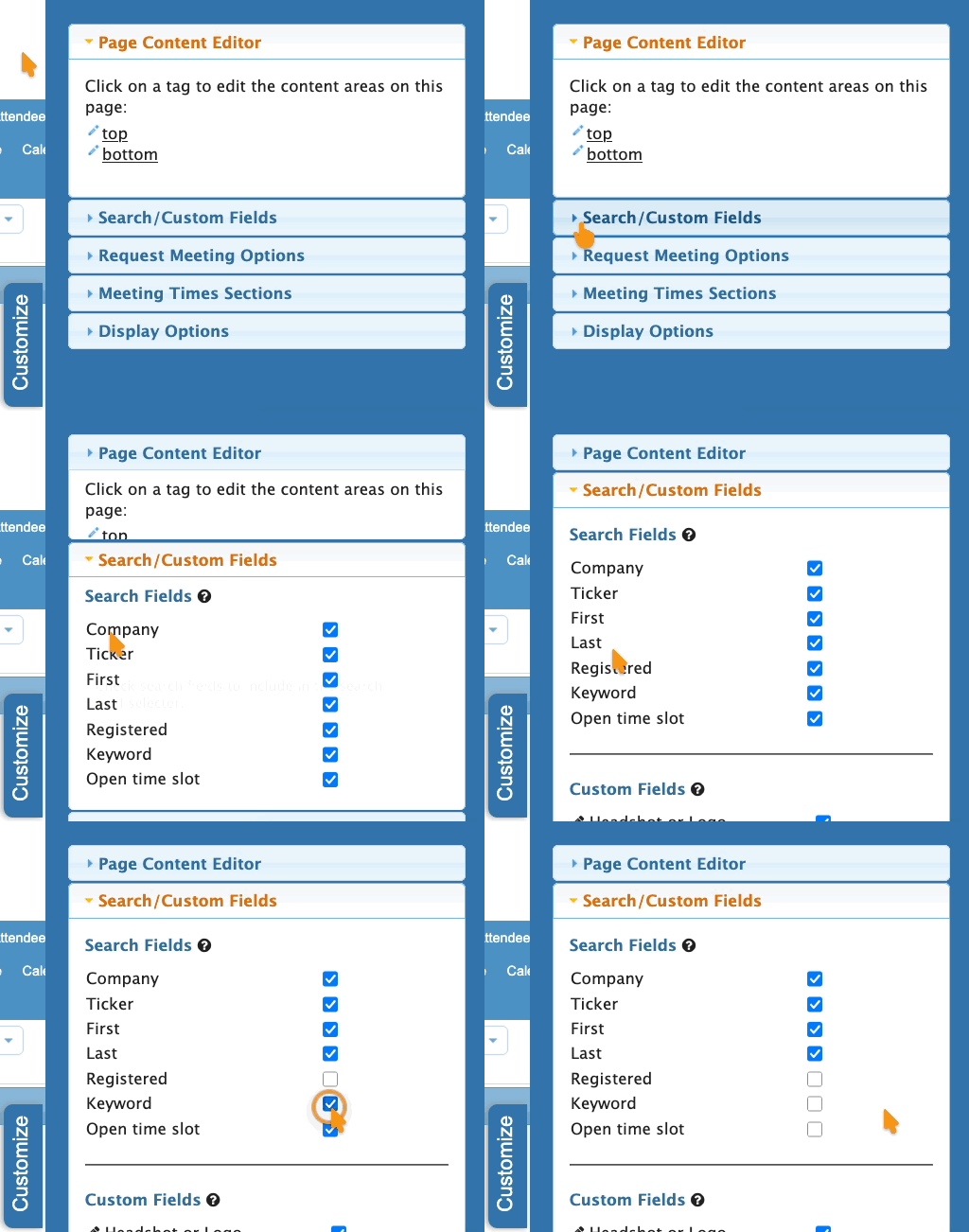
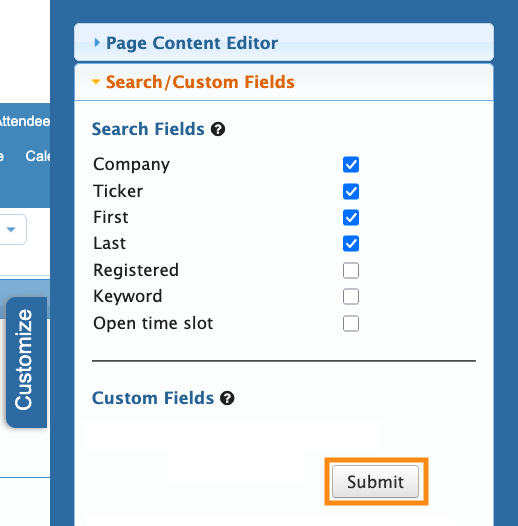
- Step 4. Open the Search/Custom Fields section. Use the checkboxes to select the kinds of filters you want your Attendees to access:
- Step 5. Click Submit to save your choices:
- Step 6. From your Admin view of the Request Meeting page, you can see the updated filter options:
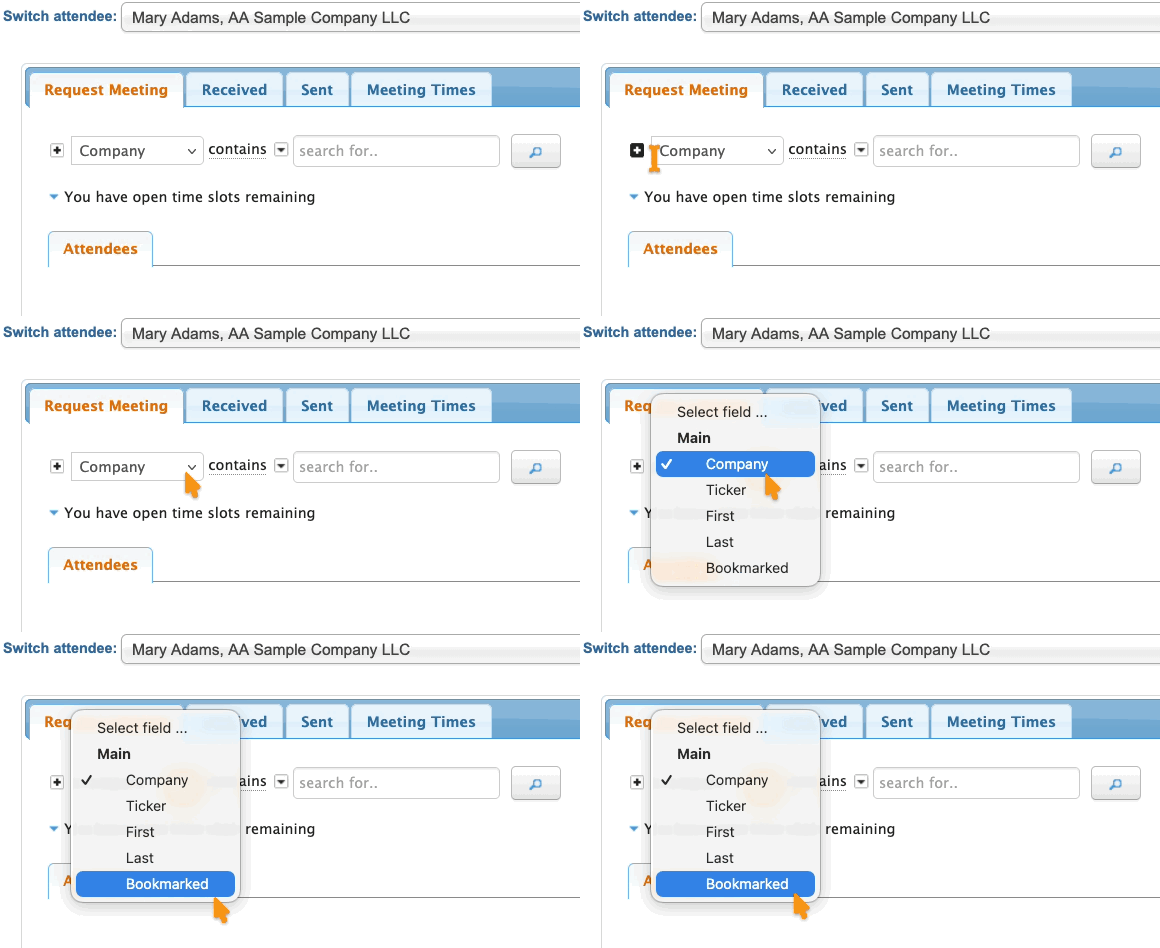
What Attendees see
When Attendees log into MeetMax and head to the Request Meeting page, they’ll see the same customized menu of filters:
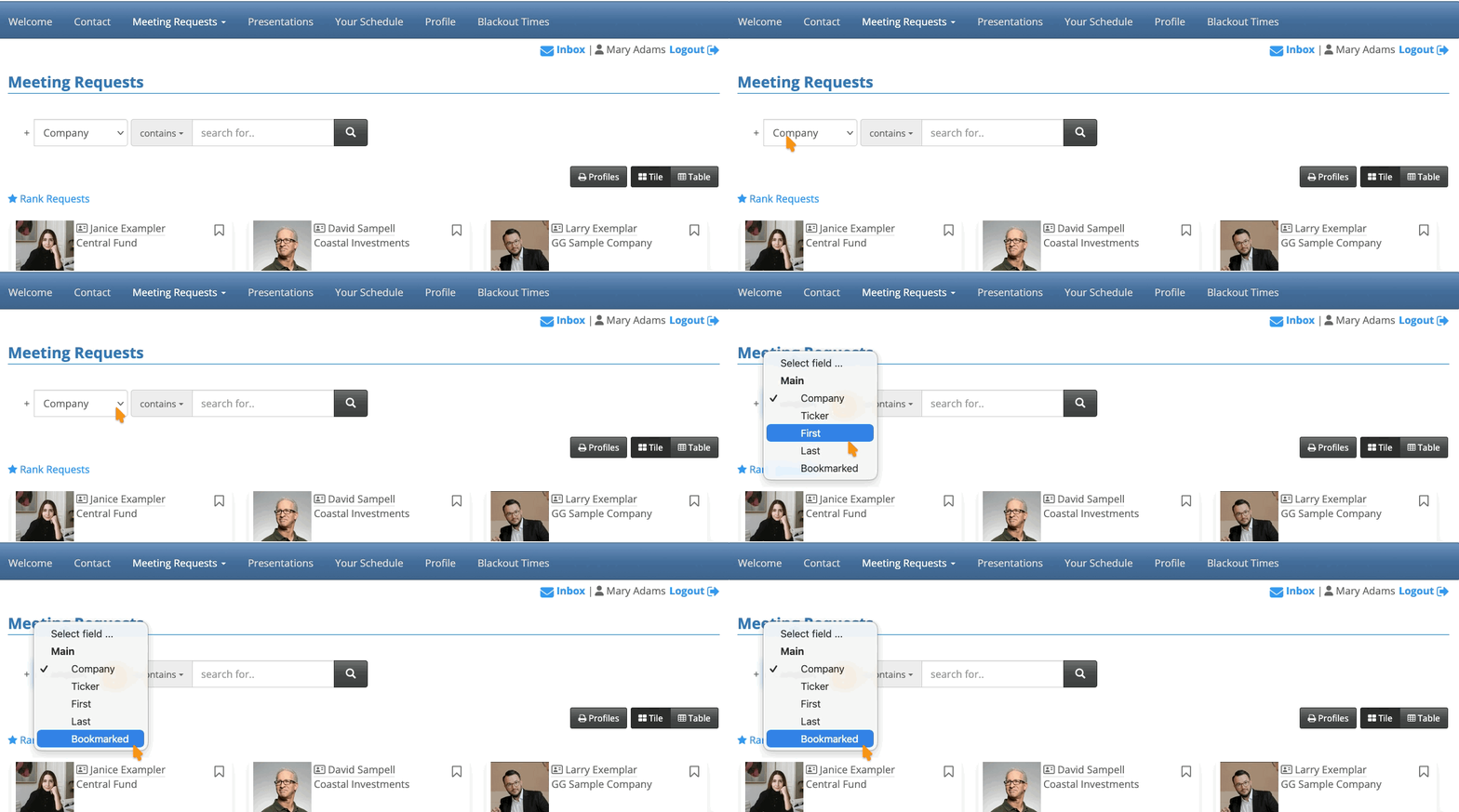
| The Bookmarked filter is always present by default. Learn more about bookmarking here. |
These filters are useful for locating Attendees from a specific company:
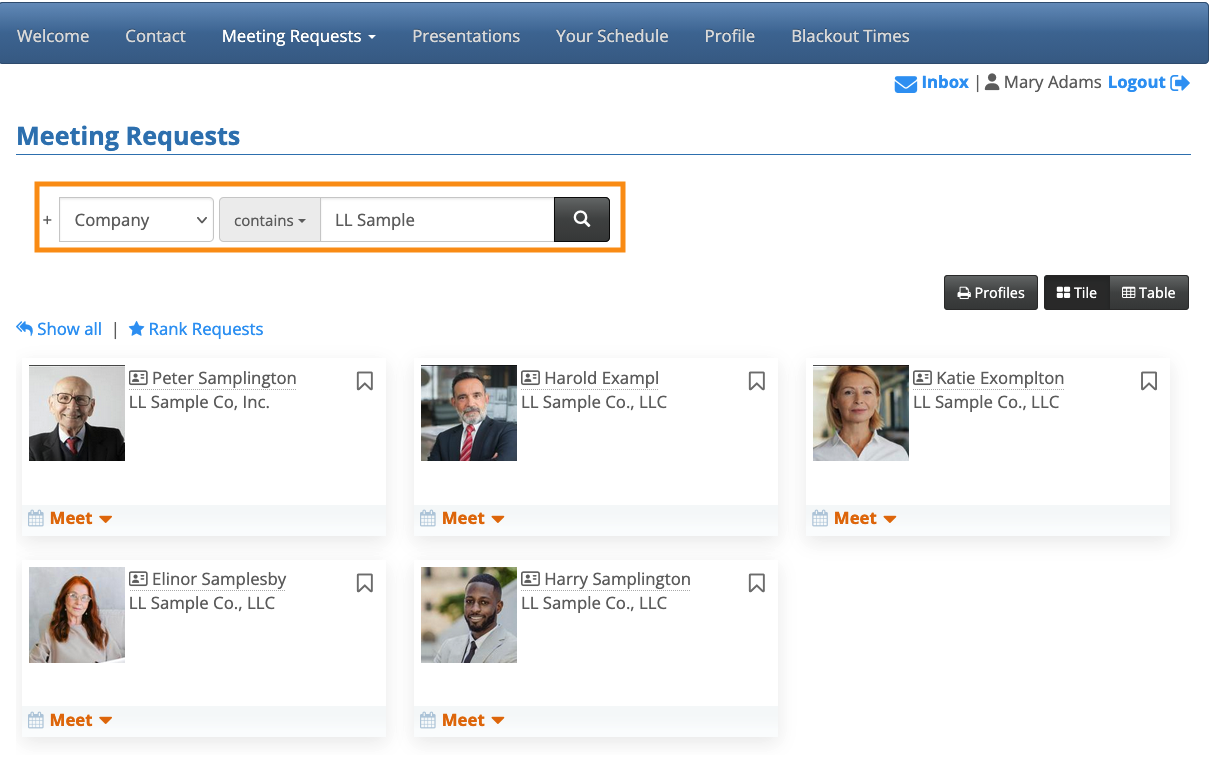
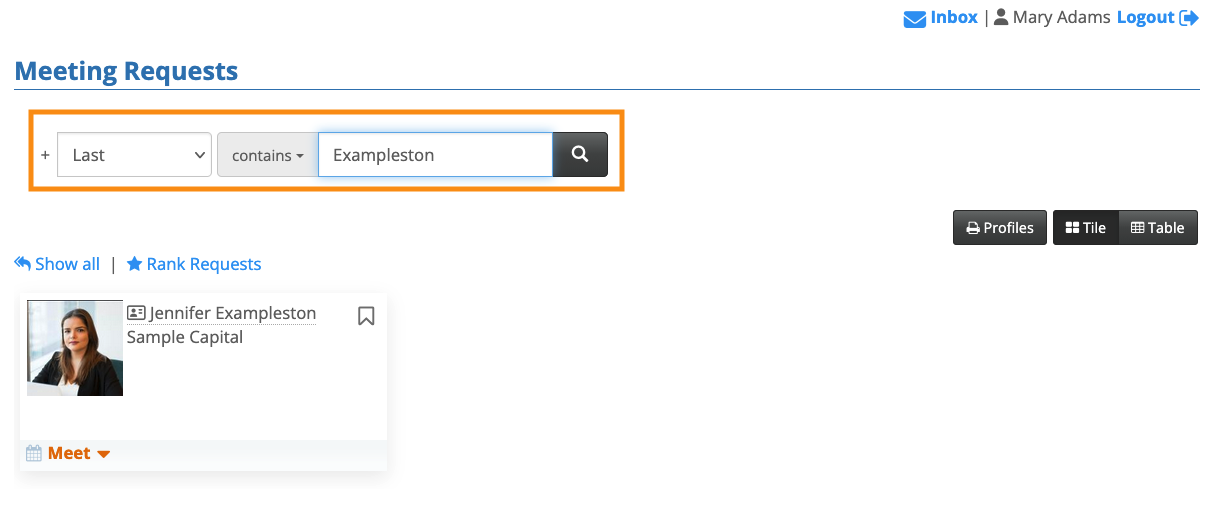
They’re also handy for locating a specific person quickly:
Other available filters
You might want to make other kinds of filters available to your Attendees:

