What if my event has days in different time zones?
Some events span multiple locations. In MeetMax, you can assign a time zone to each event day, so that schedules are always correct.
Enabling multiple time zones
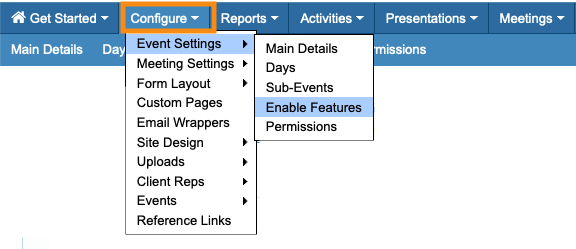
- Step 1. Head to the Configure tab. Choose Event Settings, then Enable Features:
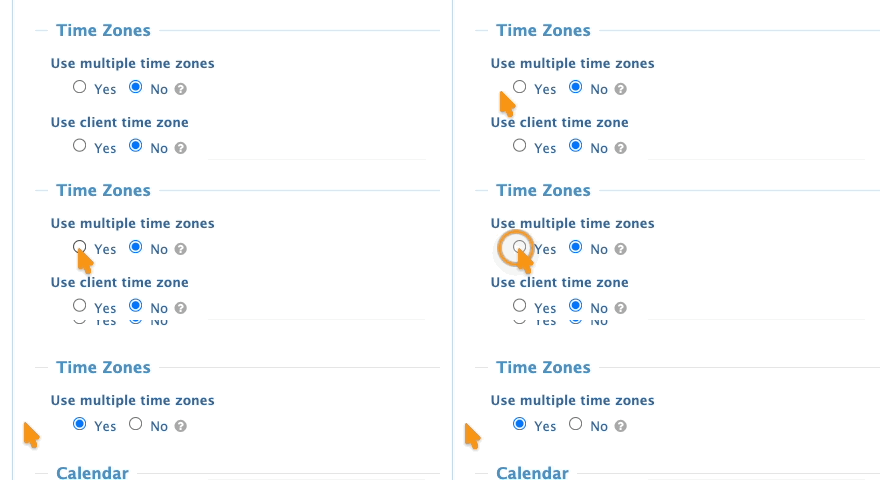
- Step 2. Under Use multiple time zones, choose Yes:
-
The Client Time Zones option will vanish, as it's not compatible with this feature. - Step 3. Scroll to the bottom of the page and click the Save button:
Setting a time zone for each event day
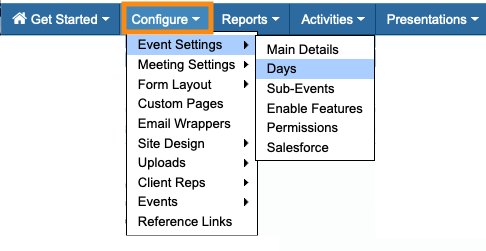
- Step 1. Head back to the Configure tab. Choose Event Settings, then Days:
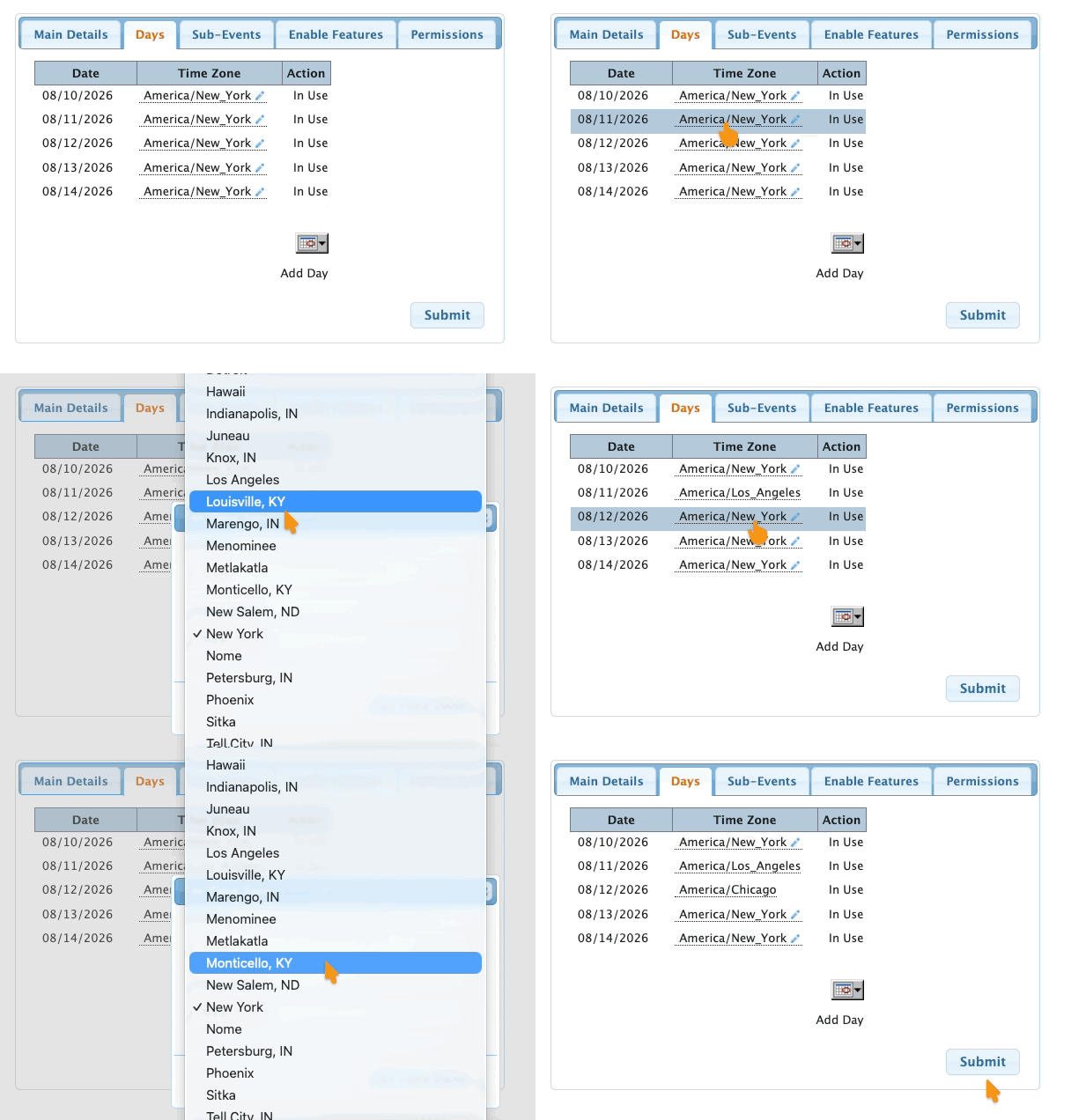
- Step 2. Here, you’ll see a list of your event days. There’s now a Time Zone menu for each one.
- Use the menu to choose the correct time zone for each day:
- Step 3. Click Submit to save:
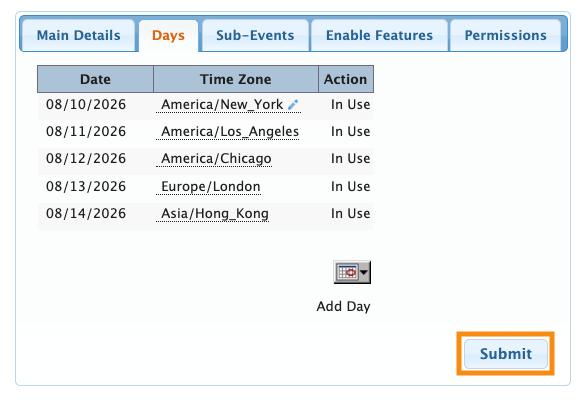
What participants see
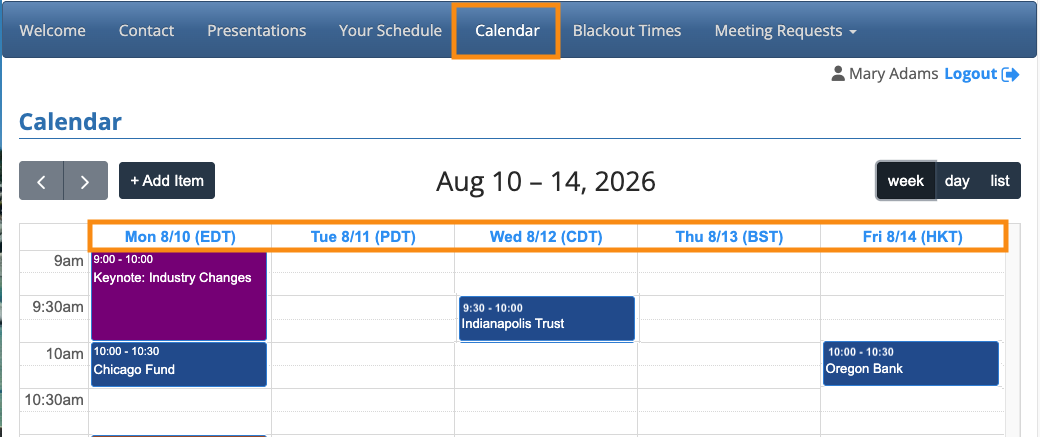
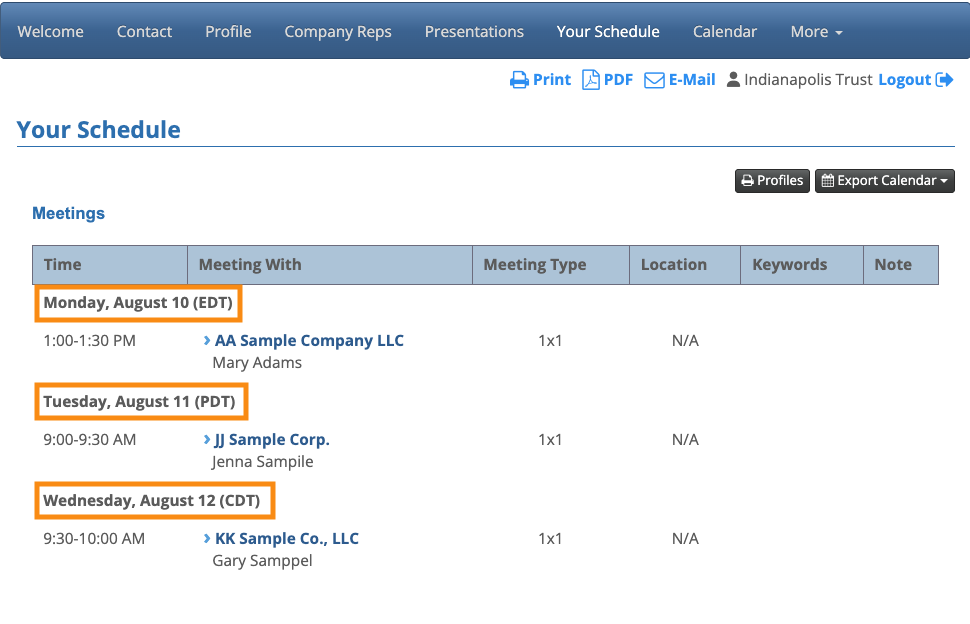
On the Calendar tab and event schedules, Attendees and Companies will now see each day’s assigned time zone: