


In this article:
- Why is this useful?
- What’s required
- How MeetMax matches records
- What the Company contact sees
- How the event host verifies attribution
Why is this useful?
An event host can always import a list of Company Reps with their CRM IDs. But often, a main Company contact wants to add their own Company Reps to MeetMax instead.
It’s important to match these Reps to the correct CRM ID, or identify those who don’t currently have a CRM ID. With proper attribution, you can pass event data between your systems accurately.
What’s required
We’re assuming here that:
- You’re using one of our CRM integrations, or using our API to move data between your own CRM and MeetMax.
- In your CRM, you have a record for the Company, with associated records for each of their Company Reps.
- The Company’s main contact has your CRM ID number associated with their record in MeetMax. This is what triggers the automated lookup for Company Reps.
How MeetMax matches records
MeetMax locates a matching Company Rep record based on these criteria. The Company CRM ID is invisible, but populates from the Company contact’s logged-in account.
- Company CRM ID + First Name + Last Name
- Company CRM ID + Email Address
- Company CRM ID + Last Name + Email Address
If there’s a single match: MeetMax will pull in CRM data to the Company Rep’s registration.
If there’s more than one match: For data security MeetMax will pull in no record. You’d still be able to manually register the Rep.
What the Company Contact sees
The Company contact logs into MeetMax, and heads to the Company Reps tab:
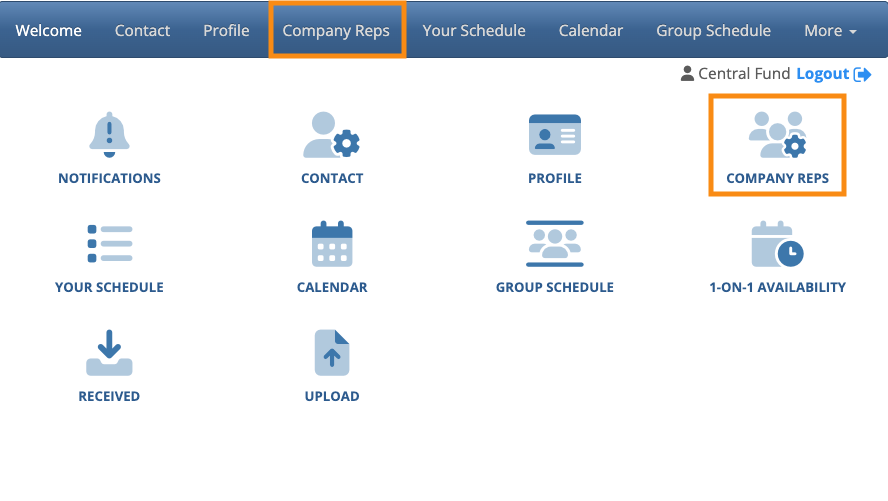
| This page will be branded for your event. |
The Company contact enters any of the data combinations listed above, and hits the Tab key:

MeetMax performs a lookup, and fills out the registration from the Rep’s CRM record:
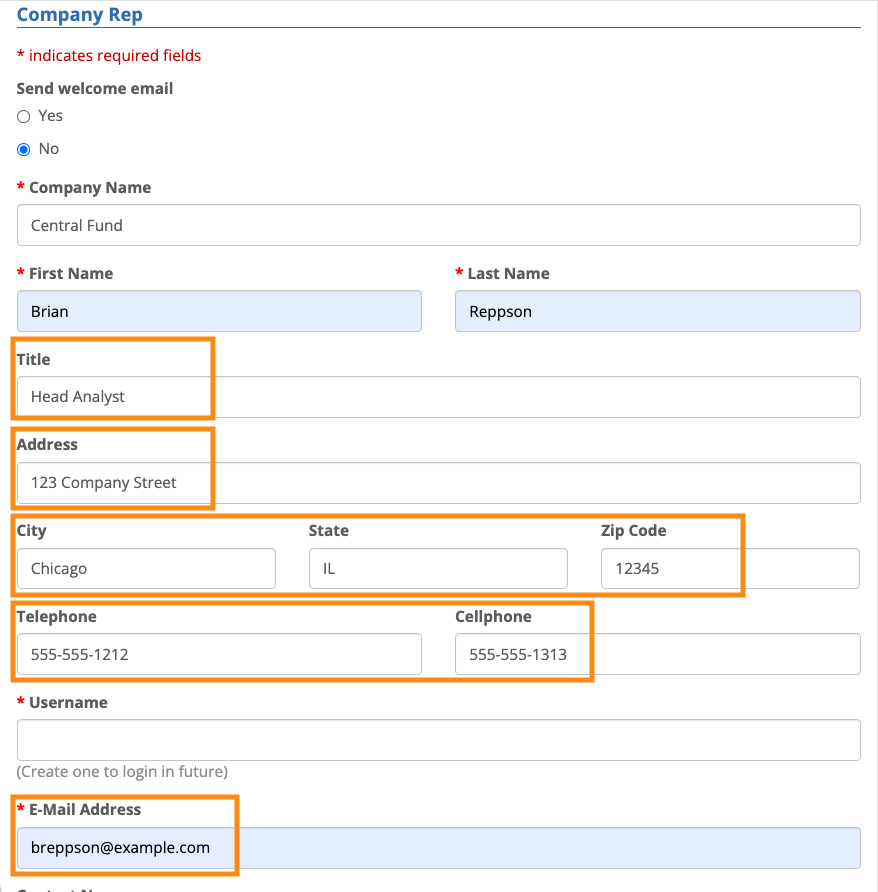
| If the Company contact enters any information into the registration form before they start the CRM lookup, MeetMax won’t override those manual inputs. |
How the event host verifies attribution
- Step 1. Log into MeetMax, and head to the Attendee List:

- Step 2. If needed, head to the Columns tab and add the CRM ID column:
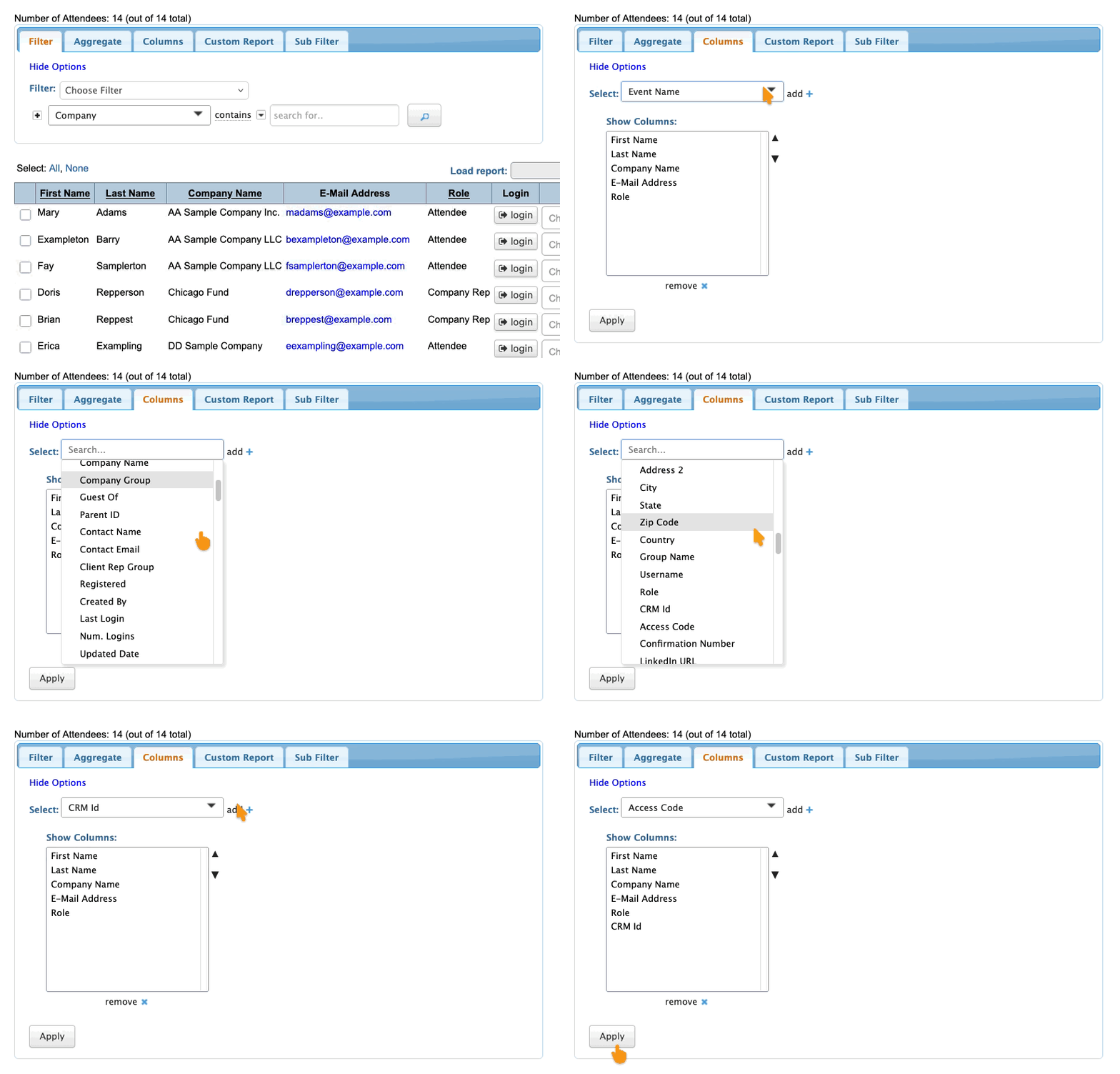
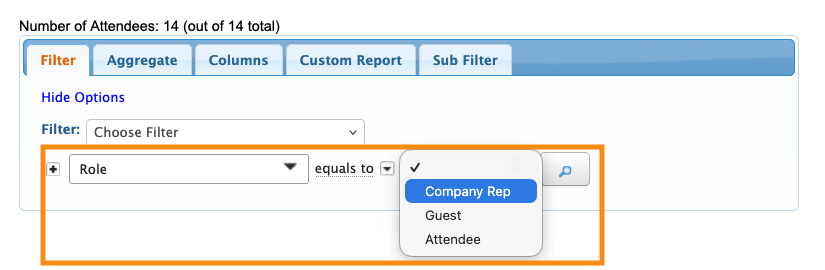
- Step 3. In the Filter tab, set the filter by Role, and choose Company Rep:
- Step 4. If any Reps are missing a CRM ID, you’ll see them here:
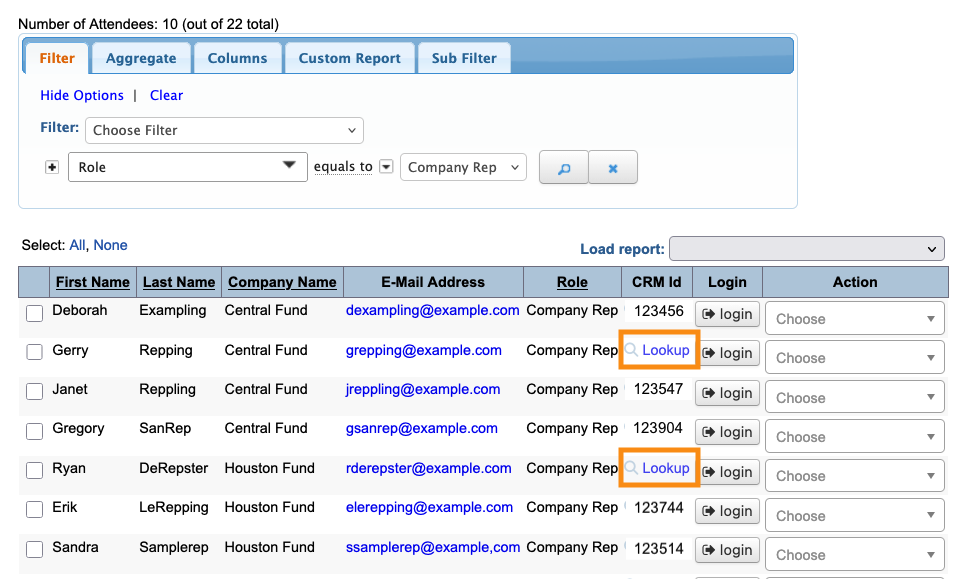
- Click the Lookup link to manually attribute a CRM record.
-
By default, MeetMax doesn’t display any messaging to let the Company contact know when there isn’t a CRM match. If your event will have most Company contacts adding their own Reps, you might want to add a custom message to the top of the Company Rep registration page. The URL for that page Message is guest_list.html

