In this article:
- Tracking in-person meeting attendance
- Tracking virtual meeting attendance
- Updating attendance status in bulk
- Using attendance data during your event
| Generally speaking, you'll track meeting attendance one day at a time, since it's recorded one day at a time. If you do need to mark attendance over multiple event days, use the Updating attendance status in bulk section below. |
Tracking in-person meeting attendance
Your team can track attendance manually through the Meetings List:
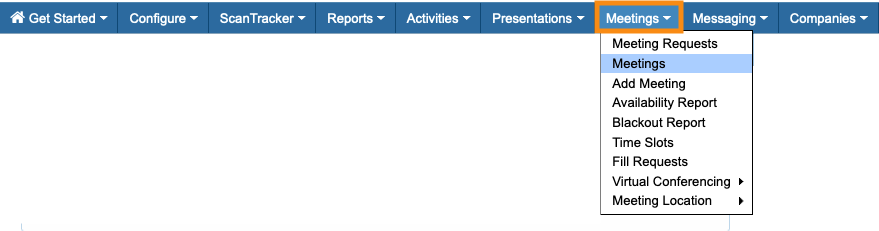
- Step 1. Head to the Meetings tab, then choose Meetings:
- Step 2. By default, the Meetings List displays all of your event’s meetings in date/time order.
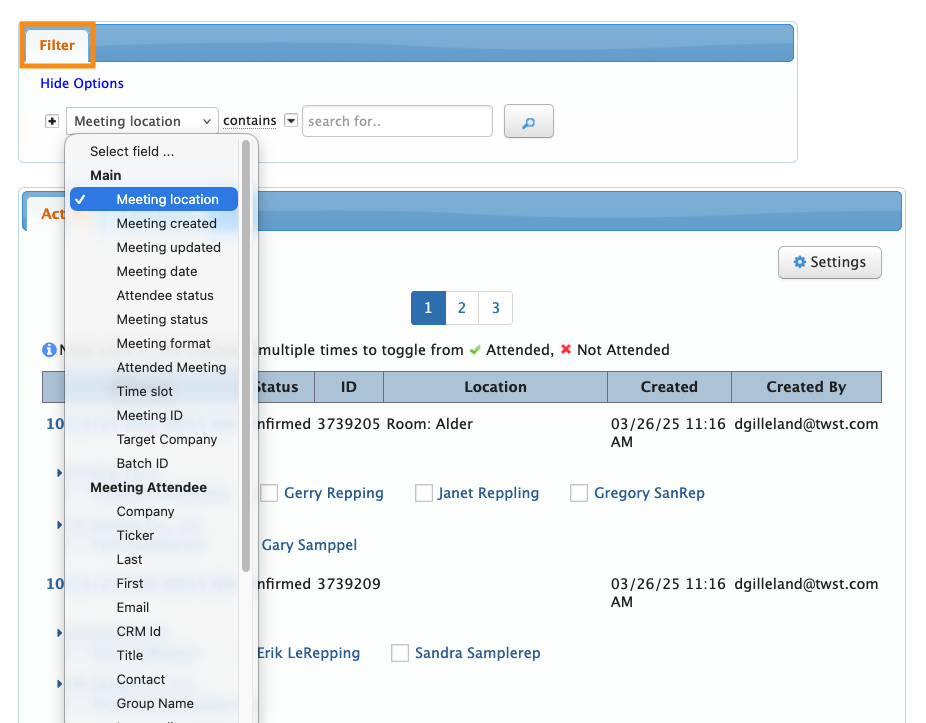
- Use the Filter tab to narrow this list down, using any criteria you need:
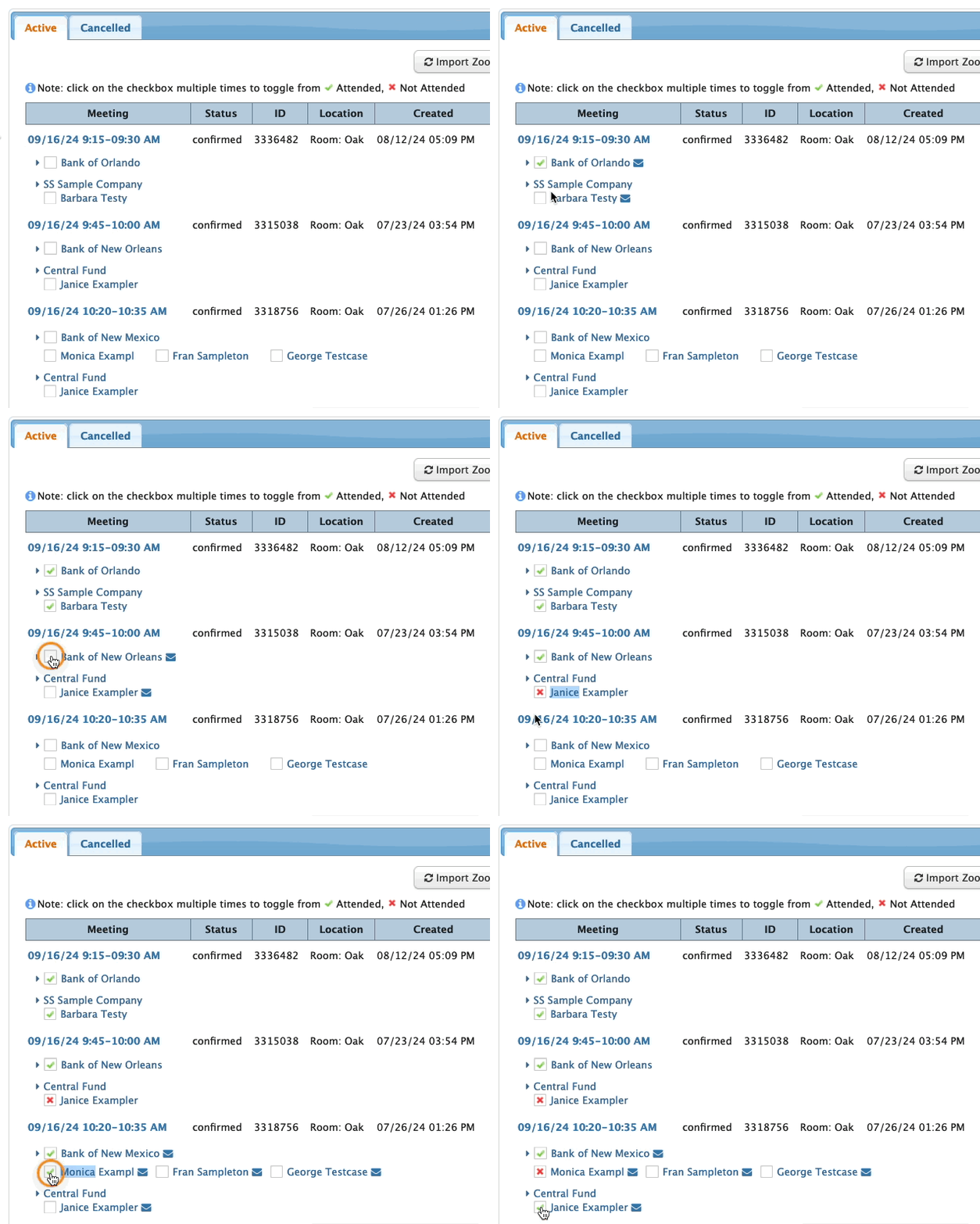
- Step 3. When you’ve located the meeting you need, you’ll see a checkbox for each participant involved.
- Click once for Attended, or twice for Not Attended:
-
This process is the same for any 1x1 or group meeting. TWST Events also offers on-site attendance tracking, using RFID scanners or QR codes. Learn more about these services here, or contact your TWST Sales representative.
Tracking virtual meeting attendance
If your event is hosting virtual 1x1 meetings, MeetMax imports login and viewing data from Zoom.
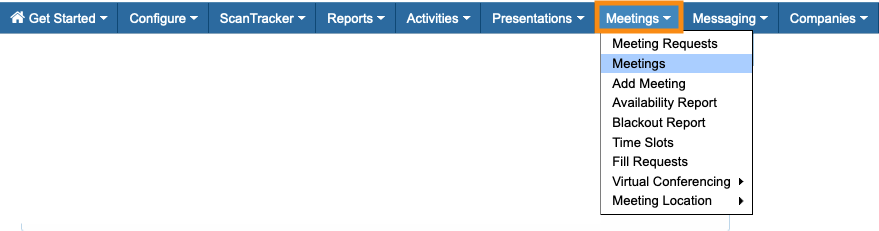
- Step 1. Head to the Meetings tab. Choose Meetings:
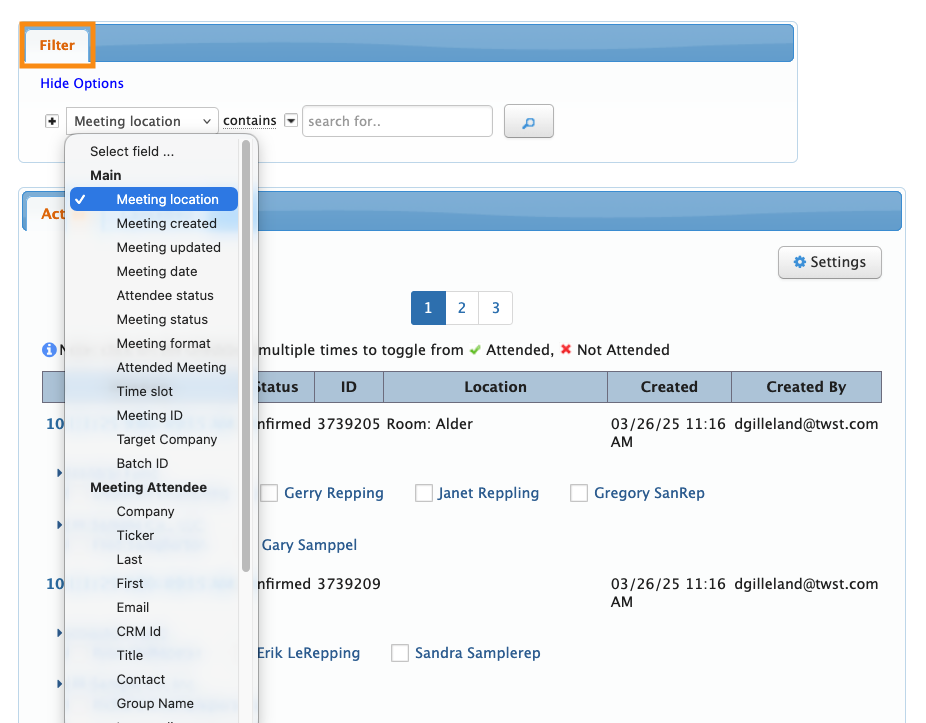
- Step 2. Use the Filter tab to narrow the list of meetings down as needed. For virtual meetings, MeetMax adds several useful filter options:
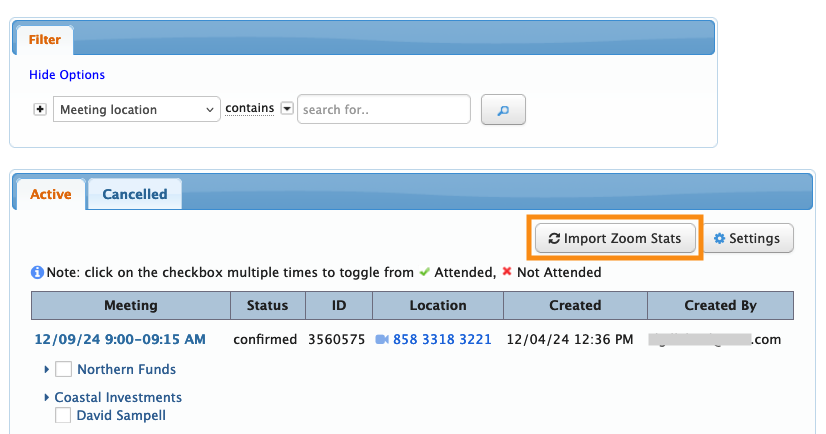
- Step 3. When you have the list of meetings you need, click the Import Zoom Stats button:
-
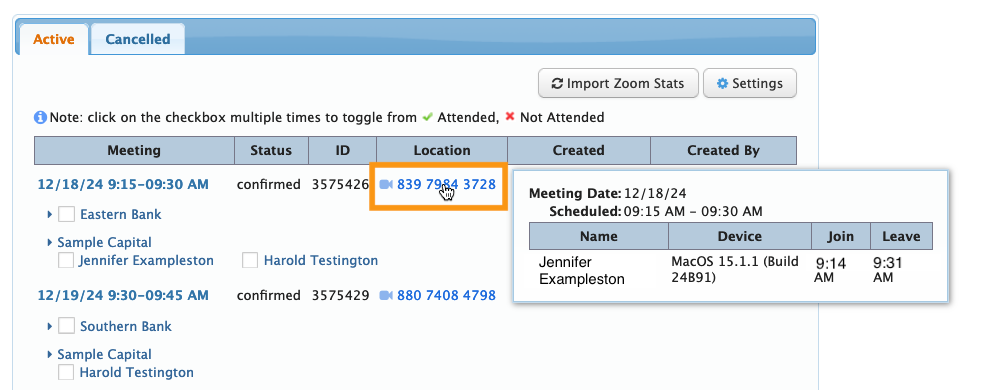
You can click this button at any time during your event. MeetMax will import all available stats as of that time, updating all meetings that have been viewed since the last import. - Step 4. To see the stats you’ve just imported, hover over the meeting ID of any meeting. A pop-up appears, showing who attended this meeting and for how long:
Adding attendance tracking
As you hover over each meeting and see who attended, click the Attendance checkboxes next to each participant’s name.
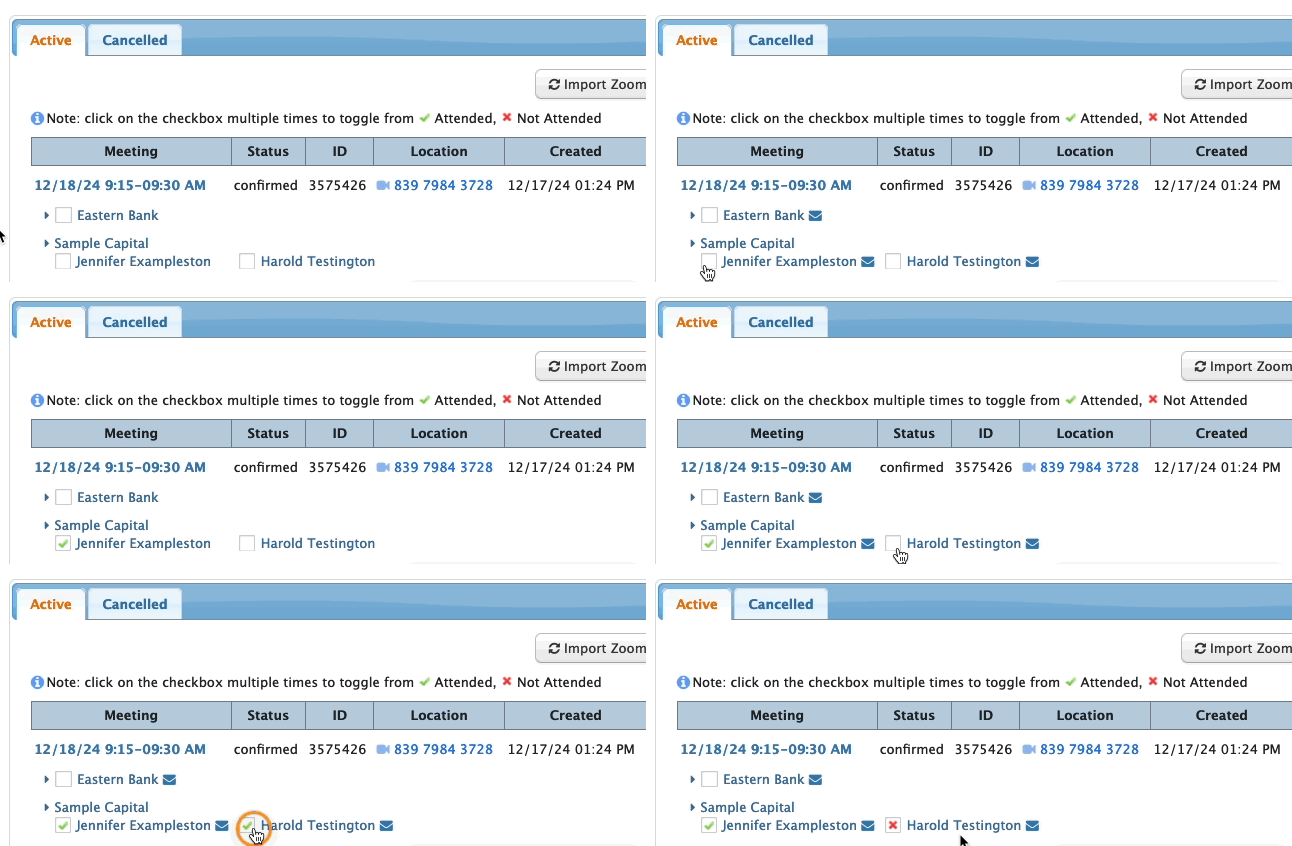
In the example below, there were supposed to be two Attendees at this meeting: Jennifer Exampleston and Harold Testington. The pop-up shows that Janet attended, but Harold didn’t:
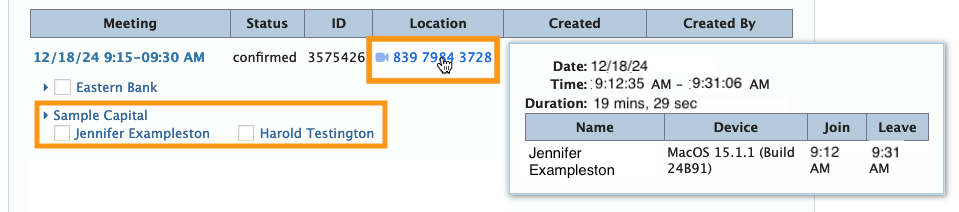
We’ll mark them accordingly. Click once to show who attended, or twice to show who didn’t:
| Our Event Services team can also assist with tracking virtual meeting attendance. Reach out to your TWST Sales Representative for details. | |
| You can export your virtual meeting attendance as a spreadsheet, or save a custom report. Learn more about that here. |
Updating attendance status in bulk
As an option, you can update the meeting attendance status of multiple participants at once. This is helpful for:
- Filling in gaps in your meeting attendance tracking.
- Simplifying meeting attendance tracking.
Here’s an example that demonstrates both. Let’s say you have a team member tracking attendance on-site at your event. In the Meetings List, they’re recording any No-Shows:
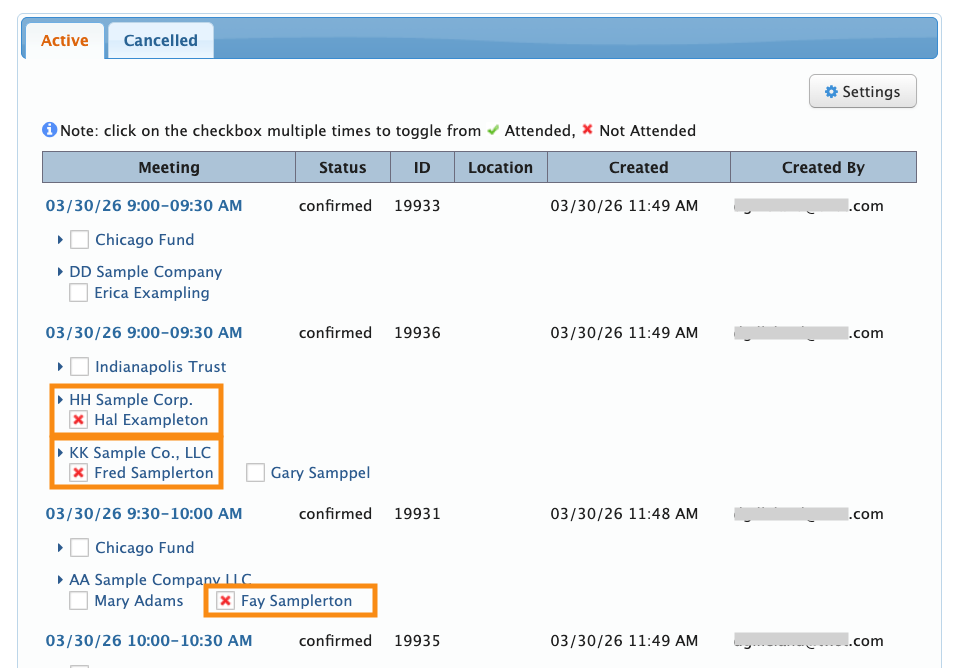
At the end of the event day, everyone who isn’t marked as a No-Show should be marked as Attended. A bulk update makes that easy.
- Step 1. For this example, we don’t need to filter the Meetings List. But the Filter tab is available in case you need to narrow the list down to a specific group.
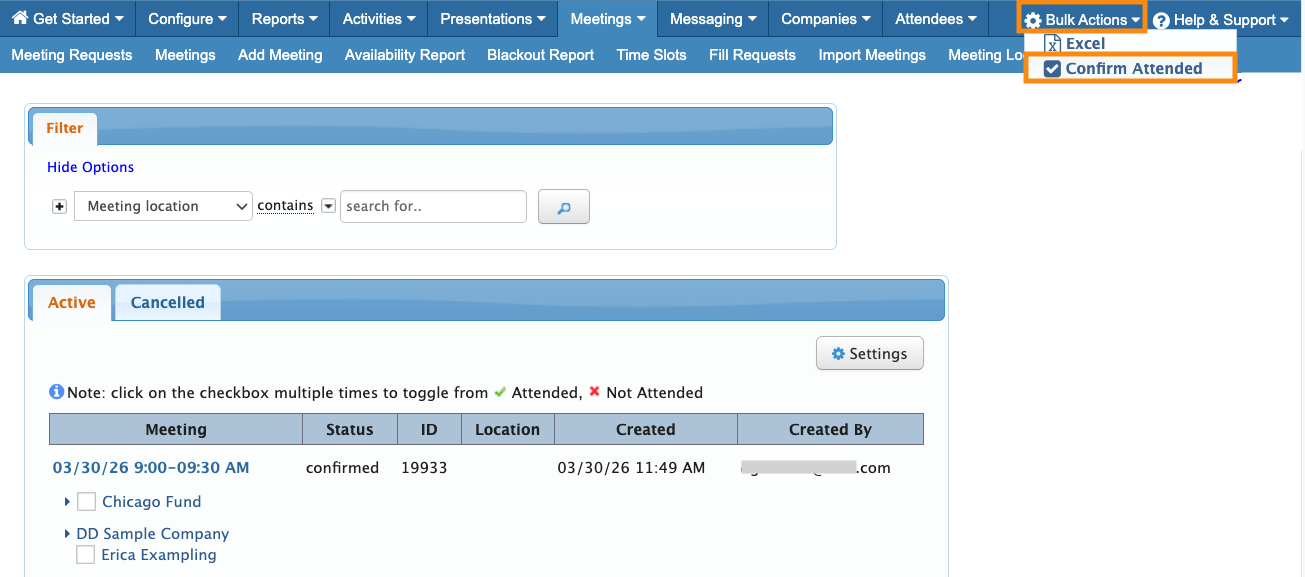
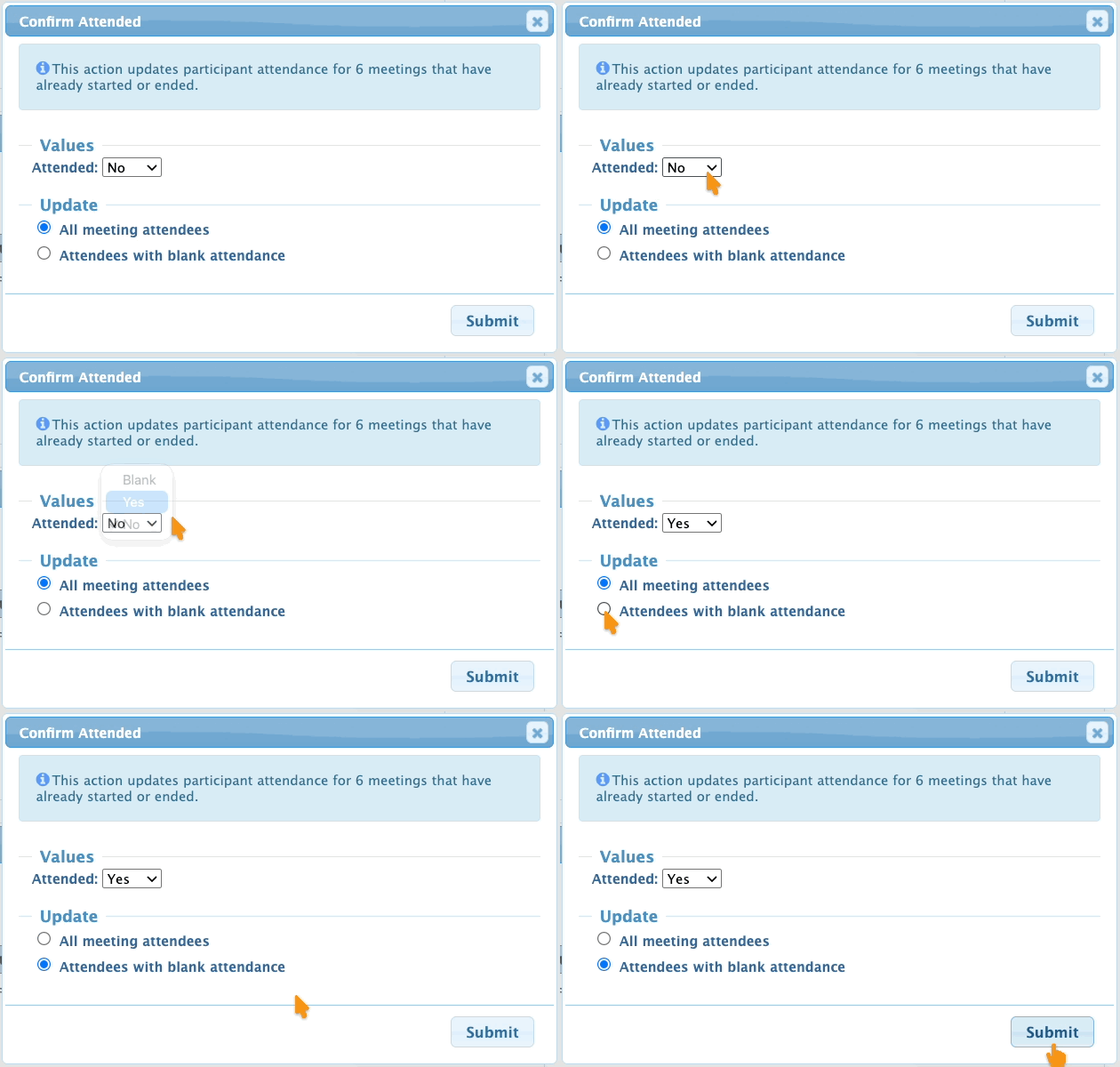
- Step 2. Head to the top right corner of the page. Use the Bulk Actions menu to choose Confirm Attended:
- Step 3. In the pop-up, you’ll see the number of records that will be updated.
- • Values: Choose Yes to mark everyone as Attended.
- • Update: Since we already marked the No-Shows in this example, we just need to update everyone who currently has a blank attendance status.
- Click Submit to save:
-
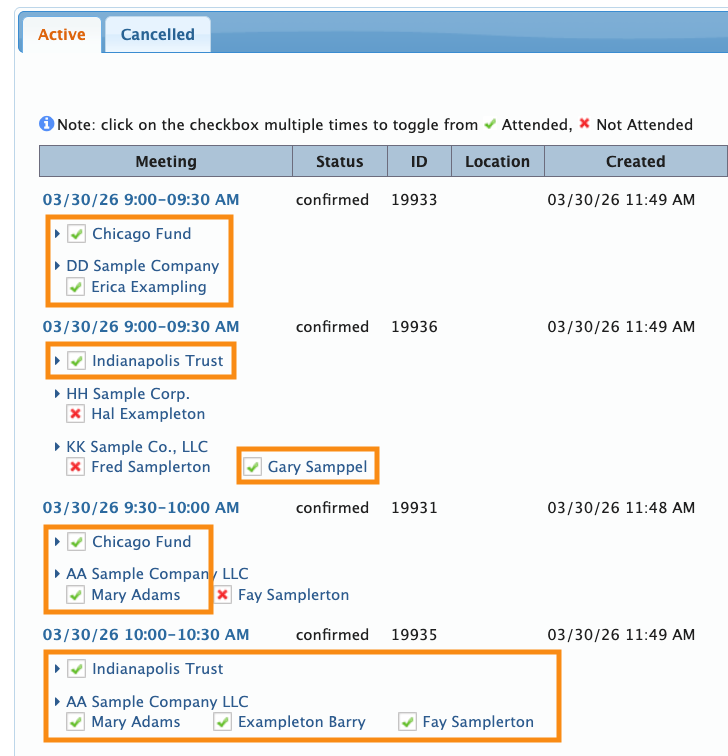
A bulk attendance update will only apply to meetings that have already started or ended. - Step 4. The list now shows all the Attended statuses:
Using attendance data during your event
Attendance data is of course useful for your post-event reporting. It can also be useful for responding to changes during your event.
Once you’ve collected some attendance data, you can use the Filter tab to identify who has and hasn’t attended their scheduled meetings.
Here’s an example, where we’re using the Attended Meeting filter, set to No:
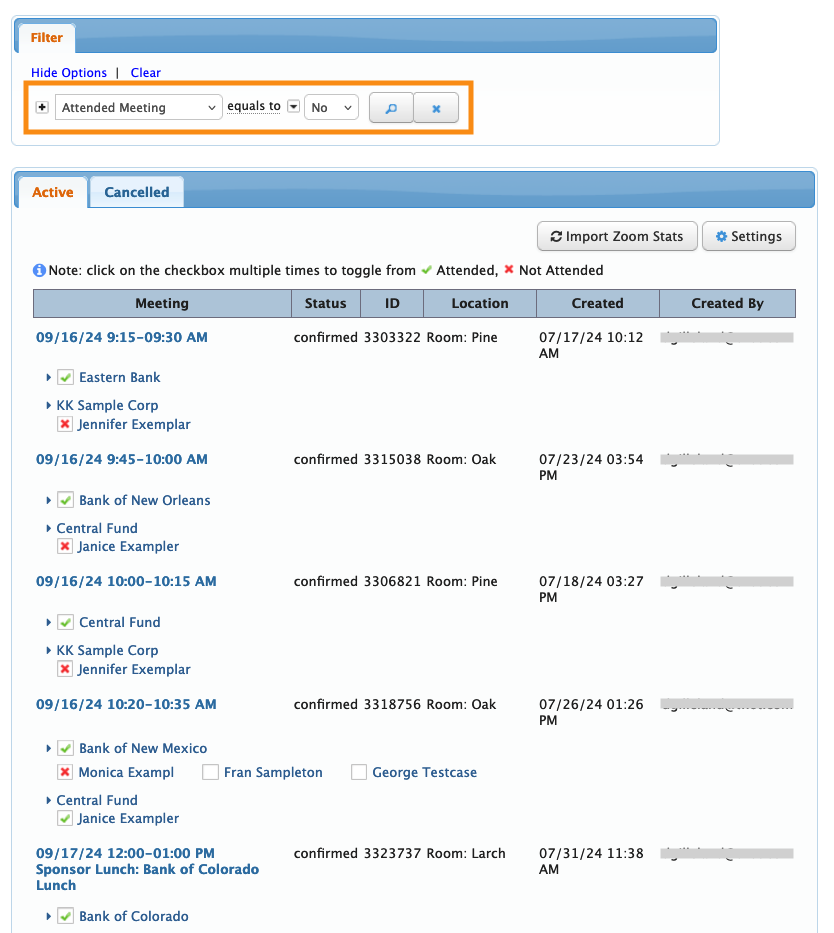
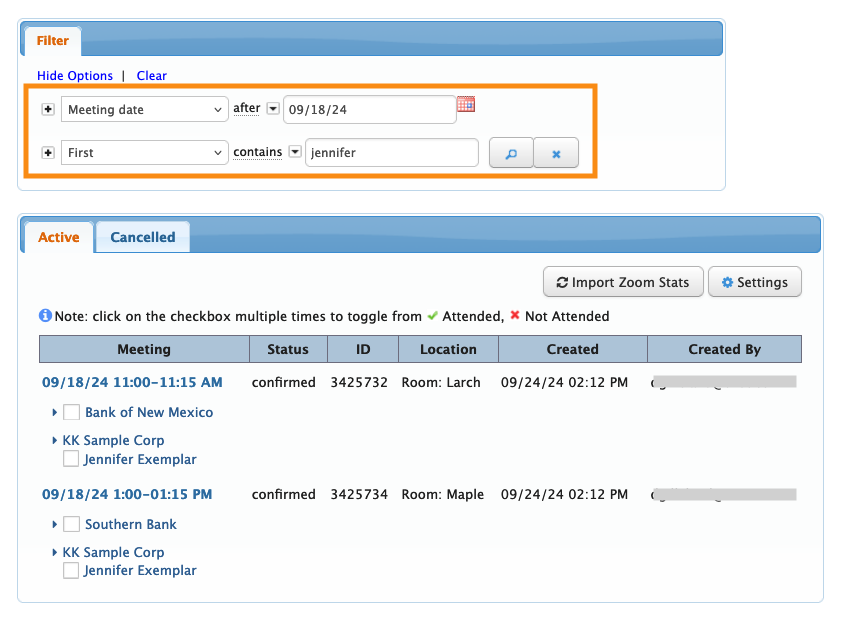
There's one name, Jennifer Exemplar, that appears several times here. So let's add a filter for her name as well:
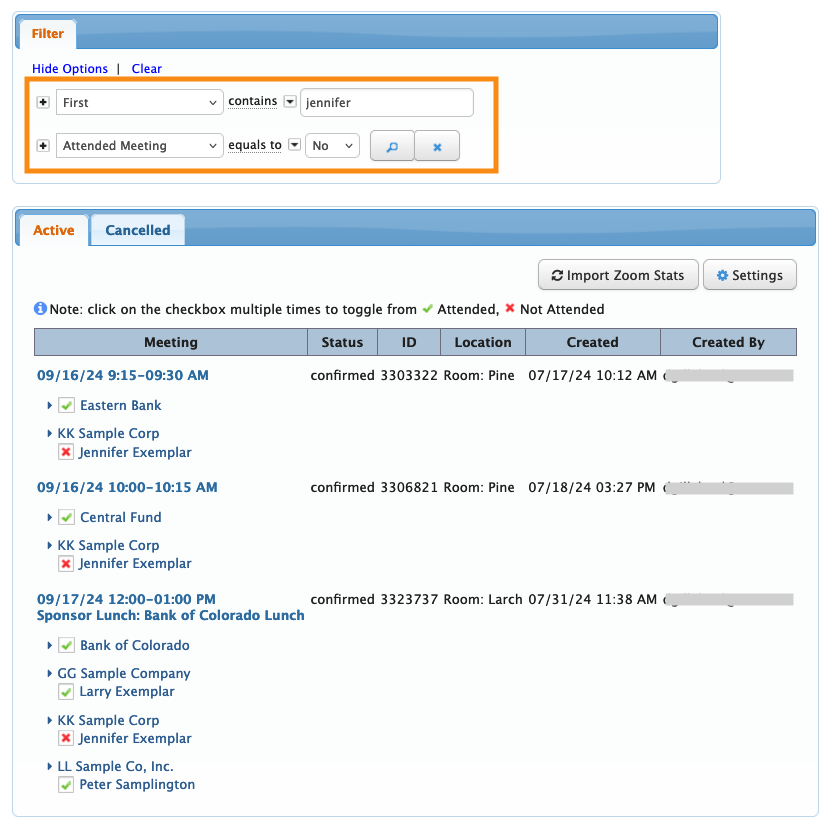
Now we can see all the meetings this Attendee has missed.
- We can reach out to the Companies who hosted these meetings.
- We can also reach out to this Attendee to see if something has happened.
- In addition, we could re-filter the Meetings List to see if Jennifer has any upcoming meetings that we might want to cancel or reschedule.
Here, we’ve added the Meeting date filter, set to after the current event day: