


In this article:
Why is it useful?
MeetMax offers four ways to reference CRM data during registration:
- Salesforce integration
- PRISM integration
- Referencing an uploaded Invitee list
- Referencing a past event registration
This feature is useful when you’re using one of these methods alongside public registration for your event.
In this process, a participant begins the registration process by entering a few required details into MeetMax.
If that data doesn’t match an existing record, we prevent the participant from completing registration. They’re directed to contact the event host for help:
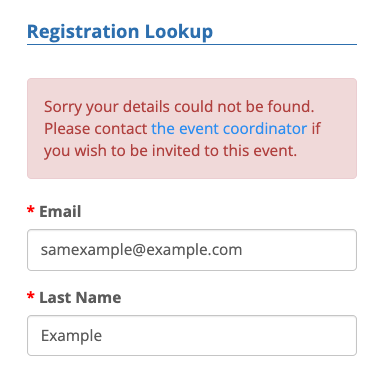
By enabling this feature, you’d let registration proceed even if the lookup fails.
Enabling the feature
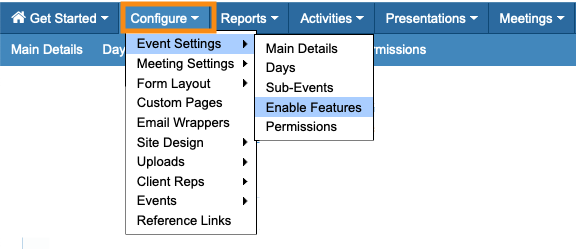
- Step 1. Head to the Configure tab. Choose Event Settings, then Enable Features:
- Step 2. In the Public Site section, add these settings:
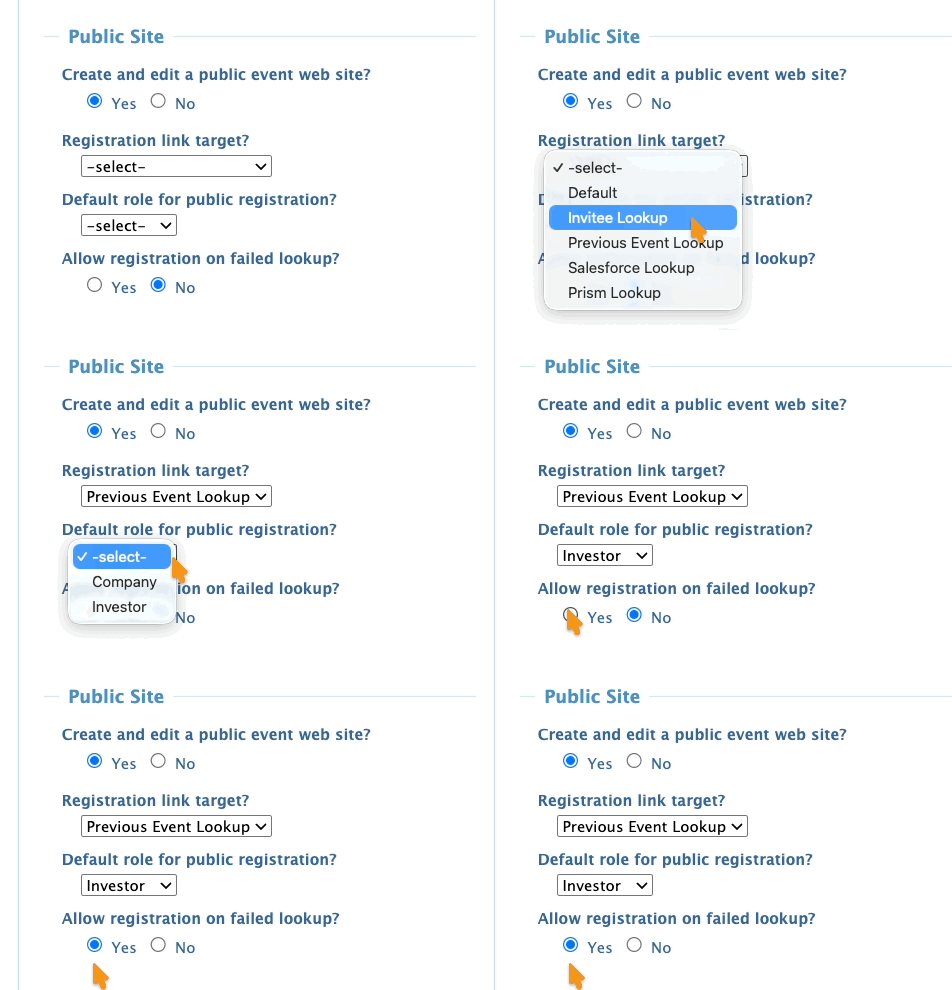
- • Registration link target: Choose which of our four options you’re using for your event.
- • Default role for public registration: Will Attendees or Companies be using your public site to register?
- • Allow registration on failed lookup: Choose Yes.
- Step 3. Scroll down and click the Save button:

What participants see
When an Attendee or Company visits your event’s public site to start registration, they’ll see the validation form. Our team will help you set up the lookup fields you want to use:
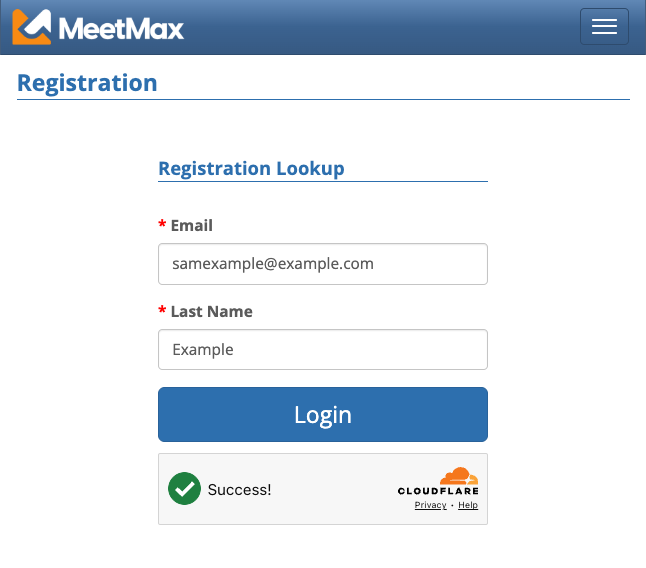
| This page will be branded for your event. |
If the participant enters information that matches an existing lookup record, MeetMax will take them to their filled-out registration form. All they need to do is click Submit.
If the participant’s information doesn’t match any record, they’ll see this error message:
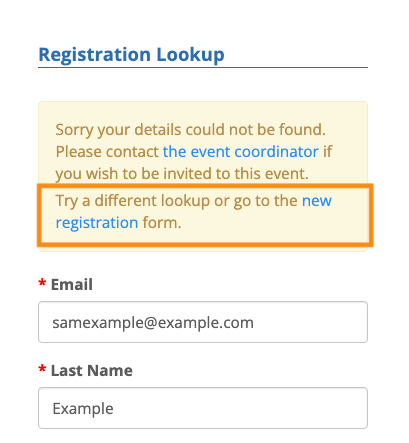
They can click the link to proceed with creating a registration.

