In this article:
- Where is it?
- Setting the identifier
- Giving participants the registration link
- What the registrant sees
Where is it?
We’re assuming here that you’ve already set up the PRISM integration.
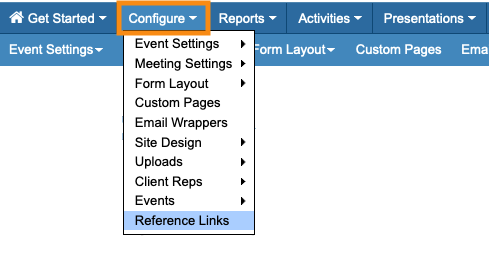
After that, you’ll find your public event link in the Configure tab:
Setting the identifier
When a participant accesses your registration page, they'll always enter their email address.
You'll also require them to fill out either of these fields:
- Last Name: A great option in most cases.
- Event Code: A good option if you host a lot of events with the same registrants.
This choice sets the way MeetMax looks up records from your PRISM account.
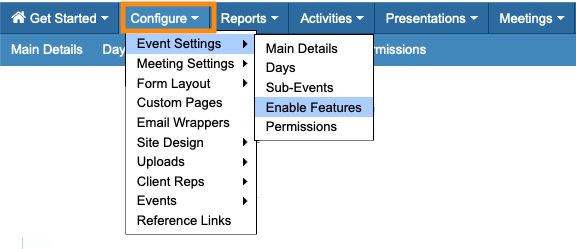
- Step 1. Head to the Configure tab. Choose Event Settings, then Enable Features:
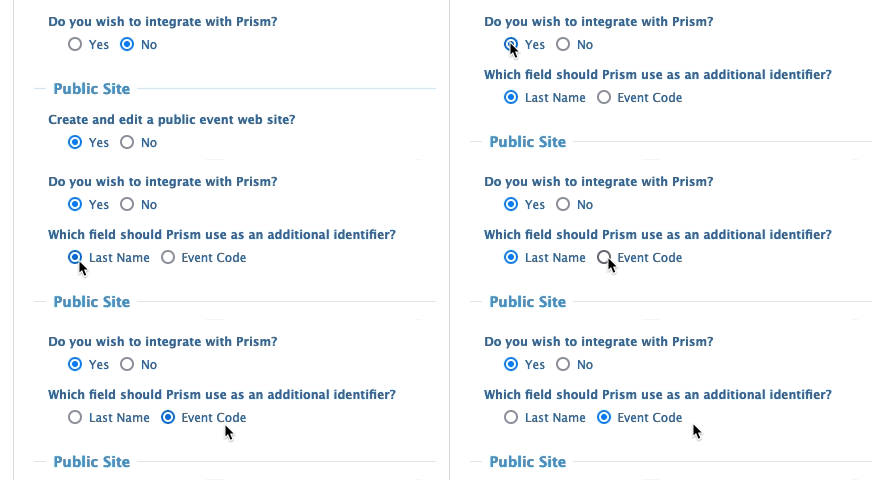
- Step 2. Scroll down to the Integrations section.
- The PRISM integration should already be active here. Under Which field should PRISM use as an additional identifier, make your selection:
- Step 3. Scroll to the bottom of the page and click Save:
Giving participants the registration link
MeetMax generates a unique link for each event. This link references data from your PRISM records, and pulls that information into the MeetMax registration forms.
| This same link works for registering Attendees, Company Reps, and Companies. Anyone using the link will be prompted to choose their role as they register. |
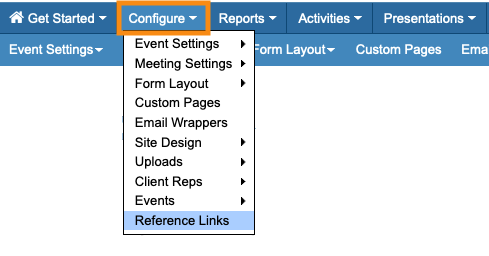
- Step 1. To get the link, head to the Configure tab, then choose Reference Links:
- Step 2. On this page, you’ll find the PRISM Validation link:
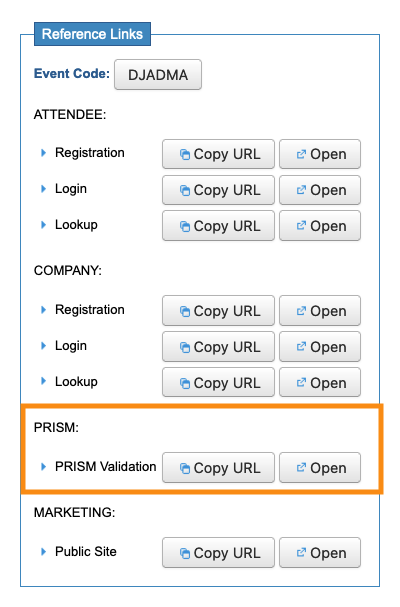
- Step 3. Clicking Copy URL will copy the link, so you can share it with your contacts. Paste it into any email or messaging you’re using.
What the registrant sees
When someone clicks on the PRISM Validation link, they’re taken to a look-up page that’s branded for your event.
The fields they see there will depend on your identifier setting from the section above.
Last Name
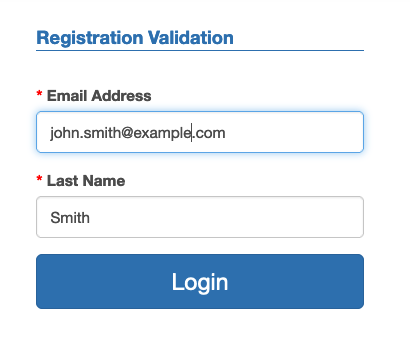
If you chose for participants to identify themselves by Last Name and email address, they’ll see a registration page like the one below.
They’d enter their last name and email address, and then click the Login button:
Event Code
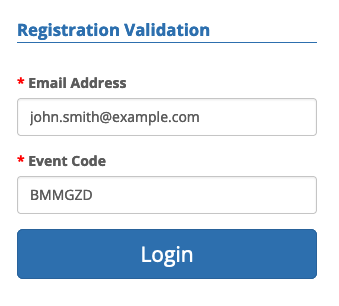
If you chose for participants to use your Event Code instead, you’d need to give your participants the unique MeetMax code for your event, along with the PRISM Validation link.
They’d then see a registration page like the one below.
They’d enter their email address and the Event Code, and then click Login:
| For the lookup to work, the last name and email address must match those in your PRISM database. If someone enters different information or there’s no record for them, they’d instead be taken to a blank registration page to sign up for your event. You can connect this registration to PRISM later. |
After validation
Once the registrant has passed the validation stage, they’ll see the MeetMax registration form. MeetMax has already pulled in details from the matching PRISM record:
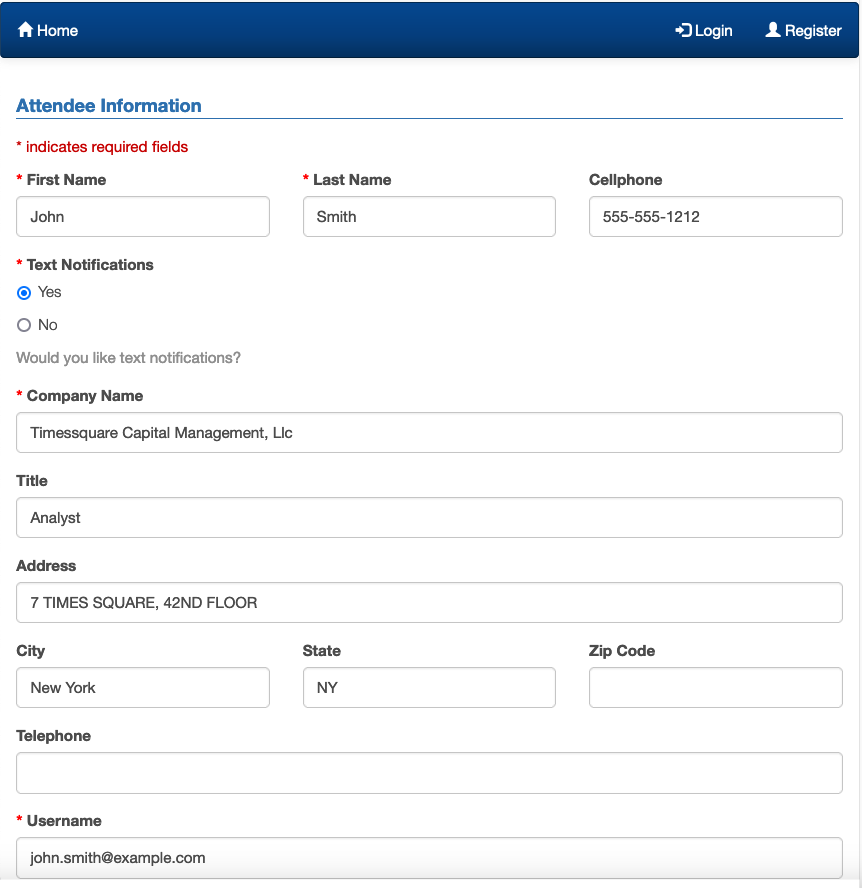
The registrant can fill in any other data they like, and then click the Submit button to complete the registration: