

Report: Invitees who declined
How it’s used:
• If you’re using Invitee registration, this report shows you the people who’ve declined to register for your event.
• You'll also see each Invitee's reason for declining.
In this article:
Running the report
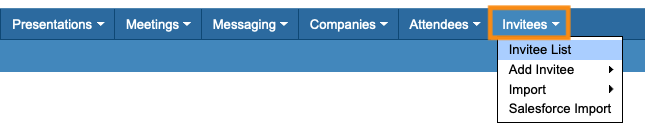
- Step 1. Head to the Invitees tab. Choose Invitee List:
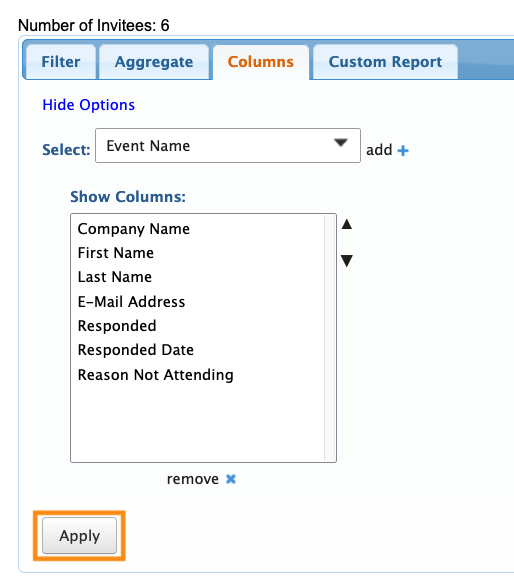
- Step 2. Go to the Columns tab. Here, you can add and remove columns. Click Apply to save the changes.
- We recommend including these columns:
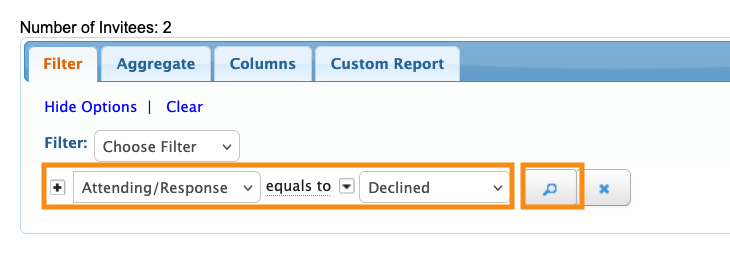
- Step 3. Now, head to the Filter tab. Set the filter by Attending/Response, and choose Declined:
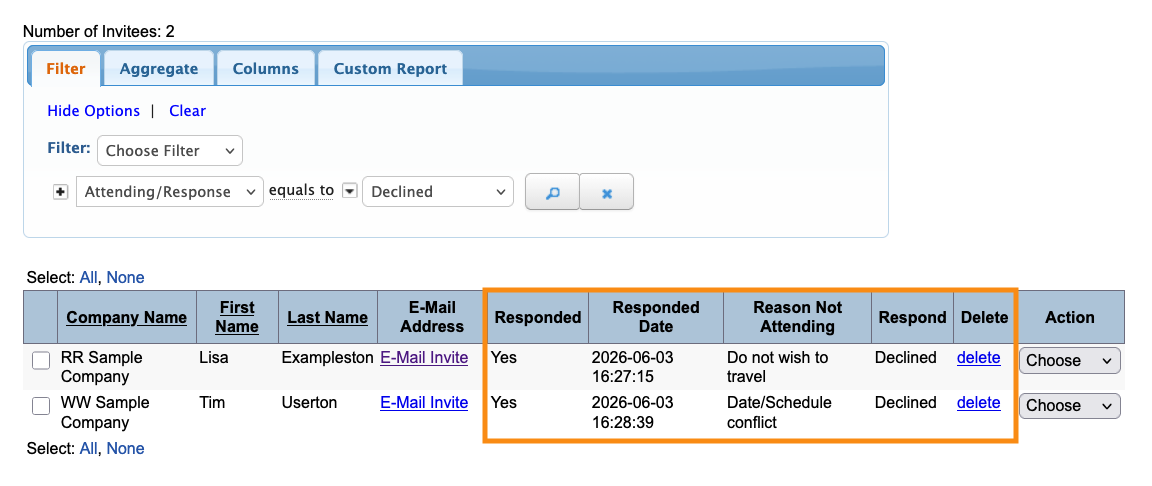
- Step 4. You’ll now see a list of all Invitees who clicked the Decline button in their invitations.
- With the columns you’ve added, you can also see when each person declined, and the decline reason they chose.
- If you want to remove someone from this list, click the Delete link:
Exporting the report
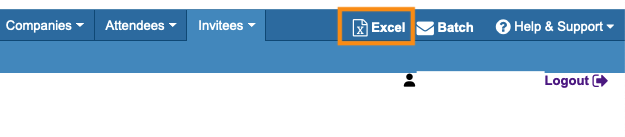
To export the report in spreadsheet form, head to the top right corner of the page. Click Excel.
You can open the exported file in any spreadsheet software:
Saving the report
Want to save this report so you can quickly access it later?
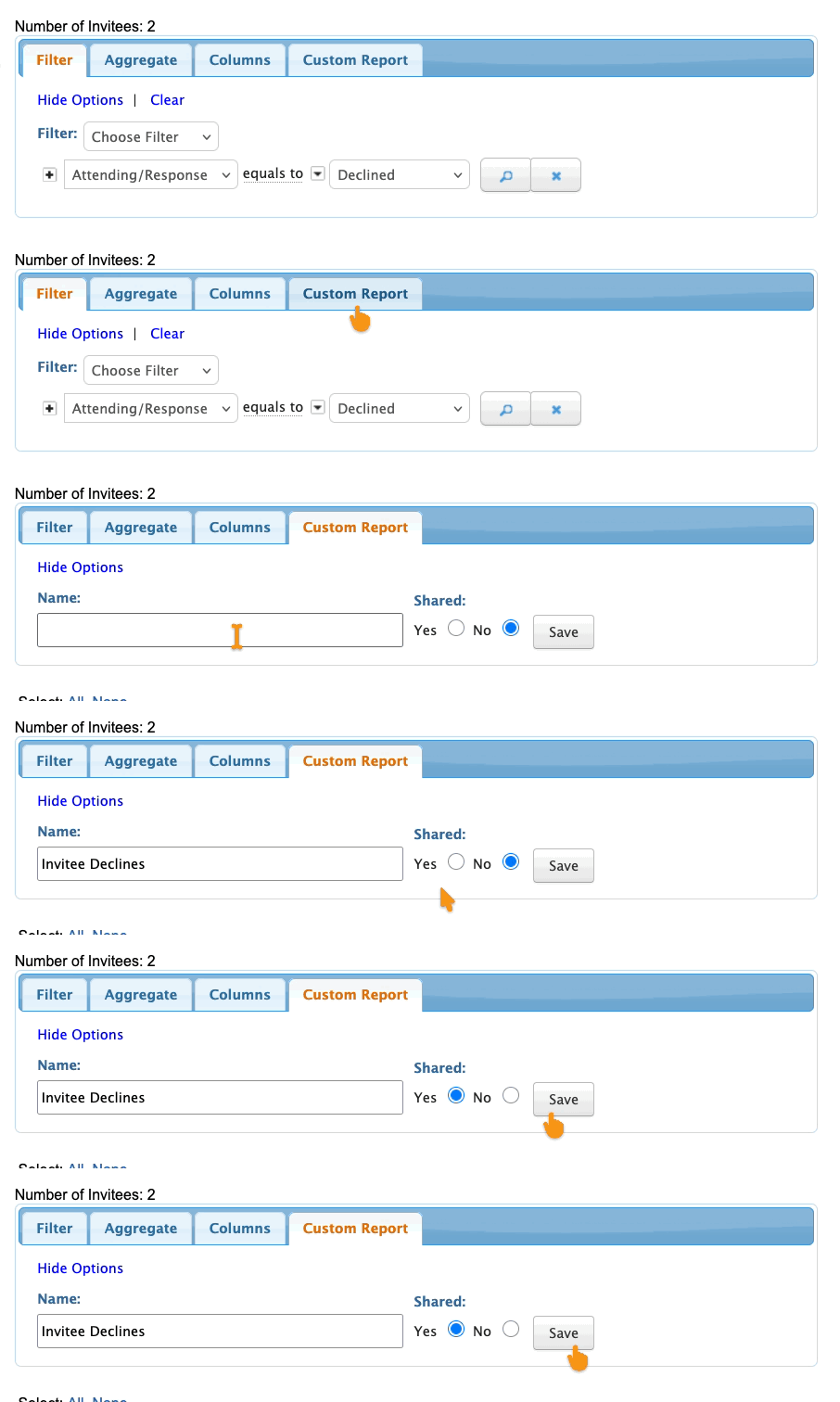
Head to the Custom Report tab. Choose New from the menu.
Then give the report a title, choose whether to share it with your team, and click Save:
Here’s how to access the saved report.

