


What if one participant is replacing another at my event?

Sometimes, you’ll have a registered Attendee or Company Rep who has a change of plans and can’t attend your event.
If their company will send another person to replace them, you’ll want to update your MeetMax records. There are two ways to do this.
In this article:
- Option 1. Transferring the participant’s account and profile
- Option 2. Creating a new registration, transferring meetings
Option 1: Transferring the participant’s account and profile
If the new participant will take over all existing meetings and requests from the original one, the simplest option is to reuse the original person’s MeetMax account.
Head to the Attendee List. Filter it to locate the original participant who’s canceling.
- Update the Contact form to the new participant’s details.
- Update the Profile form with the new person’s information and headshot.
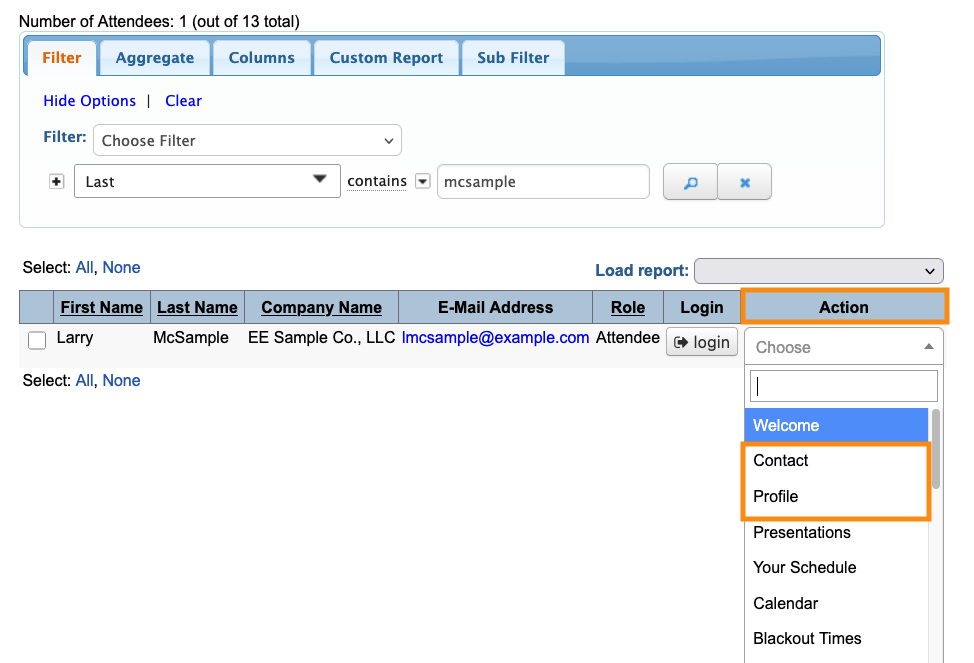
| Your event might be using slightly different names for these two forms, like Account or Details or Registration. |
When those steps are done:
- The original participant can no longer log into their MeetMax account.
- You’ll need to email a registration confirmation to the new participant, so they can log into this account.
- All originally-scheduled meetings and requests are now under the new participant’s name.
- All originally-scheduled presentations and activities are now under the new participant’s name.
Option 2. Creating a new registration, transferring meetings
If you don’t want to reuse the original registration, use these steps:
- Step 1. Register the new participant for your event. Send them their login information.
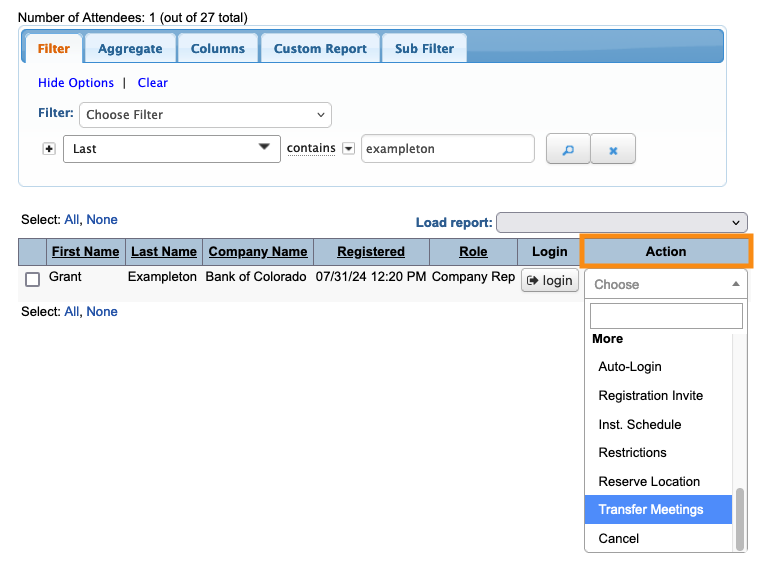
- Step 2. If the original participant had meetings scheduled, transfer them to the new participant:
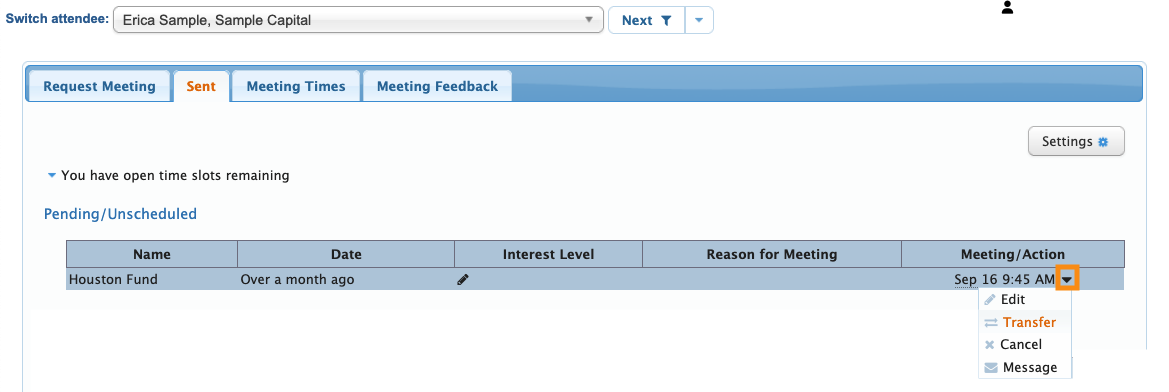
- Step 3. If the original participant had pending meeting requests, transfer them to the new participant:
- Step 4. When the above is done, cancel the original participant’s registration.
- Step 5. The new participant needs to log into MeetMax and take these steps:
- • Complete their Profile form, and upload a headshot.
- • Set up any blackout times where they won’t be available for meetings. If there are any conflicts with the transferred meetings, they’d reach out to your team for adjustments.
- • Sign up for presentations.
- • Sign up for activities.

