

How do I see request details while I’m scheduling meetings?

On the Meeting Times page, by default you can hover over any unscheduled meeting request, and see these details:
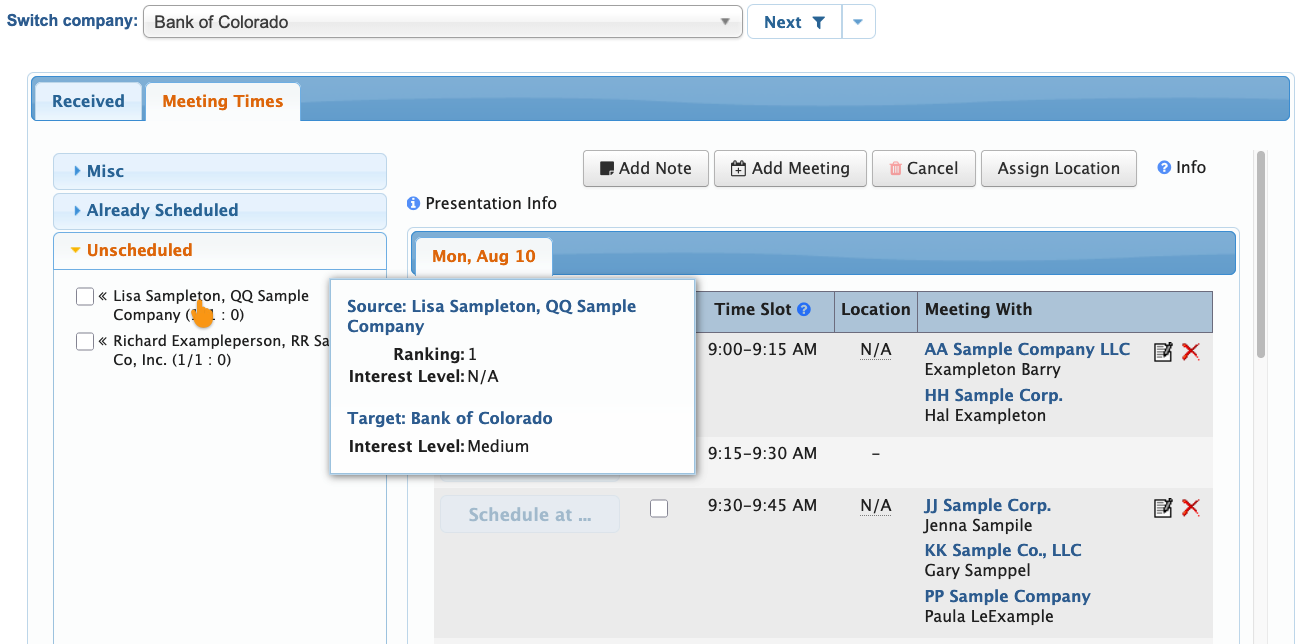
- Target: Who the requestor wants to meet with
- Ranking: How the requestor prioritized this request among their others
- Rating: The requestor’s level of interest in the meeting
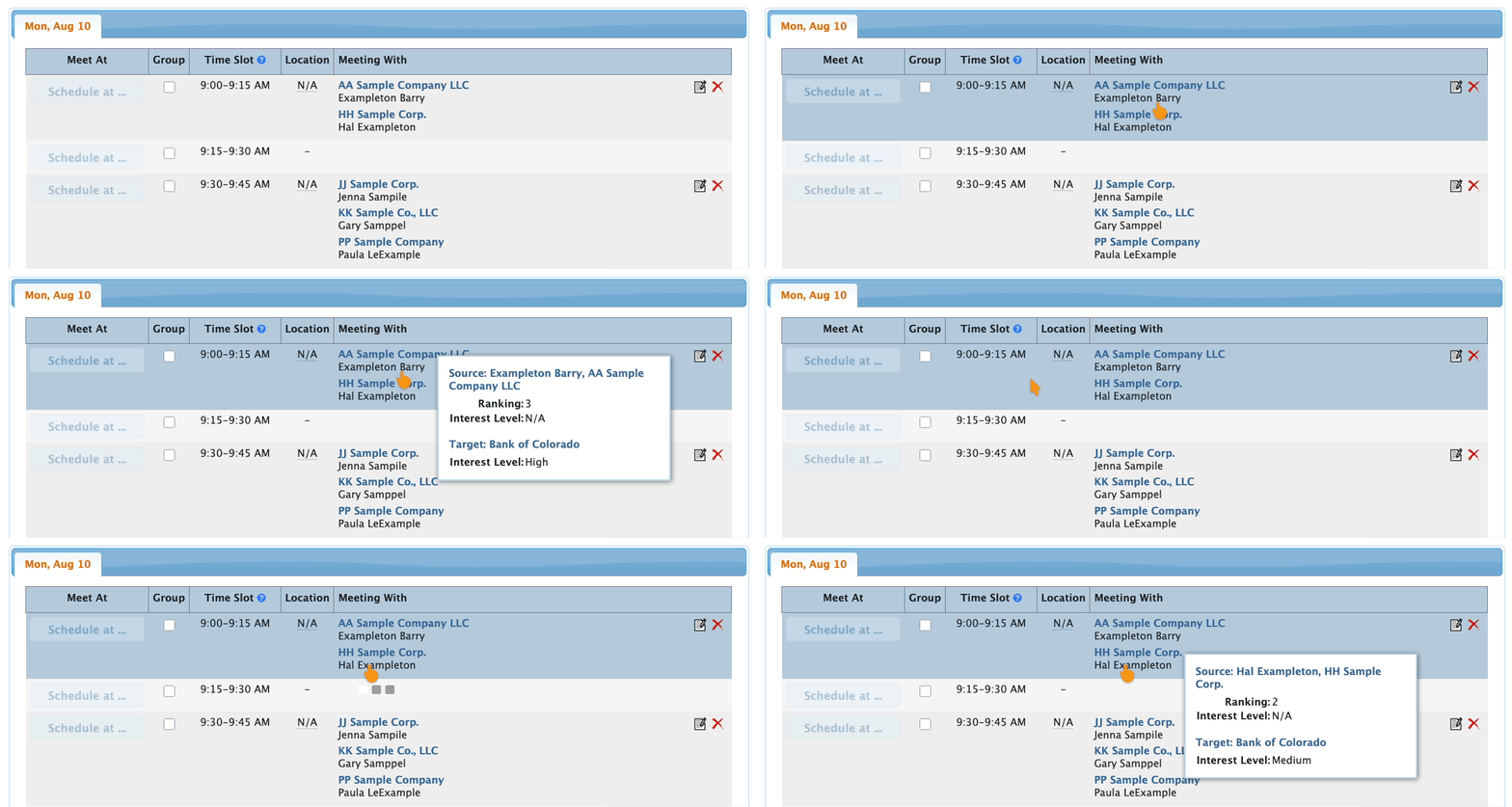
For some events, it’s also helpful to see these details for other participants in a meeting - the people listed in the Meeting With column. Here's how to set that up.
- Step 1. Head to either the Company List or Attendee List:


- Step 2. Use any record. Changes you make here will apply to everyone.
- Use the Action menu to choose Meeting Times:
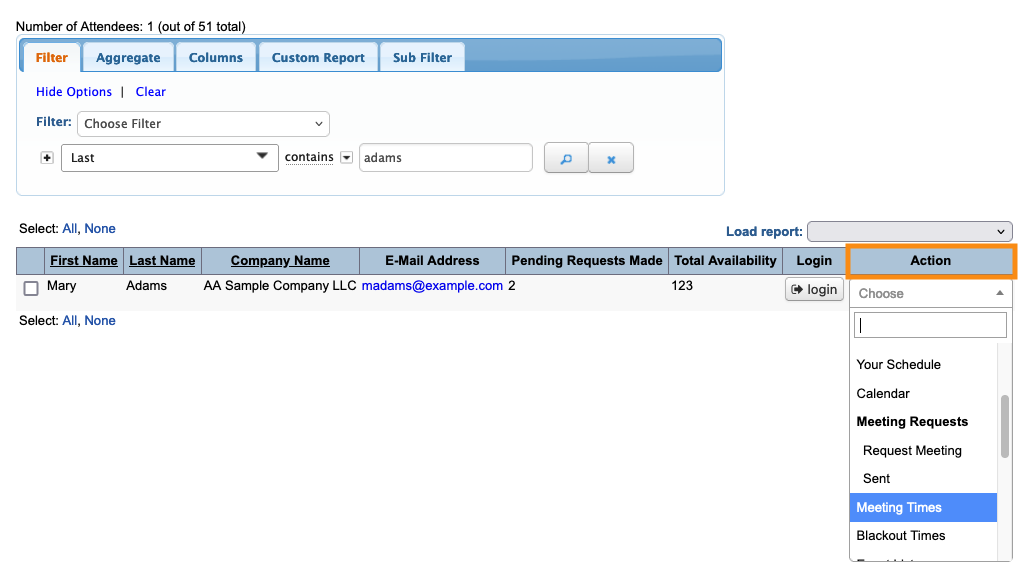
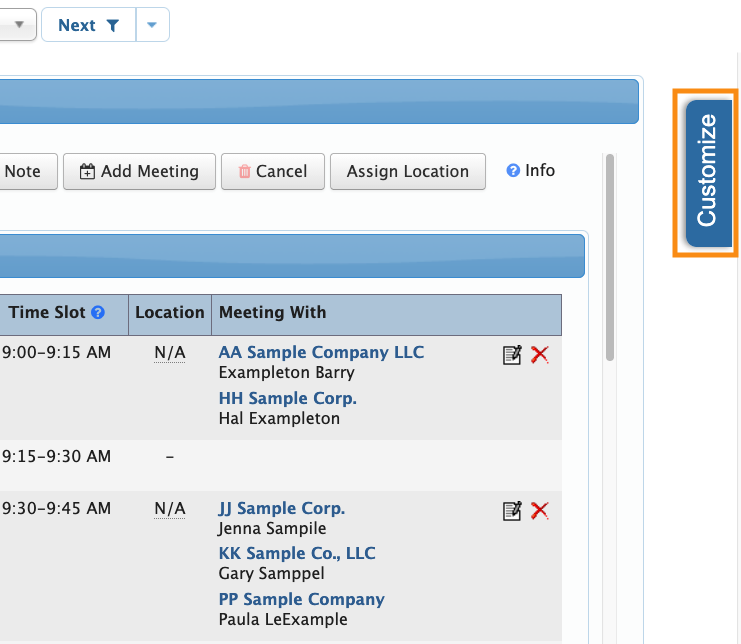
- Step 3. Head to the right side of the page. Click on the Customize tab:
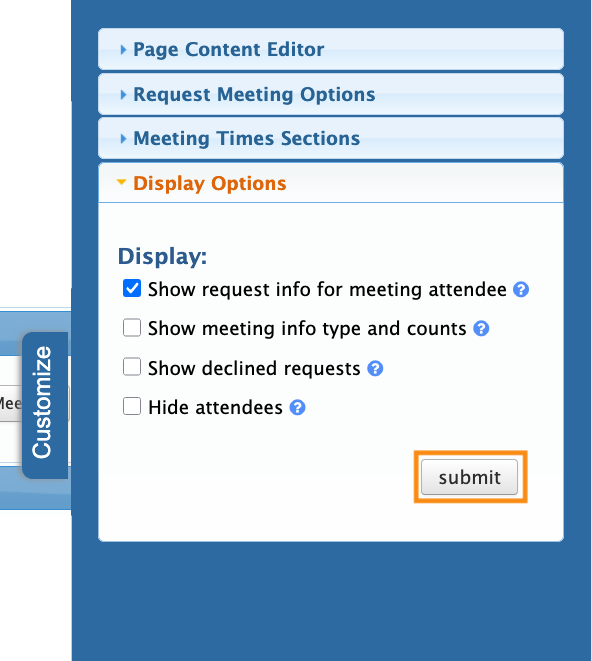
- Step 4. Click the Display Options section to open it.
- Click the checkbox for Show request info for meeting attendee.
- Click Submit to save:
Now, you can also hover over anyone in the Meeting With column, and see their details:
Learn more:

